
Naxa NTD-1356
NAXA 13.3" Widescreen LED HDTV/DVD Combo User Manual
Model: NTD-1356
1. Introduction
Thank you for purchasing the NAXA 13.3" Widescreen LED HDTV/DVD Combo. This device integrates a high-definition digital ATSC TV tuner with a built-in DVD player, offering versatile entertainment options in a compact design. This manual provides essential information for the safe and efficient operation of your new device. Please read it thoroughly before use and retain it for future reference.
2. Safety Information
Always observe the following safety precautions to prevent electric shock, fire, or damage to the unit.
- Do not expose the unit to rain or moisture.
- Do not block ventilation openings.
- Do not place the unit near heat sources such as radiators or stoves.
- Use only attachments/accessories specified by the manufacturer.
- Unplug the unit during lightning storms or when unused for long periods.
- Refer all servicing to qualified service personnel.
3. Package Contents
Verify that all items are present in the package:
- NAXA 13.3" Widescreen LED HDTV/DVD Combo Unit
- Remote control
- TV stand
- AC power adapter
- DC car adapter
- 90 degree coaxial adapter
- 2 x "AAA" batteries (for remote control)
4. Product Overview
Familiarize yourself with the main components of your HDTV/DVD combo unit.

Figure 4.1: Front View. This image shows the front of the NAXA 13.3" Widescreen LED HDTV/DVD Combo, featuring the screen and the NAXA logo below it. The screen displays a colorful image of a couple.
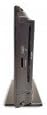
Figure 4.2: Side View with Ports. This image displays the side profile of the unit, highlighting the various input and output ports available for connectivity, including the DVD slot.

Figure 4.3: Remote Control. This image shows the included remote control, which allows for convenient operation of all TV and DVD functions from a distance.
4.1. Front Panel Controls
- Power Button: Turns the unit on/off.
- Menu Button: Accesses the on-screen display (OSD) menu.
- Channel Up/Down: Changes TV channels.
- Volume Up/Down: Adjusts the volume level.
- Input/Source: Selects input source (TV, HDMI, AV, PC, USB, SD).
4.2. Rear/Side Panel Connections
- HDMI Input: For connecting high-definition devices.
- Component Input (YPbPr): For connecting devices using component video.
- Composite Input (AV): For connecting standard definition devices.
- Cable/Antenna Input (RF): For connecting an antenna or cable TV.
- PC-VGA + Audio Input: For connecting a computer.
- USB Port: For playing digital media files from a USB drive.
- SD Card Slot: For playing digital media files from an SD card.
- Coaxial Digital Audio Output: For connecting to an external audio receiver.
- Headphone Output (3.5mm): For connecting headphones.
- DC Power Input: For connecting the AC or DC power adapter.
5. Setup
Follow these steps for initial setup of your HDTV/DVD combo.
5.1. Attaching the Stand
- Carefully place the TV screen-down on a soft, clean surface.
- Align the TV stand with the mounting holes on the bottom of the unit.
- Secure the stand using the provided screws.
5.2. Connecting Power
- For AC power: Connect the AC power adapter to the DC power input on the unit, then plug the adapter into a standard wall outlet (AC 100-240V).
- For DC power (car adapter): Connect the DC car adapter to the DC power input on the unit, then plug the adapter into your vehicle's 12V power outlet.
5.3. Connecting an Antenna or Cable
- Connect a coaxial cable from your antenna or cable TV wall jack to the RF input on the unit. Use the included 90-degree coaxial adapter if needed for space.
5.4. Initial Channel Scan
- Turn on the unit using the Power button on the unit or remote.
- The first time you turn on the TV, it may automatically prompt you to perform an initial setup, including a channel scan.
- If not, press the MENU button on the remote, navigate to the Channel or Setup menu, and select Auto Scan or Auto Tuning.
- The TV will scan for available digital (ATSC) and analog (NTSC) channels. This process may take several minutes.
6. Operating
This section covers basic operation of your HDTV/DVD combo.
6.1. Basic TV Operation
- Power On/Off: Press the POWER button on the remote or unit.
- Channel Selection: Use the CH+/CH- buttons to change channels sequentially, or enter channel numbers directly using the numeric keypad on the remote.
- Volume Adjustment: Use the VOL+/VOL- buttons to adjust the volume.
- Mute: Press the MUTE button to temporarily silence the audio. Press again to restore.
- Input Source Selection: Press the INPUT or SOURCE button on the remote to cycle through available input sources (TV, HDMI, Component, Composite, PC-VGA, USB, SD).
6.2. DVD Player Operation
- Loading a Disc: Gently insert a DVD or CD into the slot-load mechanism on the side of the unit with the label facing up. The player will automatically detect the disc and begin playback.
- Ejecting a Disc: Press the EJECT button on the remote or unit.
- Playback Controls: Use the PLAY/PAUSE, STOP, REWIND, FAST FORWARD, PREVIOUS, and NEXT buttons on the remote for DVD playback control.
6.3. Media Playback (USB/SD)
- Insert a USB flash drive into the USB port or an SD card into the SD card slot.
- Select the USB or SD input source using the INPUT/SOURCE button.
- The media browser will appear, allowing you to navigate and play supported digital movie, music, and photo files.
6.4. Menu Navigation
- Press the MENU button to access the main menu.
- Use the directional arrows (UP/DOWN/LEFT/RIGHT) on the remote to navigate through menu options.
- Press OK/ENTER to confirm a selection.
- Press EXIT or MENU again to exit the menu.
7. Maintenance
Proper care ensures the longevity of your unit.
- Cleaning the Screen: Use a soft, lint-free cloth slightly dampened with water or a screen cleaner. Do not use abrasive cleaners or solvents.
- Cleaning the Cabinet: Wipe with a soft, dry cloth.
- Disc Care: Handle discs by their edges. Keep them clean and free of scratches.
- Ventilation: Ensure the ventilation openings are not blocked to prevent overheating.
8. Troubleshooting
Refer to this section for solutions to common issues.
| Problem | Possible Cause | Solution |
|---|---|---|
| No power | Power cord not connected; Power outlet not active. | Ensure power cord is securely connected. Test outlet with another device. |
| No picture/sound | Incorrect input source selected; Loose cable connection. | Press INPUT/SOURCE to select correct input. Check all cable connections. |
| Poor picture quality | Weak antenna signal; Interference. | Adjust antenna position. Check for sources of interference. Perform channel scan. |
| DVD not playing | Disc inserted incorrectly; Disc is dirty or scratched; Unsupported disc format. | Re-insert disc correctly. Clean disc. Try a different disc. |
| Remote control not working | Batteries are dead or inserted incorrectly; Obstruction between remote and unit. | Replace batteries (2 x AAA). Ensure correct polarity. Remove obstructions. |
9. Specifications
Detailed technical specifications for the NAXA 13.3" Widescreen LED HDTV/DVD Combo.
| Feature | Specification |
|---|---|
| Screen Size | 13.3 inches (34 cm visible diagonal) |
| Screen Type | TFT LCD with LED Backlight |
| Native Resolution | 1366 x 768 (720p HD) |
| Supported Resolutions | 1080p, 1080i, 720p, 480p |
| Refresh Rate | 60 Hz |
| Aspect Ratio | 16:9 |
| TV Tuner | Built-in high-definition digital ATSC TV tuner, NTSC |
| Optical Disc Mechanism | Slot-load DVD player (DVD, DVD+R/RW, DVD-R/RW, CD, CD-R/RW) |
| Removable Memory Support | USB, SD cards |
| Inputs | HDMI, Component, Composite, Cable/Antenna (RF), PC-VGA + Audio |
| Outputs | Coaxial Digital Audio, 3.5 mm Headphone |
| Speakers | 2 built-in speakers |
| Power Source | AC 100-240V adapter, DC 12V car adapter |
| VESA Mount | 100 x 100 mm |
| Product Dimensions (L x W x H) | 16.9 x 4.1 x 11.4 inches |
| Item Weight | 0.01 ounces (approximate, as listed) |
10. Warranty and Support
For warranty information and technical support, please refer to the warranty card included with your product or visit the official Naxa website. Keep your purchase receipt as proof of purchase for warranty claims.
Naxa Customer Support: For assistance, please visit www.naxa.com/support or contact their customer service line.
Related documentsNTD-1356


Ask a question about this manual
Ask about setup, troubleshooting, compatibility, parts, safety, or missing instructions. Manuals+ will review the question and use this page’s manual context to help answer it.