1. Introduction
This manual provides essential information for the setup, operation, maintenance, and troubleshooting of your Avaya IP Office 500 1603-I IP VOIP 3 Button Display Telephone. The Avaya 1603-I is an entry-level IP telephone designed for basic users and is ideal for common areas, stockrooms, lobbies, or drop-in desks.

Figure 1: Front view of the Avaya 1603-I IP Phone, showing the display, three programmable buttons, navigation keys, and numeric keypad.
2. Setup
Follow these steps to properly set up your Avaya 1603-I IP telephone:
- Unpack the Device: Carefully remove all components from the packaging, including the telephone unit, handset, handset cord, and desk stand.
- Attach the Desk Stand: Align the desk stand with the slots on the back of the telephone unit and snap it into place. Ensure it is securely attached for stable placement.
- Connect the Handset: Plug one end of the coiled handset cord into the handset and the other end into the designated handset port on the telephone unit.
- Connect to Network: Connect an Ethernet cable from your network switch or router to the LAN port on the back of the telephone. If your network supports Power over Ethernet (PoE), the phone will power on automatically. If PoE is not available, connect an appropriate power adapter (sold separately) to the power port.
- Verify Connections: Ensure all cables are securely connected. The phone display should illuminate, indicating it is receiving power and attempting to connect to the network.
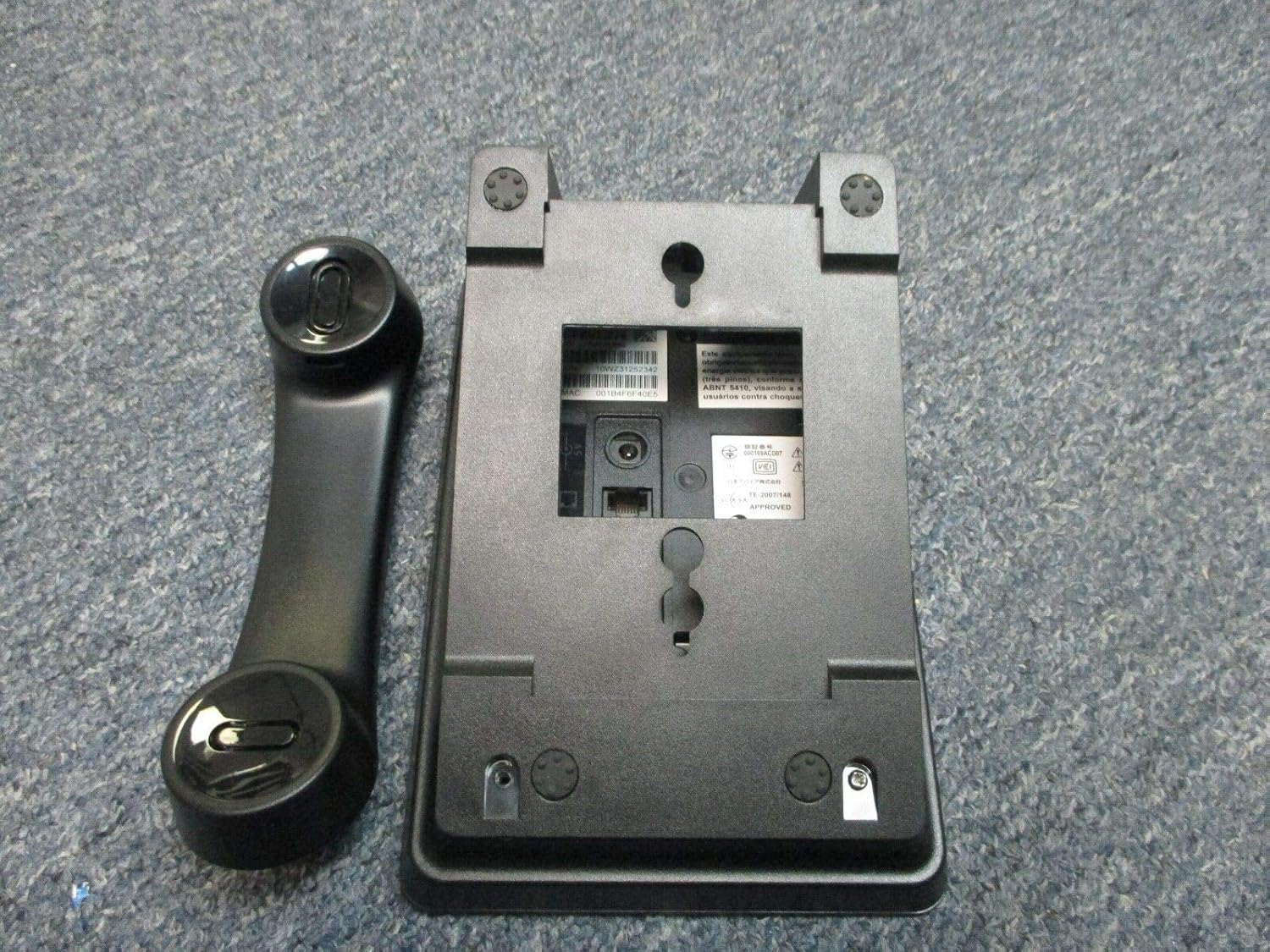
Figure 2: Rear view of the Avaya 1603-I IP Phone, showing the ports for connections and the attachment points for the desk stand.

Figure 3: Close-up of the product label, displaying model number, Avaya ID, serial number, and MAC address, located on the underside of the phone.
3. Operating Instructions
This section outlines the basic functions and operations of your Avaya 1603-I IP telephone.
3.1 Basic Call Functions
- Making a Call:
- Pick up the handset or press the SPEAKER button.
- Dial the desired number using the numeric keypad.
- Press the # key or wait for the call to connect automatically.
- Answering a Call:
- When the phone rings, pick up the handset or press the flashing line button.
- Alternatively, press the SPEAKER button to answer in speakerphone mode.
- Ending a Call:
- Hang up the handset or press the SPEAKER button again if using speakerphone.
3.2 Keypad and Button Functions
The Avaya 1603-I features a standard numeric keypad and several dedicated function buttons:
- Display: Shows call information, menu options, and status.
- Programmable Buttons (3): Located below the display, these buttons can be configured for line appearances, speed dials, or feature access. Their function is indicated by the display.
- Navigation Keys: Used to scroll through menus and options on the display.
- HOLD: Puts the current call on hold.
- CONFERENCE: Initiates a conference call.
- TRANSFER: Transfers an active call to another extension or external number.
- REDIAL: Dials the last number called.
- MENU: Accesses the phone's menu options for settings and features.
- SPEAKER: Toggles speakerphone mode on/off.
- VOLUME: Adjusts the volume for the handset, speakerphone, or ringer.
- MUTE: Mutes the microphone during a call.
4. Maintenance
Proper maintenance ensures the longevity and optimal performance of your Avaya 1603-I IP telephone.
- Cleaning: Use a soft, slightly damp cloth to clean the phone's surface. Avoid using abrasive cleaners, solvents, or strong chemicals, as these can damage the plastic and electronic components.
- Dust Removal: Regularly wipe down the phone to prevent dust buildup, especially around the keypad and display.
- Environmental Conditions: Keep the phone in a dry environment, away from direct sunlight, excessive heat, and moisture. Do not expose the phone to extreme temperatures.
- Cable Management: Ensure all cables are not kinked or strained, which can lead to damage over time.
5. Troubleshooting
If you encounter issues with your Avaya 1603-I IP telephone, refer to the following common problems and solutions:
| Problem | Possible Cause | Solution |
|---|---|---|
| No dial tone or phone not powering on. | No power (PoE or power adapter), loose network cable. | Check Ethernet cable connection to the LAN port. Ensure PoE is active on the network port or connect a compatible power adapter. |
| Display is blank or unreadable. | Power issue, phone frozen, display settings. | Perform a power cycle (unplug and re-plug the Ethernet cable/power adapter). Check if the phone is receiving power. |
| Cannot make or receive calls. | Network connectivity issue, incorrect configuration. | Verify network cable connection. Contact your IT administrator or service provider to check network settings and phone registration. |
| Poor audio quality (static, echo). | Faulty handset cord, network congestion, environmental interference. | Ensure handset cord is securely connected. Try adjusting volume. If issue persists, contact IT support. |
For more complex issues, please contact your system administrator or Avaya support.
6. Specifications
The following are the technical specifications for the Avaya IP Office 500 1603-I IP VOIP 3 Button Display Telephone:
- Model: 1603-I
- Brand: Avaya
- Product Dimensions: 10 x 10 x 6 inches
- Color: Black
- Telephone Type: Corded
- Power Source: Corded Electric (PoE compatible)
- Dialer Type: Single Keypad
- Multiline Operation: Multi-Line Operation
- Caller Identification: No
- Answering System Type: Digital (Note: This feature typically refers to network-based voicemail services rather than an integrated answering machine for this IP phone model.)
- Recording Capacity: 22 minutes (Note: This capacity is typically for network-based voicemail recordings.)
- Manufacturer: Avaya Inc.
- ASIN: B078HP75RY
7. Warranty and Support
For information regarding the warranty of your Avaya IP Office 500 1603-I IP VOIP 3 Button Display Telephone, please refer to the documentation provided at the time of purchase or contact your vendor. Warranty terms and conditions are typically provided by the manufacturer, Avaya Inc., or the authorized reseller.
For technical support, configuration assistance, or advanced troubleshooting, please contact your organization's IT department or your Avaya authorized service provider. Ensure you have your product's model number (1603-I) and serial number (found on the product label, see Figure 3) ready when seeking support.


