
DURGOD K320
DURGOD Taurus K320 TKL Mechanical Keyboard
User Manual
Introduction
This manual provides comprehensive instructions for the setup, operation, and maintenance of your DURGOD Taurus K320 TKL Mechanical Keyboard. Please read this guide thoroughly to ensure optimal performance and longevity of your device.
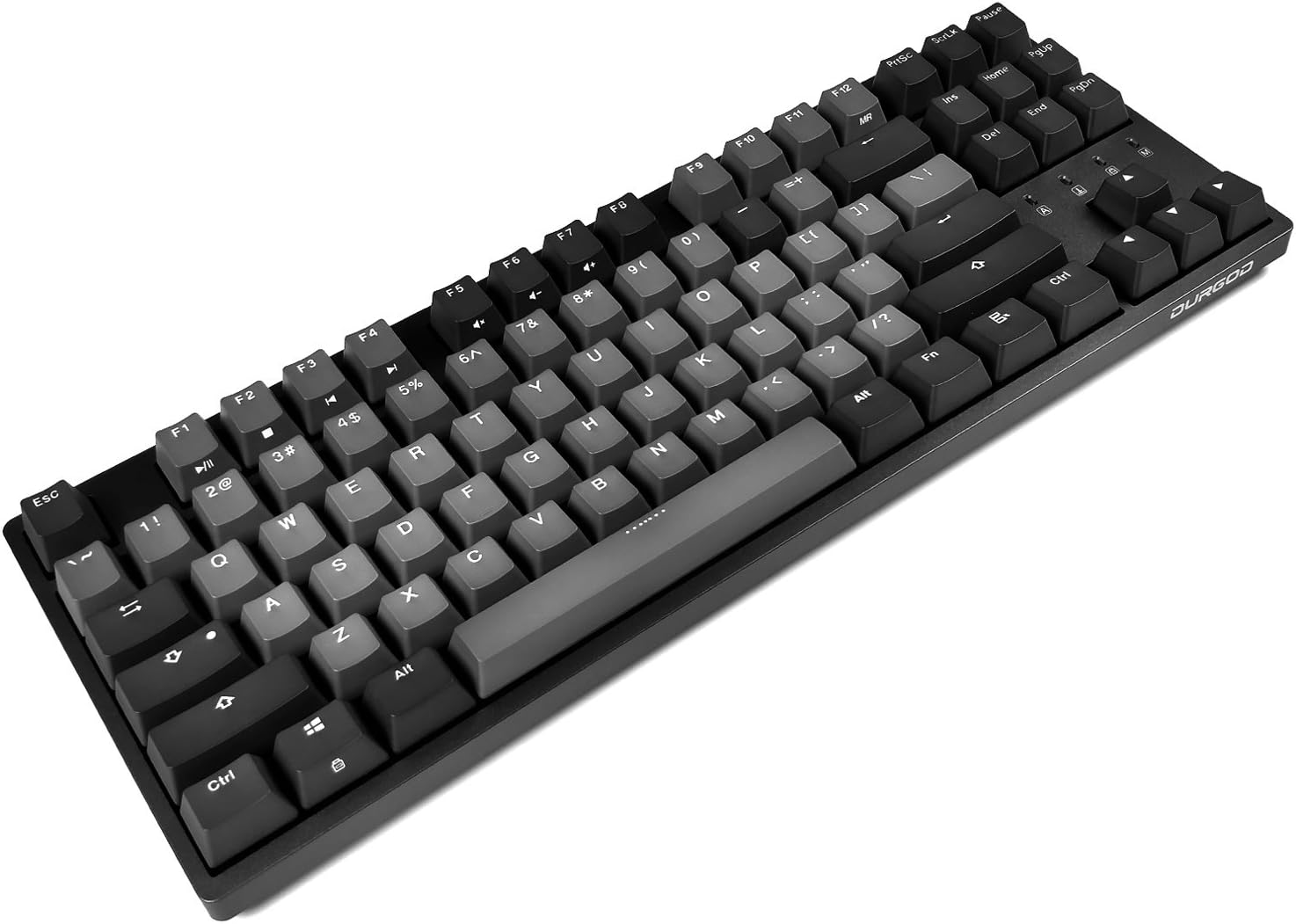
Image: The DURGOD Taurus K320 TKL Mechanical Keyboard, showcasing its tenkeyless layout and keycap design.
Package Contents
Verify that all items are present in the package:
- DURGOD Taurus K320 TKL Mechanical Keyboard
- USB Type-C to USB Type-A Cable (1.8m)
- USB Type-C to USB Type-C Cable (1m)
- Wire Keycap Puller
- Dust Cover
Setup
- Connect the Keyboard: Use one of the provided USB cables to connect the keyboard to your computer. The keyboard features a USB Type-C port for connection.
- Cable Management: The back of the keyboard includes three routing channels (left, center, right) for convenient cable management. Select the channel that best suits your desk setup.
- Adjustable Feet: For ergonomic comfort, the keyboard is equipped with adjustable feet offering two different typing angles. Extend the feet to your preferred height.
- Software Installation (Optional): For advanced customization, including macros and key remapping, download the Durgod Zeus Engine Software from the official DURGOD website.

Image: Underside of the keyboard illustrating the three cable routing options for organized desk setup.

Image: Close-up of the keyboard's underside, highlighting the adjustable feet and the USB Type-C interface.
Operating Instructions
The DURGOD Taurus K320 features a standard 87-key tenkeyless layout. Below are common functions and key combinations:
- Function (Fn) Key Combinations:
- Fn + F1: Play/Pause
- Fn + F2: Stop
- Fn + F3: Previous Track
- Fn + F4: Next Track
- Fn + F5: Mute
- Fn + F6: Volume Down
- Fn + F7: Volume Up
- Fn + F12: Switch Custom Profile (requires Durgod Zeus Engine Software)
- Fn + Left Win Key: Windows Key Lock (prevents accidental presses during gaming)
- N-Key Rollover (NKRO): The keyboard supports full N-Key Rollover, allowing all keys to be registered simultaneously, which is beneficial for fast typing and gaming.
- Programmable Keys: Utilize the Durgod Zeus Engine Software to create custom macros and remap keys according to your preferences. Independent profiles can be saved for different applications or users.

Image: Diagram highlighting the function key combinations for multimedia control and Windows key lock on the DURGOD K320 keyboard.
Keycap and Switch Details
Your DURGOD Taurus K320 keyboard is equipped with high-quality components for a superior typing experience:
- Doubleshot PBT Keycaps: The keycaps are made from durable PBT material using a doubleshot molding process. This ensures legends will not fade over time and provides a premium texture. A wire keycap puller is included for easy removal and cleaning.
- Cherry MX Brown Switches: This model features Cherry MX Brown mechanical switches. These switches offer tactile feedback with a noticeable bump during actuation, a moderate sound level, an actuation force of 55 cN, and a total travel distance of 4.0 mm. They are rated for 100 million actuations, making them suitable for both typing and gaming.

Image: Close-up view of the Cherry MX Brown mechanical switches beneath the keycaps of the DURGOD K320 keyboard.
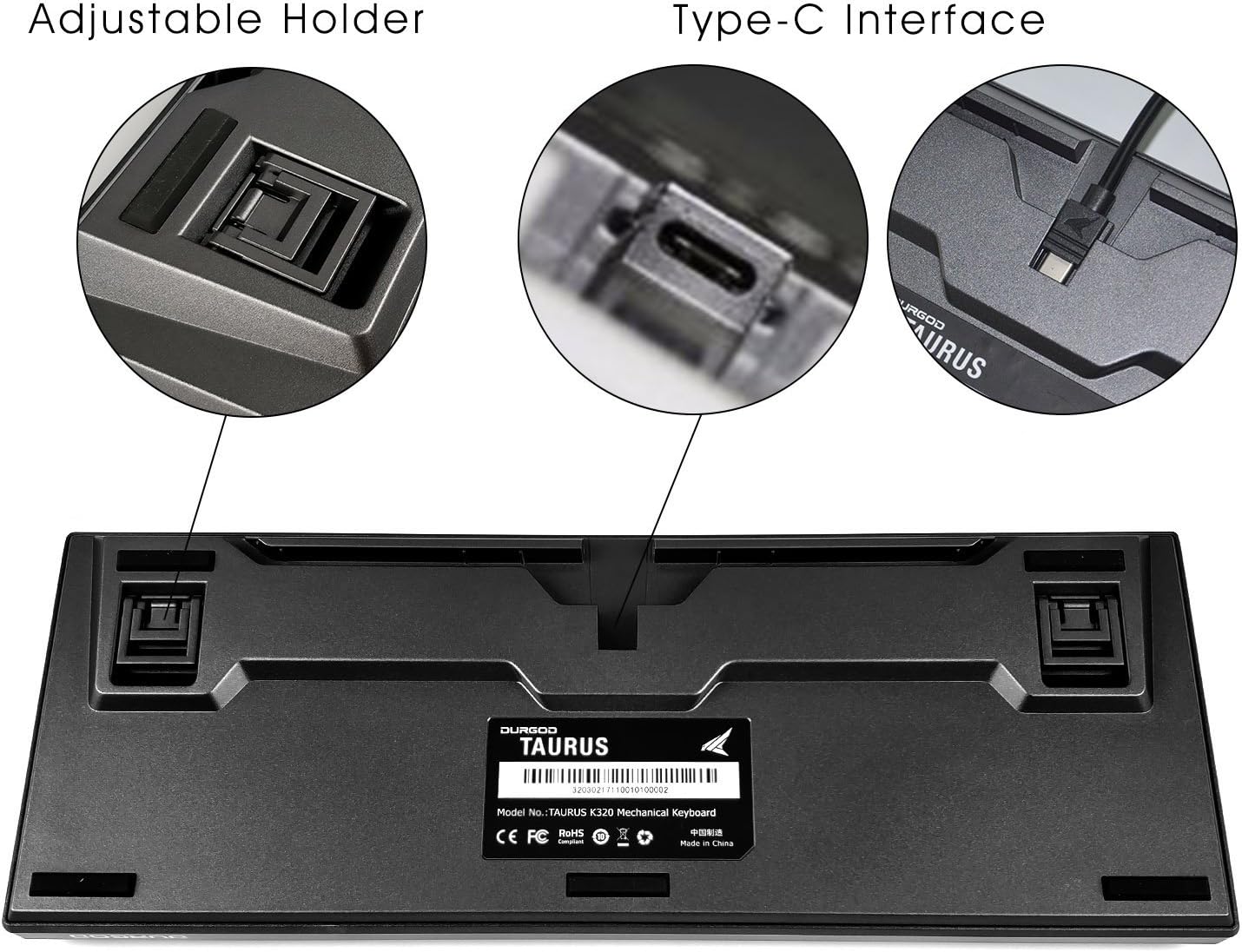
Image: Exploded diagram showing the internal layers of the keyboard, including PBT keycaps, Cherry MX mechanical switches, precise steel plate positioning, and FR-4 double layer PCB.
Compatibility
The DURGOD Taurus K320 TKL Mechanical Keyboard is fully compatible with the following operating systems:
- Windows 11, Windows 10, Windows 8, Windows 7, Vista, XP
- Mac OS (Remapping possible with Durgod Zeus Engine Software)
Maintenance
To ensure the longevity and optimal performance of your keyboard, follow these maintenance guidelines:
- Cleaning: Regularly clean the keyboard to prevent dust accumulation and key jamming. Use a soft brush or compressed air to remove debris between keycaps. For deeper cleaning, use the included keycap puller to remove keycaps and clean the switches and plate.
- Avoid Liquids: Do not splash liquids into the keyboard. Liquid damage can cause permanent malfunction.
- Avoid Excessive Force: Do not apply excessive force to the keys or attempt to deform the keyboard, as this can cause physical damage.
- Environmental Conditions: Avoid placing the keyboard in direct sunlight or environments with extreme temperatures or humidity.

Image: Warning label indicating precautions such as avoiding sunlight, regular cleaning, not applying excessive force, and preventing liquid spills.
Troubleshooting
If you encounter issues with your DURGOD Taurus K320 keyboard, consider the following steps:
- Keyboard Not Responding:
- Ensure the USB cable is securely connected to both the keyboard and the computer.
- Try connecting the keyboard to a different USB port on your computer.
- Test with a different USB cable if available.
- Restart your computer.
- Keys Not Registering or Double-Typing:
- Clean around the affected keys to remove any debris.
- If using the Durgod Zeus Engine Software, ensure no conflicting macros or key remappings are active.
- Windows Key Locked: If the Windows key is unresponsive, press Fn + Left Win Key to toggle the lock feature.
- Software Issues: If experiencing problems with the Durgod Zeus Engine Software, ensure you have the latest version installed from the official DURGOD website.
Specifications
| Feature | Detail |
|---|---|
| Model Number | K320 |
| Dimensions | 14.07 x 5.31 x 0.96 inches (35.74 x 13.49 x 2.44 cm) |
| Item Weight | 2.18 pounds (0.99 kg) |
| Connectivity | USB-C Wired |
| Key Switches | Cherry MX Brown |
| Keycaps | Doubleshot PBT |
| Rollover | Full N-Key Rollover (NKRO) |
| Compatibility | Windows, Mac OS |
| Manufacturer | Durgod |
Warranty and Support
For warranty information and technical support, please refer to the official DURGOD website or contact their customer service directly. Keep your purchase receipt as proof of purchase.
Official DURGOD Website: www.durgod.com
Related documentsK320


Ask a question about this manual
Ask about setup, troubleshooting, compatibility, parts, safety, or missing instructions. Manuals+ will review the question and use this page’s manual context to help answer it.