
1. Introduction
The NETGEAR Nighthawk Pro Gaming XR500 Wi-Fi Router is designed to optimize your internet connection for gaming. It features advanced software to stabilize ping, reduce lag spikes, and provide reliable wired and wireless connectivity. The router offers a personalized gaming dashboard for real-time bandwidth utilization, ping, and other parameters. Key functionalities include Geo-Filter for local connections, Quality of Service (QoS) for prioritized gaming, and a VPN Client for network identity protection and DDoS attack prevention. It delivers fast AC2600 Wi-Fi speeds, Gigabit Ethernet ports, and is powered by a dual-core 1.7GHz processor.

Figure 1: The NETGEAR Nighthawk Pro Gaming XR500 Wi-Fi Router, a high-performance device designed for optimal gaming and network stability.
2. What's in the Box
The following items are included with your NETGEAR Nighthawk Pro Gaming XR500 Wi-Fi Router:
- XR500 Nighthawk Pro Gaming Router (XR500)
- 4 detachable antennas
- Ethernet cable
- Quick start guide
- Power adapter

Figure 2: The retail box for the XR500 router, indicating the contents and key features.
3. Setup Instructions
Follow these steps to set up your NETGEAR Nighthawk Pro Gaming XR500 Wi-Fi Router:
- Connect Your Modem: Power off your existing modem. Connect one end of the provided Ethernet cable to the WAN (Internet) port on the back of your XR500 router and the other end to your modem.
- Connect Power: Plug the power adapter into the router's power input and then into a power outlet. Power on your modem, then power on your XR500 router. Wait for the power LED on the router to turn solid white.
- Download the Nighthawk App: On your mobile device, download the NETGEAR Nighthawk app from your device's app store.
- Follow App Instructions: Launch the Nighthawk app and follow the on-screen prompts to detect and configure your router. This includes setting up your Wi-Fi network name (SSID) and password, as well as administrative credentials.
- Update Firmware: The app will guide you through checking for and installing any available firmware updates to ensure optimal performance and security.
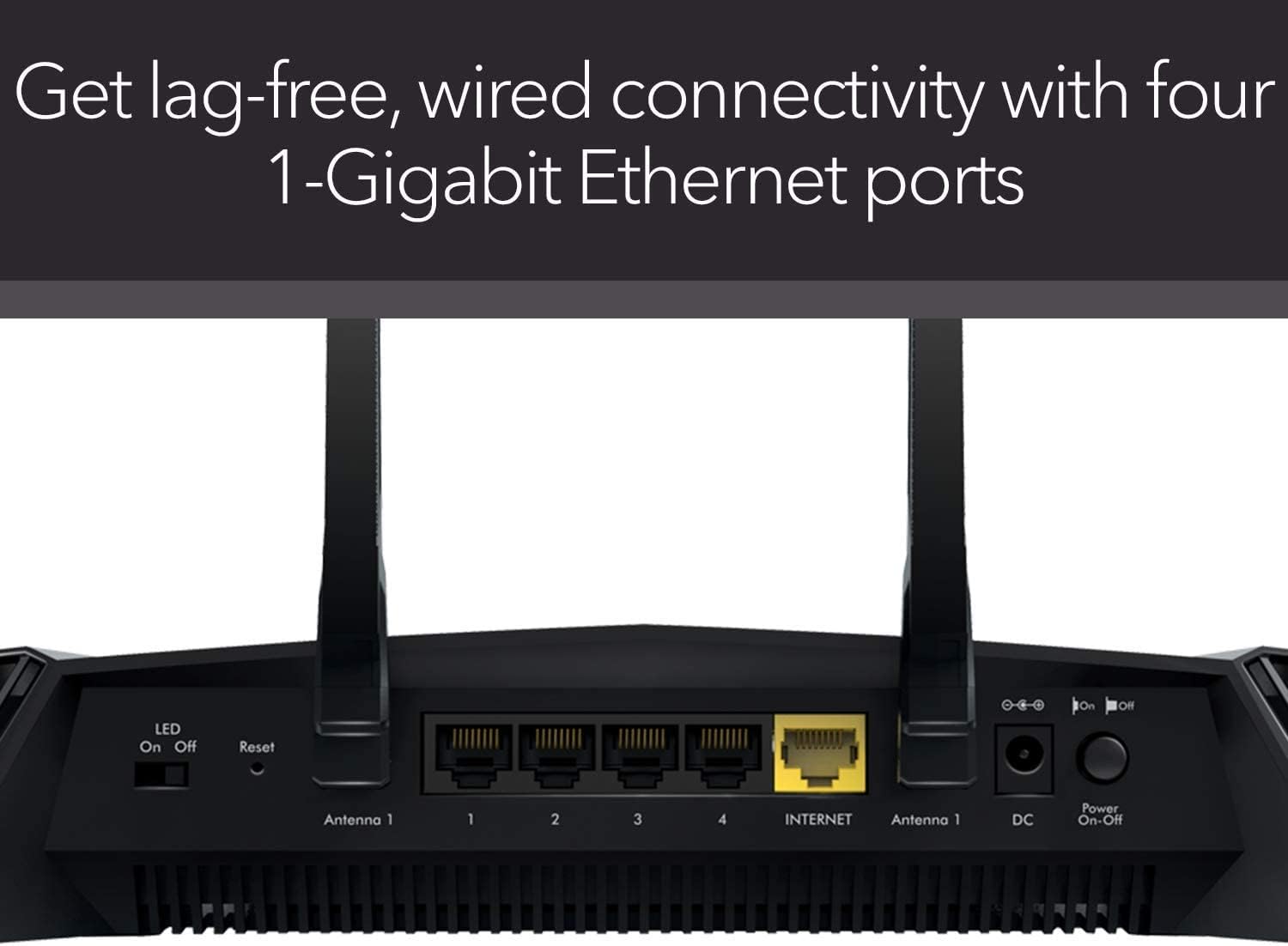
Figure 3: The rear panel of the XR500 router, illustrating the various ports for connectivity, including the WAN (Internet) port, Gigabit Ethernet LAN ports, and USB 3.0 ports.

Figure 4: ISP Connectivity requirements, highlighting that only Ethernet Cable (RJ-45) is supported for connection to the router.
4. Operating Instructions & Key Features
The NETGEAR Nighthawk Pro Gaming XR500 is equipped with several features to enhance your gaming and network experience:
4.1 Optimized Gaming Performance
The XR500 minimizes ping and maximizes performance through its four 1 Gigabit Ethernet ports for lag-free wired connectivity and a powerful 1.7 GHz dual-core processor for efficient network handling. Implicit & Explicit Beamforming technology further enhances Wi-Fi range and speed.
4.2 Advanced Quality of Service (QoS)
Prioritize your gaming traffic with advanced QoS settings. This feature bypasses network congestion, significantly reducing lag spikes, jumps, and jitters, ensuring your gaming experience remains smooth and uninterrupted.

Figure 5: The QoS dashboard allows you to configure bandwidth allocation and prioritize devices to prevent network congestion.
Video 1: Quality of Service (QoS) on Nighthawk Pro Gaming. This video explains how the Quality of Service (QoS) feature on the Nighthawk Pro Gaming router prioritizes gaming traffic to reduce lag and improve network performance.
4.3 Geo-Filtering
Make every millisecond count by using the Geo-Filter feature. This allows you to connect to the closest servers and players, reducing latency and giving you a competitive edge in online gaming.

Figure 6: The Geo-Filter map interface, enabling users to set a preferred distance for connecting to game servers.
Video 2: Geo-Filter on Nighthawk Pro Gaming. This video demonstrates the Geo-Filter feature of the Nighthawk Pro Gaming router, allowing users to connect to the closest game servers for optimal ping.
4.4 Network Monitoring
Monitor your network and game ping in real-time. This feature allows you to see which devices and applications are consuming the most bandwidth, helping you manage your network effectively.

Figure 7: The Network Monitor interface, displaying real-time download and upload bandwidth usage across your network.
Video 3: Network Monitor on Nighthawk Pro Gaming. This video illustrates the Network Monitor feature on the Nighthawk Pro Gaming router, providing real-time insights into network usage and device bandwidth consumption.
4.5 High-Speed Wi-Fi
Experience blazing-fast Wi-Fi speeds up to 2.6 Gbps with the AC2600 dual-band router, ensuring smooth streaming and online activities for all connected devices.
4.6 VPN Client
The integrated VPN Client protects your network identity and helps prevent Distributed Denial of Service (DDoS) attacks, adding an extra layer of security to your online activities.
5. Performance and Usage Scenarios
The XR500 is designed for demanding network environments, providing stable and high-speed connectivity for various uses:
- Heavy Gaming: Ideal for competitive online gaming, minimizing ping and lag.
- 4K Streaming: Supports multiple simultaneous 4K video streams without buffering.
- Work from Home: Ensures stable connections for video conferencing and large file transfers.
- Smart Home Devices: Capable of handling numerous connected smart home devices (up to 15 devices for 1800 sqft homes).
- Large Homes: Provides strong Wi-Fi coverage for homes up to 1800 sqft.

Figure 8: Recommended usage scenarios for the XR500 router, suitable for very heavy usage in homes up to 1800 sqft with up to 15 devices.
6. Specifications
| Feature | Specification |
|---|---|
| Wireless Type | 802.11ac |
| Brand | NETGEAR |
| Series | XR500-100NAS |
| Item Model Number | XR500-100NAS |
| Operating System | RouterOS |
| Item Weight | 3.71 pounds |
| Product Dimensions | 2.2 x 12.7 x 9.6 inches |
| Color | Black |
| Voltage | 220 Volts |
| Manufacturer | NETGEAR |
| Date First Available | January 8, 2018 |
| Special Feature | WPS |
| Frequency Band Class | Dual-Band |
| Wireless Communication Standard | 802.11ac |
| Compatible Devices | Phone, Tablet, WiFi-Enabled Devices, Media Streaming Devices, Computer, PC, Mac, Gaming Consoles |
| Recommended Uses For Product | Gaming |
| Connectivity Technology | Ethernet, Wi-Fi |
7. Troubleshooting
If you encounter issues with your XR500 router, consider the following troubleshooting steps:
- No Internet Connection: Ensure all cables are securely connected to the router and modem. Reboot your modem and router by unplugging them for 30 seconds and then plugging them back in. Check your internet service provider's status.
- Slow Wi-Fi Speeds: Verify your internet plan speed. Use the Nighthawk app's Network Monitor to identify bandwidth-hogging devices or applications. Adjust QoS settings to prioritize critical devices. Ensure your router's firmware is up to date.
- Dropped Connections: Check for interference from other electronic devices. Try changing your Wi-Fi channel in the router settings. Ensure your router is placed in a central location, away from obstructions.
- Nighthawk App Issues: Ensure your mobile device is connected to the router's Wi-Fi network. Try restarting the app or reinstalling it.
- Router Not Responding: Perform a factory reset by pressing and holding the reset button on the back of the router for about 10 seconds. Note that this will erase all custom settings.
8. Maintenance
Regular maintenance helps ensure the longevity and optimal performance of your NETGEAR Nighthawk XR500 router:
- Firmware Updates: Periodically check for and install the latest firmware updates via the Nighthawk app or the router's web interface. Firmware updates often include performance improvements, security patches, and new features.
- Regular Reboots: Rebooting your router every few weeks can help clear its memory and resolve minor performance issues.
- Physical Placement: Ensure the router is placed in an open, central location to maximize Wi-Fi coverage and minimize interference. Avoid placing it near large metal objects or other electronics.
- Cleaning: Keep the router free from dust and debris to prevent overheating. Use a soft, dry cloth to clean the exterior.
9. Warranty and Support
Your NETGEAR Nighthawk Pro Gaming XR500 Wi-Fi Router comes with a standard manufacturer's warranty. For specific warranty details, please refer to the documentation included with your product or visit the official NETGEAR support website.
The router also includes features like NETGEAR Armor Cybersecurity, which provides advanced threat protection for your network and connected devices. Check the Nighthawk app for details on activating and managing this service.
For technical support, product registration, and additional resources, please visit the official NETGEAR support website or use the Nighthawk app.


