
1. Introduction and Overview
The Cherry MW4500 is an ergonomic wireless optical mouse designed to provide a natural and comfortable hand position, reducing strain during extended use. Its 45-degree design helps prevent wrist and tendon issues. This manual provides essential information for setting up, operating, and maintaining your MW4500 mouse.

The Cherry MW4500 mouse is designed for ergonomic comfort, fitting naturally in the hand.
Key Features:
- Ergonomic form in a 45° design for reduced wrist strain.
- Precise optical sensor with 3-level adjustable resolution (600/900/1200 dpi).
- Status LED to indicate low battery charge.
- Six buttons and a scroll wheel for enhanced functionality.
- Pleasant and abrasion-proof surface finish for durability and comfort.

The 45-degree ergonomic design of the MW4500 promotes a natural hand position, reducing wrist and tendon strain compared to traditional mice.
2. Setup Instructions
2.1 Battery Installation
- Locate the battery compartment on the underside of the mouse.
- Open the battery compartment cover.
- Insert two AA batteries, ensuring correct polarity (+/-).
- Close the battery compartment cover securely.
2.2 Connecting the Wireless Receiver
- Remove the nano USB receiver from its storage slot on the underside of the mouse.
- Plug the nano USB receiver into an available USB port on your computer (Laptop, PC, or Mac).
- The mouse will automatically connect to your computer using 2.4 GHz RF technology. No additional drivers are typically required for basic functionality.

Utilizing wireless 2.4 GHz RF technology, the mouse offers plug-and-play convenience with a nano USB receiver that can be stored within the mouse.
3. Operating Instructions
3.1 Button Functions
- Left Click Button: Standard selection and activation.
- Right Click Button: Accesses context menus.
- Scroll Wheel: Scrolls content vertically. Can also be pressed for middle-click functionality.
- DPI Adjustment Button: Cycles through resolution settings (600, 900, 1200 dpi).
- Forward/Backward Thumb Buttons: Navigates forward and backward in web browsers or other compatible applications.
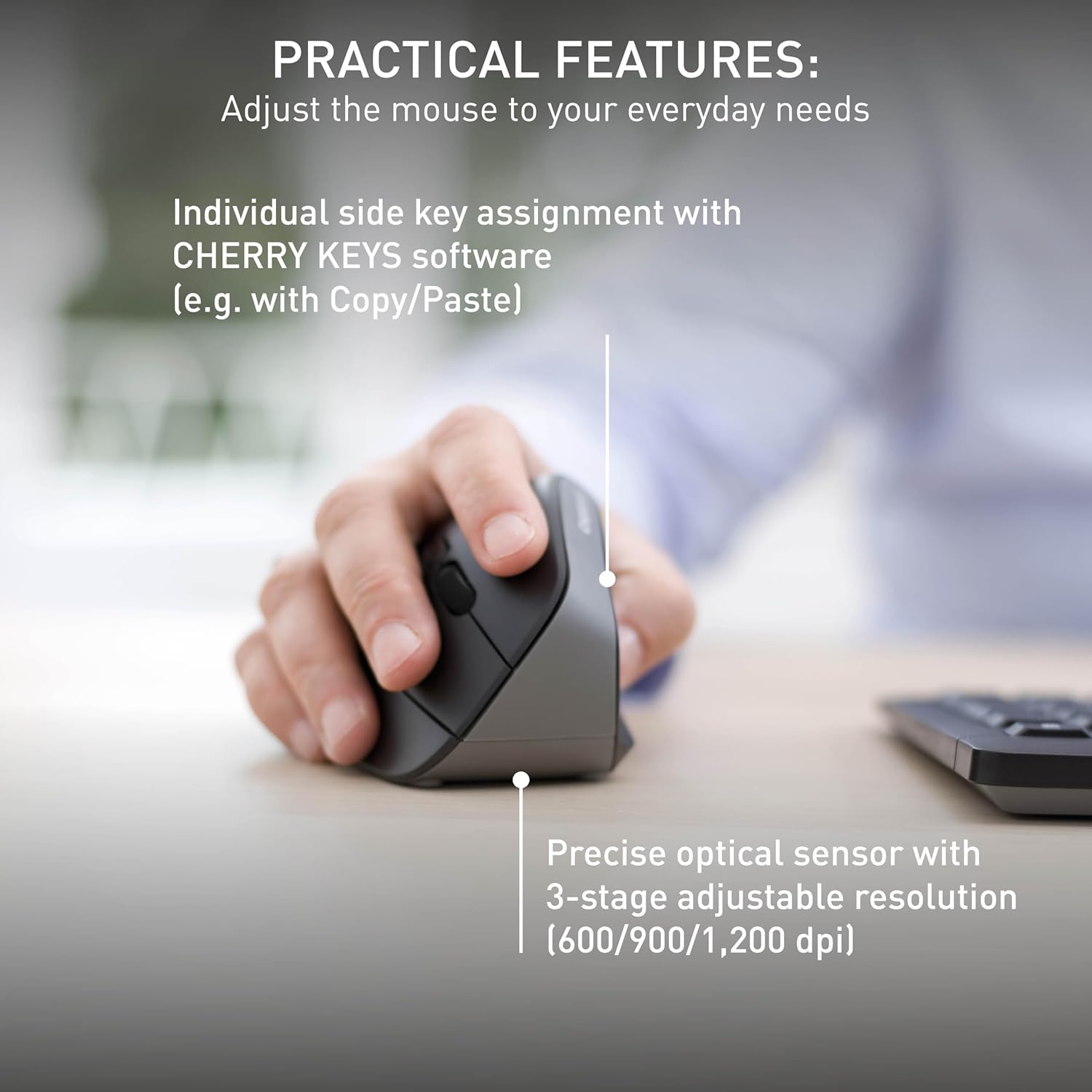
The mouse features a precise optical sensor with a 3-stage adjustable resolution (600/900/1,200 dpi) for customized sensitivity.
3.2 DPI Adjustment
Press the DPI adjustment button located near the scroll wheel to change the mouse's sensitivity. The mouse will cycle through three preset DPI levels: 600, 900, and 1200 dpi. Select the setting that best suits your preference and task.
4. Maintenance
4.1 Cleaning
To clean your Cherry MW4500 mouse, use a soft, dry cloth. For stubborn dirt, a slightly damp cloth with mild soap can be used. Avoid using harsh chemicals or abrasive materials, as these can damage the abrasion-proof surface finish.
4.2 Battery Replacement
When the status LED on the mouse indicates a low battery charge, it is time to replace the batteries. Follow the battery installation steps in Section 2.1 to replace the two AA batteries. Dispose of old batteries responsibly according to local regulations.
5. Troubleshooting
5.1 Mouse Not Responding
- Check Batteries: Ensure the batteries are correctly installed and not depleted. Replace if necessary.
- Check Receiver: Make sure the nano USB receiver is securely plugged into a working USB port on your computer. Try a different USB port.
- Distance: Ensure the mouse is within the effective range of the receiver (up to 10 meters).
- Interference: Move the mouse away from other wireless devices that might cause interference.
5.2 Cursor Movement is Erratic or Inaccurate
- Clean Sensor: Ensure the optical sensor on the underside of the mouse is clean and free from dust or debris.
- Surface: Use the mouse on a suitable, non-reflective surface or a mouse pad.
- DPI Setting: Adjust the DPI setting using the DPI button to find a comfortable and accurate sensitivity level.
6. Specifications
| Feature | Detail |
|---|---|
| Brand | Cherry |
| Model Name | CHERRY MW 4500 |
| Model Number | JW-4500 |
| Color | Black |
| Connectivity Technology | Radio Frequency (2.4 GHz) |
| Movement Detection Technology | Optical |
| Mouse Maximum Sensitivity | 1200 Dots per Inch (DPI) |
| DPI Levels | 3-level adjustable (600, 900, 1200 dpi) |
| Button Quantity | 6 (Left, Right, Scroll Wheel, DPI, Forward, Backward) |
| Hand Orientation | Right |
| Compatible Devices | Personal Computer (Laptop, PC, Mac) |
| Operating System | Windows 10, Windows 7, Windows 8.1, Mac OS |
| Power Source | Battery Powered |
| Battery Type | 2 AA batteries (not included) |
| Battery Average Life | 6 months |
| Wireless Range | Up to 10 meters (32 feet) |
| Item Weight | 120 Grams |
| Enclosure Material | Plastic |
7. Warranty and Support
7.1 Warranty Information
The Cherry MW4500 Wireless Vertical Ergonomic Optical Mouse comes with a 3-year warranty from the date of purchase. Please retain your proof of purchase for warranty claims.
7.2 Customer Support
For technical assistance, troubleshooting, or further product information, please visit the official Cherry website or contact Cherry customer support through their provided channels.
8. Product Video
This official video from Cherry Americas, LLC demonstrates the ergonomic benefits and features of the CHERRY ERGO LINE, including the MW 4500 mouse.


