

Introduction
This manual provides comprehensive instructions for the setup, operation, and maintenance of your MASTER & DYNAMIC MH40 Over-Ear Headphones. Please read this guide thoroughly to ensure optimal performance and longevity of your device.
Package Contents
Verify that all items are present in your package:
- MASTER & DYNAMIC MH40 Over-Ear Headphones
- Audio Cable with In-line Microphone
- USB-C Charging Cable (for Bluetooth functionality)
- Canvas Carrying Case
- User Manual (this document)
Product Overview
The MH40 headphones are designed with premium materials for durability and comfort. Key components include:
- Forged Aluminum Body: Provides a robust and lightweight structure.
- Lambskin Ear Pads: Offer comfort for extended listening sessions.
- Custom Neodymium Drivers: Engineered for superior sound reproduction.
- Adjustable Headband: Ensures a secure and comfortable fit.
- Detachable Cables: For both audio and charging.

Figure 1: MASTER & DYNAMIC MH40 Over-Ear Headphones, showcasing black metal and camo leather design.
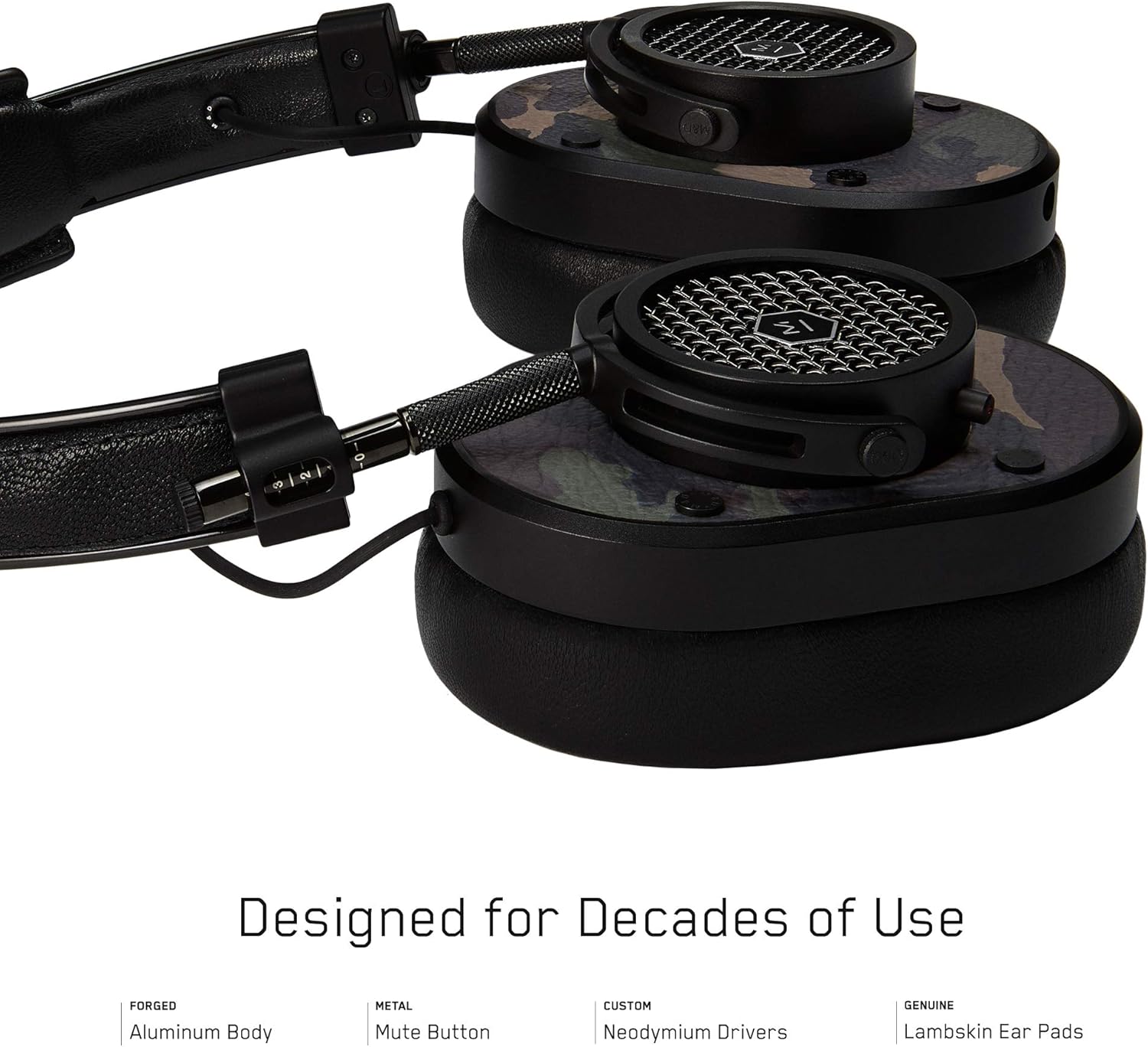
Figure 2: Detailed view of the MH40 headphone earcups, highlighting the lambskin ear pads, metal grille, and adjustable hinge.
Setup
1. Adjusting the Fit
- Gently extend or retract the metal arms on each side of the headband to adjust the height.
- Position the earcups so they fully cover your ears, ensuring a comfortable and secure fit.
- The lambskin ear pads are designed to conform to your head shape for optimal sound isolation and comfort.
2. Wired Connection
- Locate the audio input port on the left earcup.
- Insert one end of the provided audio cable into the headphone's audio input.
- Connect the other end of the audio cable to your audio device's 3.5mm jack.
3. Bluetooth Pairing (Wireless Connection)
The MH40 headphones support Bluetooth connectivity for wireless audio. Ensure the headphones are charged before pairing.
- Power On: Press and hold the power button (usually located on one of the earcups) until the indicator light flashes.
- Pairing Mode: Continue holding the power button or press a dedicated Bluetooth pairing button (if available) until the indicator light flashes rapidly, indicating pairing mode.
- Device Connection: On your audio device (smartphone, tablet, computer), navigate to Bluetooth settings and select "MH40" from the list of available devices.
- Confirmation: The indicator light on the headphones will turn solid blue or green once successfully paired.
Note: The Bluetooth range is approximately 10 meters (33 feet).
Operating Instructions
Audio Playback
- Play/Pause: Press the multi-function button (often on the in-line microphone or earcup) once.
- Next Track: Press the multi-function button twice rapidly.
- Previous Track: Press the multi-function button three times rapidly.
- Volume Control: Use the volume up/down buttons on the in-line microphone or dedicated earcup controls.
Call Management
- Answer/End Call: Press the multi-function button once.
- Reject Call: Press and hold the multi-function button for approximately 2 seconds.
- Mute Microphone: The MH40 features a dedicated mute button, typically located on the earcup or in-line control. Press to mute/unmute during a call.
Maintenance
- Cleaning: Use a soft, dry cloth to wipe the headphones. For leather parts, use a specialized leather cleaner if necessary. Avoid harsh chemicals or abrasive materials.
- Storage: When not in use, store the headphones in the provided canvas carrying case to protect them from dust and scratches.
- Cable Care: Handle cables gently. Avoid sharp bends or excessive pulling to prevent damage. The retractable cable feature helps manage cable length.
- Ear Pads: The magnetic ear pads are removable for cleaning or replacement. Gently pull them off and reattach by aligning the magnets.
Troubleshooting
No Sound
- Wired: Ensure the audio cable is securely connected to both the headphones and the audio source. Check the volume level on both the headphones and the source device.
- Bluetooth: Verify that the headphones are powered on and successfully paired with your device. Check the volume levels. Try re-pairing the headphones.
Cannot Pair via Bluetooth
- Ensure the headphones are in pairing mode (rapidly flashing indicator light).
- Make sure Bluetooth is enabled on your source device.
- Move the headphones closer to your device (within 10 meters).
- Turn off and on both the headphones and your device, then attempt pairing again.
- If previously paired, try "forgetting" the device on your source and re-pairing.
Microphone Not Working
- Check if the microphone mute button is engaged.
- Ensure the audio cable with the in-line microphone is fully inserted.
- Verify microphone input settings on your connected device.
Specifications
| Model Name | MH40 |
| Connectivity Technology | Wired, Bluetooth |
| Wireless Communication Technology | Bluetooth |
| Material | Copper (components), Lambskin (ear pads), Canvas (carrying case) |
| Control Type | Call Control, Touch |
| Cable Feature | Retractable |
| Item Weight | 0.36 Kilograms (12.7 ounces) |
| Audio Driver Type | Dynamic Driver |
| Bluetooth Range | 10 Meters |
| Earpiece Shape | Over-ear |
| Special Features | Carrying case included, Lightweight, Microphone Included, Noise Isolation, Wireless |
| Product Dimensions | 7.48 x 6.3 x 2.76 inches |
| Manufacturer | MASTER & DYNAMIC |
| Color | Black Metal / Camo Leather |
| Ear Placement | Over Ear |
| Noise Control | Sound Isolation |
| UPC | 858901007099 |
Warranty and Support
For detailed warranty information and customer support, please refer to the official MASTER & DYNAMIC website or contact their customer service directly. Keep your proof of purchase for warranty claims.
Online Support: www.masterdynamic.com/support (Example link, actual link may vary)


