
1. Product Overview
The TEROW 58mm Mini Portable USB Thermal Receipt Printer (Model POS-5890K) is a compact and efficient device designed for printing receipts and labels. It utilizes advanced thermal printing technology, eliminating the need for ink cartridges or ribbons, which contributes to lower running costs and simplified maintenance. This printer offers a high printing speed of 90mm/s and produces clear, legible output without blurring. It is compatible with ESC/POS print commands and supports Windows and Linux operating systems.
The printer features a built-in data buffer to prevent data loss during operation and incorporates overheating protection to automatically adjust temperature, ensuring reliable performance and extending the lifespan of the print head. Its compact size makes it suitable for various environments, including retail stores, supermarkets, hotels, and canteens.

Figure 1: Front view of the TEROW 58mm Mini Portable USB Thermal Receipt Printer.
2. Setup and Installation
Follow these steps to set up your TEROW 58mm Thermal Receipt Printer:
- Unpack the Printer: Carefully remove all components from the packaging. Verify that you have the printer unit, power cable, USB cable, and the U Disk containing drivers and the operating manual.
- Load Thermal Paper:

Figure 2: Thermal paper loading steps.
- Open the printer cover by pressing the release button.
- Insert a roll of 58mm thermal paper into the paper compartment, ensuring the paper feeds from the bottom and the leading edge extends slightly out of the printer.
- Close the printer cover firmly until it clicks into place. Ensure the paper is properly aligned and exits through the paper slot.
- Connect Power: Connect the power cable to the printer's power port and then plug it into a suitable power outlet.
- Connect to Computer: Use the provided USB cable to connect the printer to your computer's USB port.
- Install Drivers:

Figure 3: Printer with U Disk for driver installation.
- Insert the silver U Disk into your computer.
- Follow the on-screen prompts to install the necessary drivers. The installation process is designed to be quick, typically completing within one minute.
- For detailed instructions, refer to the operating manual on the U Disk.
System Compatibility: The printer supports Windows and Linux operating systems. It is not compatible with iPad, iPhone, other iOS system devices, or Square POS systems. Bluetooth devices are also not supported.

Figure 4: Printer compatibility overview.
3. Operating Instructions
Once the printer is set up and drivers are installed, you can begin printing.
3.1 Basic Operation
- Power On/Off: Use the power control button located on the front of the printer to turn the device on or off. The power indicator light will illuminate when the printer is on.
- Feed Paper: Press the 'Feed' button to advance the thermal paper manually. This is useful for adjusting paper alignment or advancing a blank section.
- Printing: Send print commands from your computer application. The printer will automatically process and print the receipt or label at a speed of 90mm/s.

Figure 5: Control panel with power switch, status light, and feed button.
3.2 Printing Performance
The printer's advanced print head ensures high-speed printing and clear output. A built-in data buffer helps prevent data loss during printing tasks. The device also features overheating protection, which automatically adjusts the internal temperature to maintain optimal performance and prolong the print head's operational life.
4. Maintenance
Proper maintenance ensures the longevity and optimal performance of your thermal receipt printer.
- No Ink or Ribbon Required: This thermal printer does not use ink cartridges or ribbons, significantly reducing consumable costs and simplifying maintenance.
- Cleaning the Print Head: Periodically clean the thermal print head to ensure clear print quality. Use a soft, lint-free cloth lightly dampened with isopropyl alcohol. Gently wipe the print head surface. Ensure the printer is turned off and disconnected from power before cleaning. Allow the print head to dry completely before resuming operation.
- Paper Type: Always use high-quality 58mm thermal printing paper. Using non-thermal paper or paper of incorrect size can damage the print head or cause paper jams.
- Dust and Debris: Keep the printer free from dust and debris. Use compressed air to clean out any paper dust from the paper compartment.
- Overheating Protection: The printer is equipped with overheating protection. If the printer becomes excessively hot, it may temporarily pause operation to cool down. This is normal and helps protect the internal components.
5. Troubleshooting
If you encounter issues with your TEROW thermal receipt printer, refer to the following common problems and solutions:
- Printer Not Responding:
- Ensure the power cable is securely connected and the printer is turned on.
- Check the USB cable connection between the printer and the computer. Try a different USB port.
- Verify that the printer drivers are correctly installed. Reinstall drivers from the U Disk if necessary.
- No Print Output or Blank Pages:
- Confirm that thermal paper is loaded correctly and that it is thermal paper (not regular paper). Thermal paper has a smooth, slightly glossy side that should face the print head.
- Check if the paper roll is empty or jammed.
- Ensure the printer cover is fully closed.
- Poor Print Quality (Faint, Streaky, or Incomplete Prints):
- Clean the thermal print head as described in the Maintenance section.
- Ensure you are using good quality thermal paper. Old or low-quality thermal paper can result in poor print quality.
- Check printer settings on your computer to ensure optimal print density.
- Paper Jams:
- Turn off the printer and open the cover. Carefully remove any jammed paper.
- Ensure the paper roll is properly seated and not too wide for the compartment.
- Close the cover securely after clearing the jam.
- Driver Installation Issues:
- If the U Disk is not recognized or drivers fail to install, try connecting the U Disk to a different USB port or computer.
- Ensure your operating system (Windows/Linux) is supported. Remember, iOS/Mac systems are not supported.
If these steps do not resolve the issue, please contact TEROW customer support for further assistance.
6. Specifications
| Feature | Specification |
|---|---|
| Model | POS-5890K |
| Printing Technology | Thermal |
| Connectivity | USB |
| Print Speed | 90 mm/s |
| Maximum Print Resolution | 203 x 203 DPI |
| Maximum Media Size | 58mm (2.28 inches) |
| Operating System Compatibility | Windows, Linux |
| Incompatible Systems | iPad, iPhone, iOS, Mac, Bluetooth, Square POS |
| Product Dimensions (L x W x H) | 17.5 cm x 13 cm x 10.5 cm (6.9 in x 5.1 in x 4.1 in) |
| Item Weight | 680 g |
| Material Type | ABS |
| Included Components | Printer, Power Cable, USB Cable, U Disk (with drivers/manual) |
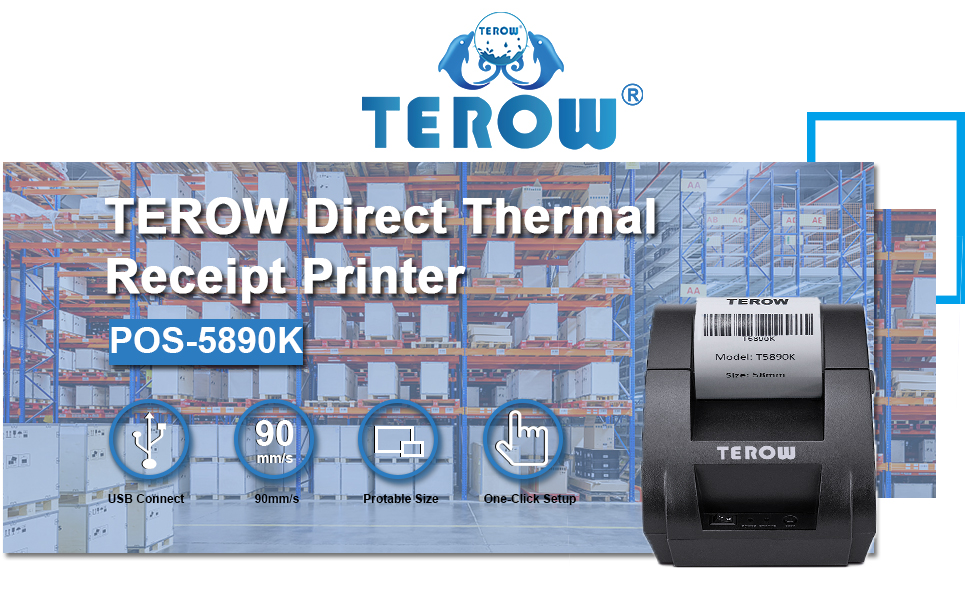
Figure 6: Printer dimensions and paper loading overview.
7. Support and Warranty
TEROW is committed to providing excellent after-sale service. While specific warranty details are not provided in this manual, support is available for any issues you may encounter.
- Customer Support: If you experience any problems during installation, setup, or operation, please contact TEROW customer service. Refer to the contact information provided with your product packaging or on the U Disk.
- Installation Resources: The included U Disk contains installation precautions and a video guide to assist with setup. It is recommended to review these resources before initial use.


