1. Introduction
The CORSAIR K63 Wireless Mechanical Keyboard and Gaming Lapboard Combo provides a comfortable and responsive gaming experience from your living room. This manual details the setup, operation, and maintenance of your device to ensure optimal performance.
What's in the Box
- CORSAIR K63 Wireless Mechanical Gaming Keyboard
- CORSAIR K63 Wireless Gaming Lapboard
- USB Wireless Receiver
- USB Charging / Data Cable
- USB Cable Adapter
- Detachable Full-Length Wrist Rest
- Two Replacement Retention Tabs
- Two Replacement Retention Hooks
- Warranty Cards, Quick Start Guides, Safety Leaflet
2. Setup
Assembling the Keyboard and Lapboard
The K63 Wireless Mechanical Gaming Keyboard is designed to fit securely into the Gaming Lapboard. Align the keyboard with the recess in the lapboard and gently press down until it snaps into place. The tool-free design allows for easy insertion and removal.

Image: The CORSAIR K63 Wireless Mechanical Keyboard securely placed within the Gaming Lapboard, ready for use.
Attach the detachable wrist rest to the front of the keyboard for enhanced comfort during extended use.
Connecting the Keyboard
The K63 Wireless Keyboard offers three connectivity options:
- Ultra-Fast 1ms 2.4GHz Wireless: For optimal gaming performance, plug the included USB Wireless Receiver into an available USB port on your PC. Ensure the keyboard's power switch (located on the back edge) is set to the wireless mode.
- Low Latency Bluetooth Wireless: Connect to Windows 8 or 10, or Android devices with Bluetooth 4.0 or higher. Activate Bluetooth pairing mode on the keyboard and select it from your device's Bluetooth settings.
- USB Wired: Connect the keyboard directly to your PC using the provided USB Charging / Data Cable. This also charges the keyboard's battery.

Image: The power switch and micro-USB port on the CORSAIR K63 Wireless Keyboard, used for wired connection and charging.
Charging the Keyboard
The keyboard features a rechargeable Lithium Ion battery. Connect the USB Charging / Data Cable to the keyboard's micro-USB port and to an available USB port on your PC or a USB wall adapter. A full charge provides up to 15 hours of continuous battery-powered wireless gaming (depending on backlighting usage).
3. Operation
Key Features
- CHERRY MX Red Mechanical Keyswitches: Experience fast, precise key presses with gold contacts for reliable performance.
- Per-Key Blue LED Backlighting: Customize lighting effects and brightness for individual keys.
- Dedicated Multimedia Controls: Easily adjust audio volume and playback with dedicated buttons.
- Windows Key Lock: Prevent accidental Windows key presses during gaming sessions.
- 100% Anti-Ghosting with Full Key Rollover: Ensures simultaneous keystrokes are registered accurately.
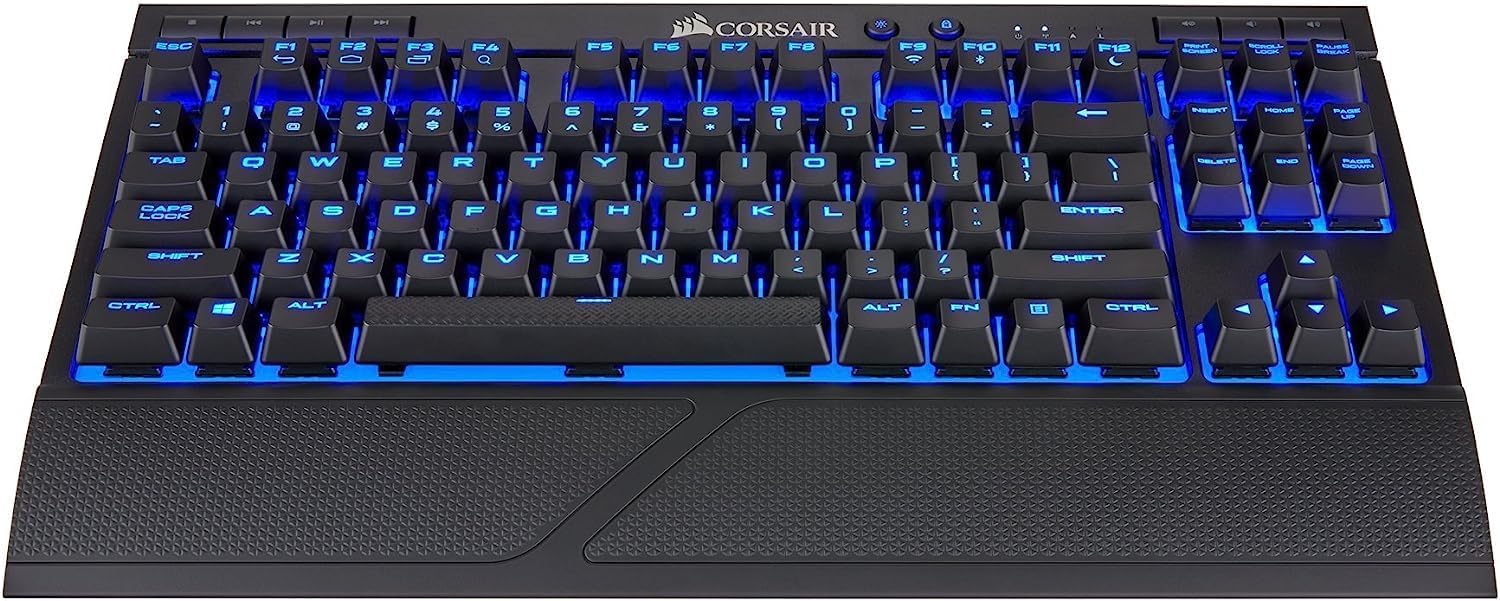
Image: The CORSAIR K63 Wireless Mechanical Keyboard showcasing its blue LED backlighting and compact layout.

Image: A side profile of the keyboard, illustrating the mechanical key switches beneath the keycaps.
CUE Software Customization
Download and install the CORSAIR Utility Engine (CUE) software from the official CORSAIR website to unlock advanced customization options. With CUE, you can:
- Assign macros to any key.
- Create dynamic lighting effects.
- Manage performance settings.
Product Feature Overview Video
Video: An official overview of the CORSAIR K63 Wireless Mechanical Gaming Keyboard, demonstrating its key features and functionality.
4. Maintenance
Cleaning the Keyboard and Lapboard
- Use a soft, lint-free cloth to wipe down the surfaces of the keyboard and lapboard.
- For stubborn dirt, slightly dampen the cloth with water. Avoid harsh chemicals or abrasive cleaners.
- Periodically remove the keyboard from the lapboard to clean any debris that may accumulate in the recess.
- The cloth mouse pad on the lapboard is replaceable and can be cleaned with a damp cloth.
5. Troubleshooting
Wireless Connectivity Issues
- Signal Dropouts: If experiencing intermittent disconnections, ensure the USB Wireless Receiver is in a clear line of sight to the keyboard and not obstructed by other devices or furniture.
- Range Limitations: For setups where the PC is far from the gaming area (e.g., living room), consider using a USB extension cable to position the wireless receiver closer to the lapboard. This can significantly improve signal stability and range.
- Interference: Other wireless devices operating on the 2.4GHz frequency band can cause interference. Try moving the receiver or other wireless devices to minimize this.
- Bluetooth Connection: Ensure your device's Bluetooth is enabled and the keyboard is in Bluetooth pairing mode. For Windows, ensure you have Windows 8 or 10.
Battery Life
- Reduced Battery Life: High backlighting brightness levels consume more power. Adjust backlighting to a lower setting to extend battery life.
- Charging: Ensure the USB Charging / Data Cable is securely connected to both the keyboard and a powered USB port. The battery indicator lights on the keyboard will show charging status.
6. Specifications
| Feature | Detail |
|---|---|
| Brand | Corsair |
| Model Number | CH-9515031-NA |
| Series | K63 Wireless Mechanical Gaming Keyboard and Gaming Lapboard combo |
| Hardware Platform | PC |
| Operating System Compatibility | Windows 8, Windows 10 (for Bluetooth connectivity) |
| Item Weight | 6.49 pounds |
| Product Dimensions (LxWxH) | 26.4 x 10.9 x 2.1 inches |
| Color | Blue |
| Power Source | Battery Powered |
| Batteries | 1 Lithium Ion battery (included) |
| Connectivity Technology | 1ms 2.4GHz wireless, Bluetooth 4.2 |
| Keyboard Description | Gaming, Tenkeyless |
| Recommended Uses | Gaming |
| Special Features | Backlit, Detachable Wrist Rest |
| Keyboard Backlighting Color | Single Color (Blue) |
| Material | Durable plastic or metal, memory foam, cloth |
7. Warranty and Support
This CORSAIR product is covered by a limited warranty. For detailed warranty information, please refer to the warranty card included in your product packaging or visit the official CORSAIR website.
For technical support, troubleshooting assistance, or to download the latest drivers and software (including CORSAIR Utility Engine), please visit the CORSAIR support page:


