
SanDisk SDCZ430-064G-G46
Instruction Manual
SanDisk 64GB Ultra Fit USB 3.1 Flash Drive
Model: SDCZ430-064G-G46
1. Introduction and Overview
The SanDisk 64GB Ultra Fit USB 3.1 Flash Drive is a compact, high-speed storage solution designed for convenience and performance. Its low-profile design allows it to remain plugged into devices without obstruction, making it ideal for expanding storage on laptops, game consoles, in-car audio systems, and other compatible devices. This manual provides essential information for setting up, operating, and maintaining your flash drive, along with troubleshooting tips and product specifications.
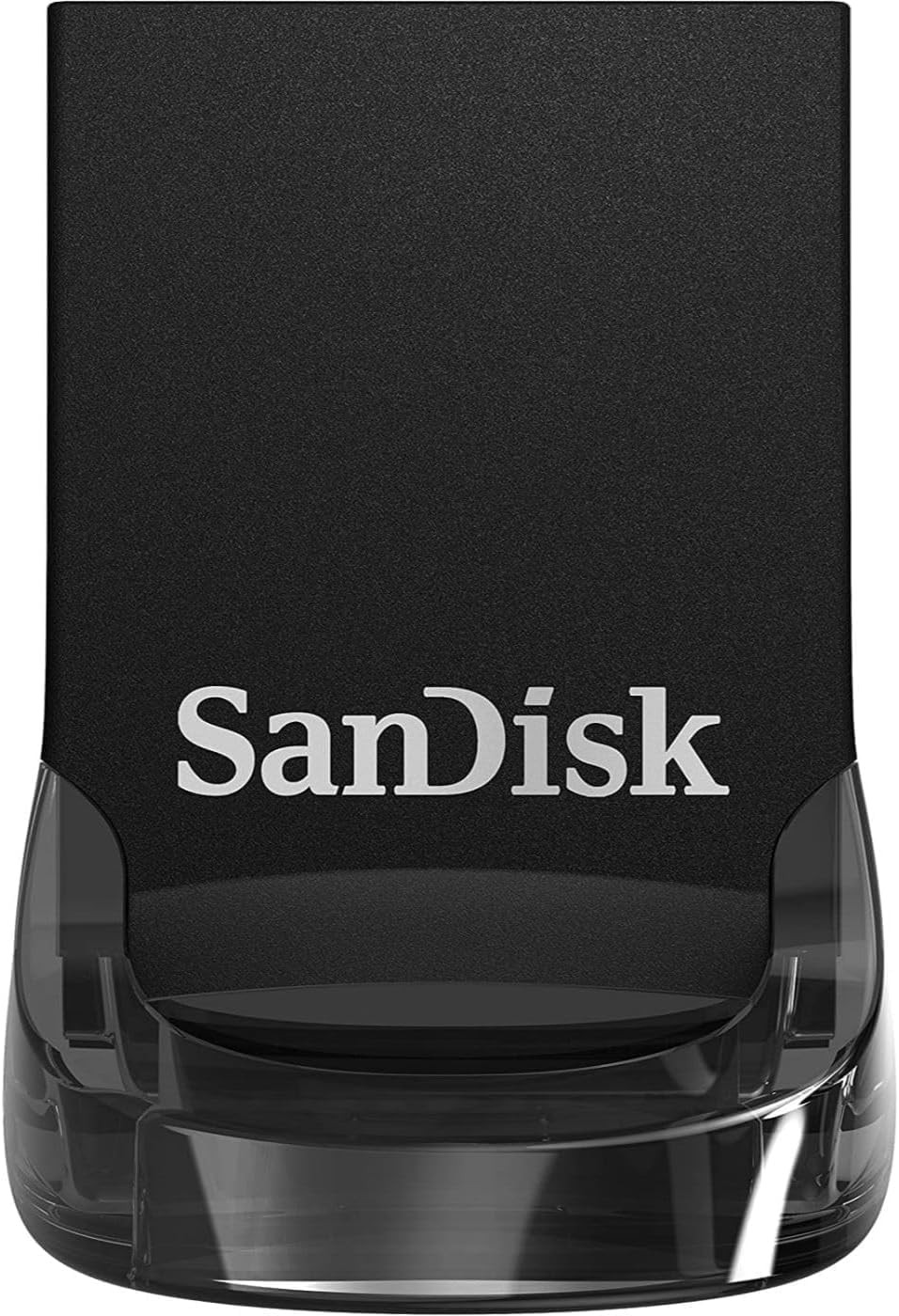
Image: Front view of the SanDisk 64GB Ultra Fit USB 3.1 Flash Drive, showcasing its compact design.
2. Key Features
- Compact, Plug-and-Stay Design: Ideal for adding storage without protruding from your device.
- High-Speed USB 3.1 Performance: Delivers read speeds up to 130MB/s and writes up to 15X faster than standard USB 2.0 drives.
- Fast File Transfers: Move a full-length movie to the drive in less than 30 seconds.
- SecureAccess Software: Includes SanDisk SecureAccess software for password protection using 128-bit AES encryption.
- Broad Compatibility: Compatible with USB 3.1, backward compatible with USB 3.0 and USB 2.0 ports.

Image: The SanDisk Ultra Fit USB 3.1 Flash Drive plugged into a laptop, demonstrating its low-profile design.
3. Setup
Setting up your SanDisk Ultra Fit USB 3.1 Flash Drive is straightforward. No drivers are typically required for basic functionality on modern operating systems.
- Insert the Drive: Carefully insert the SanDisk Ultra Fit USB 3.1 Flash Drive into an available USB port on your computer, game console, or other compatible device. For optimal performance, use a USB 3.1 or USB 3.0 port. The drive is backward compatible with USB 2.0 ports, but speeds will be limited.
- Automatic Recognition: Your operating system should automatically detect and recognize the drive. It will appear as a removable storage device (e.g., 'Removable Disk' or 'SanDisk Ultra Fit').
- SecureAccess Software (Optional): For enhanced security, you can download and install the SanDisk SecureAccess software. This software allows you to create a password-protected folder on your drive to keep private files secure. Visit the official SanDisk website for download and installation instructions.

Image: A close-up view of the SanDisk Ultra Fit USB 3.1 Flash Drive securely inserted into a laptop's USB port.
4. Operating the Device
Once the SanDisk Ultra Fit USB 3.1 Flash Drive is recognized by your device, you can begin using it for data storage and transfer.
- File Transfer: To transfer files, simply drag and drop them to and from the drive's icon in your computer's file explorer (Windows) or Finder (macOS). You can also copy and paste files.
- High-Speed Performance: When connected to a USB 3.1 or USB 3.0 port, you will experience significantly faster transfer speeds, allowing you to move large files quickly. For example, a full-length movie (approx. 1.2GB MPEG-4 video) can be transferred in under 30 seconds.
- Secure Storage: If you have installed SanDisk SecureAccess, open the application to access your password-protected vault. Files placed within this vault are encrypted and require your password to access.
- Using with Other Devices: For use with car audio systems or game consoles, refer to your device's manual for specific instructions on how to access and play media from a USB drive.
Video: An official SanDisk video demonstrating the compact design and ease of use of the SanDisk Ultra Fit USB 3.1 Flash Drive, including its application in car audio systems.
5. Maintenance
Proper care will ensure the longevity and reliable performance of your SanDisk Ultra Fit USB 3.1 Flash Drive.
- Safe Removal: Always safely eject the drive from your computer before physically removing it. On Windows, right-click the drive icon in 'This PC' and select 'Eject'. On macOS, drag the drive icon to the Trash or click the Eject button next to the drive name in Finder. This prevents data corruption.
- Physical Care: Keep the drive clean and free from dust and debris. Avoid exposing it to extreme temperatures, direct sunlight, or moisture. The compact size makes it easy to misplace; consider attaching it to a keychain or using a small case.
- Data Backup: While reliable, no storage device is infallible. Regularly back up important data stored on your flash drive to another location (e.g., cloud storage, external hard drive, or another computer).
6. Troubleshooting
If you encounter issues with your SanDisk Ultra Fit USB 3.1 Flash Drive, try the following common troubleshooting steps:
- Drive Not Recognized:
- Try plugging the drive into a different USB port on your device.
- Test the drive on another computer to determine if the issue is with the drive or the original device.
- Restart your computer.
- Check your computer's Device Manager (Windows) or System Information (macOS) to see if the drive is listed, even if it doesn't appear in File Explorer/Finder.
- Slow Transfer Speeds:
- Ensure you are using a USB 3.1 or USB 3.0 port for optimal performance. USB 2.0 ports will result in slower speeds.
- Close other applications that might be using system resources or performing background transfers.
- The type and size of files being transferred can affect speed (many small files transfer slower than one large file).
- Data Corruption or Errors:
- Always use the 'Safely Remove Hardware' or 'Eject' function before unplugging the drive.
- If the drive becomes unreadable, you may need to reformat it. Warning: Reformatting will erase all data on the drive. Back up any recoverable data before proceeding.
7. Specifications
| Attribute | Detail |
|---|---|
| Brand | SanDisk |
| Model Number | SDCZ430-064G-G46 |
| Memory Storage Capacity | 64 GB |
| Read Speed | Up to 130 MB/s (USB 3.1 Gen 1) |
| Write Speed | Up to 15X faster than standard USB 2.0 drives |
| Hardware Interface | USB 3.0 (USB 3.1 Gen 1) |
| Compatible Devices | USB 3.1 (backward compatible with USB 3.0 and USB 2.0) |
| Hardware Platform | PC, Mac |
| Item Weight | 0.048 ounces |
| Product Dimensions | 1.17 x 0.56 x 0.2 inches |
| Manufacturer | Western Digital Technologies Inc. |
8. Warranty and Support
Your SanDisk 64GB Ultra Fit USB 3.1 Flash Drive comes with a 5-year limited warranty. For warranty claims, technical support, or to download the SanDisk SecureAccess software, please visit the official SanDisk support website. Keep your proof of purchase for warranty purposes.
For the most up-to-date information and resources, please refer to the SanDisk official website:
Related documentsSDCZ430-064G-G46


Ask a question about this manual
Ask about setup, troubleshooting, compatibility, parts, safety, or missing instructions. Manuals+ will review the question and use this page’s manual context to help answer it.