
1. Introduction
Welcome to the GigaBlue UHD Quad 4K Satellite Receiver instruction manual. This document provides essential information for setting up, operating, and maintaining your device. Please read this manual thoroughly before using the receiver to ensure proper functionality and safety.
2. Important Safety Instructions
- Read all instructions carefully before use and retain them for future reference.
- Do not expose the device to rain, moisture, or extreme temperatures.
- Ensure proper ventilation around the receiver to prevent overheating. Do not block ventilation openings.
- Disconnect the power supply before cleaning or performing any maintenance.
- Refer all servicing to qualified personnel. Do not attempt to open or repair the device yourself.
- Use only the power adapter supplied with the device.
3. Package Contents
Please verify that all the following items are present in your package:
- GigaBlue UHD Quad 4K Receiver with 2 DVB-S2 FBC Tuners
- Babotech Wi-Fi Dongle
- Remote Control
- 2x AAA Batteries
- Power Adapter
- SATA Cables (for optional internal HDD installation)
- User Manual (this document)

An image showing the GigaBlue UHD Quad 4K receiver, remote control, Babotech Wi-Fi dongle, power adapter, SATA cables, and AAA batteries, representing the complete package contents.
4. Product Overview
4.1 Front Panel
The front panel of the GigaBlue UHD Quad 4K receiver features a 2.2-inch TFT color display and a discreet flap that conceals additional connectivity options.

Front view of the GigaBlue UHD Quad 4K receiver, highlighting the display and the 'TEAM BLUE' logo.
Opening the front flap reveals a USB port and a card reader slot, providing convenient access for external storage or conditional access modules.

Front of the GigaBlue UHD Quad 4K receiver with the access flap open, revealing a USB port and card reader.
4.2 Rear Panel
The rear panel provides comprehensive connectivity options for integrating the receiver into your home entertainment system and satellite setup.

A detailed view of the rear panel of the GigaBlue UHD Quad 4K receiver, showing ports for Tuner A, Tuner B, SD Card, HDMI Out, HDMI In, USB 3.0, USB C, Service, S/PDIF, and DC 12V power input.
4.3 Remote Control
The included remote control allows for full and intuitive operation of the GigaBlue UHD Quad 4K receiver, providing access to all functions and settings.

A clear image of the GigaBlue remote control, displaying all buttons for power, channel selection, volume, menu navigation, EPG, PVR functions, and numeric input.
5. Setup
5.1 Connecting the Receiver
Follow these steps to connect your GigaBlue UHD Quad 4K receiver:
- Satellite Connection: Connect the satellite cables from your LNB to the DVB-S2 FBC Tuner inputs (Tuner A and Tuner B) on the rear panel.
- HDMI to TV: Connect the receiver to your television using an HDMI cable. Ensure your TV is set to the correct HDMI input.
- Power Supply: Connect the power adapter to the DC 12V input on the receiver, then plug it into a power outlet.
- Network Connection: For internet access, connect an Ethernet cable to the Gigabit Ethernet port or insert the provided Babotech Wi-Fi dongle into an available USB port.
- Remote Control Batteries: Insert the two AAA batteries into the remote control, observing the correct polarity.
5.2 First Power On and Basic Configuration
Upon first power-on, the receiver will typically guide you through an initial setup wizard. Follow the on-screen prompts to configure essential settings:
- Language Selection: Choose your preferred language for the user interface.
- Time Zone: Set the correct time zone for accurate program scheduling.
- Network Settings: Configure your internet connection (wired or Wi-Fi).
- Channel Scan: Perform a satellite channel scan to find available TV and radio channels.
6. Operating
6.1 Basic Operation
- Channel Selection: Use the CH+ and CH- buttons on the remote control to navigate through channels.
- Volume Adjustment: Adjust the audio level using the VOL+ and VOL- buttons.
- Menu Access: Press the MENU button to access the main system menu for settings and features.
6.2 Electronic Program Guide (EPG)
Press the EPG button on your remote control to access the Electronic Program Guide. This feature provides a detailed overview of program schedules for up to 14 days, allowing you to view program descriptions and plan your viewing or recording schedule.
6.3 Personal Video Recorder (PVR)
The GigaBlue UHD Quad 4K supports PVR functionality, enabling you to record TV programs. To utilize this feature, you will need to connect an external USB storage device or install an internal hard drive.
- Instant Recording: While watching a program, press the REC button to start recording immediately.
- Scheduled Recording: Navigate to the desired program in the EPG and select the record option to schedule a future recording.
6.4 Picture-in-Picture (PiP)
Leveraging its twin DVB-S2 FBC tuners, the receiver offers advanced Picture-in-Picture (PiP) functionality. This allows you to watch one main program while simultaneously viewing up to four other programs in smaller windows. Press the PiP button to activate and manage different PiP modes.
6.5 Network Features and Mobile App
Connecting the receiver to your home network via the Gigabit LAN port or the Babotech Wi-Fi dongle unlocks several advanced features:
- Online Content: Access various online services and content (availability may vary).
- Remote Control via App: Control your receiver remotely using the GigaBlue Player app on your smartphone or tablet.
- TV Streaming: Stream live TV content from your receiver to your mobile devices within your home network.
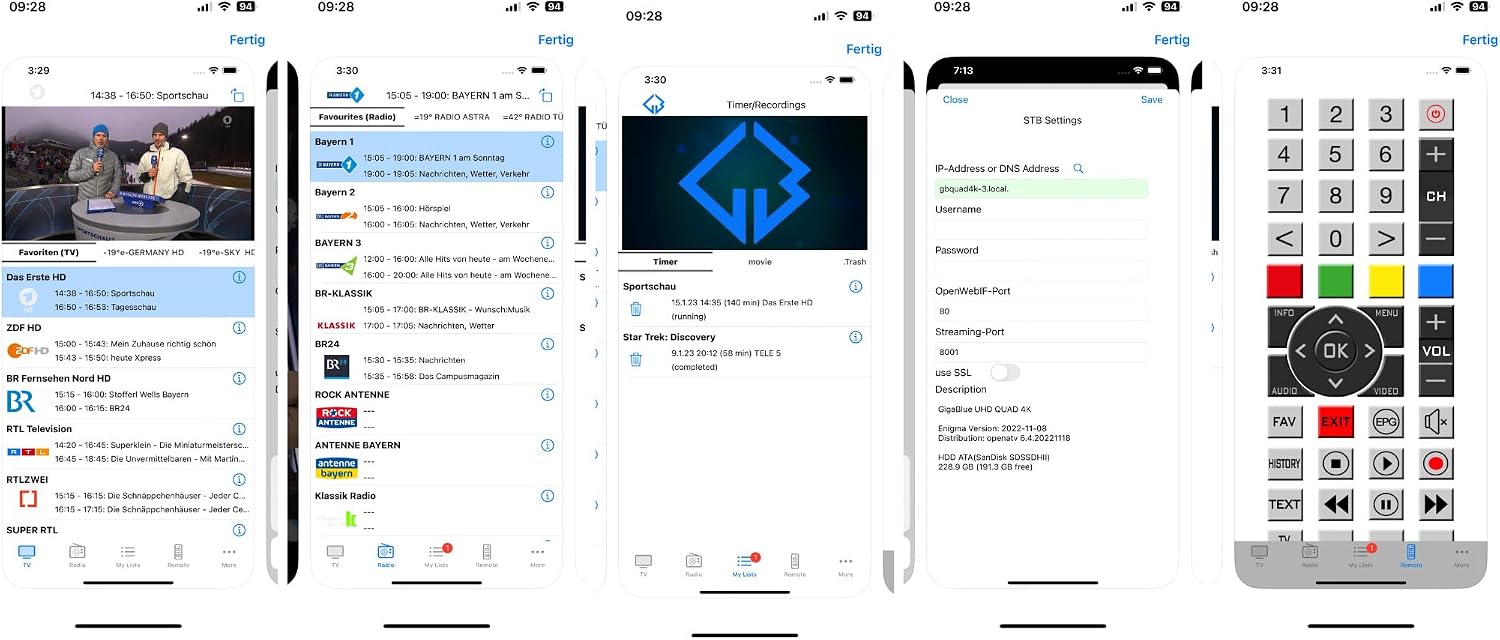
Screenshots of the GigaBlue Player iOS app interface, demonstrating TV streaming, EPG, and recording management capabilities.
7. Maintenance
7.1 Care and Cleaning
- Clean the exterior of the receiver with a soft, dry cloth. Do not use liquid cleaners, solvents, or abrasive materials.
- Ensure that the ventilation openings are clear of dust and debris to maintain proper airflow and prevent overheating.
7.2 Software Updates
Regularly check for and install software updates to ensure your receiver operates with the latest features, performance enhancements, and security patches. Updates can typically be found via the receiver's system menu or the official GigaBlue website.
8. Troubleshooting
If you encounter issues with your GigaBlue UHD Quad 4K receiver, refer to the following common problems and solutions:
- No Picture or Sound:
Check all cable connections (HDMI, satellite, power). Ensure your TV is set to the correct HDMI input. Restart the receiver. - Remote Control Not Responding:
Replace the AAA batteries in the remote control. Ensure there are no obstructions between the remote and the receiver's IR sensor. - No Channels Found:
Verify that your satellite dish is correctly aligned and that the LNB connections are secure. Perform a new channel scan through the receiver's menu. - Network Connection Issues:
If using Ethernet, check the cable connection. If using Wi-Fi, ensure the Babotech dongle is properly inserted and your Wi-Fi password is correct. Restart both the receiver and your router. - Receiver Freezes or Becomes Unresponsive:
Perform a soft reboot by turning the receiver off and on using the power button. If the issue persists, disconnect the power cable for a few minutes, then reconnect.
9. Specifications
The following table outlines the key technical specifications of the GigaBlue UHD Quad 4K Satellite Receiver:
| Feature | Detail |
|---|---|
| Model | QUAD-4K-0 |
| Processor | ARM Dual Core DMIPS 12.5K |
| RAM | 2 GB DDR4 |
| Flash Memory | 4 GB |
| Display | 2.2" TFT Color LCD |
| Tuners | 2 x DVB-S2 FBC |
| Common Interface (CI) Slots | 2 |
| Card Reader | 1 |
| HDMI Ports | 1 (Output) |
| USB Ports | 1 x USB 3.0, 3 x USB 2.0 |
| Ethernet | 1 x Gigabit LAN |
| Other Ports | RS-232, S/PDIF, USB-C (Service) |
| Connectivity Technology | Ethernet, HDMI, USB |
| Item Weight | 2.1 Kilograms |
| Voltage | 240 Volts |
| Compatible Devices | Most devices with Wi-Fi, USB, Ethernet, or HDMI connection |
Note: Specifications are subject to change without prior notice.
10. Warranty and Support
10.1 Warranty Information
This GigaBlue product comes with a standard manufacturer's warranty. Please refer to the warranty card included in your package or visit the official GigaBlue website for detailed terms, conditions, and registration information. Keep your proof of purchase for warranty claims.
10.2 Customer Support
For technical assistance, troubleshooting, or any product-related inquiries, please contact your retailer or visit the official GigaBlue support portal. You can often find FAQs, software downloads, and contact information for customer service there.


