
1. Introduction
The FiiO Q5 is a high-fidelity portable DAC (Digital-to-Analog Converter) and amplifier designed to enhance your audio experience from various sources, including PCs and mobile phones. It features dual AK4490EN DAC chips, supporting high-resolution audio up to 384kHz/32bit and native DSD 256. The Q5 offers versatile input options, including Coaxial, Optical, USB, Line, and Bluetooth, and is aptX certified for high-quality wireless audio.
This manual provides essential information for setting up, operating, maintaining, and troubleshooting your FiiO Q5 device.

Figure 1: FiiO Q5 DAC Amplifier, showcasing its sleek design and Hi-Res Audio certification.
2. Package Contents and Setup
2.1 What's in the Box
Before proceeding with setup, please verify that all components are present:
- FiiO Q5 DAC Amplifier Unit
- Lightning-Micro USB cable
- 3.5mm audio cable
- Coaxial adapter
- Optical adapter
- Carrying pouch
- User Manual (this document)
2.2 Initial Charging
The FiiO Q5 is equipped with a Lithium Polymer battery. For optimal performance and battery longevity, it is recommended to fully charge the device before its first use. Connect the Q5 to a USB power source (e.g., computer USB port or a USB wall adapter) using the provided Lightning-Micro USB cable.
2.3 Connecting to Audio Sources
The Q5 supports multiple input methods:
- USB Input: Connect to a PC or mobile phone using a compatible USB cable for digital audio transmission.
- Coaxial/Optical Input: Use the provided adapters to connect to devices with coaxial or optical digital audio outputs.
- Line Input: Connect to analog audio sources using the 3.5mm audio cable.
- Bluetooth Input: Pair with Bluetooth-enabled devices for wireless audio streaming.
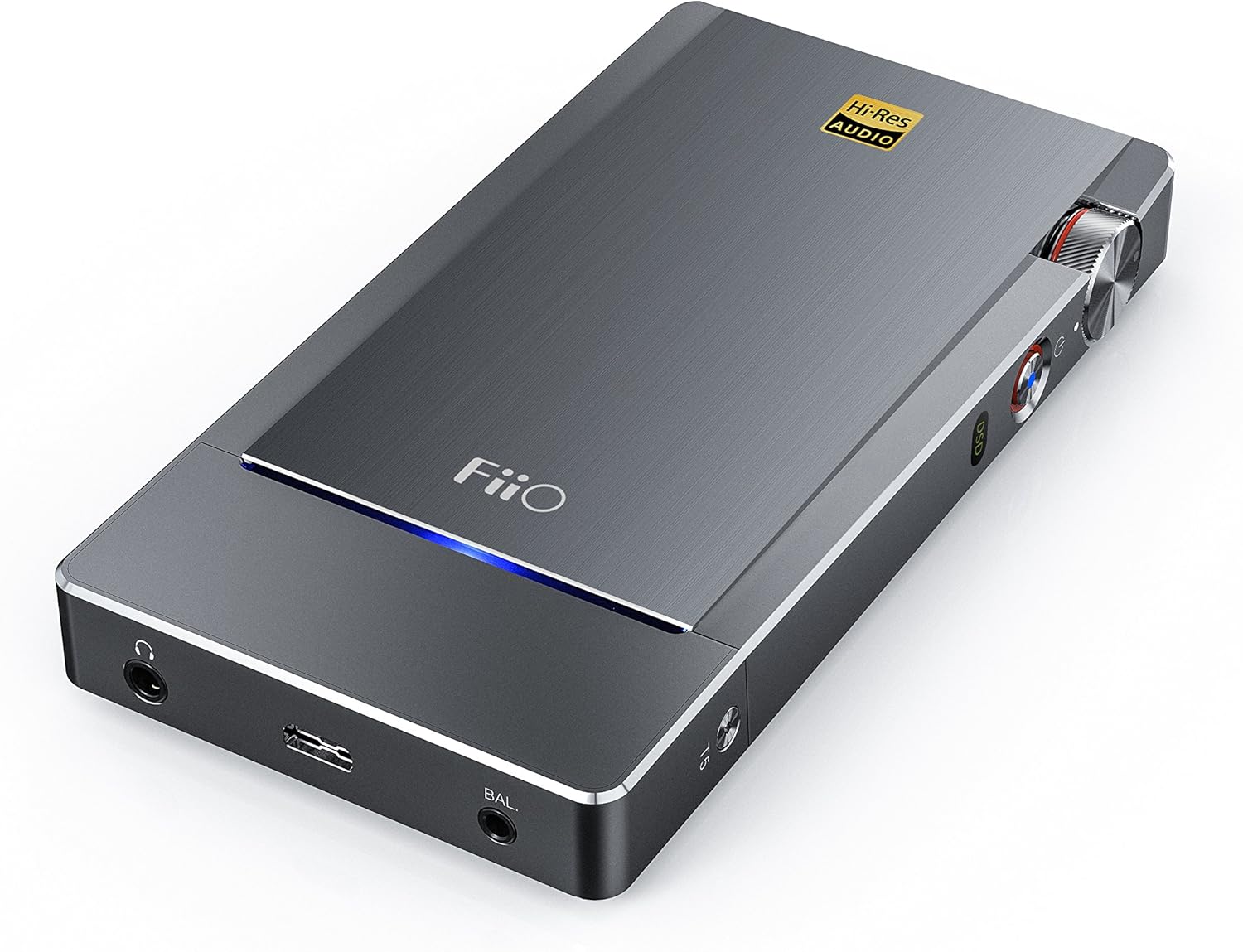
Figure 2: The FiiO Q5's various input and output ports, including USB, optical, coaxial, and line-in.
3. Operating Instructions
3.1 Power On/Off and Volume Control
To power on the device, rotate the volume knob clockwise until you hear a click and the indicator lights illuminate. To power off, rotate the volume knob counter-clockwise until it clicks off. Adjust the volume by rotating the knob.

Figure 3: Side view of the FiiO Q5, highlighting the volume knob and control buttons.
3.2 Input Mode Selection
The FiiO Q5 features unique RGB status lights that indicate the current input mode:
- Blue: Bluetooth Input
- Green: USB Input
- Yellow: Coaxial Input
- Purple: Optical Input
- Red: Line Input
Press the input selection button (usually located near the indicator lights) to cycle through the available input modes.
3.3 Amplifier Modules
The FiiO Q5 supports interchangeable amplifier modules. The default AM3A module provides both single-ended and balanced outputs. Refer to the specific amplifier module's manual for detailed instructions on installation and usage.
3.4 Audio Playback
Once connected and the correct input mode is selected, begin playback from your audio source. Adjust the volume on both the Q5 and your source device for optimal sound levels. The Q5's audiophile-grade components ensure a high-quality audio output.
4. Maintenance
Proper maintenance ensures the longevity and optimal performance of your FiiO Q5.
- Cleaning: Use a soft, dry, lint-free cloth to clean the exterior of the device. Avoid using harsh chemicals, solvents, or abrasive materials.
- Storage: When not in use for extended periods, store the Q5 in a cool, dry place, away from direct sunlight and extreme temperatures. Use the provided carrying pouch for protection during transport.
- Battery Care: To maintain battery health, avoid fully discharging the battery frequently. If storing for a long time, charge the battery to approximately 50% every few months.
- Connections: Periodically check all cable connections for secure fit. Avoid pulling cables by the cord; always grasp the plug.
5. Troubleshooting
If you encounter issues with your FiiO Q5, please refer to the following common troubleshooting steps:
- No Sound Output:
- Ensure the Q5 is powered on and fully charged.
- Verify that the correct input mode is selected on the Q5.
- Check all cable connections between the Q5, audio source, and headphones/speakers.
- Adjust the volume on both the Q5 and the audio source.
- Test with different headphones/speakers or audio sources to isolate the problem.
- Bluetooth Pairing Issues:
- Ensure the Q5 is in Bluetooth pairing mode (refer to the RGB light indicator).
- Make sure Bluetooth is enabled on your source device and it is discoverable.
- Move the devices closer to each other to reduce interference.
- Clear previous Bluetooth pairings on both devices and attempt to pair again.
- Distorted Sound:
- Reduce the volume on both the Q5 and the audio source.
- Check if the audio file or source is of good quality.
- Ensure cables are not damaged or loosely connected.
- Device Not Responding:
- Attempt a soft reset by powering the device off and on again.
- If unresponsive, allow the battery to fully drain and then recharge.
If the issue persists after trying these steps, please contact FiiO customer support for further assistance.
6. Specifications
| Feature | Specification |
|---|---|
| Model Number | Q5 |
| Product Dimensions | 4.88 x 2.52 x 0.63 inches |
| Item Weight | 6.7 ounces |
| DAC Chips | Dual AK4490EN |
| Max Audio Resolution | 384kHz/32bit PCM, Native DSD 256 |
| Bluetooth Support | aptX certified |
| Input Interfaces | USB, Coaxial, Optical, Line, Bluetooth |
| Battery Type | Lithium Polymer (included) |
| Manufacturer | FiiO |
| First Available Date | January 31, 2018 |
7. Warranty and Support
FiiO products are manufactured to high quality standards. For information regarding warranty coverage, terms, and conditions, please refer to the warranty card included with your product or visit the official FiiO website. Keep your proof of purchase for warranty claims.
For technical support, service, or further inquiries, please contact FiiO customer service through their official channels. Up-to-date contact information can typically be found on the FiiO website.


