
1. Introduction
The TP-Link TL-WPA7510-KIT is an AV1000 AC750 Gigabit Powerline Wi-Fi Extender Kit designed to extend your internet network to every room in your home using your existing electrical wiring. It utilizes the HomePlug AV2 standard to deliver Powerline speeds of up to 1000 Mbps and features dual-band Wi-Fi (300 Mbps on 2.4 GHz and 433 Mbps on 5 GHz) for flexible and reliable wireless connections. This kit is ideal for streaming HD video, online gaming, and other bandwidth-intensive applications.
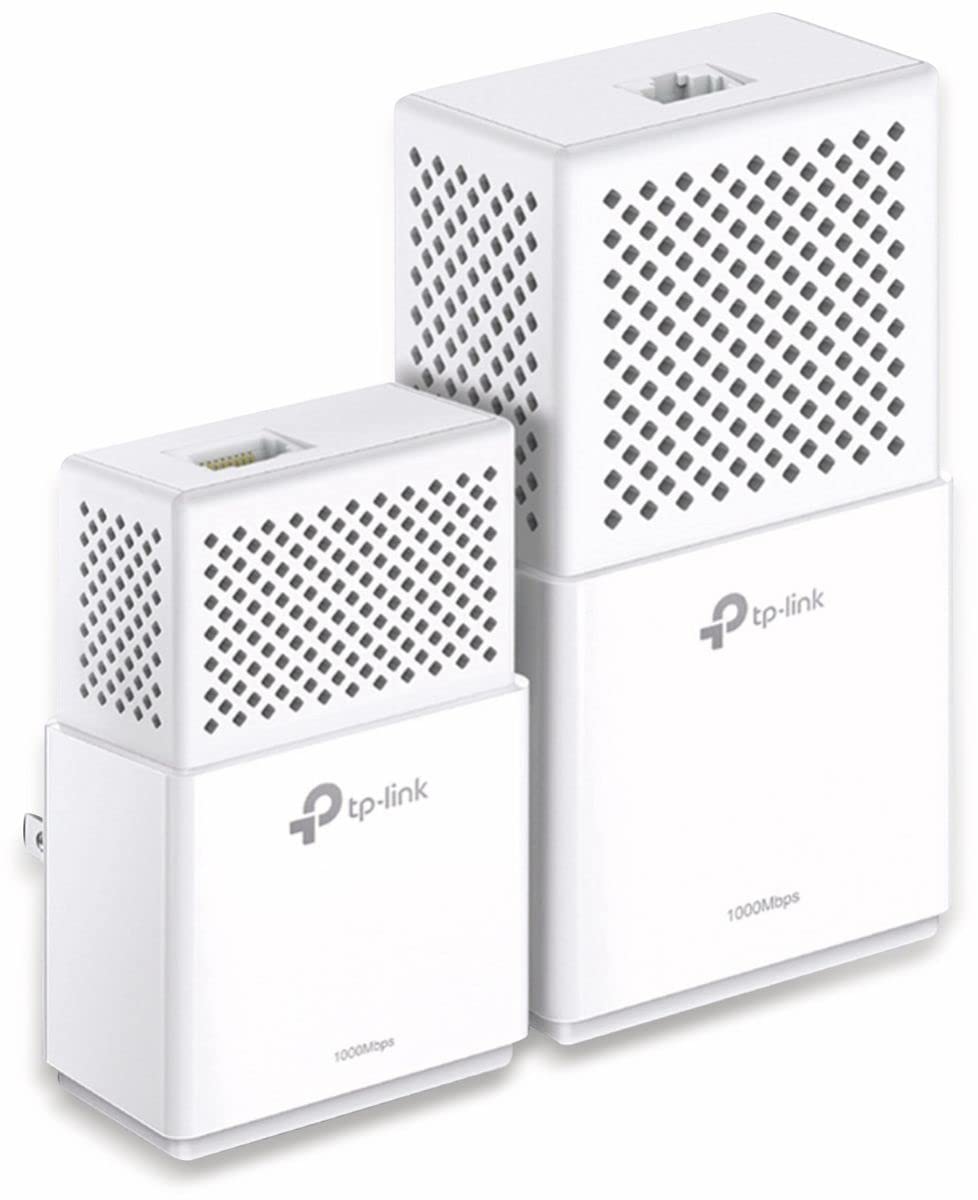
Figure 1: Front view of the TL-WPA7510 (left) and TL-PA7010 (right) adapters.
2. Package Contents
Verify that your package contains the following items:
- 1x TL-WPA7510 AV1000 AC750 Wi-Fi Powerline Adapter
- 1x TL-PA7010 AV1000 Gigabit Powerline Adapter
- 2x 2-meter Ethernet Cables
- 1x Resource CD
- 1x Quick Installation Guide
3. Setup Instructions
Follow these steps to set up your TP-Link Powerline Wi-Fi Extender Kit:
- Connect the TL-PA7010 Adapter: Plug the TL-PA7010 (the smaller adapter without Wi-Fi) into a wall power outlet near your internet router. Connect one end of an Ethernet cable to the TL-PA7010's Ethernet port and the other end to an available LAN port on your router.
- Connect the TL-WPA7510 Adapter: Plug the TL-WPA7510 (the larger Wi-Fi adapter) into a wall power outlet in the room where you need Wi-Fi coverage. Ensure it is in the same electrical circuit as the TL-PA7010 for optimal performance.
- Pair the Adapters: Within two minutes of plugging in the TL-WPA7510, press the Pair button on the TL-PA7010 adapter for one second. Then, press the Pair button on the TL-WPA7510 adapter for one second. The Powerline LED on both adapters should turn solid, indicating a successful connection.
- Wi-Fi Clone (Optional): To extend your existing Wi-Fi network name (SSID) and password, press the Wi-Fi button on the TL-WPA7510 adapter for one second. Then, within two minutes, press the WPS button on your router. The TL-WPA7510 will automatically copy your router's Wi-Fi settings.
- Connect Your Devices: You can now connect your devices to the TL-WPA7510's Wi-Fi network (either the cloned network or the default TP-Link network) or use an Ethernet cable to connect a wired device to the TL-WPA7510's Gigabit Ethernet port.

Figure 2: Back view of the TL-WPA7510 (left) and TL-PA7010 (right) adapters, showing ports and buttons.
4. Operating Instructions
4.1 LED Indicators
The adapters feature LED indicators to show their status:
- Power LED: Indicates if the adapter is powered on.
- Powerline LED: Indicates the Powerline connection status. Solid means connected, blinking means pairing, off means no connection.
- Wi-Fi LED (TL-WPA7510 only): Indicates the Wi-Fi status.
- Ethernet LED: Indicates an active Ethernet connection.
4.2 Adding More Powerline Adapters
To expand your Powerline network, simply plug in additional TP-Link Powerline adapters into wall outlets and pair them with an existing adapter in your network by pressing the Pair button on both devices within two minutes.
5. Maintenance
To ensure the longevity and optimal performance of your Powerline Wi-Fi Extender Kit, consider the following:
- Keep the devices clean and free from dust. Use a soft, dry cloth for cleaning.
- Avoid placing the adapters in direct sunlight or in areas with high humidity or extreme temperatures.
- Ensure proper ventilation around the adapters; do not block the ventilation holes.
- For best performance, plug the adapters directly into a wall outlet. Avoid using power strips, extension cords, or surge protectors, as these can interfere with Powerline communication.
6. Troubleshooting
If you encounter issues with your TL-WPA7510-KIT, refer to the following common problems and solutions:
- No Powerline Connection (Powerline LED is off):
- Ensure both Powerline adapters are plugged into live wall outlets.
- Verify that the adapters are on the same electrical circuit.
- Try re-pairing the devices as described in Section 3.3.
- Avoid plugging adapters into power strips or surge protectors.
- No Wi-Fi Signal from TL-WPA7510:
- Check if the Wi-Fi LED on the TL-WPA7510 is on. If not, press the Wi-Fi button to enable Wi-Fi.
- Ensure the TL-WPA7510 is successfully paired with the TL-PA7010 (Powerline LED should be solid).
- If you used Wi-Fi Clone, verify that your router's WPS function was activated correctly during the cloning process.
- Slow Internet Speed:
- Powerline performance can be affected by electrical interference. Try plugging the adapters into different wall outlets.
- Ensure no high-power electrical appliances (e.g., washing machines, refrigerators) are on the same circuit as the Powerline adapters.
- Check the quality of your electrical wiring. Older or faulty wiring can reduce performance.
- If the Wi-Fi station takes time to wake up from power-saving mode, ensure the latest firmware is installed or adjust power-saving settings if available through the utility software.
- Cannot Access the Internet:
- Verify that your main router has an active internet connection.
- Ensure the TL-PA7010 is correctly connected to your router via an Ethernet cable.
- Check all LED indicators on both Powerline adapters to confirm they are powered on and connected.
7. Specifications
| Feature | Detail |
|---|---|
| Brand | TP-Link |
| Model | TL-WPA7510 KIT(DE) |
| Operating System Compatibility | Windows 2000/XP/2003/Vista, Windows 7/8/8.1, Mac, Linux |
| Hardware Interface | Ethernet |
| Compatible Devices | Laptop, Projector, Smart TV, Desktop Computer, Tablet |
| Included Hardware | AV1000 Gigabit Powerline-AC-WLAN-kit (TL-WPA7510 and TL-PA7010), 2x 2m CAT5e Ethernet cable, quick installation instructions |
| Power Consumption | 6.5 watts |
| Data Transfer Rate | 1000 Megabit per second (Powerline) |
| Wireless Type | 802.11b, 802.11g, 802.11n, 802.11ac |
| Data Link Protocol | Ethernet, IEEE 802.11a, IEEE 802.11ac, IEEE 802.11b, IEEE 802.11g, IEEE 802.11n, IEEE 802.3 |
| Bluetooth Support | No |
| Product Dimensions | 7.2 x 13.1 x 4.7 cm |
| Weight | 760 g |
| First Available Date | 27 November 2017 |
8. Safety Information
Please read and follow all safety instructions:
- Do not open or attempt to repair the device.
- Do not use the device near water or in wet locations.
- Ensure the power outlet is easily accessible.
- Only use the power adapter provided with the device.
- Keep the device away from heat sources and direct sunlight.
9. Warranty and Support
For warranty information, technical support, and the latest firmware updates, please visit the official TP-Link website and navigate to the support section for your specific product model. You can also find additional resources and FAQs there.


