
1. Introduction
This manual provides detailed instructions for the setup, operation, and maintenance of your Cromorc 10CH Expandable Wireless Security Camera System. This system features a 10-channel 5MP NVR with an integrated 10.1-inch Full HD monitor and a pre-installed 1TB hard drive. It includes four 5MP indoor/outdoor cameras with 1-way audio, night vision, and advanced AI human detection for comprehensive surveillance.
The system is designed for easy DIY installation and offers true plug-and-play functionality, providing 24/7 non-stopped guardian for your home or business.
2. What's Included
Verify that all components are present in the package:
- 1 x 10CH 5MP NVR with 10.1" HD Monitor (1TB HDD pre-installed)
- 4 x 5MP Wireless Cameras (Indoor/Outdoor, 1-Way Audio)
- 5 x Power Adapters (1 for NVR, 4 for Cameras)
- 1 x USB Mouse
- 1 x Ethernet Cable
- 1 x User Manual
- Mounting Screw Kits for Cameras
Video: Unboxing the Cromorc Security Camera System components.
3. Setup
3.1 NVR Bracket Installation
To properly position your NVR monitor, install the included bracket:
- Take out the screw from the bracket.
- Clip the bracket onto the designated NVR bracket position.
- Place the screw into the screw position and tighten it to secure the bracket.
Video: Step-by-step guide on installing the NVR bracket.
3.2 Powering On and Initial System Configuration
The system is designed for plug-and-play operation. Simply connect the DC power supply to each camera and the NVR. The cameras will automatically pair with the NVR.
- Connect the NVR power adapter to the NVR and a power outlet.
- Connect each camera's power adapter to the camera and a power outlet.
- The NVR monitor will display the live feeds from the connected cameras automatically.
- Use the included USB mouse to navigate the NVR's on-screen menu for further settings like date/time, recording schedules, and alarm configurations.

Image: Illustration of the plug-and-play setup for the Cromorc system, showing a camera and NVR connected to power.
3.3 Mobile App Connection
For remote viewing and control, connect your system to the network and download the mobile application:
- Connect the NVR to your home router using the provided Ethernet cable.
- Download the free "Eseecloud" app from your smartphone's app store (available for Android and iOS).
- Follow the in-app instructions to add your device, typically by scanning a QR code displayed on the NVR monitor.
- Create an account and set a strong password for secure access.
Video: Demonstration of unboxing, connecting the system, and connecting to the mobile app.
4. Operating the System
4.1 Live View
You can view live footage from your cameras directly on the NVR monitor or remotely via the "Eseecloud" mobile app.
- On NVR Monitor: The 10.1-inch monitor provides a real-time display of all connected cameras.
- Via Mobile App: Open the "Eseecloud" app on your smartphone or tablet to access live feeds from anywhere with an internet connection.
Video: Guide on viewing Cromorc cameras via the mobile phone app.
4.2 Recording and Playback
The system records footage to the pre-installed 1TB hard drive. You can configure recording settings and review past events.
- Continuous Recording: The 1TB HDD allows for continuous 24/7 recording.
- Motion-Activated Recording: Configure the system to record only when motion is detected to save storage space.
- Playback: Access recorded footage through the NVR interface or the mobile app. You can search by date, time, or event.
4.3 Audio Features
The 5MP cameras are equipped with 1-way audio, allowing you to hear sound from the camera's location.
- 1-Way Audio: Listen to audio from the camera's environment through the NVR or mobile app.
- Audio is recorded along with video footage, providing more comprehensive evidence.

Image: Visual representation of the one-way audio function, demonstrating listening to sounds from the camera's location.
4.4 Motion Detection and Alerts
The system features advanced AI human detection to minimize false alarms and provide timely notifications.
- AI Human Detection: The system can differentiate between human movement and other motion sources, reducing unnecessary alerts.
- Instant Alerts: Receive push notifications on your mobile device via the "Eseecloud" app when human motion is detected.
- Email Notifications: Configure email alerts with snapshots of detected events.

Image: Depiction of the AI Human Detection feature, showing a detected person and an app notification.
4.5 Expanding the System
Your 10CH NVR supports up to 10 cameras. You can add up to 6 additional cameras to expand your surveillance coverage.
- Compatible add-on cameras include one-way audio cameras (ASIN B0795192GM), two-way audio bullet cameras (ASIN B0D8RVKRMN), and Pan&Tilt dome cameras (ASIN B09X44W6GG, B0D8QMYRHZ).
- New cameras will automatically pair with the NVR when powered on within range.
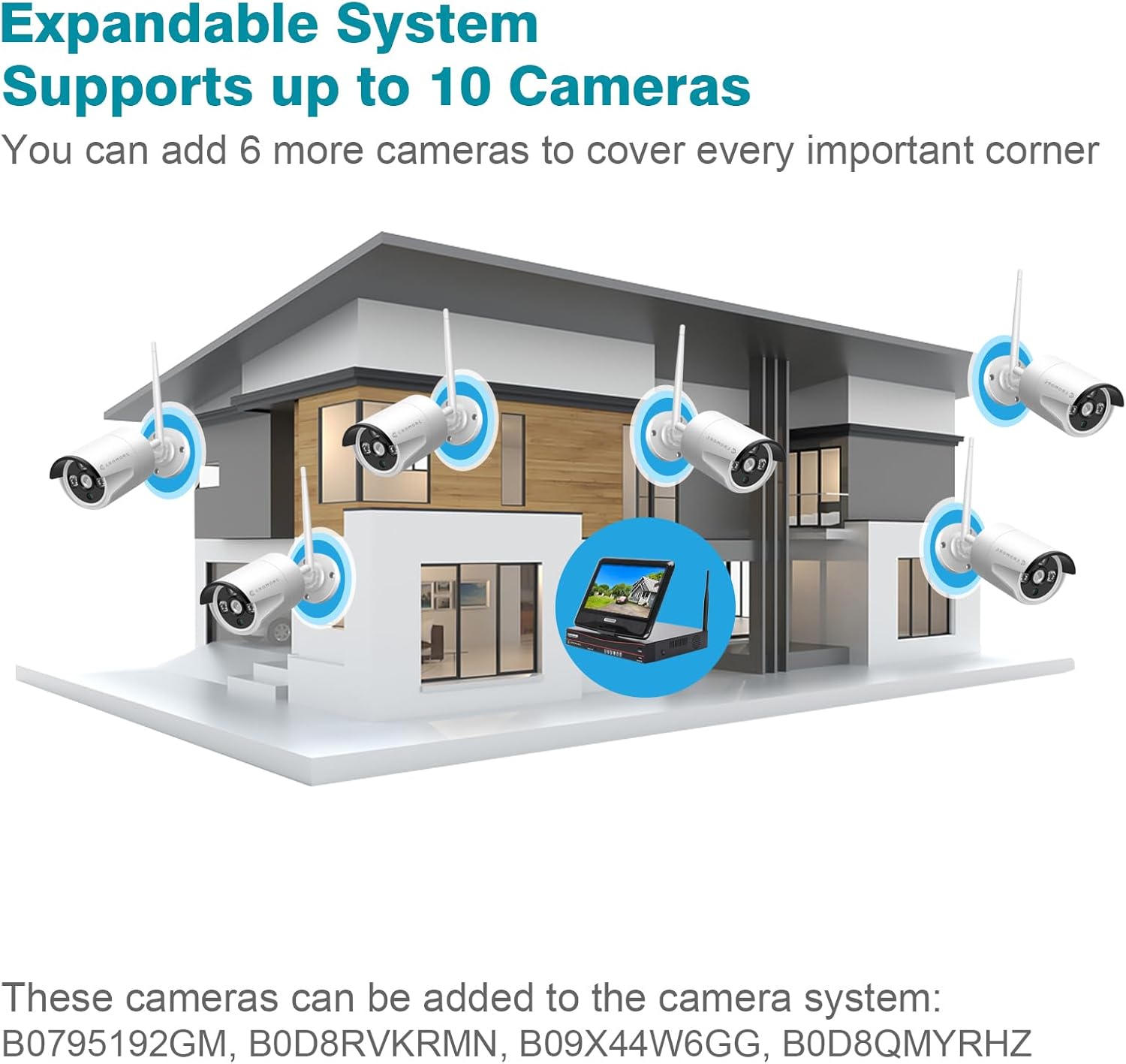
Image: Diagram illustrating the expandability of the system to include up to 10 cameras for broader coverage.
5. Maintenance
- Camera Cleaning: Regularly clean camera lenses with a soft, damp cloth to ensure clear image quality. Avoid harsh chemicals.
- Firmware Updates: Check the Cromorc website or Eseecloud app for available firmware updates to ensure optimal performance and security.
- Hard Drive Management: The 1TB HDD will automatically overwrite older footage. Regularly back up important recordings to an external USB drive if needed.
- Connection Check: Periodically verify that all cameras are powered and connected to the NVR for continuous surveillance.
6. Troubleshooting
- No Camera Signal: Ensure the camera is powered on and within range of the NVR. Check for obstructions or interference. Consider enabling the NVR's auto-repeater function to boost signal range.
- App Connectivity Issues: Verify the NVR is connected to your home router via Ethernet. Ensure your smartphone has a stable internet connection. Restart the app and the NVR if necessary.
- False Motion Alerts: Adjust the sensitivity settings for motion detection in the NVR menu or mobile app. Utilize AI human detection to filter out non-human movements.
- Poor Night Vision: Ensure the camera lens is clean and free from obstructions. Check that the IR lights are functioning.
7. Specifications
| Brand | Cromorc |
| Model Number | CwssE2-2 |
| Connectivity Technology | Wireless |
| Video Capture Resolution | 5MP (2880*1620) |
| Special Features | Audio Recording, Human Detection, Motion Sensor, Night Vision, Video Recording |
| Number of Channels | 10 |
| Memory Storage Capacity | 1 TB HDD |
| Power Source | Corded Electric |
| Operating System | Linux |
| Compatible Devices | Laptops, Personal Computers, Smartphones, Tablets |
| Night Vision Range | 65 Feet |
| Frame Rate | 30 fps |
| Recording Mode | Motion Detection |
| Viewing Angle | 80 Degrees |
8. Warranty and Support
Cromorc endeavors to satisfy its customers by providing comprehensive support.
- Standard Warranty: A 1-year free warranty is included with your purchase.
- Extended Warranty: You can activate an extended free warranty for one additional year by sending a request to the service mailbox provided in your product documentation.
- Professional Support: Professional support is available within 12 hours. You can contact Cromorc via email or phone. If your call is missed, please send an email for assistance.