
1. Introduction
The VIVOTEK SC8131 is an advanced indoor IP security camera designed for reliable surveillance. This manual provides detailed instructions for the proper installation, operation, and maintenance of your SC8131 camera, ensuring optimal performance and longevity. It features a durable and versatile design, is easy to use, and delivers high-quality imaging for your security needs.
2. Safety Information
- Ensure the camera is installed indoors only, as it is designed for indoor security applications.
- Use only the power source specified for this device (PoE). Incorrect power supply may damage the camera or pose a fire hazard.
- Do not expose the camera to water, moisture, or extreme temperatures.
- Avoid placing the camera in direct sunlight or near heat sources.
- Do not attempt to disassemble or modify the camera. Refer all servicing to qualified personnel.
- Keep out of reach of children.
3. Package Contents
Please check the package contents upon unboxing. If any items are missing or damaged, contact your vendor immediately.
- VIVOTEK SC8131 IP Security Camera Unit
- Mounting Kit (including screws)
- Quick Installation Guide
- Additional accessories may vary by region or package.
4. Product Overview
The VIVOTEK SC8131 features a compact, white rectangular design with dual lenses for comprehensive surveillance. It is equipped with LED indicators for status updates and supports various connectivity options.
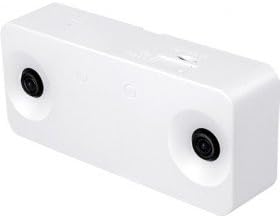
Figure 4.1: Front view of the VIVOTEK SC8131 IP Security Camera, highlighting its dual-lens design and compact form factor.

Figure 4.2: Angled perspective of the VIVOTEK SC8131, providing a clearer view of its overall shape and the placement of its security lenses.
5. Setup
5.1 Mounting the Camera
- Choose a suitable location for ceiling mounting, ensuring a clear field of view.
- Use the provided mounting kit and screws to securely attach the camera to the ceiling.
- Ensure the camera is firmly fixed to prevent accidental falls.
5.2 Power and Network Connection
- Connect the camera to your network using either a wired Ethernet cable or via Wi-Fi.
- For wired connection, connect an Ethernet cable from a PoE (Power over Ethernet) enabled switch or injector to the camera's PoE port. This will provide both power and network connectivity.
- For wireless connection, ensure the camera is within range of your Wi-Fi network. Initial setup may require a wired connection to configure Wi-Fi settings.
5.3 Initial Configuration
- Refer to the Quick Installation Guide for initial network discovery and access.
- Access the camera's web-based management interface via a web browser on a Windows PC.
- Follow the on-screen prompts to set up administrator credentials and network settings.
6. Operating Instructions
6.1 Live View
Once configured, access the camera's web interface or compatible VIVOTEK software to view the live video feed. The dual lenses provide a wide field of view for comprehensive surveillance.
6.2 Recording and Playback
Configure recording settings through the web interface. You can set up continuous recording, scheduled recording, or event-triggered recording (e.g., motion detection). Recorded footage can be stored on an integrated card reader (if applicable) or a network storage device.
6.3 Advanced Features
Explore advanced features such as progressive scan for clear images, and other settings available through the web-based management system to optimize your surveillance experience.
7. Maintenance
- Cleaning: Gently wipe the camera's exterior and lenses with a soft, dry cloth. Do not use harsh chemicals or abrasive cleaners.
- Firmware Updates: Periodically check the VIVOTEK official website for firmware updates to ensure your camera has the latest features and security enhancements. Follow the provided instructions carefully for firmware upgrades.
- Environmental Conditions: Ensure the camera operates within its specified temperature and humidity ranges to prevent damage.
8. Troubleshooting
| Problem | Possible Cause | Solution |
|---|---|---|
| No power/LED indicators off | No power supply or faulty connection. | Check PoE connection. Ensure the PoE switch/injector is powered on. |
| No image/video feed | Network connectivity issue, incorrect IP address, or software problem. | Verify network cable connection. Check camera's IP address. Restart the camera and viewing software. |
| Cannot access web interface | Incorrect IP address, network firewall, or browser issue. | Ensure correct IP address. Temporarily disable firewall. Try a different web browser. |
| Poor image quality | Dirty lens, insufficient lighting, or incorrect settings. | Clean the camera lens. Ensure adequate lighting. Adjust image settings in the web interface. |
If the problem persists after attempting these solutions, please contact VIVOTEK technical support.
9. Specifications
| Feature | Specification |
|---|---|
| Brand | VIVOTEK |
| Model Name | SC8131 |
| Product Dimensions | 7 x 16 x 3.8 cm; 396 g |
| Recommended Use | Indoor Security |
| Connectivity Technology | Wired, Wireless |
| Special Features | LED Indicators, Screws Included, Quick Guide, Progressive Scan, Mounting Kit, Web-based Management, Integrated Card Reader |
| Power Source | PoE (Power over Ethernet) |
| Connectivity Protocol | Wi-Fi |
| Controller Type | Windows |
| Mounting Type | Ceiling Mount |
| Wireless Communication Technology | Wi-Fi |
10. Warranty and Support
For detailed warranty information, terms, and conditions, please refer to the official VIVOTEK website or contact your authorized VIVOTEK dealer or point of purchase. Technical support and customer service contact information can typically be found on the manufacturer's website.


