
Introduction
The MARVO KM400L is a high-performance gaming keyboard and mouse combo designed for an immersive gaming experience. This manual provides detailed instructions for setting up, operating, maintaining, and troubleshooting your new gaming peripherals to ensure optimal performance and longevity.
Package Contents
Please verify that all items are present in your package:
- MARVO KM400L Gaming Keyboard
- MARVO KM400L Gaming Mouse
- User Manual (this document)
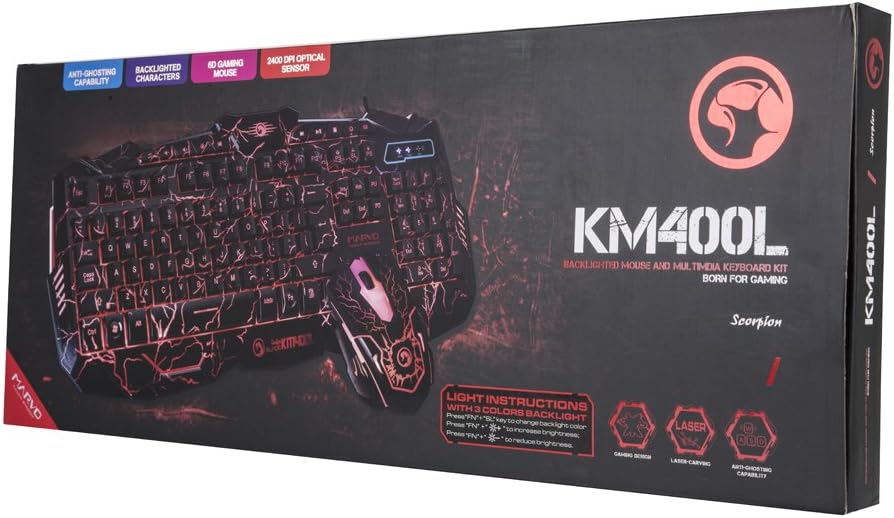
Image: The retail packaging for the MARVO KM400L Gaming Keyboard and Mouse Combo, showing the keyboard and mouse design on the box.
Setup
Follow these steps to set up your MARVO KM400L Gaming Keyboard and Mouse Combo:
- Unpack: Carefully remove the keyboard and mouse from their packaging.
- Connect Keyboard: Locate an available USB port on your desktop computer or laptop. Insert the USB connector of the MARVO KM400L Gaming Keyboard into the USB port.
- Connect Mouse: Insert the USB connector of the MARVO KM400L Gaming Mouse into another available USB port on your computer.
- Driver Installation: The MARVO KM400L is a plug-and-play device. Your operating system (Windows, macOS, Linux) should automatically detect and install the necessary drivers. This process may take a few moments.
- Verification: Once drivers are installed, the keyboard and mouse should be ready for use. Test by typing on the keyboard and moving/clicking the mouse.

Image: A top-down view of the MARVO KM400L Gaming Keyboard and Mouse, illustrating their connected state and design.
Operating Instructions
Keyboard Operation
The MARVO KM400L Gaming Keyboard features a standard layout with additional gaming-specific functions and multimedia keys.
- Standard Keys: All standard alphanumeric, function (F1-F12), and navigation keys operate as expected.
- Multimedia Keys: Dedicated multimedia keys (e.g., volume control, play/pause) are integrated for quick access to media functions.
- Anti-Ghosting: The keyboard supports anti-ghosting, allowing multiple key presses to be registered simultaneously, which is crucial for complex gaming commands.
Backlight Control
The keyboard features a vibrant backlight system with adjustable colors and brightness. Use the following key combinations to control the backlight:
- Change Backlight Color: Press Fn + PS (Print Screen) to cycle through available backlight colors.
- Adjust Brightness: Press Fn + Page Up to increase backlight brightness.
- Adjust Brightness: Press Fn + Page Down to decrease backlight brightness.
- Breathing Mode: The keyboard also supports a 7-color cycling breathing mode.

Image: A close-up of the MARVO KM400L keyboard highlighting the keys used for backlight control, including Fn, PS, SL, PB, and brightness adjustment keys.
Mouse Operation
The MARVO KM400L Gaming Mouse is an optical mouse designed for precision and responsiveness.
- Optical Sensor: Equipped with an optical sensor for accurate tracking on various surfaces.
- DPI Settings: The mouse features adjustable DPI (Dots Per Inch) settings, allowing you to change cursor sensitivity on the fly. The maximum DPI is 2400. Specific buttons for DPI adjustment are typically located near the scroll wheel.
- Gaming Design: The mouse is ergonomically designed for comfortable grip during extended gaming sessions and features a matching aesthetic with the keyboard.
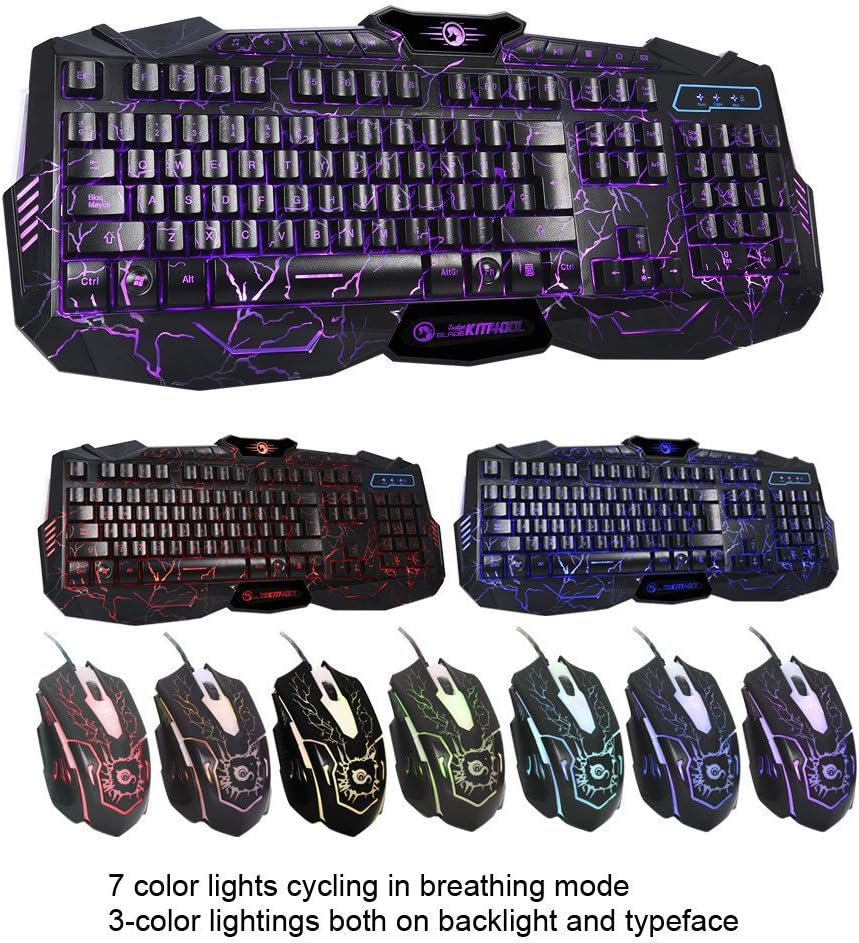
Image: A visual representation of the MARVO KM400L keyboard and several mice, showcasing the different color lighting options available for both the keyboard and mouse.
Maintenance
Proper maintenance ensures the longevity and performance of your MARVO KM400L combo:
- Cleaning: Use a soft, dry cloth to wipe down the keyboard and mouse regularly. For stubborn dirt, a slightly damp cloth with mild soap can be used, ensuring no liquid enters the devices.
- Avoid Liquids: Do not expose the keyboard or mouse to excessive moisture or liquids. Spills can cause permanent damage.
- Dust Removal: Use compressed air to remove dust and debris from between the keyboard keys and from the mouse's optical sensor area.
- Storage: When not in use for extended periods, store the combo in a cool, dry place away from direct sunlight.
Troubleshooting
If you encounter issues with your MARVO KM400L Gaming Keyboard and Mouse Combo, try the following solutions:
| Problem | Possible Cause | Solution |
|---|---|---|
| Keyboard/Mouse not responding | Loose USB connection, faulty USB port, driver issue | Ensure USB cables are securely plugged in. Try a different USB port. Restart your computer. |
| Keys not working | Dirt under key, software conflict | Clean the keyboard. Test on another computer. Check for conflicting software. |
| Mouse cursor erratic or not moving | Dirty optical sensor, unsuitable surface | Clean the optical sensor. Use a mouse pad or a smooth, non-reflective surface. |
| Backlight not working or stuck | Incorrect settings, software glitch | Ensure backlight is enabled using Fn key combinations. Restart computer. |
Specifications
Key technical specifications for the MARVO KM400L Gaming Keyboard and Mouse Combo:
- Brand: MARVO
- Model: KM400L
- Compatible Devices: Desktop computer, Laptop
- Power Source: Corded Electric (USB)
- Keyboard Description: Gaming keyboard with USB connection
- Keyboard Features: Anti-ghosting, Multimedia keys, 3-color backlight with breathing mode
- Mouse Technology: Optical
- Mouse DPI: Up to 2400 DPI
- Connector Type: USB
- Package Dimensions: 59.5 x 24 x 4.5 cm (23.4 x 9.4 x 1.8 inches)
- Package Weight: 1.2 kg (2.6 lbs)
- ASIN: B077KC6VWN
- First Available Date: November 17, 2017
Warranty and Support
For warranty information and technical support, please refer to the official MARVO website or contact the retailer from whom you purchased the product. Keep your proof of purchase for warranty claims.
Online Resources:
- Visit the MARVO Official Website for product updates, drivers, and support.
- Consult the product page on Amazon.com.mx for additional details and customer reviews: Amazon Product Page