
1. Introduction
Thank you for choosing the SmartAI G50B Robot Vacuum Cleaner. This intelligent device is designed to provide efficient and convenient cleaning for your home, offering both vacuuming and mopping functionalities. With powerful suction, smart navigation, and multiple control options, the G50B simplifies your cleaning routine. Please read this manual thoroughly before use to ensure proper operation and maintenance.
2. Safety Instructions
To reduce the risk of injury or damage, always observe basic safety precautions when operating your robot vacuum cleaner. This device is for indoor use only.
- Do not allow children or pets to play with the robot.
- Ensure the power adapter and charging station are placed in a dry area, away from water.
- Use only the original power adapter and charging station provided by SmartAI.
- Clear the cleaning area of loose cables, small objects, and fragile items before operation.
- Do not operate the robot on wet surfaces or near open flames.
- Do not sit on the robot or place heavy objects on it.
- Turn off the robot and unplug it before performing any maintenance or cleaning.
3. Package Contents
Verify that all components are present in the package:
- 1 x SmartAI G50B Robot Vacuum Cleaner
- 2 x Side Brushes
- 1 x Power Adapter
- 1 x Charging Station
- 1 x Remote Control
- 2 x AAA Batteries (for remote control)
- 1 x High-Efficiency HEPA Filter
- 1 x Cleaning Tool
- 1 x Dustbin (510 ml)
- 1 x Water Tank (300 ml)
- 1 x Mop Pad
- 1 x User Manual

Image: SmartAI G50B Robot Vacuum Cleaner and its complete set of accessories.
4. Product Overview
The SmartAI G50B is equipped with advanced features for thorough cleaning:
- Powerful Suction: Up to 2600 Pa with 4 adjustable levels for various floor types.
- 2-in-1 Vacuum & Mop: Seamlessly switches between vacuuming and mopping modes.
- Long Battery Life: 2600 mAh Lithium-ion battery provides up to 120 minutes of cleaning.
- Intelligent Navigation: Uses zigzag cleaning paths and 18 types of sensors for efficient coverage and obstacle avoidance.
- Multiple Control Methods: Control via smartphone app (Smart AI), IR remote control, or voice commands (Alexa).
- Auto-Charging: Automatically returns to the charging station when battery is low.
4.1 Suction Power

Image: Illustration of the four adjustable suction power levels.
The G50B offers four suction levels: Quiet (600 Pa), Standard (1000 Pa), Powerful (1500 Pa), and Max (2600 Pa). Adjust the suction power based on your cleaning needs and floor type.
4.2 Vacuuming and Mopping Function
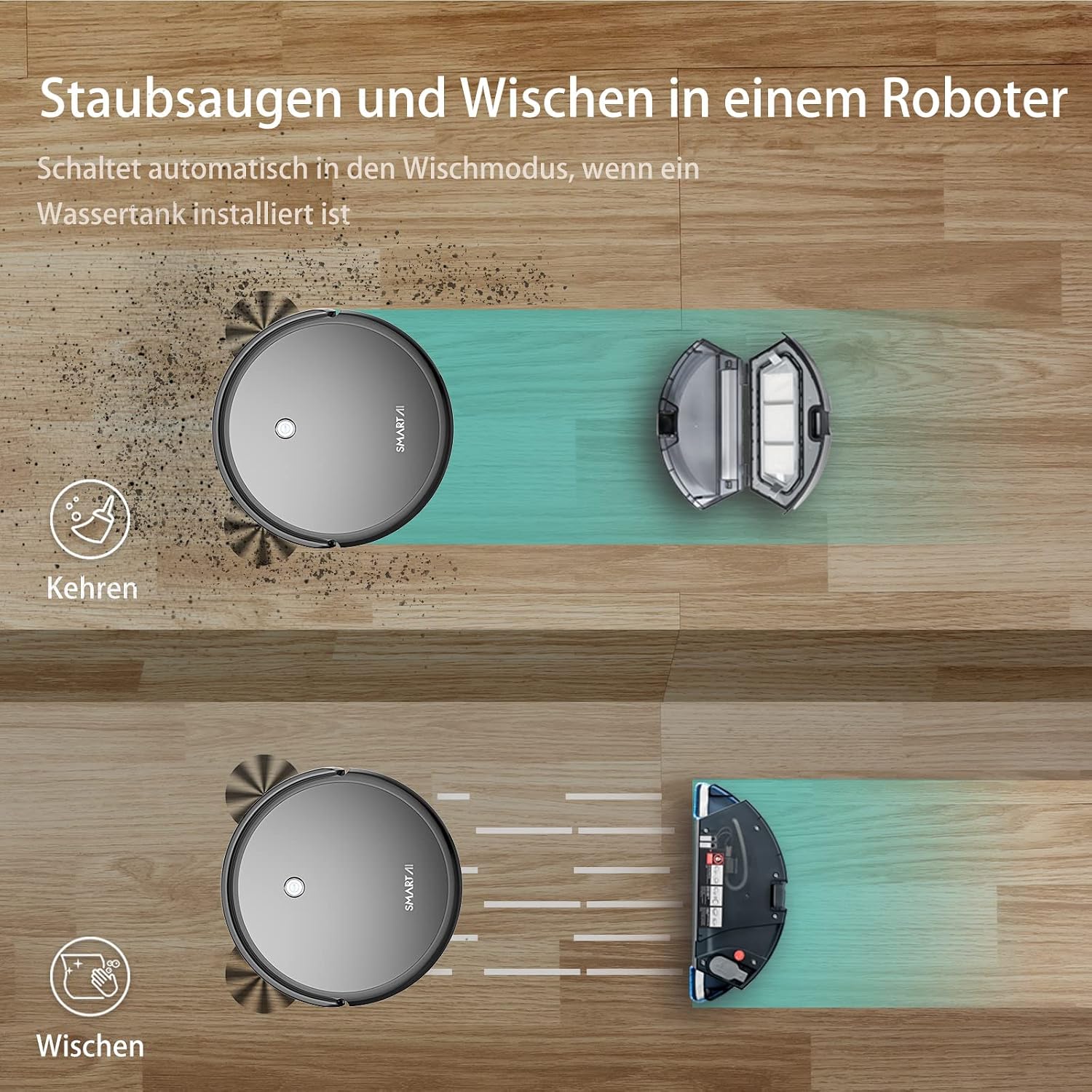
Image: The robot vacuum demonstrating both sweeping and mopping capabilities.
The robot can vacuum and mop simultaneously or separately. Install the water tank to activate the mopping function. The intelligent water tank allows for three water flow levels (low, medium, high) to suit different floor types and cleaning requirements.
4.3 Intelligent Sensors

Image: Visual representation of the robot's intelligent sensors for obstacle navigation and fall prevention.
Equipped with 18 types of sensors, the G50B can navigate around obstacles, prevent collisions with furniture, and avoid falling down stairs or ledges.
4.4 Battery and Charging
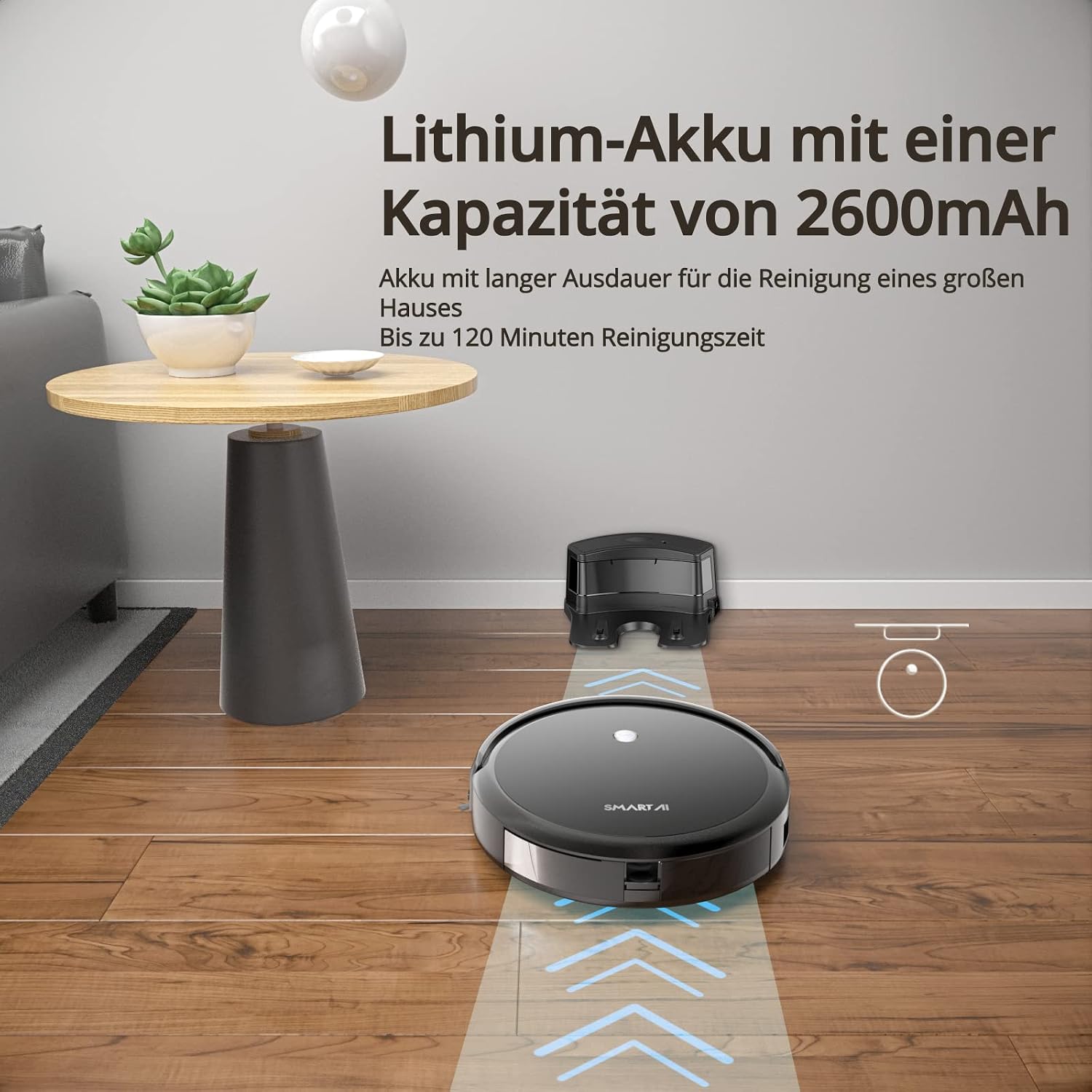
Image: The robot vacuum highlighting its 2600mAh Lithium-ion battery for extended cleaning.
The robot features a 2600mAh Lithium-ion battery, providing up to 120 minutes of cleaning time on a single charge. When the battery is low, the robot will automatically return to its charging station.
5. Setup
5.1 Charging Station Placement
Place the charging station against a wall in an open area, ensuring there are no obstacles within 1 meter (3 feet) to the front and 0.5 meters (1.5 feet) to the sides. Connect the power adapter to the charging station and plug it into a power outlet. Ensure the charging station is on a hard, level surface.
5.2 Initial Charging
Before first use, fully charge the robot. Place the robot manually onto the charging station, ensuring the charging contacts align. The indicator light on the robot will show charging status. A full charge typically takes 4-5 hours.
5.3 App Installation and Pairing
Download the "Smart AI" app from your smartphone's app store. Follow the in-app instructions to pair your robot. Note: The app only supports 2.4 GHz Wi-Fi networks.

Image: The SmartAI app interface for controlling the robot vacuum.
5.4 Remote Control Setup
Insert the two AAA batteries into the remote control. The remote control can be used to operate the robot without the app.
6. Operating Instructions
6.1 Starting and Stopping Cleaning
Press the power button on the robot, the remote control, or use the app/voice command to start or pause a cleaning cycle. The robot will automatically begin cleaning in its default mode.
6.2 Cleaning Modes
The G50B offers various cleaning modes:
- Auto Cleaning: The robot cleans systematically using zigzag paths.
- Spot Cleaning: The robot cleans a specific area more intensely.
- Edge Cleaning: The robot cleans along walls and furniture edges.
- Scheduled Cleaning: Set cleaning times via the app.

Image: The robot vacuum demonstrating its intelligent navigation system with zigzag cleaning paths.
6.3 Control Methods
You can control your robot vacuum using three methods:
- Smart AI App: Provides full control, including cleaning modes, suction levels, water flow, scheduling, and monitoring cleaning progress.
- IR Remote Control: Basic control for starting, stopping, changing modes, and sending the robot back to the charging station.
- Voice Control (Alexa): Integrate with Alexa for voice commands to start or stop cleaning.

Image: The three control methods available for the SmartAI G50B: smartphone app, infrared remote, and Alexa voice commands.
6.4 Mopping Function
To use the mopping function, fill the water tank with clean water and attach the mop pad. Insert the filled water tank into the robot. The robot will automatically switch to mopping mode. Adjust the water flow level (low, medium, high) via the app to prevent over-wetting or ensure adequate moisture for cleaning.
7. Maintenance
Regular maintenance ensures optimal performance and extends the lifespan of your robot vacuum cleaner. Always turn off the robot and disconnect it from the charging station before performing maintenance.
7.1 Emptying the Dustbin
Empty the dustbin after each cleaning cycle or when full. Press the release button to remove the dustbin, open it, and discard the collected debris.
7.2 Cleaning Filters
Remove the HEPA filter and primary filter from the dustbin. Tap the HEPA filter to remove dust; do not wash it with water. The primary filter can be rinsed with water and air-dried completely before reinstallation. Replace filters every 1-2 months, depending on usage.
7.3 Cleaning Side Brushes and Main Brush
Regularly check side brushes and the main brush for tangled hair or debris. Use the provided cleaning tool to cut and remove any tangled hair. Replace worn-out brushes as needed.
7.4 Cleaning Sensors and Charging Contacts
Wipe the anti-drop sensors, anti-collision sensors, and charging contacts on both the robot and the charging station with a clean, dry cloth. This ensures proper navigation and charging.
7.5 Cleaning the Water Tank and Mop Pad
After mopping, empty any remaining water from the tank and rinse it. Remove the mop pad, wash it, and allow it to air dry completely before storing or reusing.
8. Troubleshooting
If you encounter issues with your SmartAI G50B, refer to the following common problems and solutions:
| Problem | Possible Cause | Solution |
|---|---|---|
| Robot does not turn on | Low battery; Power switch off | Charge the robot; Ensure power switch is ON |
| Robot does not charge | Charging contacts dirty; Charging station unplugged | Clean charging contacts; Ensure charging station is plugged in |
| Poor cleaning performance | Dustbin full; Filters clogged; Brushes tangled | Empty dustbin; Clean/replace filters; Clean brushes |
| Robot gets stuck frequently | Obstacles in path; Sensors dirty | Clear cleaning area; Clean sensors |
| App cannot connect to robot | Incorrect Wi-Fi band; Robot not in pairing mode | Ensure 2.4 GHz Wi-Fi; Follow app pairing instructions |
For further assistance, please contact SmartAI customer support.
9. Specifications
| Feature | Detail |
|---|---|
| Model Number | G50B |
| Suction Power | Up to 2600 Pa (4 levels) |
| Battery Type | Lithium-ion |
| Battery Capacity | 2600 mAh |
| Runtime | Up to 120 minutes |
| Dustbin Capacity | 510 ml |
| Water Tank Capacity | 300 ml |
| Control Methods | App, Remote Control, Voice (Alexa) |
| Recommended Surfaces | Wood, Tile, Stone, Low-pile Carpet |
| Dimensions (Package) | 58.9 x 42.29 x 14.4 cm |
| Item Weight | 2.17 kg |
| Voltage | 220 Volts |
10. Warranty and Support
SmartAI is committed to providing quality products and customer service.
- 30-Day Refund Guarantee: If you are not satisfied with your purchase, you may be eligible for a refund within 30 days.
- Warranty: The product comes with a warranty of up to 24 months. Please refer to your purchase documentation for specific terms and conditions.
- Professional Service Team: Our dedicated customer service team is available to assist you with any questions or issues.
For support, please visit the SmartAI official website or contact our customer service through the contact information provided with your product or on the SmartAI brand store page.

