
1. Introduction
The RAAYOO USB 3.5" External Floppy Disk Drive provides a convenient solution for accessing data stored on 3.5-inch floppy disks. This device allows you to read and write 1.44MB floppy disks, enabling the retrieval of old documents, photos, and other data on modern computers. It is designed for ease of use with plug-and-play functionality, requiring no external power supply.

Image 1.1: The RAAYOO USB Floppy Disk Drive helps retrieve and relive cherished memories from old floppy disks.
2. Product Overview
The RAAYOO RYD001-BK is a portable, ultra-slim external floppy disk drive. It features a durable hard plastic casing and is designed for reliable performance.
Key Features:
- External USB Interface: Connects easily to your computer via USB.
- Read/Write Capability: Supports 3.5-inch 1.44MB floppy disks.
- USB 1.1/2.0 Compatible: Ensures broad compatibility with various USB ports.
- Plug & Play: No additional drivers are required for most operating systems.
- USB Powered: Draws power directly from the USB port, eliminating the need for an external power adapter.
- Portable Design: Super slim and lightweight for easy transport.
- Anti-interference Filter: Helps prevent external noise interference.
Components:
The drive includes an indicator light, a pop-up button for disk ejection, skid-proof soft pads for stability, and an integrated USB cable with an anti-interference filter.

Image 2.1: Detailed view of the RAAYOO Floppy Disk Drive's design and components.
3. Setup
Setting up your RAAYOO USB Floppy Disk Drive is a straightforward process due to its plug-and-play design.
Installation Steps:
- Ensure your computer is powered on and running a compatible operating system.
- Locate an available USB port on your computer.
- Connect the USB cable from the RAAYOO Floppy Disk Drive directly into the USB port on your computer. Avoid using unpowered USB hubs if possible, as they may not provide sufficient power.
- Your computer should automatically detect the device and install the necessary drivers. This process may take a few moments.
- Once the installation is complete, the drive will appear as a removable storage device in your computer's file explorer.
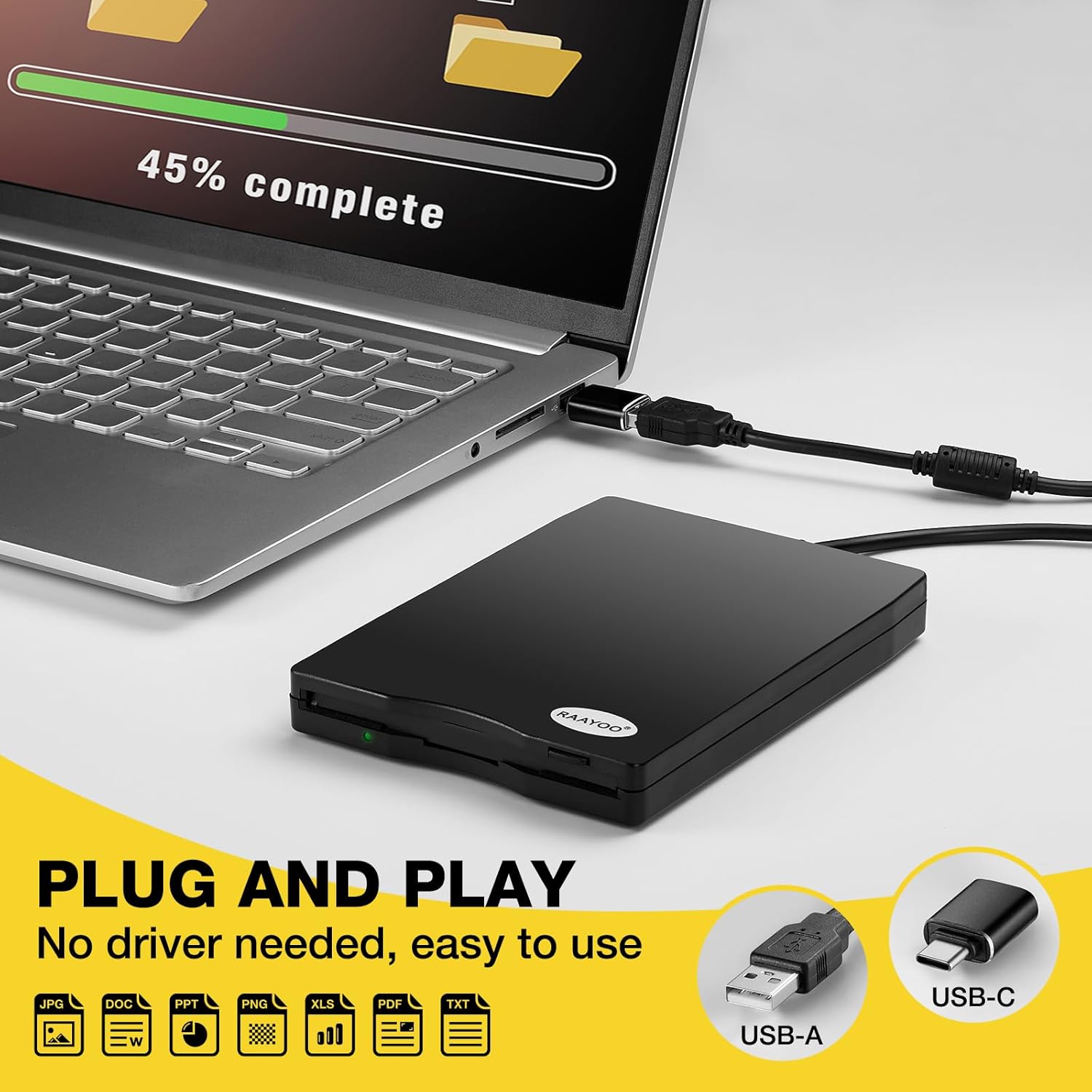
Image 3.1: The drive connects directly to a USB port for immediate use.
System Compatibility:
The RAAYOO RYD001-BK is compatible with various operating systems and devices:
- Operating Systems: Windows 11, Windows 10, Windows 8, Windows 7, Windows Vista, Windows XP, Windows 2000, and Linux.
- Compatible Devices: Laptops, notebooks, desktop PCs (e.g., Dell, Acer, Sony, HP, Lenovo).
- Incompatible Devices: Please note that this item is not compatible with Mac OS, TVs, cars, tablets, phones, projectors, Chrome OS, CD/DVD/Blu-ray disk players, or PS4.

Image 3.2: Compatibility overview for the RAAYOO Floppy Disk Drive.
4. Operating Instructions
Once the drive is connected and recognized by your computer, you can begin accessing and managing your floppy disk data.
Inserting a Floppy Disk:
- Hold the 3.5-inch floppy disk with the metal shutter facing forward and the label side up.
- Gently insert the floppy disk into the drive slot until it clicks into place. Do not force the disk.
- The indicator light on the drive may illuminate, indicating activity.
Accessing and Transferring Data:
- Open your computer's File Explorer (Windows) or file manager (Linux).
- Locate the newly recognized drive, typically labeled as "Removable Disk" or similar.
- Double-click the drive icon to open and view the contents of the floppy disk.
- You can now copy files from the floppy disk to your computer or vice-versa, just like any other storage device.
Ejecting a Floppy Disk:
- Before ejecting, ensure no files are actively being read from or written to the disk.
- In File Explorer, right-click the drive icon and select "Eject" (Windows). Alternatively, click the physical pop-up button on the front of the drive.
- Carefully remove the floppy disk from the drive.

Image 4.1: The drive supports various functions for legacy data.
5. Maintenance
Proper care and maintenance will ensure the longevity and reliable operation of your RAAYOO Floppy Disk Drive.
- Cleaning: Use a soft, dry cloth to wipe the exterior of the drive. Avoid using liquid cleaners or abrasive materials.
- Storage: Store the drive in a cool, dry place away from direct sunlight, extreme temperatures, and excessive dust.
- Handling: Handle the drive gently. Avoid dropping it or subjecting it to strong impacts.
- Floppy Disk Care: Always store floppy disks in protective sleeves or cases to prevent dust and damage to the magnetic media.
6. Troubleshooting
If you encounter issues with your floppy disk drive, consider the following troubleshooting steps:
- Drive Not Recognized:
- Ensure the USB cable is securely connected to both the drive and your computer.
- Try connecting the drive to a different USB port on your computer.
- If using a USB hub, try connecting the drive directly to the computer's USB port.
- Restart your computer and try again.
- Cannot Read/Write Floppy Disk:
- Verify that the floppy disk is inserted correctly and fully into the drive.
- Check if the floppy disk is write-protected. Some disks have a small tab on the corner that can be slid to enable or disable write protection.
- Floppy Disk Condition: Floppy disks, especially older ones, are prone to damage and data corruption due to long-term storage. It is common for some disks to become unreadable over time. If a disk cannot be read, it may be permanently damaged.
- Data Format: Ensure the floppy disk is formatted correctly (e.g., FAT12 for 1.44MB disks).
- Try a Different Disk: Test with another known-good floppy disk to determine if the issue is with the drive or the disk itself.
- Old Software/Games Not Running:
- Older executable files or games designed for 16-bit or 32-bit operating systems may not run on modern 64-bit Windows versions. This is a software compatibility issue, not a drive malfunction.
- Accessing data files (documents, images) is generally possible if you have compatible software to open them.
7. Specifications
| Feature | Detail |
|---|---|
| Model Number | RYD001-BK |
| Interface | USB 2.0 (compatible with USB 1.1) |
| Supported Media | 3.5-inch Floppy Disk (2HD / 2DD) |
| Data Capacity | 1.44MB (formatted), 720KB (formatted) |
| Number of Cylinders | 80 |
| USB Data Transfer Rate | Full speed / 12 Mbps |
| Data Transfer Rate | 250 Kbits (720KB) / 500 Kbits (1.44MB) |
| Rotation Speed | 300 rpm, 360 rpm |
| Recording Method | MFM |
| Average Latency Time | 100 MSEC (1.44MB mode), 83.3 MSEC (720KB mode) |
| Power Supply | USB Bus Power (500 mA or less) |
| Dimensions (L x W x H) | 13.97 x 10.16 x 1.65 cm (5.51 x 4.01 x 0.63 inches) |
| Weight | 281 grams (0.62 lbs) |
| USB Cable Length | 2.03 feet (approx. 62 cm) |
| Color | Black |

Image 7.1: The RAAYOO drive features a longer USB cable for convenience.
8. Warranty and Support
For warranty information or technical support regarding your RAAYOO USB 3.5" External Floppy Disk Drive, please refer to the documentation included with your purchase or contact RAAYOO customer service directly through their official website or the retailer where the product was purchased.