
Introduction
The Divoom TimeBox Mini is a versatile smart LED Bluetooth speaker designed to enhance your audio experience and provide interactive features. It combines a powerful speaker with a programmable 121-LED display, offering functions such as an alarm clock, sleep aid, and customizable pixel art. This manual provides instructions for setup, operation, and maintenance of your TimeBox Mini.
Package Contents
Please check the box for the following items:
- 1 x Divoom TimeBox Mini Speaker
- 1 x USB Charging Cable
- 1 x 3.5mm Aux Cable
- 1 x User Manual (this document)
Product Overview
Familiarize yourself with the various components and ports of your Divoom TimeBox Mini.
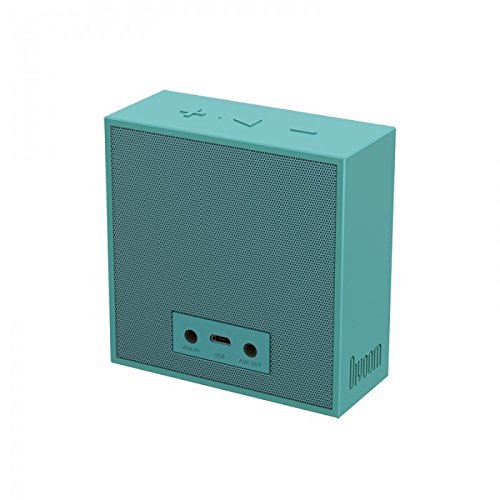
Image: Rear view of the Divoom TimeBox Mini speaker. It features an AUX IN port for audio input and a Micro USB port for charging and data transfer. The Divoom logo is subtly embossed on the lower right side.
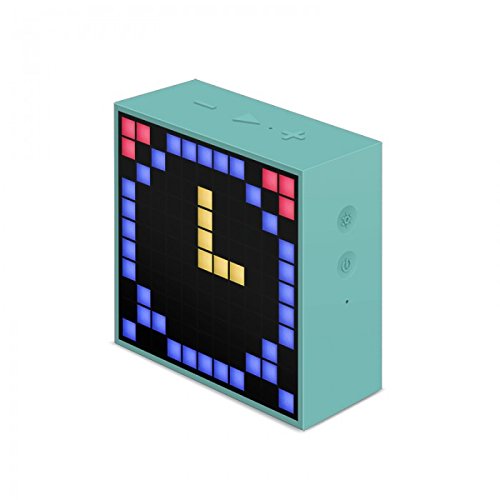
Image: Front view of the Divoom TimeBox Mini, showcasing its LED pixel display. The display currently shows a stylized, pixelated letter 'L' in yellow, surrounded by blue and red pixels, indicating its pixel art capabilities.
Controls and Ports:
- LED Display: Front panel for pixel art, time, notifications.
- Power Button: Located on the side, press and hold to power on/off.
- Volume Buttons: Located on the top, for adjusting audio volume.
- Micro USB Port: On the rear, for charging the device.
- AUX IN Port: On the rear, for connecting external audio sources via 3.5mm cable.
- Microphone: Built-in for voice memo and hands-free calls.
Setup
1. Charging the Device
Before first use, fully charge your TimeBox Mini. Connect the provided USB charging cable to the Micro USB port on the back of the speaker and the other end to a USB power adapter (not included) or a computer's USB port. The LED indicator will show charging status.
2. Power On/Off
- To Power On: Press and hold the Power button on the side until the LED display illuminates.
- To Power Off: Press and hold the Power button until the LED display turns off.
3. App Installation (Divoom Smart App)
To unlock the full potential of your TimeBox Mini, download the "Divoom Smart" app on your smartphone or tablet.
- For iOS devices: Search for "Divoom Smart" in the Apple App Store.
- For Android devices: Search for "Divoom Smart" in the Google Play Store.

Image: A collage showing various screens of the Divoom Smart mobile application, highlighting its diverse functionalities. Prominently displayed are icons for "Get it on Google Play" and "Available on the App Store," indicating where users can download the application.
4. Bluetooth Pairing
- Ensure your TimeBox Mini is powered on.
- Enable Bluetooth on your smartphone or tablet.
- Open the Divoom Smart app. The app will automatically search for nearby Divoom devices.
- Select "TimeBox Mini" from the list of available devices to connect.
- Once connected, the app will display a confirmation, and the speaker will be ready for use.
Operating Instructions
Basic Speaker Functions:
- Volume Control: Use the volume buttons on the top of the speaker or your connected device to adjust audio levels.
- Play/Pause: Press the multi-function button (often integrated with the power button or a dedicated button) once to play or pause music.
- Hands-Free Calling: When a call comes in, press the multi-function button to answer, and press again to end the call.
Using the Divoom Smart App:
The Divoom Smart app provides extensive control and customization options for your TimeBox Mini.
- Pixel Art Creation: Design and display your own pixel art or choose from a gallery of user-generated designs.
- Smart Alarm: Set alarms with custom sounds and pixel animations.
- Sleep Aid: Access 22 professional sleep-aid tracks with accompanying visual and audio stimulation to help you fall asleep.
- Notifications: Display social media and app notifications on the LED screen.
- Mini Games: Play retro pixel games directly on the TimeBox Mini's display, controlled via the app.
- Other Features: Explore additional functions like Stopwatch, Date Reminder, and Scoreboard within the app.

Image: A Divoom TimeBox Mini speaker displaying a warm orange pixel pattern, positioned next to a smartphone running the Divoom Smart app's sleep aid feature. The phone screen shows various nature-themed images and time settings for sleep assistance.

Image: Three Divoom TimeBox Mini speakers are shown side-by-side, each displaying a different pixel art mini-game. The games resemble classic arcade titles, demonstrating the device's entertainment capabilities. Below each speaker is a "GO!" button, suggesting interaction.

Image: A visual representation of three distinct features of the Divoom TimeBox Mini: Stopwatch, Date Reminder, and Scoreboard. Each feature is depicted with an illustrative image of the TimeBox Mini displaying relevant pixel art, such as a clock for the stopwatch, a Christmas tree for a date reminder, and a soccer ball for the scoreboard.
Auxiliary (AUX) Input:
Connect an external audio device (e.g., MP3 player, computer) to the TimeBox Mini using the provided 3.5mm AUX cable. The speaker will automatically switch to AUX mode when a cable is detected.
TF Card Input:
The TimeBox Mini supports TF card playback. Insert a TF card (MicroSD card) with your audio files into the designated slot (if available on your model). The speaker will automatically detect and play music from the card.
Maintenance
Cleaning:
Wipe the exterior of the TimeBox Mini with a soft, dry, lint-free cloth. Do not use abrasive cleaners, alcohol, or chemical solvents, as these may damage the surface or internal components. Avoid getting moisture into any openings.
Battery Care:
- To prolong battery life, avoid fully discharging the battery frequently.
- Charge the device regularly, even if not in use for extended periods.
- Store the device in a cool, dry place away from extreme temperatures.
Storage:
When storing the TimeBox Mini for an extended period, ensure it is fully charged and then power it off. Store it in its original packaging or a protective case to prevent dust and damage.
Troubleshooting
| Problem | Possible Solution |
|---|---|
| Device does not power on. | Ensure the device is fully charged. Connect it to a power source using the USB cable and try again after a few minutes. |
| Cannot connect via Bluetooth. |
|
| No sound from speaker. |
|
| App features not working. |
|
Specifications

Image: An exploded view of the Divoom TimeBox Mini, showing its internal speaker components and key technical specifications. Details include Output Power (5W), Bluetooth version (V4.0 smart), Signal-to-Noise Ratio (78 dB), and Frequency Response (60-20000Hz).
| Feature | Detail |
|---|---|
| Brand | Divoom |
| Model Name | TIMEBOX MINI |
| Output Power | 5 Watts |
| Connectivity Technology | Auxiliary, Bluetooth (V4.0 smart) |
| Control Method | App Control |
| Compatible Devices | Smartphone, Tablet |
| Power Source | Battery Powered (1 Lithium Ion battery included) |
| Item Weight | 0.52 Kilograms |
| Frequency Response | 60-20000Hz |
| Signal-to-Noise Ratio | 78 dB |
| LED Display | 121 programmable LEDs, 16 million RGB colors |
Warranty and Support
Divoom products are manufactured to high quality standards. For information regarding warranty coverage, technical support, or service inquiries, please refer to the official Divoom website or contact their customer support directly.
Official Website: www.divoom.com
Please retain your proof of purchase for warranty claims.


