
Product Overview
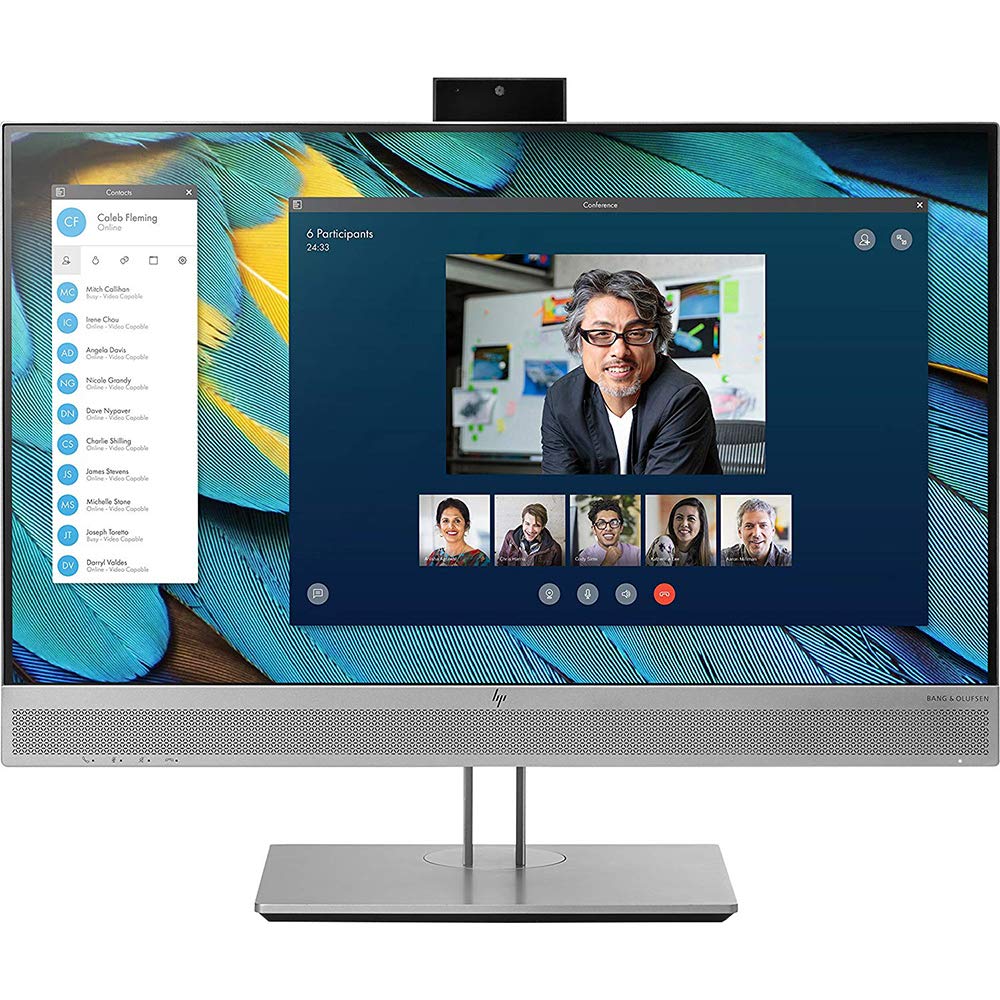
Image: HP EliteDisplay E243m 23.8-inch LED-Lit Monitor, shown in black/silver.
The HP EliteDisplay E243m is a 23.8-inch LED-Lit monitor designed for comfortable connectivity and collaboration. It features optimal video and audio capabilities, a 3-sided micro-edge bezel for seamless multi-display setups, and 4-way adjustable ergonomics for user comfort. This monitor is suitable for various professional environments, offering clear visuals and integrated communication tools.
What's Included
The following items are typically included with your HP EliteDisplay E243m monitor:
- HP EliteDisplay E243m LED-backlit LCD monitor
- VGA cable
- DisplayPort cable
- Software (drivers and utilities)
- Power cable
- USB cable (for webcam and microphone functionality)
Setup Guide
Connecting the Monitor
- Connect the Power Cable: Plug one end of the power cable into the monitor's power input and the other end into a grounded electrical outlet.
- Connect Video Cable: Choose one of the available video input ports (DisplayPort, HDMI, or VGA) on the monitor and connect it to the corresponding output port on your computer. It is recommended to use only one video input cable at a time to avoid potential display conflicts.
- Connect USB Cable: For the integrated webcam and dual microphones to function, connect the provided USB cable from the monitor's USB upstream port to an available USB port on your computer.
- Adjust Monitor Position: Position the monitor on a stable surface. Utilize the monitor's ergonomic stand to adjust the height, tilt, swivel, and pivot for optimal viewing comfort.
Operating Your Monitor
Power On/Off
Locate the power button, typically on the front or bottom bezel of the monitor. Press it to turn the monitor on or off. The power indicator light will illuminate when the monitor is active.
On-Screen Display (OSD) Menu
Use the control buttons located on the monitor's bezel to access and navigate the On-Screen Display (OSD) menu. This menu allows you to adjust various settings, including:
- Brightness and Contrast
- Color Settings
- Input Source Selection (VGA, HDMI, DisplayPort)
- Audio Volume
- Picture-in-Picture (if supported)
Integrated Webcam and Microphone
The HP EliteDisplay E243m features an integrated 720p HD webcam and dual digital microphones for video conferencing and communication. The webcam is designed to pop up from the top bezel when activated. Ensure the USB cable is connected from the monitor to your computer for these features to function correctly. You may need to select the monitor's webcam and microphone as your default devices in your operating system's sound and camera settings or within your video conferencing application.
Care and Maintenance
Cleaning the Screen
To clean the monitor screen, gently wipe it with a soft, lint-free cloth. For stubborn smudges, lightly dampen the cloth with water or a non-abrasive, ammonia-free screen cleaner. Do not spray liquid directly onto the screen, as it may damage internal components.
Cleaning the Exterior
Wipe the monitor's exterior casing with a soft, dry cloth. Avoid using harsh chemicals, abrasive cleaners, or solvents, as these can damage the finish.
Storage
When storing the monitor, ensure it is placed in a cool, dry environment, away from direct sunlight and extreme temperatures. Use original packaging if available to protect it from dust and physical damage.
Troubleshooting Common Issues
No Display
- Check Power: Ensure the power cable is securely connected to both the monitor and a functional power outlet. Verify the power indicator light is on.
- Verify Video Cable: Confirm that the video cable (HDMI, DisplayPort, or VGA) is firmly connected to both the monitor and your computer's video output port.
- Single Video Input: Ensure only one video input cable is connected to the monitor at a time. Connecting multiple video inputs simultaneously can sometimes cause display issues or incorrect resolution detection.
- Select Input Source: Use the OSD menu buttons to manually select the correct input source (e.g., HDMI, DisplayPort) that matches your connected cable.
- Computer Output: Confirm your computer is powered on and sending a video signal. Try connecting another display to your computer to rule out a computer-side issue.
Webcam or Microphone Not Working
- USB Connection: Verify that the USB cable is connected from the monitor's upstream USB port to an available USB port on your computer. This connection is essential for the webcam and microphone.
- Webcam Position: Ensure the integrated webcam is in its 'pop-up' position.
- Operating System Settings: Check your computer's operating system privacy settings to ensure applications have permission to access the camera and microphone.
- Application Settings: Within your video conferencing or recording application, confirm that the HP EliteDisplay E243m's webcam and microphone are selected as the default input devices.
Technical Specifications
| Feature | Specification |
|---|---|
| Brand | HP |
| Model Number | 1FH48A8#ABA |
| Screen Size | 23.8 Inches |
| Resolution | FHD 1080p (1920 x 1080 Pixels) |
| Aspect Ratio | 16:9 |
| Refresh Rate | 60 Hz |
| Response Time | 5 Milliseconds |
| Display Type | LED |
| Brightness | 250 cd/m² |
| Contrast Ratio | 1000:1 |
| Viewing Angle | 170 Degrees |
| Hardware Connectivity | DisplayPort, HDMI, VGA, USB |
| Camera Description | 720p integrated HD webcam with dual digital microphones |
| Mounting Type | Wall Mount |
| Item Weight | 14.55 Pounds |
| Color | Black/Silver |
Warranty and Customer Support
This HP EliteDisplay E243m monitor (Model Number: 1FH48A8#ABA) comes with a 3 years limited warranty. This warranty covers defects in materials and workmanship under normal use during the warranty period.
For detailed warranty terms, technical assistance, driver downloads, or to access support resources, please visit the official HP support website. When contacting support, please have your monitor's model number (1FH48A8#ABA) and serial number readily available to expedite service.


