
APC BR1000MS
APC UPS 1000VA Sine Wave UPS Instruction Manual
Model: BR1000MS | Brand: APC
1. Product Overview
The APC UPS 1000VA Sine Wave UPS (Model BR1000MS) is a battery backup and surge protector designed to provide guaranteed power and surge protection for wireless networks, computers, and other sensitive electronics. It ensures continuous operation during power outages and safeguards against damaging voltage fluctuations and spikes. This unit is ideal for home and office environments, offering reliable power for high-end PCs, gaming consoles, smart TVs, and multimedia devices.

Figure 1: Front view of the APC UPS 1000VA Sine Wave UPS.
2. Key Features
- Power Capacity: 1000VA / 600W battery backup power supply.
- Outlets: 10 NEMA 5-15R outlets, including 6 with battery backup and surge protection, and 4 with surge protection only.
- Sinewave Output: Provides pure sinewave output, crucial for sensitive electronics and devices with Active PFC.
- Automatic Voltage Regulation (AVR): Stabilizes incoming utility power without switching to battery, preserving battery life.
- USB Charging Ports: Two convenient USB charging ports (1 USB-C, 1 Type-A, 15W shared) for mobile devices.
- LCD Display: New angled LCD with graphic icons for quick and easy-to-read information on utility and UPS status.
- User-Replaceable Battery: Features a user-replaceable battery (model APCRBC160, sold separately) to prolong the UPS's lifespan.
- Network and Coax Protection: Includes 1 Gb network and coax protection to safeguard equipment from "back door" surges.

Figure 2: Overview of APC UPS 1000VA power capacity, battery backup, and outlets.

Figure 3: Easy management features including LCD display, buttons, and USB ports.

Figure 4: Rear panel showing 1Gb network, coax protection, and sinewave power output outlets.
3. Setup Guide
3.1. Unpacking and Initial Battery Connection
Your APC UPS is shipped with the battery disconnected to prevent unnecessary drain during storage and shipping. Follow these steps to connect the battery:
- Carefully unpack the UPS unit and all accessories from the box.
- Locate the battery compartment cover, typically on the bottom or rear of the unit.
- Press the release tabs or slide the cover to remove it.
- Pull out the battery pack slightly. You will see a disconnected battery terminal.
- Connect the battery cable to the corresponding terminal. Ensure a firm connection.
- Slide the battery pack back into the compartment and replace the cover securely.
Video 1: Instructions on connecting the battery for a Back-UPS Pro UPS. This video demonstrates the process of connecting the internal battery before initial use.
3.2. Connecting to Power and Devices
- Plug the UPS power cord directly into a grounded wall outlet. Avoid using surge strips or extension cords.
- Connect your critical devices (computer, monitor, router, etc.) to the "Battery + Surge" outlets on the rear of the UPS. These outlets provide battery backup during power outages.
- Connect less critical devices (printer, scanner, etc.) to the "Surge Only" outlets. These outlets provide surge protection but no battery backup.
- For network protection, connect your incoming network cable to the "In" Gigabit port and your device's network cable to the "Out" Gigabit port.
- For coax protection, connect your incoming coax cable to the "Cable In" port and your device's coax cable to the "Cable Out" port.
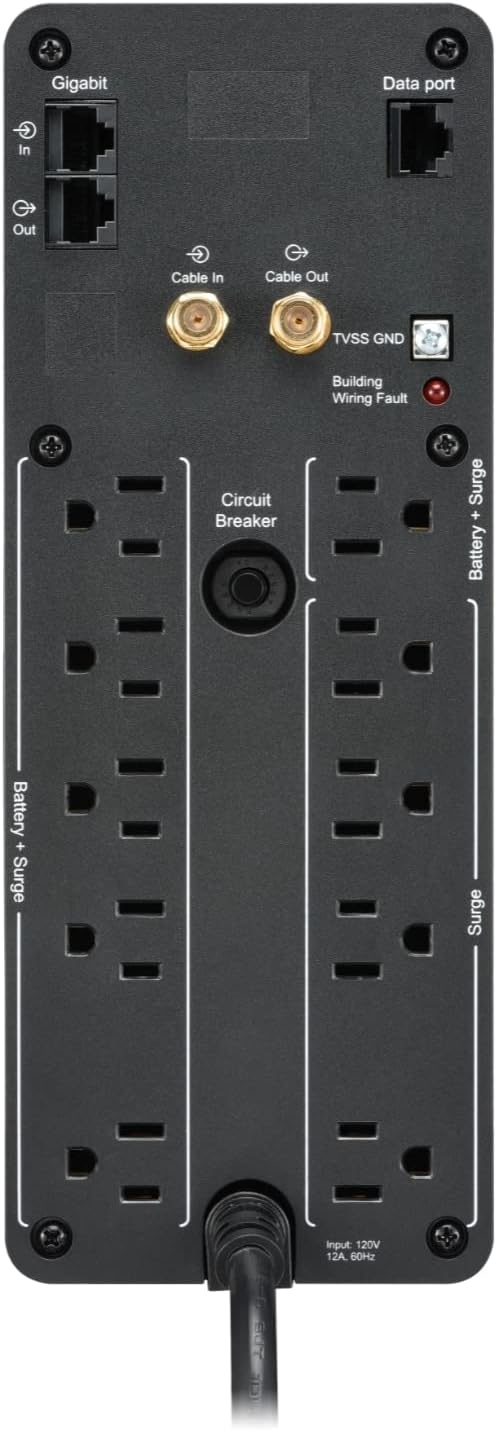
Figure 5: Rear view of the APC UPS 1000VA showing battery backup, surge-only, Gigabit, and coax outlets.
4. Operating Instructions
4.1. Powering On/Off
- To power on the UPS, press the green power button on the front panel. The LCD display will illuminate.
- To power off the UPS, press and hold the green power button until the unit shuts down.
4.2. Understanding the LCD Display
The LCD display provides real-time status information. Use the display buttons to cycle through various readings such as load in watts and percentages, AC voltage, estimated runtime on battery, and frequency (Hertz).
Video 2: Overview of the features of the APC Back-UPS Pro Sinewave UPS, including LCD display functions and power output.
4.3. USB Charging
The front panel includes one USB-C and one USB-A port (15W shared) for charging mobile devices. Simply connect your device's charging cable to the appropriate USB port.
4.4. PowerChute Software
For advanced management and automatic shutdown features, install the PowerChute software. Connect the UPS to your computer via the dedicated data port (USB to RJ45 cable included). PowerChute is compatible with Windows 10 (22H2 Pro), Windows 11 Pro. For Mac OS, use native "Energy Saver" settings.
5. Maintenance
5.1. Battery Replacement
The UPS features a user-replaceable battery. When the battery needs replacement (typically every 3-5 years depending on usage and environmental factors), the UPS will indicate this on the LCD display. Use only genuine APC replacement battery model APCRBC160 (sold separately) to ensure optimal performance and safety. Refer to the initial setup instructions for battery access and replacement.
5.2. Cleaning
Regularly clean the exterior of the UPS with a dry cloth. Ensure ventilation openings are free from dust and debris to prevent overheating.
6. Troubleshooting
| Problem | Possible Cause | Solution |
|---|---|---|
| UPS does not turn on. | Battery not connected or low charge. | Ensure battery is properly connected. Plug UPS into wall outlet and allow to charge for 24 hours. |
| UPS beeps continuously or frequently. | On battery mode (power outage) or overloaded. | During power outage, save work and shut down devices. Reduce connected load if overloaded. Check for "tinnitus" sound from customer reviews, if persistent and not related to power events, contact support. |
| "Building Wiring Fault" indicator is lit. | Wiring problem in wall outlet (e.g., missing ground). | Consult a qualified electrician to inspect the wiring. |
| Short runtime on battery. | Battery is old or not fully charged. | Allow battery to charge fully. Consider replacing the battery if it's old (APCRBC160). |
Video 3: Explaining the value of an APC UPS in a SmartHome, highlighting its role in maintaining connectivity during power interruptions.
7. Technical Specifications
| Attribute | Detail |
|---|---|
| Model Number | BR1000MS |
| Capacity | 1000VA / 600W |
| Output Waveform | Sine Wave |
| Nominal Output Voltage | 120 Volts |
| Output Connections | (6) NEMA 5-15R (Battery Backup & Surge Protection), (4) NEMA 5-15R (Surge Protection Only) |
| USB Charging Ports | (1) USB-C, (1) Type-A (15W shared) |
| Battery Type | Sealed Lead Acid |
| Replacement Battery Cartridge | APCRBC160 (sold separately) |
| Dimensions (H x W x D) | 14.5" x 5.5" x 5" |
| Weight | 22.5 pounds |
| Color | Black |
8. Warranty and Support
APC products typically come with a manufacturer's warranty. For specific warranty details, including duration and coverage, please refer to the warranty card included in your product packaging or visit the official APC website. For technical support, troubleshooting assistance, or to inquire about replacement parts, please contact APC customer service directly.
You can find more information and support resources on the APC by Schneider Electric Store.
Related documentsBR1000MS


Ask a question about this manual
Ask about setup, troubleshooting, compatibility, parts, safety, or missing instructions. Manuals+ will review the question and use this page’s manual context to help answer it.