
Logitech G 920-008386
Logitech G613 LIGHTSPEED Wireless Mechanical Gaming Keyboard User Manual
Model: G613 (920-008386)
Brand: Logitech G
Introduction
The Logitech G613 is a high-performance wireless mechanical gaming keyboard designed for a seamless gaming experience. It features LIGHTSPEED wireless technology for ultra-fast response times, advanced Romer-G mechanical switches for precise and durable performance, and exceptional battery life. This manual provides detailed instructions for setting up, operating, maintaining, and troubleshooting your G613 keyboard.
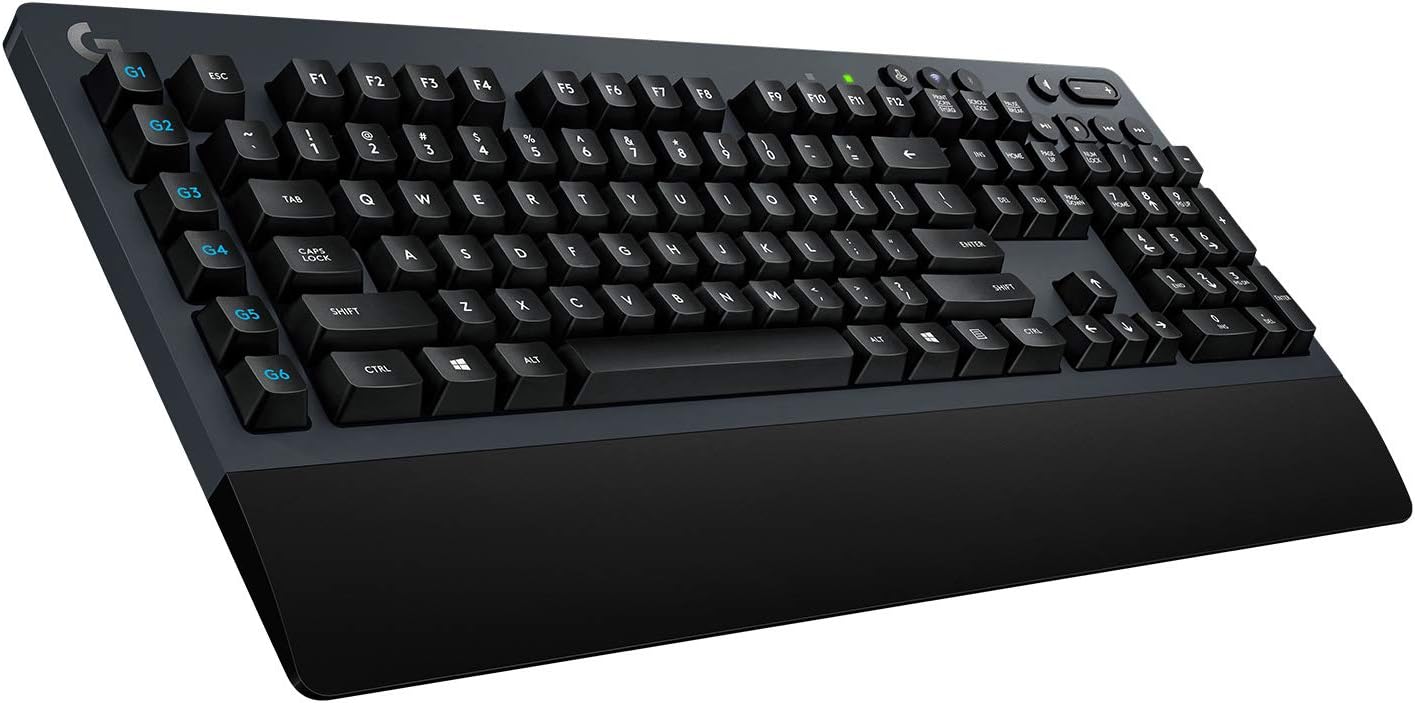
Image: The Logitech G613 keyboard, showcasing its full layout with G-keys on the left and media controls on the top right.
What's in the Box
Verify that all items listed below are included in your package:
- G613 wireless mechanical keyboard
- LIGHTSPEED USB receiver
- Phone stand
- USB Cable
- 2 AA Batteries
- User documentation

Image: All components included with the Logitech G613 keyboard: the keyboard itself, USB receiver, phone stand, USB cable, and two AA batteries.
Setup
1. Powering On
Insert the two AA batteries into the battery compartment located on the underside of the keyboard. Ensure correct polarity. Once batteries are inserted, slide the power switch on the top right edge of the keyboard to the ON position. The battery indicator light will briefly illuminate.
2. Connecting via LIGHTSPEED Wireless
- Locate the LIGHTSPEED USB receiver from the package.
- Plug the LIGHTSPEED USB receiver into an available USB port on your computer.
- Ensure the keyboard's connectivity switch (located near the media keys) is set to the LIGHTSPEED (Wi-Fi icon) mode. The LIGHTSPEED indicator light will glow solid blue when connected.

Image: Close-up of the Logitech G613 keyboard showing the LIGHTSPEED wireless indicator light and the connectivity switch.
3. Connecting via Bluetooth
- Ensure the keyboard's connectivity switch is set to the Bluetooth (Bluetooth icon) mode. The Bluetooth indicator light will start blinking rapidly.
- On your device (computer, smartphone, tablet), navigate to Bluetooth settings and search for new devices.
- Select "G613" from the list of available devices to pair.
- Follow any on-screen prompts to complete the pairing process. The Bluetooth indicator light will glow solid blue when connected.

Image: Close-up of the Logitech G613 keyboard showing both the LIGHTSPEED (Wi-Fi) and Bluetooth connection indicator lights.
Note: The G613 supports multi-host connectivity, allowing you to switch between LIGHTSPEED and Bluetooth connected devices using the dedicated switch.
Operating
G-Keys (Programmable Keys)
The G613 features six programmable G-keys (G1-G6) located on the left side of the keyboard. These keys can be customized to execute complex macros, in-app commands, or system functions using the Logitech G HUB software.
- Download and install Logitech G HUB software from the official Logitech website.
- Launch G HUB and select your G613 keyboard.
- Navigate to the "Assignments" tab to customize the G-keys. You can assign keystrokes, macros, system commands, and more.
- Profiles can be created and linked to specific applications, allowing G-key assignments to change automatically when you switch programs.

Image: Close-up view of the G1 through G6 programmable keys on the left side of the Logitech G613 keyboard.
Media Controls
Dedicated media control buttons are located on the top right of the keyboard for convenient access to audio and video playback functions:
- Volume Roller: Adjusts system volume up or down.
- Mute: Mutes or unmutes audio.
- Play/Pause: Toggles playback of media.
- Stop: Stops media playback.
- Previous Track: Skips to the beginning of the current track or the previous track.
- Next Track: Skips to the next track.
Game Mode
The G613 features a Game Mode button (located near the F12 key) that disables the Windows key and other keys that might interrupt your game. This prevents accidental presses from minimizing your game or opening unwanted menus during intense gameplay.
- Press the Game Mode button to toggle Game Mode on or off.
- You can customize which keys are disabled in Game Mode using the Logitech G HUB software.
Maintenance
Battery Replacement
The G613 keyboard operates on two AA batteries and offers an impressive battery life of up to 18 months depending on usage. When the battery indicator light starts blinking red, it's time to replace the batteries.
- Turn off the keyboard using the power switch.
- Open the battery compartment cover on the underside of the keyboard.
- Remove the old AA batteries.
- Insert two new AA batteries, ensuring correct polarity (+/-).
- Close the battery compartment cover.
- Turn on the keyboard. The battery indicator light will briefly illuminate green.

Image: Side view of the Logitech G613 keyboard, highlighting its long battery life capability with an "18 MONTHS" graphic.
Cleaning
To maintain the performance and appearance of your keyboard:
- Use a soft, lint-free cloth slightly dampened with water or a mild cleaning solution to wipe down the keycaps and chassis.
- Avoid spraying liquids directly onto the keyboard.
- For dust and debris between keys, use compressed air.
Troubleshooting
| Problem | Possible Solution |
|---|---|
| Keyboard not responding (LIGHTSPEED) |
|
| Keyboard not connecting via Bluetooth |
|
| G-keys not working or customizing |
|
| Keys are sticky or unresponsive |
|
Specifications
| Feature | Detail |
|---|---|
| Model | G613 (920-008386) |
| Connectivity | LIGHTSPEED Wireless (2.4 GHz), Bluetooth |
| Switch Type | Romer-G Mechanical Switches |
| Actuation Distance | 1.5 mm |
| Actuation Force | 45 g |
| Durability | 70 million keypresses |
| Programmable Keys | 6 G-keys |
| Media Controls | Dedicated media keys and volume roller |
| Battery Life | Up to 18 months (with 2 AA batteries) |
| Dimensions (LxWxH) | 18.82 x 8.5 x 1.33 inches (478 x 216 x 33.7 mm) |
| Weight | 3.1 pounds (1.4 kg) |
| Operating System Compatibility | Windows 7 or later, Mac OS X 10.10 or later, Chrome OS, Android 3.2 or later, iOS 10 or later |

Image: Exploded view diagram of a Romer-G mechanical key switch, illustrating its internal components.

Image: Side profile views of the Logitech G613 keyboard, demonstrating its adjustable height and typing angle options.
Warranty and Support
Logitech products are designed with quality and reliability in mind. For detailed warranty information specific to your region and product, please refer to the warranty card included in your product packaging or visit the official Logitech support website.
For technical support, driver downloads, and frequently asked questions, please visit the Logitech G support page:
You can also refer to the official User Guide (PDF) available for download: Download User Guide
Related documents920-008386


Ask a question about this manual
Ask about setup, troubleshooting, compatibility, parts, safety, or missing instructions. Manuals+ will review the question and use this page’s manual context to help answer it.