
1. Introduction
This manual provides essential information for the safe and efficient use of your Fujitsu LIFEBOOK AH77/B3 laptop. Please read this manual thoroughly before using the product and keep it for future reference. This document covers setup, operation, maintenance, and troubleshooting for your device.
2. Safety Information
To ensure safe operation and prevent damage to your device or injury to yourself, observe the following precautions:
- Power Supply: Use only the AC adapter provided with your laptop. Using an incompatible adapter may cause fire, electric shock, or damage to the device.
- Ventilation: Do not block ventilation openings. Ensure adequate airflow around the laptop to prevent overheating. Avoid placing the laptop on soft surfaces like beds or sofas during operation.
- Liquid Exposure: Keep the laptop away from liquids. Spilling liquid on the device can cause electric shock or internal damage.
- Cleaning: Disconnect the power adapter before cleaning. Use a soft, dry cloth. Do not use liquid or aerosol cleaners.
- Battery: Do not attempt to replace the battery yourself. Battery replacement should only be performed by authorized service personnel.
- Operating Environment: Avoid extreme temperatures, humidity, and direct sunlight. Operate the laptop within the recommended temperature range (typically 5°C to 35°C).
3. Package Contents
Verify that all items are present in the package:
- Fujitsu LIFEBOOK AH77/B3 Laptop
- AC Adapter and Power Cord
- Documentation (Quick Start Guide, Warranty Information)
- Wireless Mouse (may vary by region/bundle)
If any items are missing or damaged, contact your retailer or Fujitsu support.
4. Product Overview
The Fujitsu LIFEBOOK AH77/B3 is a 15.6-inch notebook designed for personal use, featuring a robust set of specifications for everyday computing tasks.
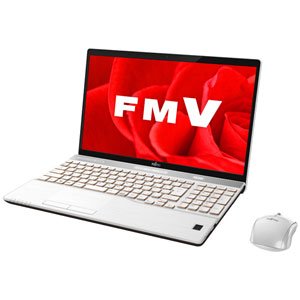
Figure 4.1: Front view of the Fujitsu LIFEBOOK AH77/B3 laptop, showing the display, keyboard, and touchpad.
4.1. Key Components
- Display: 15.6-inch LED LCD screen.
- Keyboard: Full-size keyboard with numeric keypad.
- Touchpad: Integrated multi-touch touchpad for navigation.
- Web Camera: Built-in web camera for video calls and conferencing.
- Speakers: Integrated stereo speakers for audio output.
- Ports: Various USB ports (USB 2.0, USB 3.0), and other connectivity options.
5. Setup
5.1. Initial Power-On
- Unpack the laptop and all accessories.
- Connect the AC adapter to the laptop's power input port and then plug it into a wall outlet.
- Open the laptop lid.
- Press the power button to turn on the laptop.
- Follow the on-screen instructions to complete the initial Windows 10 Home setup, including language selection, network connection, and user account creation.
5.2. Connecting Peripherals
- USB Devices: Insert USB devices (e.g., external hard drives, printers) into the available USB ports.
- Wireless Devices: The laptop supports Wi-Fi (802.11a/b/g/n/ac) and Bluetooth. Enable these features through the Windows settings to connect to wireless networks or Bluetooth accessories.
6. Operating Instructions
6.1. Power Management
- Turning On/Off: Press the power button to turn on. To turn off, click the Start button, then Power > Shut down.
- Sleep Mode: Close the lid or select Sleep from the Power menu to enter sleep mode.
- Restart: Select Restart from the Power menu to restart the system.
6.2. Network Connectivity
- Wi-Fi: Click the network icon in the taskbar, select your desired Wi-Fi network, enter the password if prompted, and click Connect.
- Bluetooth: Go to Windows Settings > Devices > Bluetooth & other devices to pair with Bluetooth devices.
6.3. Using Included Software
- Microsoft Office 365: Activate your included Microsoft Office 365 subscription by following the on-screen prompts upon first launch of any Office application (e.g., Word, Excel). An internet connection and a Microsoft account are required.
- Web Camera: To use the web camera, open the Camera app in Windows or use it within video conferencing applications.
7. Maintenance
7.1. Cleaning Your Laptop
- Screen: Use a soft, lint-free cloth specifically designed for electronics. For stubborn smudges, lightly dampen the cloth with water or a screen cleaner.
- Keyboard and Casing: Use a soft, dry cloth. A can of compressed air can be used to remove dust from between keys and ventilation slots.
7.2. Battery Care
- Avoid fully discharging the battery frequently.
- If storing the laptop for an extended period, ensure the battery is charged to about 50%.
- Do not expose the battery to extreme heat.
7.3. Software Updates
Regularly update your Windows operating system and drivers to ensure optimal performance and security. Windows Update can be accessed via Settings > Update & Security.
8. Troubleshooting
This section addresses common issues you might encounter with your laptop.
| Problem | Possible Cause | Solution |
|---|---|---|
| Laptop does not power on. | No power, discharged battery, faulty AC adapter. | Ensure AC adapter is securely connected and plugged into a working outlet. Charge the battery for at least 30 minutes. |
| Display is blank. | Sleep mode, display settings, hardware issue. | Press any key or move the mouse to wake from sleep. Check display settings (Fn + Fx keys). Restart the laptop. |
| Cannot connect to Wi-Fi. | Wi-Fi disabled, incorrect password, router issue. | Ensure Wi-Fi is enabled in Windows settings. Verify Wi-Fi password. Restart your router and laptop. |
| System is slow or unresponsive. | Too many applications open, low disk space, malware. | Close unnecessary applications. Free up disk space. Run a virus scan. Restart the laptop. |
9. Specifications
Key technical specifications for the Fujitsu LIFEBOOK AH77/B3:
- Brand: Fujitsu
- Model Name: LIFEBOOK AH77/B3 (FMVA77B3W)
- Screen Size: 15.6 inches
- Installed RAM Memory Size: 8 GB (DDR4)
- Operating System: Windows 10 Home
- Hard Disk Description: HDD, SSD
- Connectivity Technology: USB, Bluetooth, Wi-Fi (802.11a/b/g/n/ac)
- Graphics Processor Manufacturer: Intel
- CPU Manufacturer: Intel
- Included Software: Microsoft Office 365, Web Camera
- Hardware Interface: ATA, USB, USB 2.0, USB 3.0
- Audio Output Type: Speakers
- Input Devices: Keyboard, Touchpad, Numeric Keypad
10. Warranty and Support
For warranty information, please refer to the warranty card included in your product package or visit the official Fujitsu support website. If you encounter issues that cannot be resolved using the troubleshooting guide, please contact Fujitsu customer support for assistance.
Fujitsu Support Website: https://www.fujitsu.com/global/support/


