Introduction
This manual provides instructions for setting up and operating your LuckyStar A-TV2 Universal Big Button Remote Control. This remote is designed for ease of use with large, clearly labeled buttons, making it suitable for various users, including those with visual impairments or who prefer simplified controls.
Key Features
- Compatible with a wide range of TV brands including LG, Vizio, Sharp, Zenith, Panasonic, Philips, and RCA.
- Features an automatic search function for over 1000+ US market TV brands.
- Designed with a natural fit and comfortable grip.
- No complex programming required for many popular brands; simply insert batteries to begin.
- Constructed from durable ABS material with soft plastic buttons.

Image: A visual summary of the remote control's key features, emphasizing its user-friendly design and durable construction.
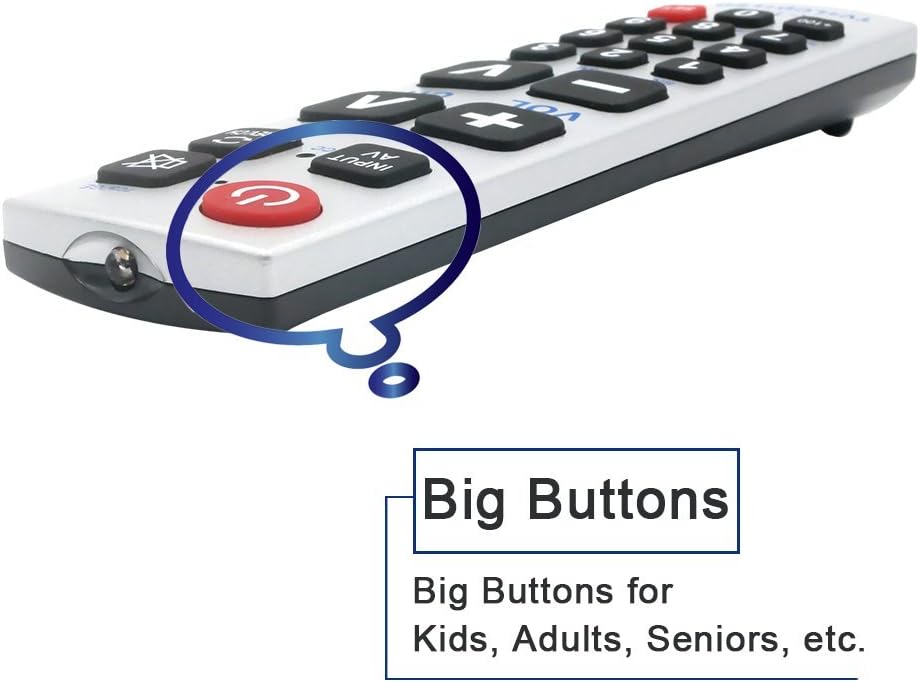
Image: A close-up view of the remote control, highlighting its large buttons designed for enhanced visibility and ease of use for all ages.
Setup
1. Battery Installation
The LuckyStar A-TV2 remote control requires two AAA batteries (not included).
- Locate the battery compartment on the back of the remote control.
- Slide the battery compartment cover downwards to open it.
- Insert two AAA batteries, ensuring correct polarity (+ and - terminals match the markings inside the compartment).
- Slide the battery compartment cover back into place until it clicks securely.
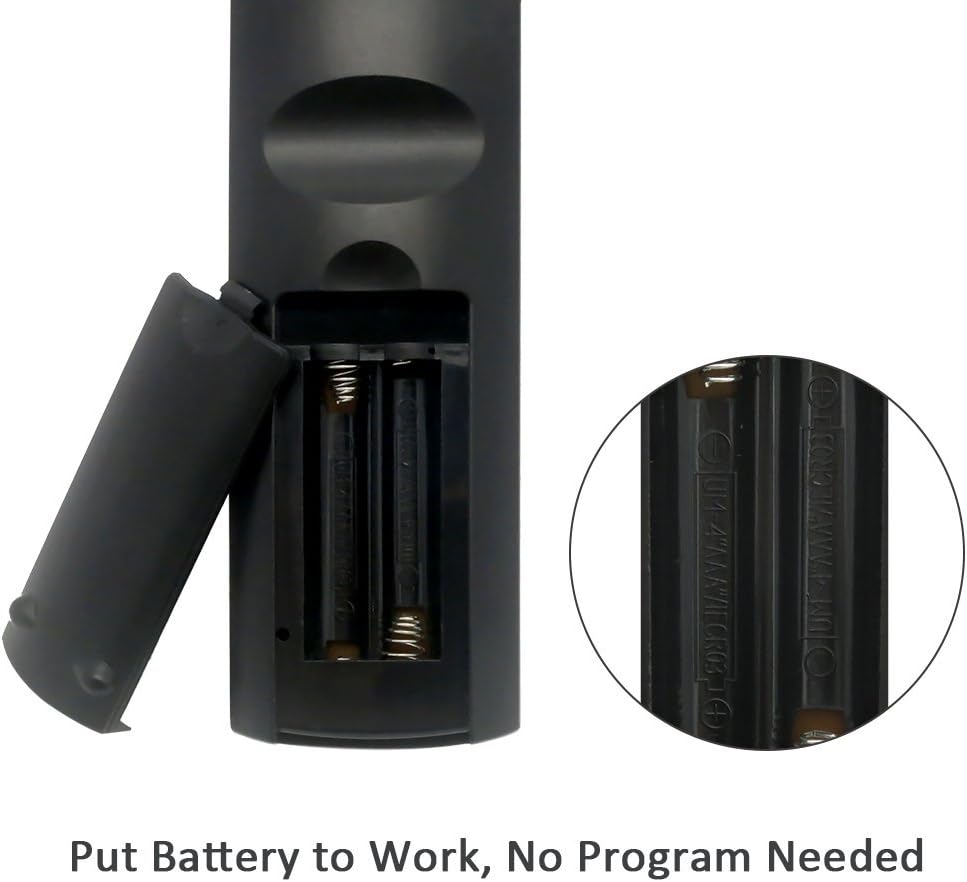
Image: The back of the remote control with the battery cover removed, showing the slots for two AAA batteries. This illustrates how to correctly insert the batteries.
2. Initial Setup (No Programming Needed for Many Brands)
For many popular TV brands, the remote is pre-programmed and ready to use immediately after battery installation. Simply point the remote at your TV and test basic functions like Power, Volume, and Channel.
If the remote does not operate your TV directly, proceed to the "Programming Your Remote" section.

Image: A visual representation of the remote's compatibility with multiple TV brands, including Samsung, Sony, Sharp, LG, Vizio, Zenith, Panasonic, Philips, and RCA.
Operating Instructions
Button Functions
The LuckyStar A-TV2 remote features large, clearly labeled buttons for essential TV functions. Refer to the diagram below for a detailed overview of each button's purpose.

Image: A diagram illustrating the primary functions of each button on the remote control.
- Power Button (Red Circle with Line): Turns the TV on and off.
- Mute Button (Speaker with X): Cuts off the sound temporarily.
- INPUT/AV Button: Selects the video input source (e.g., HDMI 1, AV, Component).
- CC Button: Controls the caption decoder (Closed Captioning).
- PREV.CH Button: Returns to the previously viewed channel.
- VOL +/- Buttons: Adjusts the volume up or down.
- CH +/- Buttons: Changes channels up or down.
- Number Buttons (0-9): Directly input channel numbers.
- +100 Button: Used for entering channel numbers above 99 or for specific programming steps.
- SET Button (Red): Used for programming the remote control.
Programming Your Remote
If the remote does not control your TV after battery installation, you will need to program it using one of the methods below.
1. Direct Code Input (Pre-programmed Codes)
The remote has pre-programmed codes for many popular brands. To use these:
- Press and hold the SET button.
- While holding SET, press the corresponding number button for your TV brand:
- [SET] + [1] for Sony
- [SET] + [2] for Samsung
- [SET] + [3] for Philips
- [SET] + [4] for Toshiba
- [SET] + [5] for JVC/SANYO
- [SET] + [6] for LG/GOLDSTAR
- [SET] + [7] for MITSUBISHI
- [SET] + [8] for SHARP / PANASONIC
- [SET] + [9] for PANASONIC (additional code)
- [SET] + [MUTE] for RCA/GE
- [SET] + [0] for NEC/PACK
- Release both buttons. Test the remote. If it works, programming is complete.
2. Automatic Search Function
If the direct codes do not work, or your brand is not listed, use the automatic search function:
- Turn on your TV manually.
- Point the remote control at the TV.
- Press and hold the SET button and the POWER button simultaneously for a few seconds until the indicator light on the remote turns on.
- Release both buttons. The indicator light will remain on.
- Repeatedly press the POWER button (approximately every 1-2 seconds) until your TV turns off.
- Once the TV turns off, immediately press the SET button to save the code. The indicator light will turn off.
- Test all remote functions (Power, Volume, Channel). If some functions do not work correctly, repeat the automatic search process.
3. Manual Code Input (Using TV Code List)
For additional brands or if automatic search is unsuccessful, you can input a specific TV code. Refer to the provided code list (often found in the product packaging or online).
- Turn on your TV manually.
- Press and hold the SET button and the POWER button simultaneously for a few seconds until the indicator light on the remote turns on.
- Release both buttons. The indicator light will remain on.
- Enter the 3-digit TV code for your brand using the number buttons.
- After entering the code, the indicator light should turn off.
- Test all remote functions. If it does not work, try another code from the list for your TV brand.
Troubleshooting
Common Issues and Solutions
- Remote not working after battery installation:
- Ensure batteries are inserted with correct polarity.
- Replace with fresh AAA batteries.
- Ensure there are no obstructions between the remote and the TV's infrared sensor.
- Remote controls some functions but not others:
- The programmed code might be partially compatible. Try the "Automatic Search Function" or "Manual Code Input" again to find a more suitable code.
- TV does not respond to any remote commands:
- Verify the TV is powered on.
- Confirm the remote is pointed directly at the TV's IR sensor.
- Re-attempt the programming steps (Direct Code, Automatic Search, or Manual Code Input).
- Check if the TV's original remote still works to rule out a TV issue.
- Remote indicator light does not turn on during programming:
- Ensure batteries are fresh and correctly inserted.
- Press and hold the SET and POWER buttons firmly and simultaneously for the required duration.
Specifications
Product Specifications

Image: A visual summary of the remote control's specifications.
- Model: LSA-TV2-1
- Material: ABS & Plastic
- Dimensions: Approximately 7.5 x 1.8 inches (19.05 x 4.57 cm)
- Weight: 3.2 ounces (approximately 90.7 grams)
- Batteries Required: 2 x AAA (not included)
- Connectivity Technology: Infrared
- Max Number of Supported Devices: 1 (Television)
- Compatible Devices: Television

Image: The remote control displayed with its approximate length of 7.5 inches.
Warranty and Support
Warranty Information
LuckyStar provides Amazon customers with a 1-year manufacturer warranty from the date of purchase. This warranty covers defects in materials and workmanship under normal use.
Customer Service
For any questions, troubleshooting assistance, or warranty claims, please contact LuckyStar customer service. Refer to your purchase documentation or the Amazon product page for current contact details.


