
1. Introduction
This manual provides detailed instructions for the installation, programming, and operation of the Walfront Digital Timer Switch. This device is designed to automatically control the ON/OFF state of various electrical equipment based on user-defined weekly programs. It features a built-in rechargeable battery and an industrial-grade chip for high precision and reliability.
2. Safety Information
- Always disconnect power before installation or maintenance to prevent electric shock.
- Installation should be performed by a qualified electrician or knowledgeable individual.
- Ensure the device's voltage and current ratings match your application.
- Do not expose the device to moisture or extreme temperatures.
3. Product Overview
The Walfront Digital Timer Switch features an LCD display and intuitive buttons for programming. It is designed for DIN rail mounting.

Figure 3.1: Front view of the Walfront Digital Timer Switch with the protective cover open, showing the LCD display and control buttons.

Figure 3.2: Close-up of the Walfront Digital Timer Switch, highlighting the LCD display which shows the current time and operating mode.
3.1. Buttons and Display
- LCD Display: Shows current time, day of the week, and operating status (ON/AUTO/OFF).
- P (Program): Enters or exits programming mode.
- D+ (Day): Adjusts the day of the week during time setting or program setting.
- H+ (Hour): Adjusts the hour during time setting or program setting.
- M+ (Minute): Adjusts the minute during time setting or program setting.
- RESET: Resets all settings to factory defaults.
- MANUAL C/R: Manual override for ON/OFF, or cancels program settings.
- Clock Icon (Time): Used to set the current time.
4. Specifications
| Feature | Value |
|---|---|
| Input Voltage | AC110V (Optional: AC/DC12V, AC/DC24V) |
| Voltage Rating | AC 180V to 264V (50/60Hz) |
| Load Capacity | 16A 250VAC (resistive load) |
| On/Off Programs | 16 ON and 16 OFF (manual/auto) |
| Display | LCD |
| Power Consumption | 4.5VA |
| Time Error | ≤ 2s/day (at 25°C) |
| Mounting Method | DIN rail (not included) |
| Timing Range | 1 minute to 168 hours |
| Operating Temperature | -10°C to 55°C |
| Dimensions | 86 x 36 x 65mm (3.38"D x 1.41"W x 2.56"H) |
| Item Weight | 3.87 ounces |
| Model Number | Walfronto15sh40gxu-03 |
| UPC | 663862324136 |

Figure 4.1: Diagram showing the physical dimensions of the Walfront Digital Timer Switch in millimeters.
5. Setup and Installation
5.1. Initial Setup
- Upon first use, connect the timer switch to an AC power source to charge the internal battery.
- Press the RESET button (located next to the "MANUAL C/R" button) using a pointed object (e.g., a pen tip). This clears all previous settings and initializes the device.
- The timer defaults to 24-hour mode. To switch to 12-hour mode, press and hold the Clock Icon (Time) button for 5 seconds until "AM" appears on the display. To revert to 24-hour mode, press and hold the Clock Icon (Time) button again for 5 seconds.
5.2. Wiring Instructions
Refer to the wiring diagram below for proper connection. Ensure all connections are secure and comply with local electrical codes.
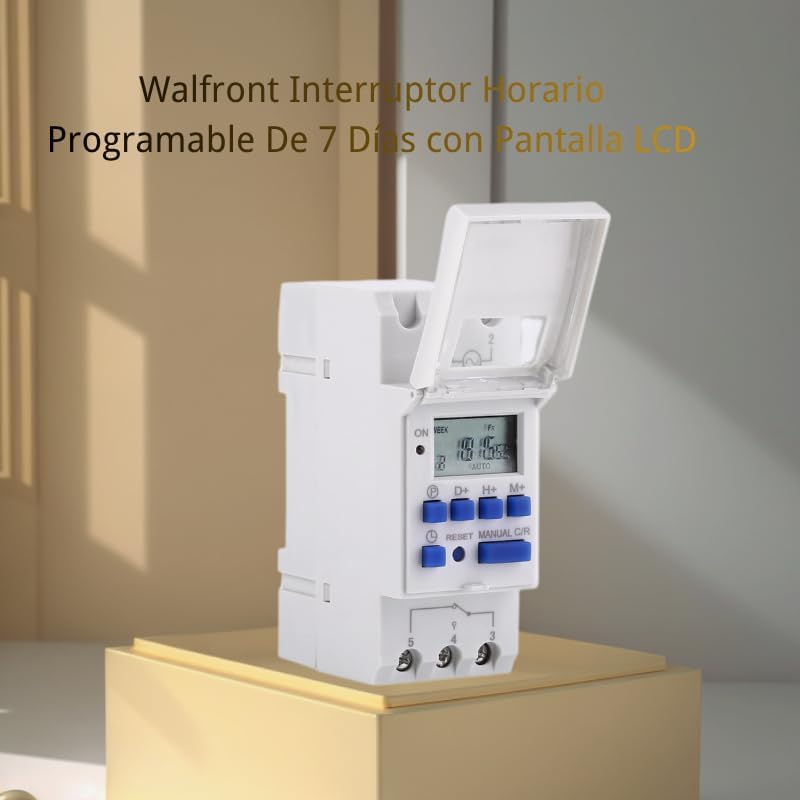
Figure 5.1: Wiring diagram illustrating how to connect the Walfront Digital Timer Switch to a light bulb. Terminal 1 and 2 are for power input (Live and Neutral), and terminals 3, 4, 5 are for the switched load (Common, Normally Open, Normally Closed).
- Terminals 1 & 2: Power input (Live and Neutral). Connect your AC power supply here.
- Terminal 3: Common terminal for the switch output.
- Terminal 4: Normally Open (NO) contact. The circuit is closed when the timer is ON.
- Terminal 5: Normally Closed (NC) contact. The circuit is closed when the timer is OFF.
Warning: Incorrect wiring can cause damage to the device or connected equipment, and poses a risk of electric shock. Consult a professional if unsure.
6. Operating Instructions
6.1. Setting Current Time and Day
- Press and hold the Clock Icon (Time) button.
- While holding the Clock Icon (Time) button, press D+ to set the current day of the week.
- While holding the Clock Icon (Time) button, press H+ to set the current hour.
- While holding the Clock Icon (Time) button, press M+ to set the current minute.
- Release the Clock Icon (Time) button to save the settings.
6.2. Programming ON/OFF Times
The timer supports up to 16 ON and 16 OFF programs. Each program can be set for a specific day or group of days.
- Press the P (Program) button once. The display will show "1 ON".
- Press D+ to select the day(s) for this program. Options include individual days (MO, TU, WE, TH, FR, SA, SU), weekdays (MO TU WE TH FR), weekend (SA SU), or all days (MO TU WE TH FR SA SU), among others.
- Press H+ to set the desired hour for the first ON event.
- Press M+ to set the desired minute for the first ON event.
- Press P (Program) again. The display will show "1 OFF".
- Repeat steps 2-4 to set the day(s), hour, and minute for the first OFF event.
- Continue pressing P (Program) to cycle through "2 ON", "2 OFF", up to "16 ON", "16 OFF", setting each as needed. If fewer than 16 programs are required, simply press the Clock Icon (Time) button to exit programming mode.
- To clear a specific program, press P (Program) to navigate to the desired program, then press MANUAL C/R. The display will show "--:--", indicating the program is cleared.
6.3. Manual Override and Mode Selection
The MANUAL C/R button allows for temporary or permanent manual control of the switch output.
- Press MANUAL C/R repeatedly to cycle through the operating modes:
- ON: The output is continuously ON, ignoring all programs.
- AUTO ON: The output is currently ON, and will follow the next programmed OFF event.
- AUTO OFF: The output is currently OFF, and will follow the next programmed ON event.
- OFF: The output is continuously OFF, ignoring all programs.
- For automatic operation based on your programs, ensure the mode is set to AUTO ON or AUTO OFF.
7. Maintenance
The Walfront Digital Timer Switch contains a built-in 1.2V/40mA rechargeable battery. This battery maintains the time and program settings during power outages. It charges automatically when the device is connected to AC power.
- Keep the device clean and free from dust.
- Do not attempt to open the casing or replace the internal battery, as this may void the warranty and pose a safety risk.
- If the display becomes dim or settings are frequently lost, ensure the device is continuously powered for several hours to allow the internal battery to fully charge.
8. Troubleshooting
- Problem: The display is blank or dim.
Solution: Ensure the device is properly connected to an AC power source. The internal battery may be depleted; allow it to charge for several hours. If the issue persists, the device may be faulty. - Problem: Programs are not executing, or the device is not switching ON/OFF as expected.
Solution:- Check if the operating mode is set to AUTO ON or AUTO OFF using the MANUAL C/R button. If it's set to ON or OFF, the programs will be ignored.
- Verify that the current time and day are set correctly.
- Review your programmed ON/OFF times for accuracy, ensuring there are no overlaps or incorrect day selections.
- Press the RESET button and reprogram the device if settings appear corrupted.
- Problem: Settings are lost after a power outage.
Solution: The internal rechargeable battery may not be holding a charge. Ensure the device is continuously powered for an extended period (e.g., 24 hours) to allow the battery to fully charge. If settings are still lost, the battery may need replacement (professional service recommended) or the device may be faulty. - Problem: The device does not respond to button presses.
Solution: Press the RESET button. If the issue persists, disconnect power for a few minutes and then reconnect.
9. Warranty and Support
Walfront products are designed for reliability and performance. For specific warranty details, please refer to the documentation included with your purchase or contact your retailer. For technical support or inquiries, please reach out to Walfront customer service through the official Walfront store or website.
Please have your model number (Walfronto15sh40gxu-03) and purchase information ready when contacting support.