
Xerox B605/S
Xerox VersaLink B605/S Monochrome Multifunction Printer User Manual
Model: B605/S
1. Introduction
This manual provides essential information for the setup, operation, maintenance, and troubleshooting of your Xerox VersaLink B605/S Monochrome Multifunction Printer. This device is designed to offer reliable monochrome printing, copying, and scanning functionalities for office environments.

Figure 1: Front view of the Xerox VersaLink B605/S Monochrome Multifunction Printer.
2. Setup
2.1 Unpacking the Printer
- Carefully remove the printer from its packaging.
- Remove all packing materials, tapes, and protective films from the exterior of the printer.
- Ensure all included components are present: Printer, Power Cord, Documentation.
2.2 Placement
- Place the printer on a stable, level surface.
- Ensure adequate ventilation around the printer.
- Avoid direct sunlight, excessive heat, or humidity.
2.3 Connecting the Printer
- Power Connection: Connect the power cord to the printer and then to a grounded electrical outlet.
- Network Connection (Ethernet): For network printing, connect an Ethernet cable from the printer's Ethernet port to your network router or switch.
- USB Connection (Optional): For direct connection, connect a USB cable from the printer's USB port to your computer.
2.4 Initial Power On and Software Installation
- Press the power button to turn on the printer.
- Follow the on-screen instructions on the printer's touchscreen display for initial setup, including language selection and network configuration.
- Install the printer drivers and software on your computer. These can typically be found on the included CD (if applicable) or downloaded from the official Xerox support website.
3. Operating Instructions
3.1 Loading Paper
- Open the paper tray (Tray 1, capacity 550 sheets).
- Adjust the paper guides to fit the paper size.
- Load the paper stack into the tray, ensuring it is flat and below the maximum fill line.
- Close the paper tray.
- Confirm the paper type and size on the printer's display if prompted.

Figure 2: Side view of the printer, showing the paper tray area.
3.2 Printing Documents
- From your computer, open the document you wish to print.
- Select File > Print.
- Choose the Xerox VersaLink B605/S from the list of available printers.
- Adjust print settings (e.g., number of copies, duplex printing, paper source) as needed.
- Click Print.
3.3 Copying Documents
- Place the document face-up in the Automatic Document Feeder (ADF) or face-down on the scanner glass.
- On the printer's touchscreen, select the Copy app.
- Adjust settings such as number of copies, lightness/darkness, and two-sided copying.
- Press the Start button to begin copying.
3.4 Scanning Documents
- Place the document face-up in the ADF or face-down on the scanner glass.
- On the printer's touchscreen, select the Scan app.
- Choose your desired scan destination (e.g., email, network folder, USB drive).
- Adjust scan settings such as resolution, file format, and color mode.
- Press the Start button to begin scanning.
4. Maintenance
4.1 Replacing Toner Cartridges
- When the printer indicates low toner, order a replacement Xerox toner cartridge.
- Open the front cover of the printer.
- Carefully remove the old toner cartridge by pulling it towards you.
- Unpack the new toner cartridge and gently shake it horizontally a few times.
- Insert the new cartridge into the slot until it clicks into place.
- Close the front cover.
4.2 Cleaning the Printer
- Turn off and unplug the printer before cleaning.
- Wipe the exterior of the printer with a soft, damp, lint-free cloth.
- Clean the scanner glass with a glass cleaner applied to a cloth (not directly to the glass).
- Refer to the printer's on-screen menu for options to clean internal components like the print head or fuser, if available.
5. Troubleshooting
5.1 Common Issues and Solutions
| Issue | Possible Cause | Solution |
|---|---|---|
| Printer not responding | Power off, cable disconnected, network issue |
|
| Paper jam | Improper paper loading, foreign object |
|
| Poor print quality | Low toner, dirty components, incorrect settings |
|
For more detailed troubleshooting, refer to the full user guide available on the Xerox support website.
6. Specifications
| Feature | Detail |
|---|---|
| Model | Xerox VersaLink B605/S |
| Functions | Print, Copy, Scan (Monochrome Multifunction) |
| Printing Technology | Laser |
| Max Print Speed (Monochrome) | 55 ppm |
| Max Copy Speed (Monochrome) | 55 ppm |
| Max Print Resolution | 1200 x 1200 dpi |
| Max Copy Resolution | 600 DPI |
| Duplex Printing | Automatic |
| Standard Paper Input Capacity | 550 sheets (Tray 1) |
| Maximum Media Size | 8.5 x 14 inch |
| Connectivity | Ethernet, USB |
| Memory Storage Capacity | 250 GB |
| Product Dimensions (L x W x H) | 19.8 x 18.5 x 25.3 inches |
| Item Weight | 67.2 pounds |
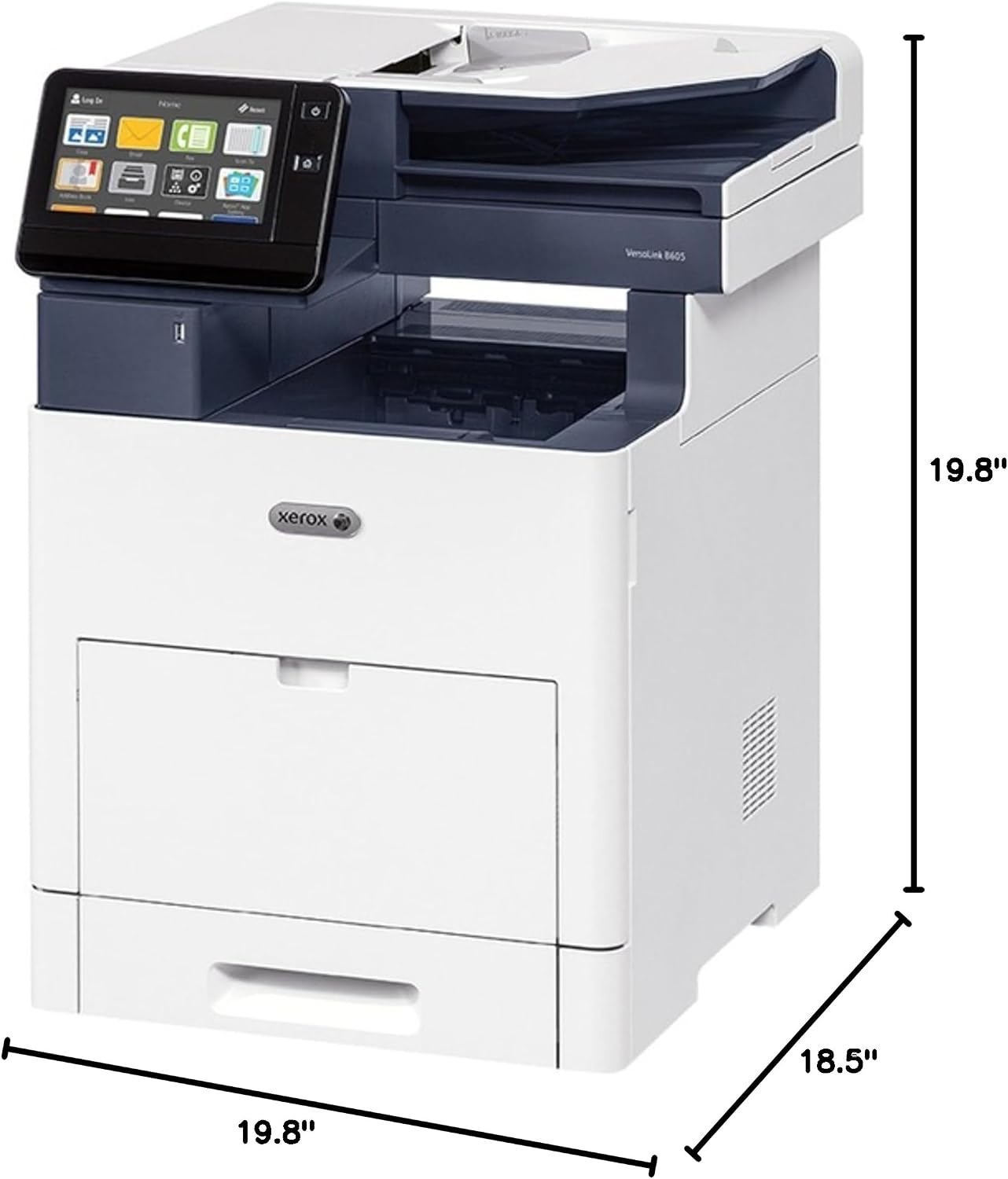
Figure 3: Dimensions of the Xerox VersaLink B605/S Monochrome Multifunction Printer.
7. Warranty Information
The Xerox VersaLink B605/S Monochrome Multifunction Printer comes with a standard one-year warranty. This warranty covers defects in materials and workmanship under normal use. For specific terms and conditions, including limitations and exclusions, please refer to the warranty documentation included with your product or visit the official Xerox website.
8. Support and Contact Information
For technical assistance, driver downloads, additional documentation, or to contact customer support, please visit the official Xerox support website:
www.xerox.com/support
You may also find helpful resources and frequently asked questions on the Xerox support portal.
Related documentsB605/S


Ask a question about this manual
Ask about setup, troubleshooting, compatibility, parts, safety, or missing instructions. Manuals+ will review the question and use this page’s manual context to help answer it.