
1. Introduction
This manual provides detailed instructions for the installation, operation, and maintenance of your Dynavin N7-MBA navigation system. Please read this manual thoroughly before using the device to ensure proper functionality and to prevent damage.
The Dynavin N7-MBA is a multimedia navigation system designed for specific Mercedes Benz vehicles, offering advanced features such as a 7-inch capacitive touchscreen, Android Link, Bluetooth connectivity, and comprehensive navigation capabilities.
1.1 Vehicle Compatibility
- Mercedes Benz Sprinter II W906 (from 2006)
- Mercedes Benz Vito W639 (from 2006)
- Mercedes Benz Viano V639 (from 2006)
- Mercedes Benz A-Class W169 (2004 to 2012)
- Mercedes Benz B-Class W245 (2005 to 2011)
2. Safety Information
Always observe the following safety precautions to avoid injury or damage to the device:
- Do not operate the device in a way that distracts you from driving.
- Ensure all connections are secure before operating the vehicle.
- Avoid exposing the device to extreme temperatures, direct sunlight for prolonged periods, or excessive moisture.
- Do not attempt to disassemble or modify the unit. Refer all servicing to qualified personnel.
3. Product Overview
The Dynavin N7-MBA unit integrates seamlessly into your vehicle's dashboard, providing a central control point for navigation, media, and communication.
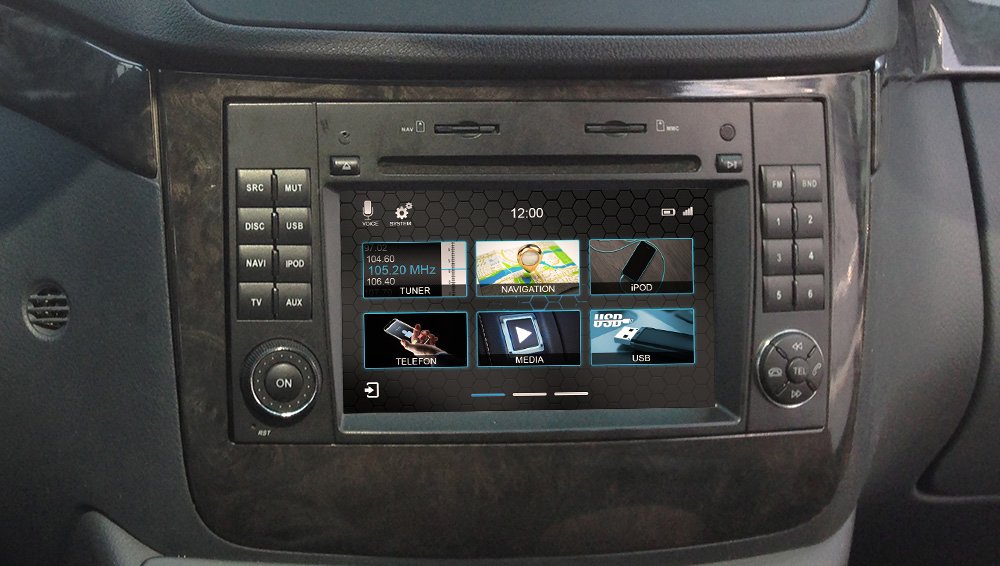
Figure 3.1: Dynavin N7-MBA Front Panel
The Dynavin N7-MBA features a 7-inch capacitive touchscreen display. On the left side, there are buttons for SRC (Source), MUT (Mute), USB, NAVI (Navigation), IPOD, TV, and AUX. A rotary knob labeled 'ON' is located at the bottom left. The right side includes FM/BND buttons and numbered preset buttons (1-6), along with a multi-directional control pad with TEL (Telephone) buttons. The top panel has slots for discs and memory cards.
3.1 Key Features
- 7-inch Capacitive Anti-Reflective Touchscreen (1024 x 600 px resolution)
- Android Link for compatible app control
- CANBUS/MOST Solution Integration
- FM RDS TMC Radio with DSP noise cancellation and 15 presets
- DSP Sound Processor with EQ and time correction
- CD & DVD Player
- Parrot Bluetooth connection with external microphone
- USB/SD card connectivity
- Rear view camera, DAB+ Ready, DVBT Ready
- Navigation software with 3D view and premium POIs (Europe maps included)
- Reconfigurable hardware function button
4. Setup and Installation
Installation of the Dynavin N7-MBA should ideally be performed by a qualified technician due to the complexity of vehicle electronics and CANBUS integration. Incorrect installation can lead to damage to the device or vehicle.
4.1 Pre-Installation Checks
- Ensure the vehicle's ignition is off and the battery is disconnected before starting installation.
- Verify all included components are present.
- Confirm vehicle compatibility with the N7-MBA model.
4.2 Wiring and Connections
The N7-MBA integrates with your vehicle's CANBUS system. Follow the specific wiring diagram provided with your unit for correct connections, including power, speakers, antenna, and external accessories like the microphone and rear-view camera.
4.3 Initial Power On
After installation, reconnect the vehicle battery. Turn the ignition to the ACC or ON position. The device should power on automatically or by pressing the 'ON' knob. Follow any on-screen prompts for initial setup, suchs as language selection and time zone.
5. Operating Instructions
5.1 Touchscreen Operation
The 7-inch capacitive touchscreen responds to light touches, similar to a smartphone. It is anti-reflective, improving visibility in bright conditions. Navigate menus and select functions by tapping icons or swiping across the screen.
5.2 Navigation System
Access the navigation function by pressing the 'NAVI' button or selecting the 'NAVIGATION' icon on the touchscreen. The system includes 3D map views and premium Points of Interest (POIs) for Europe. Refer to the dedicated navigation software manual for detailed instructions on route planning, destination input, and map updates.
5.3 Radio (FM/AM)
Press the 'FM' button or select the 'TUNER' icon. The radio features RDS (Radio Data System) and TMC (Traffic Message Channel) for enhanced information. Use the DSP (Digital Signal Processor) for noise cancellation. You can store up to 15 favorite stations using the numbered preset buttons.
5.4 Media Playback (CD/DVD, USB, SD)
Insert a CD or DVD into the disc slot. For USB or SD card media, connect your device to the designated USB port or insert an SD card into the slot. Select 'MEDIA' or 'USB' from the main menu to access your files. The system supports various audio and video formats.
5.5 Bluetooth Connectivity (Parrot)
The integrated Parrot Bluetooth module allows for hands-free calling and audio streaming. Pair your smartphone with the N7-MBA via Bluetooth settings. An external microphone is included for clear call quality. Use the 'TEL' buttons on the control pad for call management.
5.6 Android Link
Android Link enables you to control compatible applications from your Android smartphone directly through the N7-MBA's touchscreen. Install the necessary Android Link application on your smartphone and connect it to the unit as per the instructions provided with the Android Link software.
5.7 Reconfigurable Hardware Button
The N7-MBA features a reconfigurable hardware button on the front panel (not applicable to N7-6205 models). This button can be assigned to control any desired function. Refer to the system settings menu to customize its function according to your preference.
6. Maintenance
6.1 Cleaning the Device
Use a soft, dry cloth to clean the touchscreen and exterior of the unit. For stubborn marks, slightly dampen the cloth with water. Avoid using abrasive cleaners, solvents, or alcohol, as these can damage the display and finish.
6.2 Software Updates
Periodically check the Dynavin official website for available software updates. Updates can provide new features, performance improvements, and bug fixes. Follow the instructions provided with the update package carefully. Information regarding guaranteed software updates is currently unavailable.
7. Troubleshooting
If you encounter issues with your Dynavin N7-MBA, refer to the following common troubleshooting steps:
- No Power: Check all power connections and vehicle fuses. Ensure the ignition is on.
- No Sound: Verify speaker connections, volume level, and mute settings. Check audio source selection.
- Touchscreen Unresponsive: Perform a soft reset by pressing the 'RST' button (if available) or disconnecting the vehicle battery for a few minutes.
- Navigation Issues: Ensure GPS antenna is properly connected and has a clear view of the sky. Verify map data is loaded correctly.
- Bluetooth Pairing Problems: Ensure Bluetooth is enabled on both the N7-MBA and your smartphone. Delete previous pairings and try again.
For persistent issues, contact Dynavin customer support or a qualified service center.
8. Specifications
| Feature | Detail |
|---|---|
| Model Number | N7-MBA |
| Screen Size | 7 Inches |
| Resolution | 1024 x 600 pixels |
| Display Type | Capacitive Touchscreen, Anti-Reflective LCD |
| Connectivity Technology | Bluetooth, USB |
| Compatible Devices | Smartphone (via Android Link, Bluetooth) |
| Control Method | Application, Touchscreen |
| Map Type | Europe |
| Supported Flash Memory | SD |
| Product Weight | 997.9 g (approx. 2.2 lbs) |
| Package Dimensions | 33.02 x 27.94 x 22.86 cm |
9. Warranty Information
Dynavin products are covered by a manufacturer's warranty against defects in materials and workmanship. The specific terms and duration of the warranty may vary by region. Please retain your proof of purchase for warranty claims. For detailed warranty information, refer to the documentation included with your product or visit the official Dynavin website.
10. Support
For technical assistance, troubleshooting beyond this manual, or service inquiries, please contact Dynavin customer support. You can typically find contact information on the official Dynavin website or in the product packaging.
When contacting support, please have your product model number (N7-MBA) and proof of purchase readily available.


