
1. Introduction
Thank you for choosing the XTRONS CM121HD 12.1-inch 1080P Video Car Overhead Player. This manual provides detailed instructions for the proper installation, operation, and maintenance of your new car overhead monitor. Please read this manual thoroughly before use to ensure optimal performance and safety.
2. Key Features
- 12.1-inch HD TFT Digital Wide Screen: Experience superior visual enhancement with a 1280x800 HD resolution display.
- True 1080P Video Playback: Enjoy smooth, vibrant, and sharp full 1080p HD videos.
- 120° Max Open Angle: The monitor can be opened up to an angle of 120 degrees for maximum viewing comfort.
- Expanded Media Choices: Features USB, SD card, and Aux input for diverse entertainment options.
- Ultra-Thin Design: When fully folded, the unit is only 27mm thick, crafted from high-quality materials.
- Built-in HDMI Port: Integrate mobile entertainment by connecting your phone to enjoy games and share media.
- Soft-Touch Button Panel: Simplifies operation with an elegant appearance.
- Positive & Negative Door Control Support: Lights on the unit can automatically turn on or off based on door status.
- Built-in Atmospheric LED Light Strips: Two soft blue LED light strips on each side create a pleasant ambiance.
- Variety of Sound Output Choices: Connect headphones via built-in infrared transmitter or use the car's speakers via FM transmitter.
3. Product Overview
The XTRONS CM121HD combines sleek design with advanced functionality to provide an enhanced in-car entertainment experience. Its ultra-thin profile and high-definition screen make it a versatile addition to any vehicle.

Figure 1: Overview of XTRONS CM121HD features including screen size, HDMI port, 120-degree rotation, 1080P video support, positive/negative door control, and compact design.
3.1 Sleek Design and Display
The CM121HD features a 12.1-inch high-definition screen with a 1280x800 resolution, ensuring clear and vibrant visuals. Its ultra-thin design, measuring only 27mm when folded, integrates seamlessly into your vehicle's interior.

Figure 2: The XTRONS CM121HD showcasing its ability to play true 1080P video with vibrant colors and sharp images.
3.2 Adjustable Viewing Angle
The monitor can be adjusted to a maximum open angle of 120 degrees, providing flexible viewing positions for passengers.
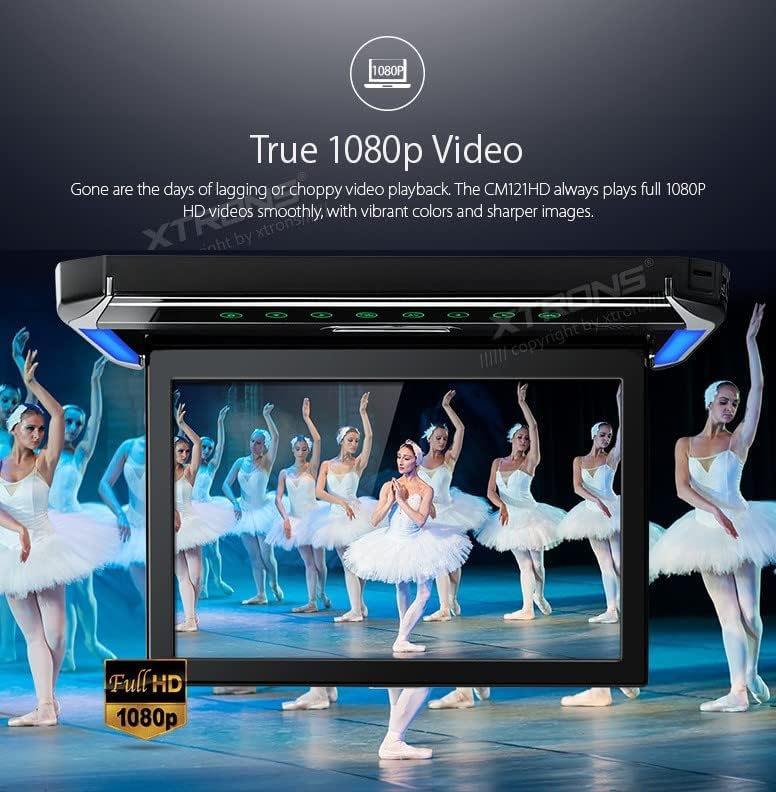
Figure 3: The monitor's 120-degree maximum open angle for optimal passenger viewing.
3.3 Connectivity Options
The unit includes a built-in HDMI port, USB port, SD card slot, and Aux input, offering multiple ways to connect and enjoy your media. The HDMI port allows for mirroring content from mobile devices.
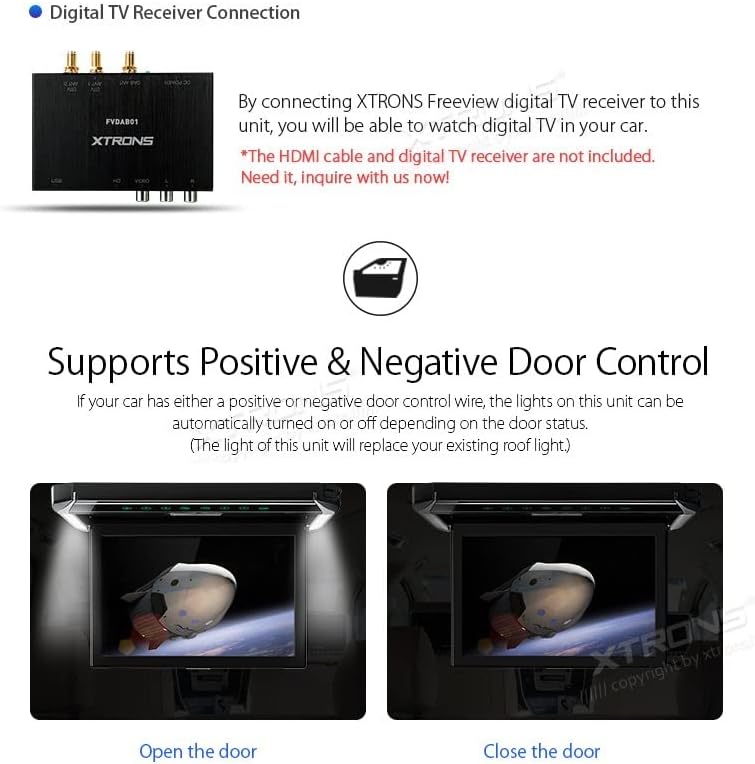
Figure 4: Connecting a device via the built-in HDMI port for integrated mobile entertainment.

Figure 5: Dimensions of the CM121HD unit and a list of included accessories: 1x Remote Control, 1x User Manual, 5x Fixing Screws.
4. Setup and Installation
Proper installation is crucial for the performance and safety of your XTRONS CM121HD monitor. It is recommended that installation be performed by a qualified professional.
4.1 Mounting the Unit
The unit is designed for roof mounting. Ensure the mounting location is secure and does not interfere with vehicle safety features or passenger comfort. Use the provided fixing screws to secure the unit firmly to the vehicle's roof lining.
4.2 Wiring Connections
- Power Connection: Connect the power cables to the vehicle's electrical system, ensuring correct polarity.
- Door Control Wiring: If your vehicle supports positive or negative door control, connect the corresponding wire to enable automatic light control.
- Audio Output: Choose your preferred audio output method (IR headphones or FM transmitter) and configure accordingly.
- Video Input: Connect external video sources (e.g., HDMI, USB, SD card) as desired.
Video 1: An overview of the XTRONS 12.1 Inch 1080P Video Car Overhead Player, demonstrating its features and design. This video is provided by the seller.
5. Operating Instructions
The XTRONS CM121HD is designed for user-friendly operation. Utilize the soft-touch button panel or the included remote control to navigate menus and control playback.
5.1 Basic Operation
- Power On/Off: Press the power button on the unit or remote to turn the monitor on or off.
- Source Selection: Use the 'Source' button to switch between different inputs (HDMI, USB, SD, AV).
- Menu Navigation: Use the arrow buttons and 'OK' button on the remote or unit to navigate through settings and media files.
5.2 Media Playback
- USB/SD Playback: Insert a USB drive or SD card into the respective slot. The unit will typically detect the media and display options for photos, music, or movies.
- HDMI Input: Connect an HDMI-enabled device (e.g., smartphone, game console) to the HDMI port. Select HDMI as the source to view content from the connected device.
5.3 Sound Output
- IR Headphones: Activate the IR transmitter function on the unit. Compatible XTRONS IR headphones (DWH005, DWH006, etc.) can then receive audio wirelessly.
- FM Transmitter: Enable the FM transmitter and tune your car's FM radio to the specified frequency to play audio through the vehicle's speakers.
Figure 6: Various sound output choices, including FM transmission to car speakers and IR transmission for headphones.
6. Maintenance
To ensure the longevity and optimal performance of your XTRONS CM121HD monitor, follow these maintenance guidelines:
- Cleaning: Use a soft, dry cloth to clean the screen and exterior. Avoid abrasive cleaners or solvents.
- Temperature: Do not expose the unit to extreme temperatures or direct sunlight for prolonged periods.
- Moisture: Keep the unit dry. Avoid exposure to water or high humidity.
- Ventilation: Ensure proper ventilation around the unit to prevent overheating.
7. Troubleshooting
If you encounter issues with your XTRONS CM121HD, refer to the following common problems and solutions:
| Problem | Possible Cause | Solution |
|---|---|---|
| No power | Loose power connection, blown fuse | Check power cables and connections. Inspect and replace fuses if necessary. |
| No video signal | Incorrect source selected, loose video cable, incompatible format | Select the correct input source. Ensure video cables are securely connected. Verify media format compatibility. |
| No sound | Volume too low, incorrect audio output selected, IR headphones not paired | Increase volume. Select correct audio output (IR/FM). Ensure IR headphones are powered on and paired. |
| Remote control not working | Dead batteries, obstruction, IR sensor blocked | Replace remote batteries. Remove any obstructions between remote and unit. Ensure IR sensor on unit is clear. |
If problems persist, please contact XTRONS customer support or a qualified service technician.
8. Specifications
| Feature | Specification |
|---|---|
| Brand | XTRONS |
| Model | CM121HD |
| Screen Size | 12.1 Inches |
| Display Type | LED |
| Resolution | 1280x800 |
| Video Playback | 1080P HD |
| Connectivity | HDMI, USB, SD Card, Aux Input |
| Folded Thickness | 27mm |
| Item Weight | 8.8 pounds |
| First Available Date | September 29, 2017 |
9. Warranty and Support
XTRONS products are designed and manufactured to the highest quality standards. For warranty information and customer support, please refer to the warranty card included with your product or visit the official XTRONS website. Keep your purchase receipt as proof of purchase for warranty claims.
For technical assistance or service inquiries, please contact XTRONS customer service through their official channels.

