
MUNBYN ITPP047
MUNBYN P047 POS Thermal Receipt Printer User Manual
Model: ITPP047
1. Introduction
The MUNBYN P047 is an 80mm thermal receipt printer designed for Point of Sale (POS) systems. It features high-speed printing, an automatic cutter, and supports both USB and Ethernet connections. This manual provides detailed instructions for setting up, operating, maintaining, and troubleshooting your printer to ensure optimal performance.

Image: MUNBYN P047 Thermal Receipt Printer, a black compact device with a receipt emerging from the top.
2. Package Contents
Please verify that all items are present in the package:
- MUNBYN P047 Thermal Receipt Printer
- USB Flash Drive (containing drivers, user manual, software manual, hardware manual, and operation videos)
- Power Adapter
- Power Cord
- USB Cable
- Thermal Paper Roll (sample)
- Paper Roller
- User Manual (this document)

Image: All components included in the MUNBYN P047 printer package, neatly laid out and numbered for identification.
3. Setup Guide
3.1. Connecting the Printer
The MUNBYN P047 supports both USB and Ethernet connections.
USB Connection:
Connect the printer to your computer using the provided USB cable. This method is compatible with Windows, Android, Linux, Chrome OS, and Mac systems.

Image: Diagram illustrating the USB and Ethernet connection options for the MUNBYN P047 printer, showing compatibility with various operating systems.

Image: A visual guide demonstrating how to connect the printer via USB to a laptop, highlighting the USB port and cable.
Ethernet (LAN) Connection:
For network printing, connect the printer to your router or network switch using an Ethernet cable. This allows multiple devices on the network to print to the P047. This method is compatible with Windows, Android, Chrome OS, and Mac systems.

Image: A diagram illustrating the setup for printing via LAN, showing the printer connected to a router and a laptop connected to the network.
3.2. Driver Installation
The printer comes with a USB Flash Drive containing the necessary drivers and manuals. Insert the USB Flash Drive into your computer and follow the on-screen instructions to install the printer driver. Refer to the detailed software manual on the USB drive for specific operating system instructions.
3.3. Loading Thermal Paper
The MUNBYN P047 uses 80mm thermal paper rolls. To load paper:
- Press the cover open button to open the printer cover.
- Insert the thermal paper roll with the printing side facing up.
- Pull a small amount of paper out past the cutter.
- Close the printer cover firmly until it clicks into place.

Image: A close-up view of the printer's paper compartment, illustrating how to correctly insert an 80mm thermal paper roll.
4. Operation
4.1. Basic Printing
Once the printer is connected and drivers are installed, you can print receipts from your POS software or application. The P047 offers fast printing speeds of up to 230mm/second, ensuring efficient transaction processing.

Image: The MUNBYN P047 printer actively printing a long receipt, demonstrating its high-speed capability of 230mm/s.

Image: A visual representation of the printer's fast printing speed, with receipts rapidly emerging from the device.

Image: A close-up of a printed receipt showing clear and legible text, emphasizing the printer's high-quality output.
4.2. Automatic Paper Cutter
The P047 is equipped with an automatic paper cutter for convenient and clean receipt separation. The auto-cutter has a long lifespan of up to 1.5 million cuts.
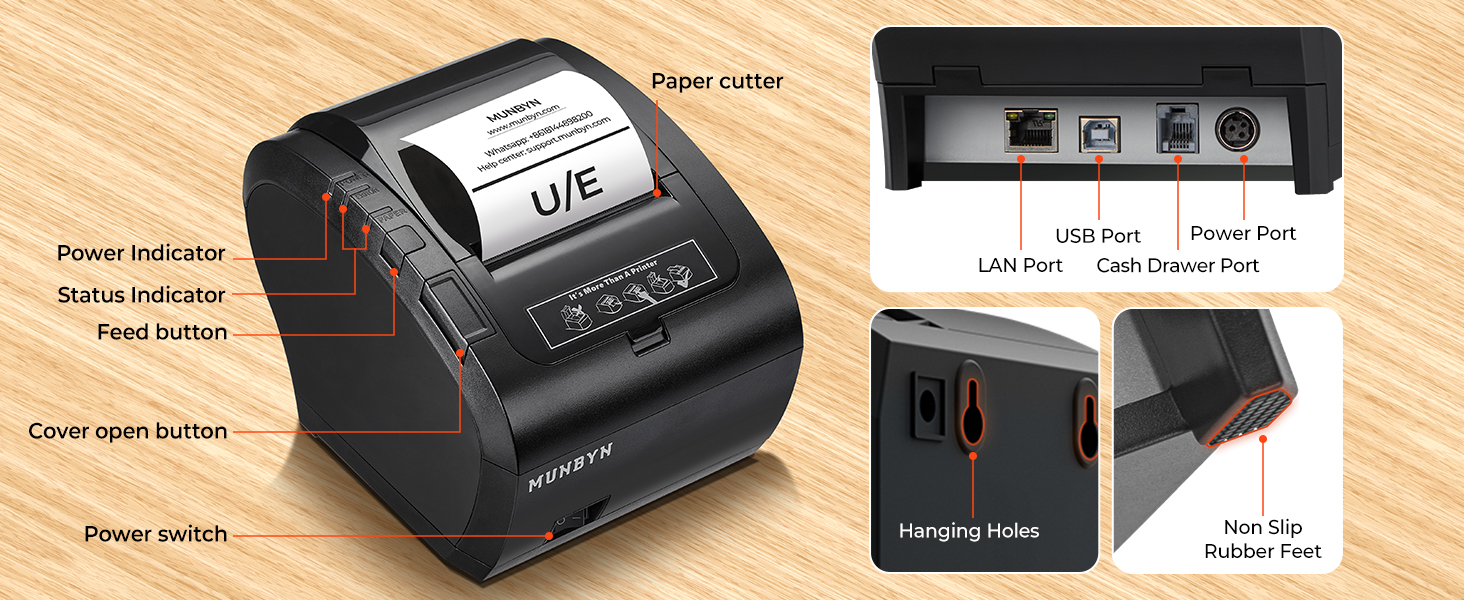
Image: A hand pulling a freshly cut receipt from the printer, demonstrating the automatic paper cutter function.
4.3. Compatibility Notes
Please note the following compatibility limitations:
- The printer is NOT compatible with iPad, iPhone, or any iOS system devices.
- The printer DOES NOT work with Shopify, iZettle, Grubhub, DoorDash, Gloriafoods, or QuickBooks.
- Always check system compatibility before purchasing or using the printer with new software.

Image: Icons of various incompatible platforms and devices, including iOS, Shopify, iZettle, Grubhub, DoorDash, Gloriafoods, QuickBooks, and Uber Eats, with red 'X' marks.
5. Maintenance
5.1. General Care
To ensure the longevity and optimal performance of your MUNBYN P047 printer, keep it in a clean, dry environment away from direct sunlight and excessive dust. Avoid placing heavy objects on top of the printer.
5.2. Cleaning
Regular cleaning helps maintain print quality and extends the life of the print head. Use a soft, lint-free cloth slightly dampened with isopropyl alcohol to gently wipe the thermal print head. Do not use abrasive cleaners or solvents. Ensure the printer is powered off and unplugged before cleaning.
6. Troubleshooting
This section addresses common issues you might encounter with your MUNBYN P047 printer.
| Problem | Possible Cause | Solution |
|---|---|---|
| Printer not responding | Power issue, loose cable, incorrect driver. | Check power connection, ensure cables are secure, reinstall drivers from the USB Flash Drive. |
| Poor print quality | Dirty print head, incorrect paper, low power. | Clean the print head, ensure you are using thermal paper, check power supply. |
| Paper jam | Improper paper loading, foreign object. | Open cover, remove jammed paper carefully, re-load paper correctly. |
| Auto-cutter not working | Paper not feeding correctly, mechanical issue. | Ensure paper is loaded properly. If issue persists, contact support. |
| Cannot connect via network | Incorrect IP settings, network issue. | Verify network cable connection, check printer's IP address settings, consult network administrator. |
For more detailed troubleshooting steps, refer to the comprehensive user manual and hardware manual provided on the USB Flash Drive. If problems persist, please contact MUNBYN customer support.
7. Specifications
| Feature | Specification |
|---|---|
| Model Name | P047 |
| Printing Technology | Thermal |
| Connectivity Technology | USB, Ethernet |
| Maximum Media Size | 80mm |
| Max Print Speed Monochrome | 230 ppm (mm/s) |
| Maximum Black and White Print Resolution | 576 dpi |
| Auto Cutter Lifespan | Up to 1.5 million cuts |
| Power Consumption | 2304 Watts (On-mode), 60 Watts (Rated) |
| Special Feature | Energy Star Certified |
| Product Dimensions | 5.51 x 7.48 x 5.51 inches |
| Item Weight | 7 ounces (0.44 Pounds) |
8. Warranty and Support
8.1. Warranty Information
The MUNBYN P047 printer comes with a limited warranty. Please refer to the warranty details provided in the user manual on the USB Flash Drive for specific terms and conditions.
8.2. Customer Support
MUNBYN offers professional pre-sale and after-sale service. If you have any questions regarding compatibility, setup, or require technical assistance, please do not hesitate to contact our support team via email or WhatsApp. We are committed to resolving any issues you may encounter.

Image: A graphic showing the MUNBYN Offline Experience Store location and highlighting professional technical support services.

Image: An icon representing 24/7 customer service, indicating continuous support availability.
Related documentsITPP047


Ask a question about this manual
Ask about setup, troubleshooting, compatibility, parts, safety, or missing instructions. Manuals+ will review the question and use this page’s manual context to help answer it.