
1. Introduction
This manual provides detailed instructions for the installation, operation, and maintenance of your THINKWARE F100 Dash Cam. Please read this manual thoroughly before using the product to ensure proper functionality and to prevent damage.
The THINKWARE F100 is a full 1080p front car camera designed to record driving footage, offering features such as night vision enhancement and parking mode monitoring.
2. Package Contents
Verify that all items listed below are included in your product package. If any items are missing or damaged, please contact your retailer.
- THINKWARE F100 Dash Cam
- Car Charger (Cigarette Plug)
- 16GB MicroSD Card
- Quick Start Guide & Warranty Information
- Cable Tidy Clips
- 3M Sticky Mounting Pad
- Spare 3M Sticky Mounting Pad

Image: The package contents for the THINKWARE F100 Dash Cam, including the camera unit, car charger, memory card, quick start guide, cable clips, and mounting pads.
3. Product Overview
The THINKWARE F100 Dash Cam is designed for reliable vehicle recording. Key features include:
- Full HD 1080p Recording: Captures clear video at 30 frames per second with a 135-degree wide-angle lens.
- Nighttime Enhancement Technology: Utilizes Sony CMOS image sensors for improved video clarity in low-light conditions.
- Parking Mode Monitoring: Monitors vehicle activity via a G-sensor when parked, with integrated battery drain prevention.
- Format Free Technology: Advanced file allocation table software extends the lifespan of the memory card and reduces the need for manual formatting.
- Driver Safety Features: Includes G-sensor incident detection and an emergency record button. Optional GPS antenna enables speed camera alerts.
- PC/Mac Viewer: Free software for configuring settings, viewing, downloading, and updating firmware.

Image: A close-up view of the THINKWARE F100 Dash Cam, showing its cylindrical design and front-facing camera lens.
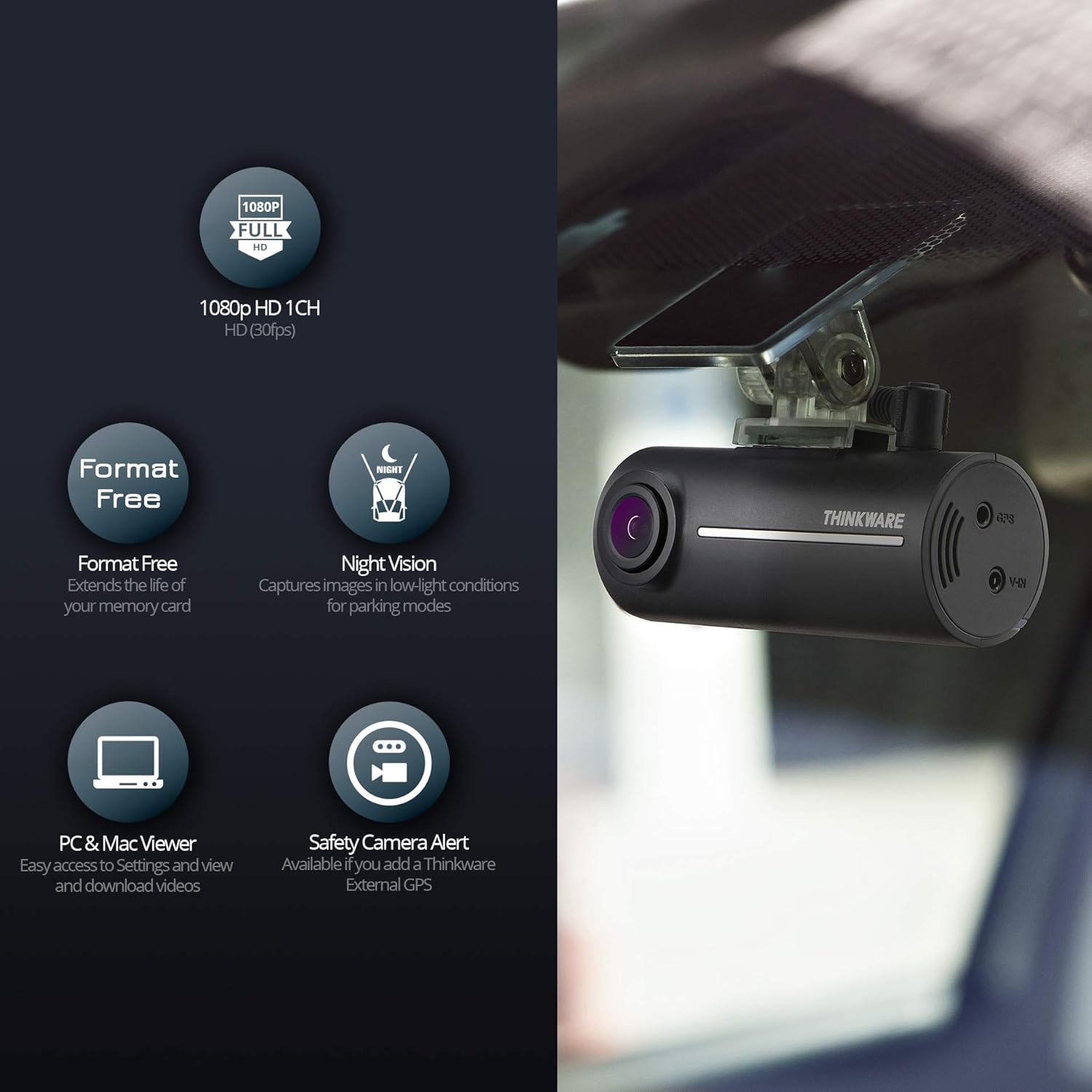
Image: A graphic illustrating key features of the F100 Dash Cam, including 1080p Full HD, Format Free technology, Night Vision, PC & Mac Viewer compatibility, and Safety Camera Alert (with optional GPS).
4. Setup and Installation
4.1 Inserting the MicroSD Card
- Locate the MicroSD card slot on the dash cam.
- Insert the provided 16GB MicroSD card into the slot until it clicks into place. Ensure the card is inserted correctly to avoid damage.
4.2 Mounting the Dash Cam
The F100 uses an adhesive mount for secure placement on your vehicle's windshield.
- Clean the chosen area on your windshield thoroughly to ensure proper adhesion.
- Attach one of the 3M sticky mounting pads to the dash cam bracket.
- Peel off the protective film from the mounting pad and firmly press the dash cam onto the windshield, ensuring the camera has a clear view of the road.
- Adjust the camera angle as needed.

Image: The THINKWARE F100 Dash Cam is shown mounted discreetly on the interior of a car's windshield, positioned to capture the road ahead.
4.3 Connecting Power
The dash cam operates by connecting to your vehicle's 12V power outlet.
- Connect the provided car charger cable to the power input port on the dash cam.
- Plug the other end of the car charger into your vehicle's 12V cigarette lighter socket.
- Use the cable tidy clips to route the power cable neatly along the windshield trim to avoid obstructing your view.

Image: A diagram illustrating the simple 'Plug & Play' installation process, showing the dash cam connected to a car's 12V power outlet.
Note: For Parking Mode functionality, a hardwire connection is typically required. The standard plug-and-play setup does not support Parking Mode.
4.4 Optional GPS Antenna
To enable speed camera alerts and location data recording, an optional GPS antenna is required. Refer to the GPS antenna's separate instructions for installation.
5. Operating Instructions
5.1 Automatic Recording
Once connected to power and the vehicle engine is started, the F100 Dash Cam will automatically power on and begin continuous recording.
5.2 Emergency Recording
The dash cam features two methods for emergency recording:
- G-Sensor Detection: In the event of a sudden impact or collision, the built-in G-sensor will automatically trigger an emergency recording, saving the footage to a protected folder on the MicroSD card.
- Manual Recording: Press the emergency record button on the dash cam to manually initiate an emergency recording. This footage will also be saved to a protected folder.
5.3 Parking Mode (Requires Hardwire Connection)
If the dash cam is hardwired to your vehicle's power supply, Parking Mode will activate when the ignition is turned off. In Parking Mode, the dash cam monitors for impacts or motion, recording events to a dedicated folder while preventing vehicle battery drain.
5.4 Viewing and Managing Footage (PC/Mac Viewer)
To access and manage recorded footage, you will need to use the THINKWARE PC/Mac Viewer software.
- Remove the MicroSD card from the dash cam.
- Insert the MicroSD card into your computer's card reader.
- Launch the THINKWARE PC/Mac Viewer software (available for free download from the THINKWARE website).
- Within the viewer, you can configure dash cam settings, view recorded videos, download specific clips to your computer, or delete unwanted footage.

Image: A laptop screen showing the THINKWARE PC/Mac Viewer interface, which allows users to configure dash cam settings, view, download, or delete footage, and send updates to the dash cam.
6. Maintenance
6.1 MicroSD Card Management
The F100 features Format Free technology, which optimizes the MicroSD card's lifespan and reduces the need for frequent manual formatting. However, it is recommended to periodically back up important footage and, if necessary, format the card using the PC/Mac Viewer software or the dash cam's internal function (if available) to maintain optimal performance.
6.2 Cleaning the Dash Cam
To ensure clear video recording, regularly clean the dash cam's lens with a soft, dry, lint-free cloth. Avoid using abrasive cleaners or solvents.
6.3 Firmware Updates
Periodically check the THINKWARE website for firmware updates. Firmware updates can improve performance, add new features, or resolve issues. Updates are typically applied via the PC/Mac Viewer software.
7. Troubleshooting
If you encounter issues with your THINKWARE F100 Dash Cam, refer to the following common troubleshooting steps:
- Dash Cam not powering on: Ensure the car charger is securely plugged into both the dash cam and the vehicle's 12V outlet. Check if the vehicle's 12V outlet is receiving power.
- Recording issues: Verify that the MicroSD card is inserted correctly. If the card is full, consider formatting it (after backing up important data). Ensure the card is not damaged.
- Poor video quality: Clean the camera lens. Ensure the dash cam is securely mounted and not vibrating excessively. Check for any obstructions in the camera's field of view.
- Parking Mode not working: Confirm that the dash cam is hardwired to the vehicle's power supply, as Parking Mode is not available with standard plug-and-play connections.
For more detailed troubleshooting or persistent issues, consult the Quick Start Guide or contact THINKWARE customer support.
8. Specifications
| Feature | Specification |
|---|---|
| Model Number | F100UKNC16GB |
| Video Capture Resolution | 1080p |
| Field Of View | 135 Degrees |
| Optical Sensor Technology | CMOS |
| Connectivity Technology | USB, Wireless |
| Mounting Type | Adhesive Mount |
| Control Method | Touch |
| Product Dimensions | 3.07 x 1.24 x 1.34 inches |
| Item Weight | 1.49 ounces (0.04 Kilograms) |
| Included Components | Car Charger, Memory Card |
9. Warranty and Support
For warranty information, please refer to the 'Quick Start Guide & Warranty Information' document included in your product package. THINKWARE provides a free technical helpline for customer assistance.
THINKWARE also offers a professional national installation service for those who prefer expert setup. Details regarding this service can be found on the official THINKWARE website or by contacting customer support.


