
Zspeed K811
Zspeed K811 Touch Pen User Manual
Model: K811
Introduction
Thank you for purchasing the Zspeed K811 Touch Pen. This manual provides detailed instructions for setting up, operating, and maintaining your touch pen to ensure optimal performance with your iOS and Android devices. The Zspeed K811 features a high-sensitivity 1.5mm copper fine tip, USB rechargeable battery, and is designed for ease of use without Bluetooth pairing.

Image Description: A standalone product shot of the Zspeed K811 Touch Pen in black, showcasing its sleek design.
Product Components
Familiarize yourself with the different parts of your Zspeed K811 Touch Pen:

Image Description: An illustration of the Zspeed K811 Touch Pen with labeled components. From top to bottom: USB charging port/pen cap, switch, metal material, grip zone, and 1.45mm ultra-fine pen tip. Additional icons indicate features: 30-minute auto power off, prevents shaking, and prevents scratches.
- USB Charging Port / Pen Cap: Located at the top, protected by a cap.
- Power Switch: Button to turn the pen on and off.
- Metal Material: The main body construction.
- Grip Zone: Area designed for comfortable holding.
- 1.5mm Ultra-fine Pen Tip: The precision copper tip for interaction with screens.
Setup
The Zspeed K811 Touch Pen is designed for simple operation without the need for Bluetooth pairing.
- Power On: Press the power switch located on the pen body to turn it on. The pen is ready for use immediately.
- iPad Specific Setting: If you are using an iPad, navigate to Settings > Notes and disable the option "Only Draw with Apple Pencil" to ensure proper functionality with the Zspeed K811.
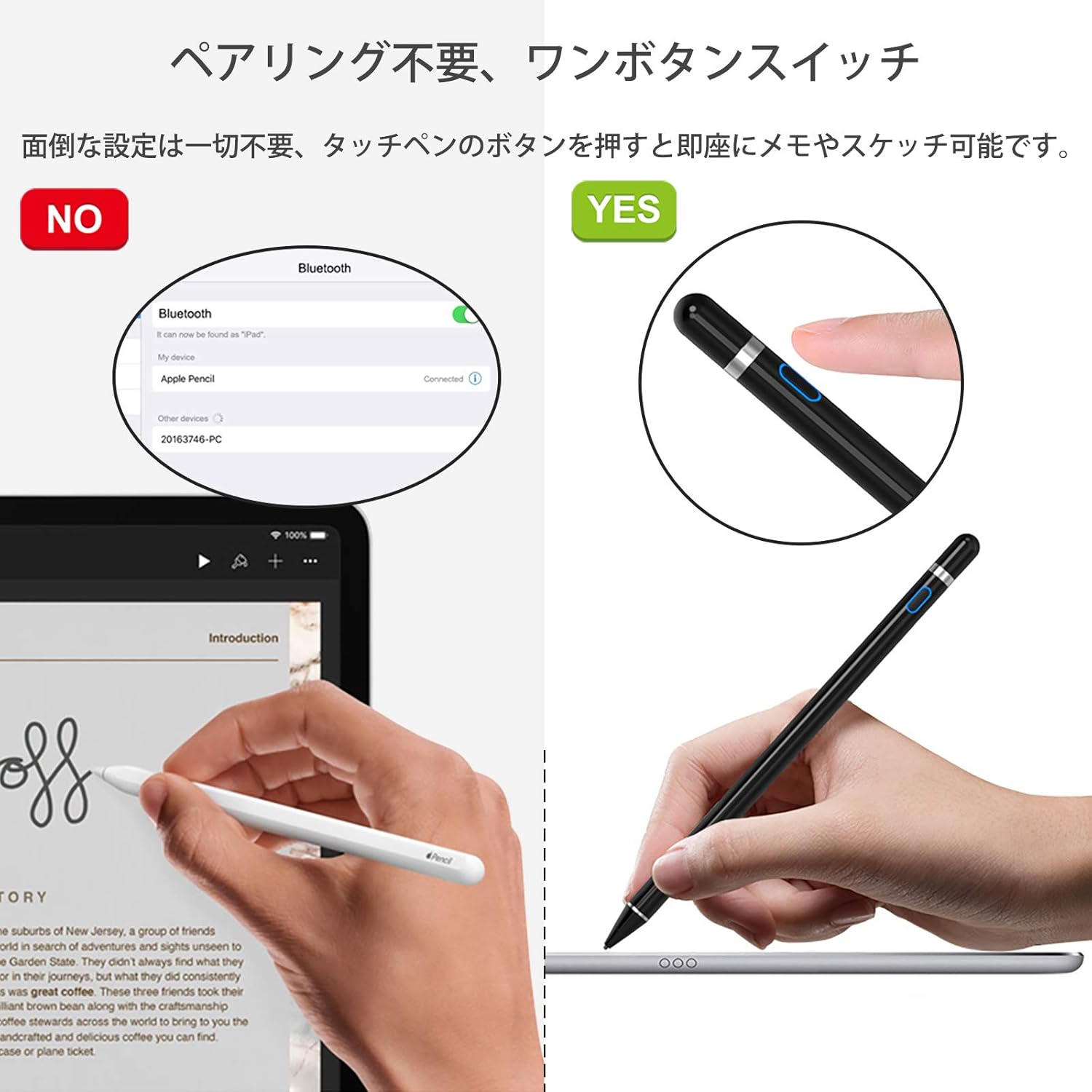
Image Description: A comparison showing a device attempting Bluetooth pairing (labeled "NO") versus the Zspeed K811 Touch Pen being used directly without pairing (labeled "YES"). This illustrates the pen's instant-on functionality and the absence of complex setup.
Operating Instructions
Once powered on, the Zspeed K811 Touch Pen can be used like a regular pen on your compatible touchscreen device.
- Writing and Drawing: Hold the pen naturally and touch the tip to your device's screen to write, draw, or navigate. The 1.5mm fine copper tip provides precision.
- Automatic Power Off: The pen features an automatic power-off function after 30 minutes of inactivity to conserve battery life.

Image Description: A hand holding the Zspeed K811 Touch Pen and drawing on a tablet screen, demonstrating its use for creative tasks and general navigation.
Charging the Touch Pen
The Zspeed K811 Touch Pen features a built-in rechargeable lithium battery.
- Connect Charger: Remove the pen cap to reveal the Micro USB charging port. Connect the pen to a 5V 1A power source using the provided Micro USB cable.
- Charging Indicator: The indicator light will show the charging status (e.g., red for charging, blue for in use).
- Charging Time: A full charge takes approximately 1 hour.
- Battery Life: A single full charge provides about 12 hours of continuous use. The standby time is approximately 90 days.

Image Description: An image illustrating the Micro USB charging port of the Zspeed K811 Touch Pen and the charging cable. It also shows indicators for "In Use" (blue light) and "Charging" (red light), along with battery life statistics: 2 hours charging time, 15 hours usage time, and 90 days standby time. Note: Actual charging and usage times are 1 hour and 12 hours respectively, as per product specifications.
Compatibility Notes
The Zspeed K811 Touch Pen is compatible with most capacitive touchscreen devices, including iOS and Android smartphones and tablets.
Important: Some devices, such as Chromebooks, Sony Xperia models, and Huawei M5 Lite, may exhibit delayed response or inaccurate line tracking. Please confirm compatibility with your specific device model before purchase.

Image Description: An image showcasing various iOS and Android devices (tablets and smartphones) to illustrate the broad compatibility of the Zspeed K811 Touch Pen. The pen's dimensions (180mm length, 8.9mm diameter) are also indicated. A warning note states that Chromebook, Sony Xperia, and Huawei M5 Lite are not supported.
Maintenance and Care
To ensure the longevity of your Zspeed K811 Touch Pen and protect your device's screen, please observe the following:
- Screen Protector: The pen tip is made of metal. Always use a screen protector on your smartphone or tablet display to prevent scratches.
- Cleaning: Use a soft, dry cloth to clean the pen body. Do not use harsh chemicals or abrasive materials.
- Storage: Store the pen in a safe place to prevent damage to the tip or body.
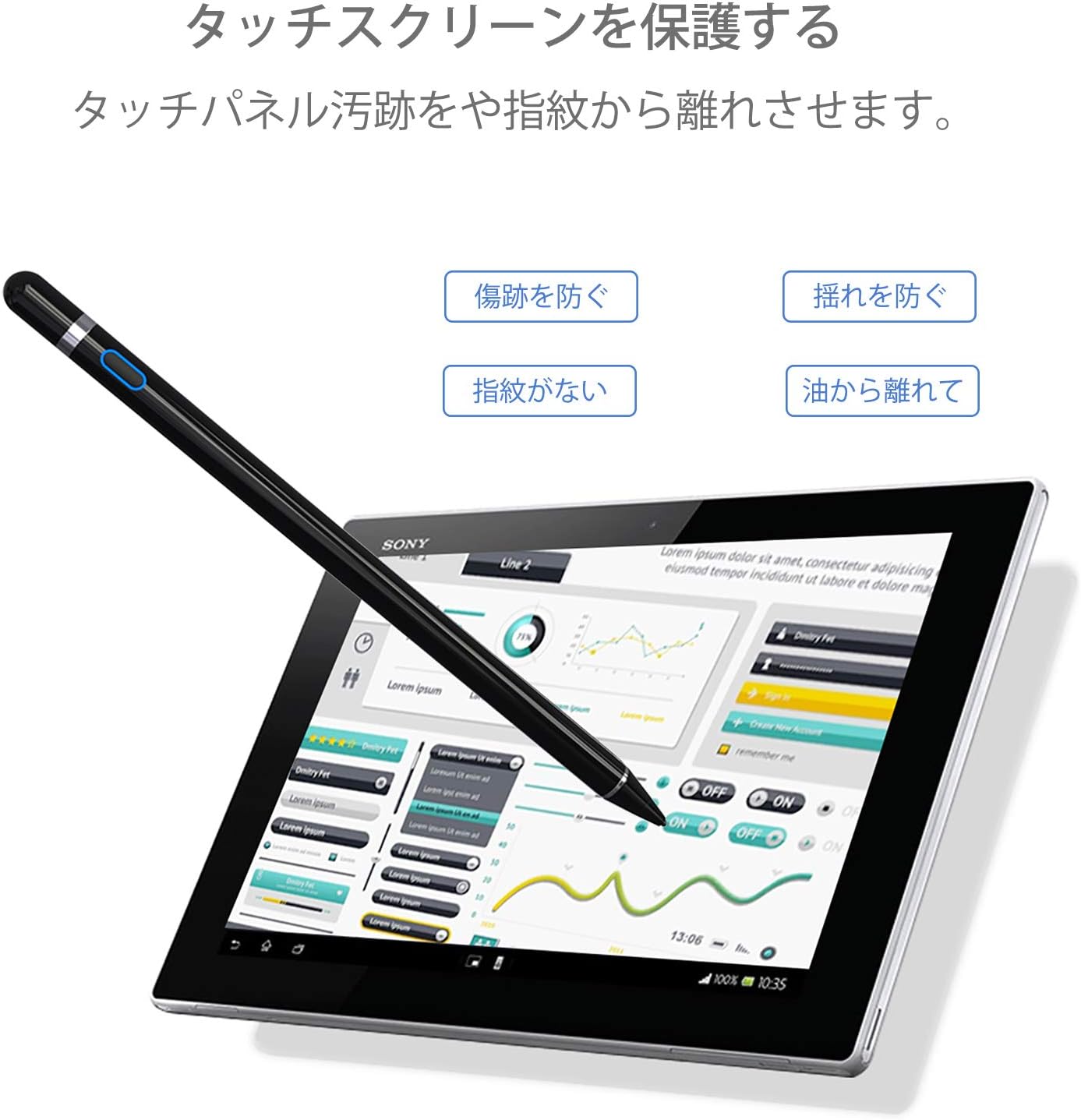
Image Description: An image depicting the Zspeed K811 Touch Pen being used on a tablet, emphasizing the protection of the touchscreen. Icons highlight features like preventing scratches, preventing shaking, avoiding fingerprints, and keeping oil away from the screen.
Troubleshooting
If you encounter issues with your Zspeed K811 Touch Pen, please refer to the following common solutions:
- Pen Not Responding: Ensure the pen is powered on. Check the battery level and charge the pen if necessary.
- Inaccurate Tracking or Lag: Verify that your device is compatible with the pen. For iPads, ensure the "Only Draw with Apple Pencil" setting is disabled (Settings > Notes).
- Lines Breaking or Skipping: This may indicate a low battery. Recharge the pen fully. If the issue persists, it might be related to device compatibility or a worn tip (though the tip is designed for durability).
- Scratches on Screen: Always use a screen protector on your device's display, as the pen tip is metal.
Specifications
| Feature | Detail |
|---|---|
| Model | K811 |
| Brand | Zspeed |
| Color | Black |
| Pen Tip | 1.5mm Copper Fine Tip |
| Product Dimensions (L x W x H) | 17.8 x 0.89 x 0.89 cm |
| Item Weight | 35 g |
| Battery Type | 1 Lithium Ion Battery (included) |
| Charging Port | Micro USB |
| Charging Input | 5V 1A |
| Charging Time | Approximately 1 hour |
| Continuous Usage Time | Approximately 12 hours |
| Standby Time | Approximately 90 days |
| Automatic Power Off | After 30 minutes of inactivity |
| Compatibility | iOS and Android capacitive touchscreen devices (Smartphones, Tablets) |
Warranty and Support
For warranty information or technical support, please refer to the retailer where you purchased the Zspeed K811 Touch Pen or visit the official Zspeed website. Please retain your proof of purchase for warranty claims.
Ask a question about this manual
Ask about setup, troubleshooting, compatibility, parts, safety, or missing instructions. Manuals+ will review the question and use this page’s manual context to help answer it.