
1. Introduction
This manual provides detailed instructions for the ELECROW 7-inch 1024x600 HD IPS TFT LCD Touch Monitor. This versatile display is designed for various applications, including use with Raspberry Pi, Windows PCs, and other compatible devices. It features a capacitive USB touch screen and supports multiple display modes.
2. What's in the Box?
Please verify that all items listed below are included in your package:

Image: Contents of the product package.
- 7-inch Touch Monitor x1
- HD to HD Cable x1
- HD to Micro HD Adapter x1
- USB A to Micro USB Cable x1
- DVD x1 (containing drivers/software)
- User Manual x1
- Copper Screws Pack x1
3. Specifications
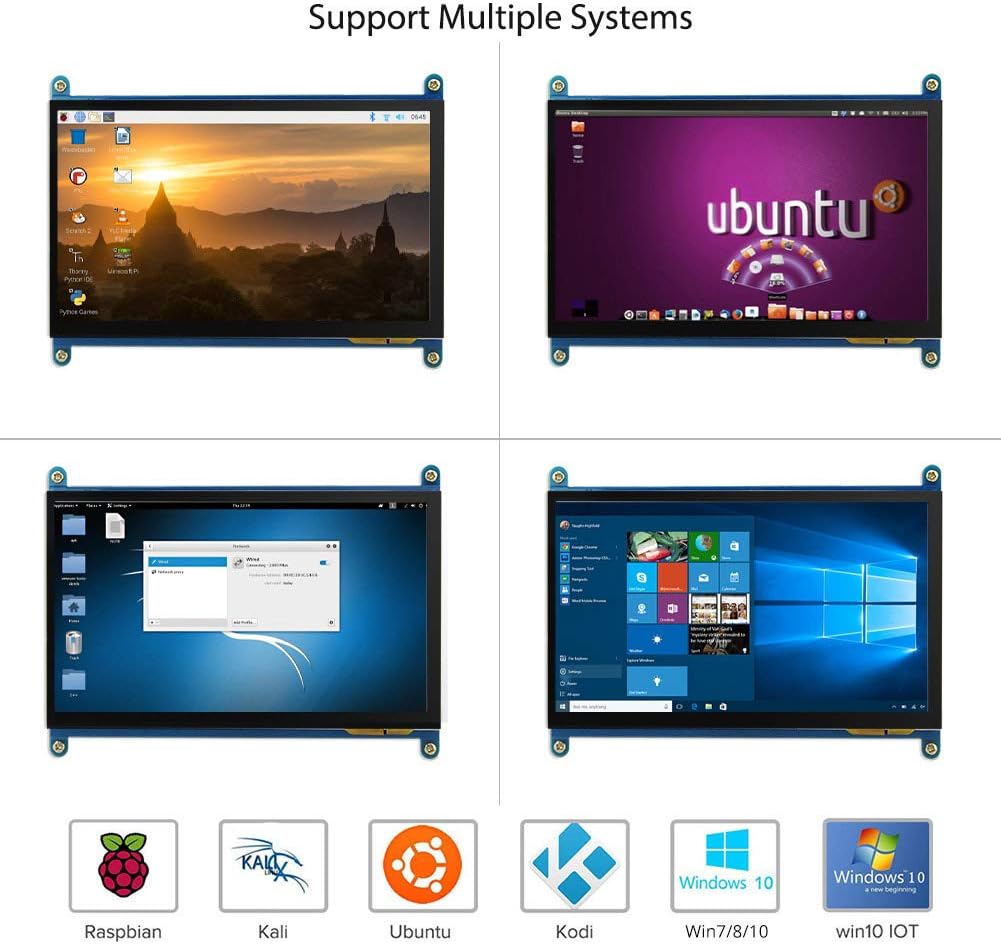
Image: The 7-inch IPS display highlighting its 1024x600 resolution.
| Feature | Detail |
|---|---|
| Brand | ELECROW |
| Item Model Number | 7-inch 1024x600 Monitor |
| Series | Touchscreen |
| Color | Various Colors |
| Screen Type | LCD |
| Screen Size | 7 Inches |
| Screen Resolution | 1024 x 600 |
| Maximum Display Resolution | 1024 x 600 |
| Hardware Interface | HDMI, Micro-HDMI, USB |
| Number of HDMI Ports | 1 |
| Connector Type | HDMI, USB |
| Device Compatibility | Raspberry Pi (5/400/4/3/2/1/3B+/BB), Banana Pi, Jetson Nano, BB Black |
| Item Dimensions L x W x H | 15 x 164 x 123 millimeters |
| Special Feature | Touch Screen |
| Aspect Ratio | 1.71:1 |
| Screen Surface Description | Smooth |
| Image Contrast Ratio | [Estimated] 800:1 |
| Response Time | 5 milliseconds |
| Refresh Rate | 60 Hz |
| Spare Parts Availability | Information not available |
| Software Updates Guaranteed Until | Information not available |
4. Setup Instructions
Follow these steps to connect and set up your ELECROW 7-inch monitor.
4.1 Hardware Overview
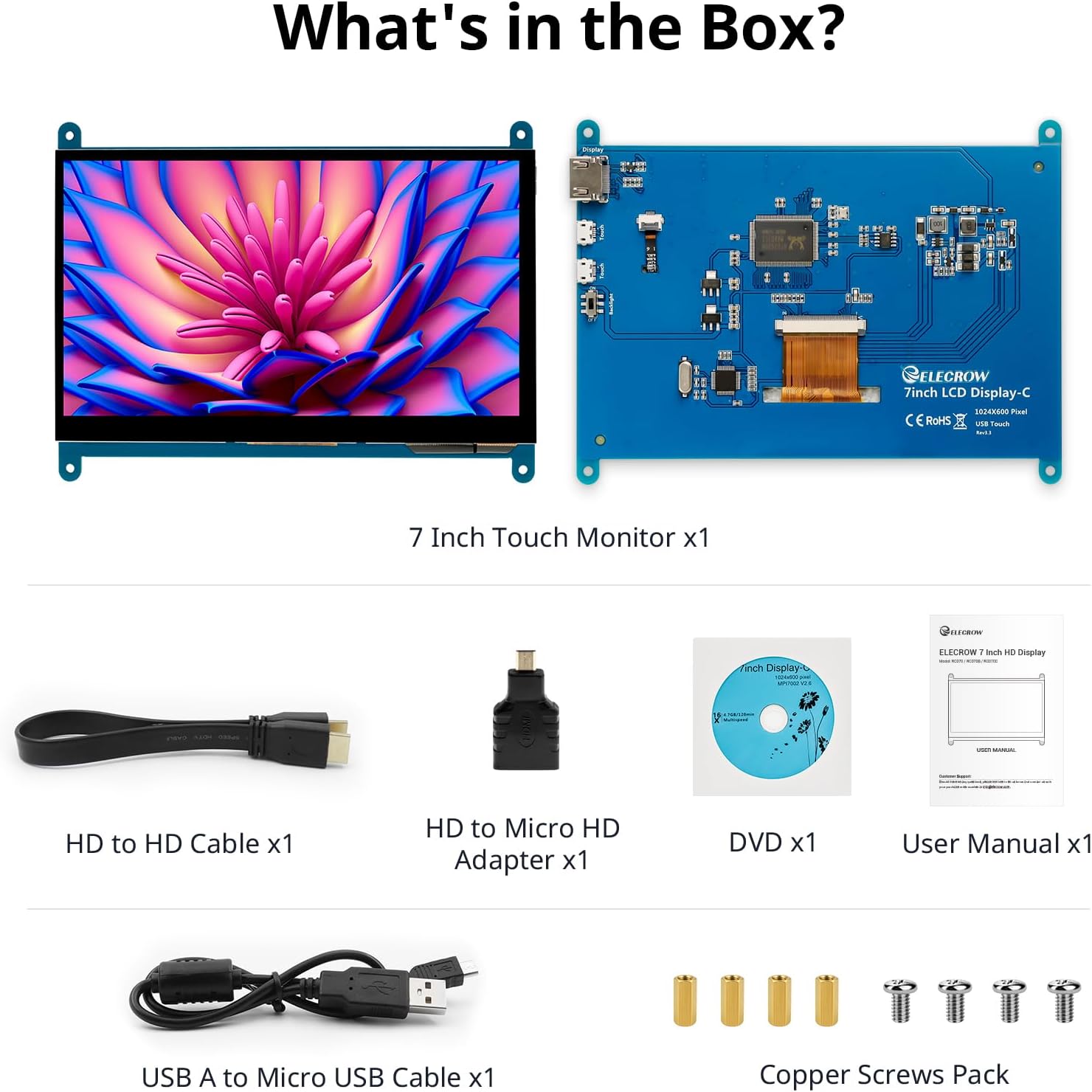
Image: Hardware overview of the monitor, indicating ports and backlight.
The monitor features:
- Standard HD Port for Data Transfer
- Micro USB Port for Touch and Power
- Backlight (control)
4.2 General Connection
To enable both display and touch functionality, connect the monitor to your device using both the HD cable for video and the USB cable for touch and power.

Image: Seamless connectivity options for various devices.
4.3 Connecting to Raspberry Pi
The monitor is fully compatible with Raspberry Pi models (5/400/4/3/2/1/3B+/BB). For touch functionality with Raspberry Pi, ensure the USB touch port is powered. The monitor supports Raspbian, Ubuntu, and single-touch input.
- Connect the HD cable from the Raspberry Pi to the monitor's HD port.
- Connect the USB A to Micro USB cable from a USB port on the Raspberry Pi to the monitor's Micro USB port. This provides power for the touch function.
- For initial boot or if experiencing issues, use an external power source for the Raspberry Pi, then unplug the USB power from the monitor and reconnect it to the Raspberry Pi's USB port.

Image: Raspberry Pi monitor setup diagram.
4.4 Connecting to a PC (Windows)
When used as a computer monitor, it supports Windows 10/8/7 with 5-point touch. No driver installation is typically required; it's plug and play.
- Connect the HD cable from your PC's HD output to the monitor's HD port.
- Connect the USB A to Micro USB cable from a USB port on your PC to the monitor's Micro USB port. This enables the touch functionality.

Image: Monitor connected to a laptop as a PC monitor.
5. Operating Instructions
5.1 Touch Functionality
The monitor features a capacitive touch screen. When connected to a Windows PC, it supports 5-point multi-touch for a smooth and responsive experience. With Raspberry Pi, it supports single-touch.
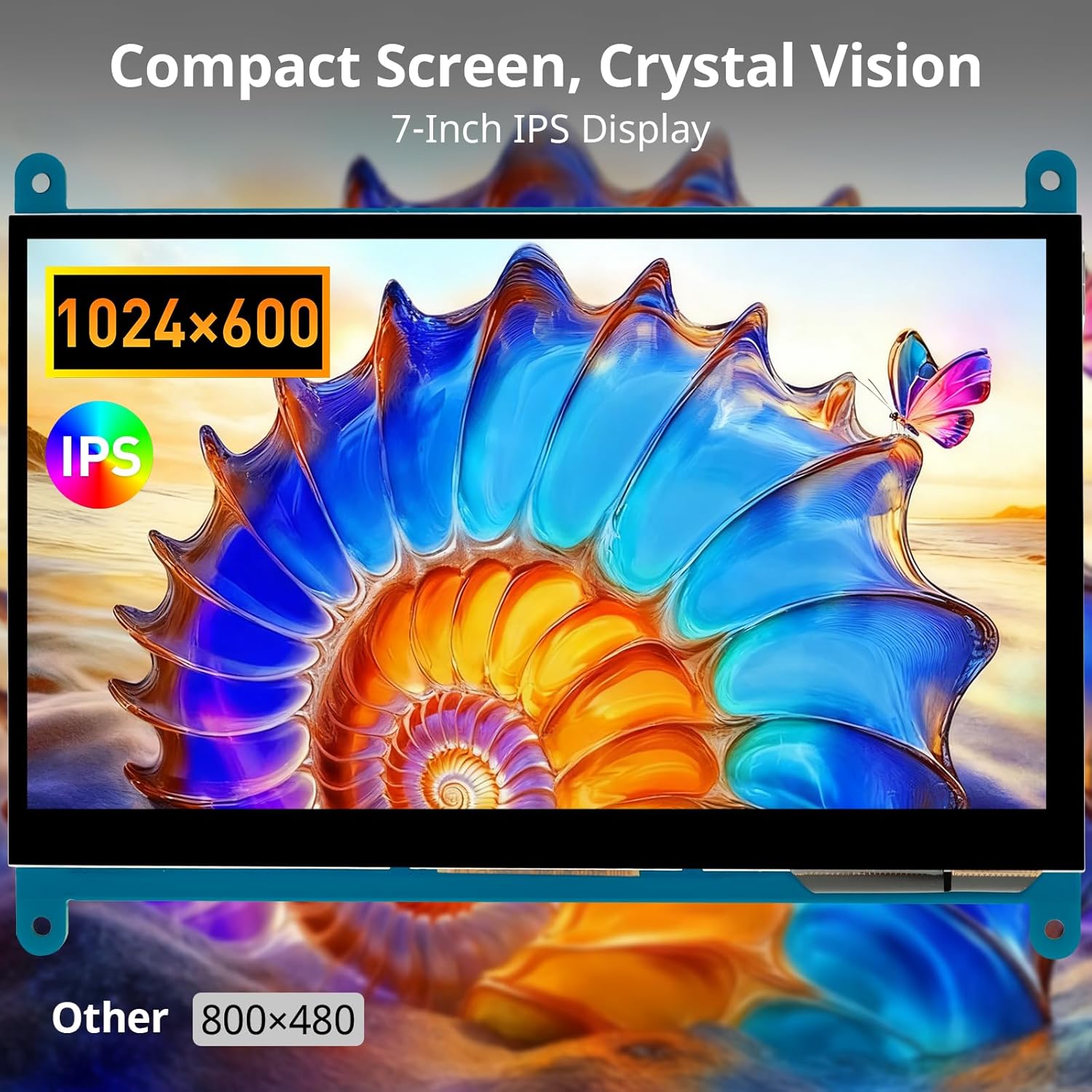
Image: Demonstration of 5-point multi-touch gestures.
5.2 Display Modes
This mini monitor operates in three modes when connected to a compatible system:
- Copy Mode: Duplicates the primary display's content.
- Extended Mode: Extends the desktop across both displays, providing more screen real estate.
- Second Screen Mode: Uses only the monitor as the primary display.
5.3 Versatile Applications
The monitor's compact size and features make it suitable for various uses:
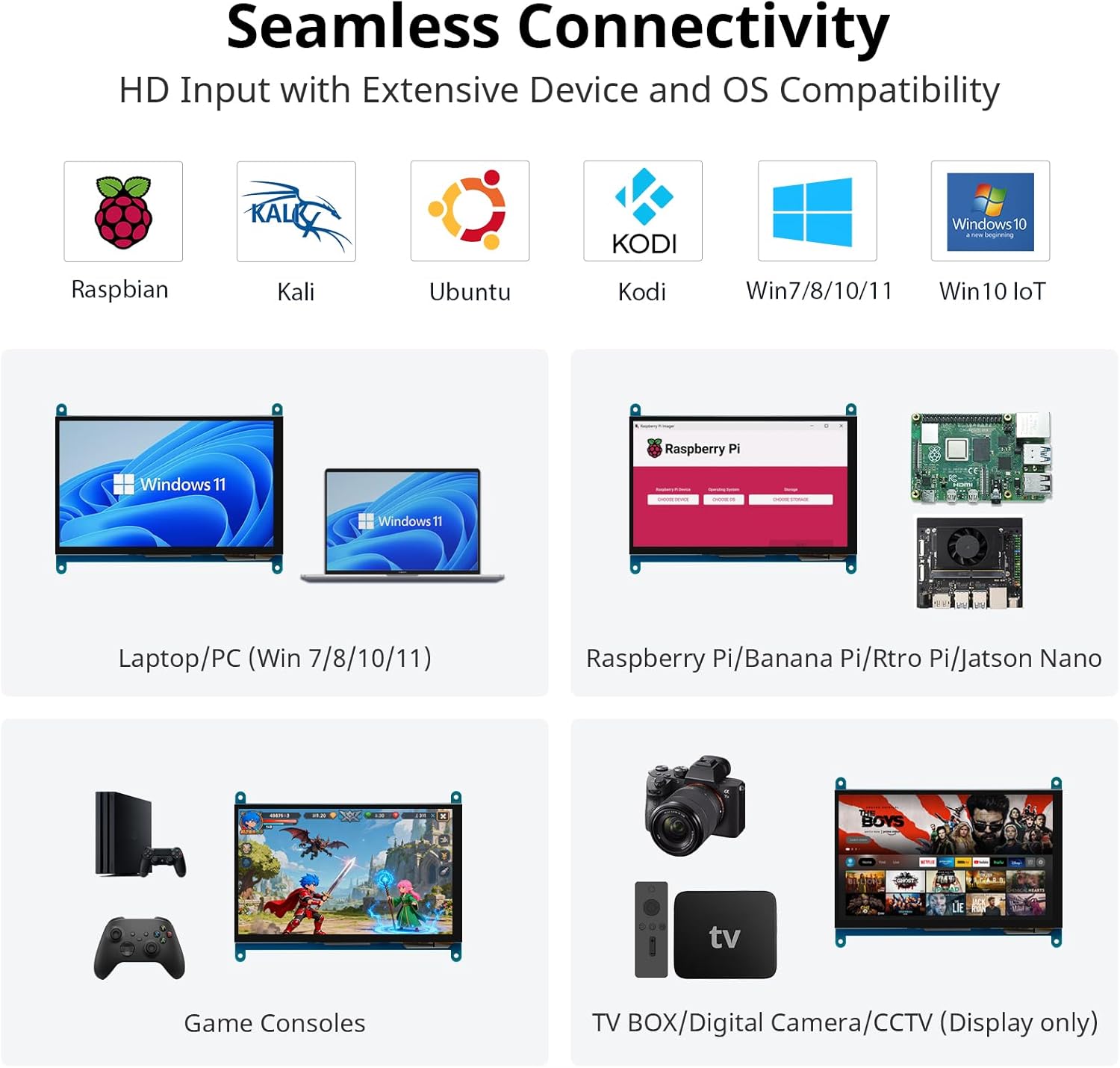
Image: Examples of versatile display applications.
- Raspberry Pi Monitor: Ideal for DIY projects and embedded systems.
- Windows PC Monitor: Functions as a secondary or primary display for Windows 10/8/7.
- Gaming Monitor: Can be used with mini gaming setups.
- Digital Photo Frame: Display photos or other media.
- Home Monitoring Display: Integrate into smart home systems.
- In-Case System Monitor: Mount inside PC cases for system stats.
6. Maintenance
To ensure the longevity and optimal performance of your monitor, follow these maintenance guidelines:
- Cleaning the Screen: Use a soft, lint-free cloth slightly dampened with water or a screen-cleaning solution. Avoid harsh chemicals, abrasive materials, or excessive moisture.
- Cleaning the Casing: Wipe the monitor casing with a soft, dry cloth.
- Storage: When not in use for extended periods, store the monitor in a cool, dry place away from direct sunlight and extreme temperatures.
- Handling: Avoid dropping the monitor or subjecting it to strong impacts. Do not apply excessive pressure to the screen.
- Ventilation: Ensure proper airflow around the monitor to prevent overheating.
7. Troubleshooting
If you encounter issues with your ELECROW monitor, refer to the following common problems and solutions:
| Problem | Possible Cause / Solution |
|---|---|
| Screen remains black / No signal |
|
| Touch function not working |
|
| Display resolution incorrect |
|
| Screen flickering or distorted image |
|
8. Warranty and Support
8.1 Warranty Information
Specific warranty details for this product are typically provided at the point of purchase or within the product packaging. Please refer to your purchase documentation for information regarding warranty duration and terms. Spare parts availability information is not available at this time.
8.2 Customer Support
For further assistance, technical support, or inquiries not covered in this manual, please contact ELECROW customer service through their official website or the retailer from whom you purchased the product.


