
Introduction
This manual provides instructions for the Western Digital Easystore 2TB Portable External Hard Drive. This device offers a convenient solution for expanding your storage capacity and backing up important data. It is designed for portability and ease of use with USB 3.0 connectivity.
Package Contents
- Western Digital Easystore 2TB Portable External Hard Drive
- USB 3.0 Cable
- Quick Install Guide (this document)
Setup
- Connect the USB Cable: Plug the small end of the included USB 3.0 cable into the USB port on the Western Digital Easystore hard drive.
- Connect to Computer: Plug the larger end of the USB 3.0 cable into an available USB port on your computer. For optimal performance, use a USB 3.0 port (often identified by a blue insert). The drive is bus-powered, meaning it draws power directly from the USB connection, so no external power adapter is needed.
- Automatic Recognition: Your operating system (Windows or macOS) should automatically detect and install the necessary drivers for the hard drive. This process may take a few moments.
- Accessing the Drive: Once recognized, the drive will appear as a new storage device in 'My Computer' (Windows) or 'Finder' (macOS). You can now begin transferring files.
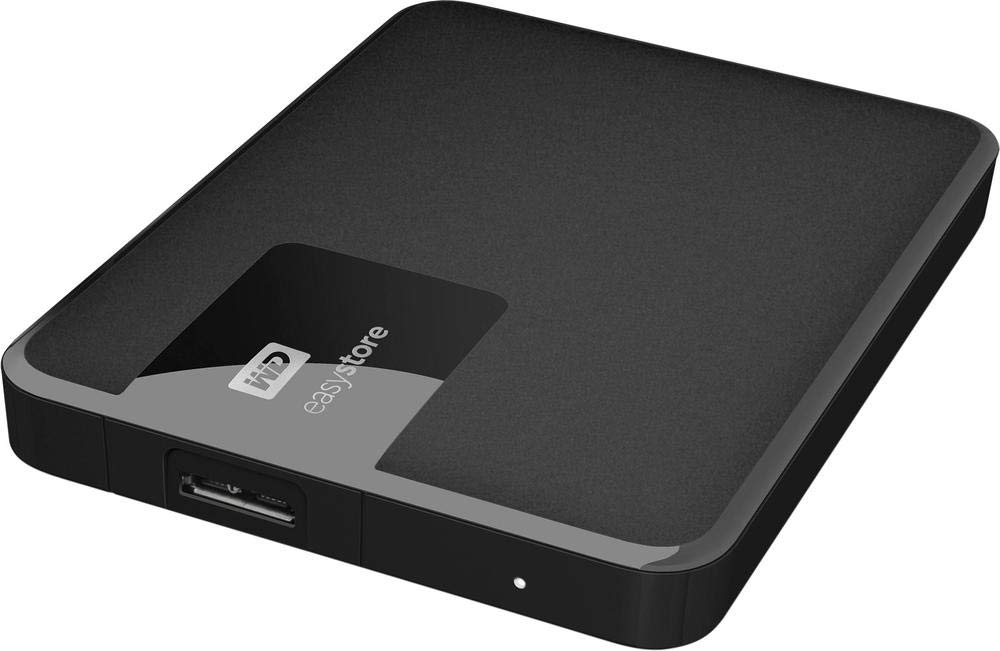
Image: Western Digital Easystore 2TB Portable External Hard Drive, showing its compact size and USB port. Dimensions are approximately 6 inches long, 5 inches wide, and 2 inches thick.
Operating the Device
Data Transfer
To transfer files, simply drag and drop them to and from the Easystore drive icon in your computer's file explorer. You can also copy and paste files as you would with any other storage device.
Backup Software (Optional)
Western Digital may offer optional backup software for enhanced data protection. Refer to the official Western Digital support website for information on available software and installation instructions.
Safe Removal
Always safely eject the hard drive before disconnecting it from your computer to prevent data corruption. In Windows, right-click the drive icon in the system tray and select 'Eject'. On macOS, drag the drive icon to the Trash or click the Eject button next to the drive in Finder.
Maintenance
- Cleaning: Use a soft, dry cloth to clean the exterior of the drive. Avoid liquid cleaners or solvents.
- Storage: Store the drive in a cool, dry place away from direct sunlight and extreme temperatures.
- Physical Protection: While portable, avoid dropping the drive or subjecting it to strong impacts, as this can damage the internal components.
- Cable Care: Ensure the USB cable is not bent sharply or crimped, which could damage the internal wires.
Troubleshooting
Drive Not Detected
- Ensure the USB cable is securely connected to both the drive and the computer.
- Try connecting the drive to a different USB port on your computer.
- Test the drive with a different USB cable, if available.
- Restart your computer and try again.
- Check your computer's Disk Management (Windows) or Disk Utility (macOS) to see if the drive is recognized but not assigned a drive letter or needs formatting.
Slow Transfer Speeds
- Ensure you are connected to a USB 3.0 port on your computer. USB 2.0 ports will result in slower speeds.
- Avoid transferring many small files simultaneously; compressing them into a single archive can sometimes improve speed.
- Close other applications that might be using system resources or performing disk operations.
Drive Makes Unusual Noises
If the drive makes clicking, grinding, or other unusual noises, immediately back up any critical data if possible and discontinue use. This may indicate a hardware failure. Contact Western Digital support for assistance.
Specifications
| Model Name | Easystore |
| Model Number | WDBKUZ0020BBK-WESN |
| Digital Storage Capacity | 2 TB |
| Hard Disk Interface | USB 3.0 |
| Connectivity Technology | USB |
| Brand | Western Digital |
| Special Feature | Portable |
| Hard Disk Form Factor | 2.5 inches |
| Hard Disk Description | Mechanical Hard Disk |
| Compatible Devices | Desktop (and Laptops) |
| Installation Type | External Hard Drive |
| Color | Black |
| Read Speed | Up to 5000 megabytes per second (USB 3.0 theoretical max) |
| Hardware Platform | PC |
| Enclosure Material | Aluminum |
Warranty and Support
For warranty information, technical support, and additional resources, please visit the official Western Digital support website. Keep your proof of purchase for warranty claims.
Western Digital Support: https://support.wdc.com


