
Cherry DW 5100
CHERRY DW 5100 Wireless Keyboard & Mouse Combo Instruction Manual
Model: DW 5100 | Brand: Cherry
1. Introduction
This manual provides detailed instructions for the setup, operation, and maintenance of your CHERRY DW 5100 Wireless Keyboard and Mouse Combo. Please read this manual thoroughly before using the product to ensure optimal performance and longevity.
Package Contents
The CHERRY DW 5100 package includes the following items:
- CHERRY DW 5100 Wireless Keyboard
- CHERRY DW 5100 Wireless Mouse
- USB Receiver
- 4 x AAA Batteries (2 for keyboard, 2 for mouse)
- Instruction Manual (this document)

Image 1.1: The CHERRY DW 5100 Wireless Keyboard and Mouse Combo. The image displays the full-size black keyboard with a numeric keypad and media keys, alongside the ergonomic black wireless mouse.
2. Setup
2.1 Battery Installation
The CHERRY DW 5100 keyboard and mouse require AAA batteries for operation. Two AAA batteries are needed for the keyboard and two for the mouse.
- For the Keyboard: Locate the battery compartment on the underside of the keyboard. Open the cover, insert two AAA batteries, ensuring correct polarity (+/-), and close the cover.
- For the Mouse: Locate the battery compartment on the underside of the mouse. Open the cover, insert two AAA batteries, ensuring correct polarity (+/-), and close the cover.

Image 2.1: The CHERRY DW 5100 Wireless Mouse shown with its USB receiver. The receiver is compact and designed to be plugged into a computer's USB port.
2.2 Connecting the Devices
The keyboard and mouse connect wirelessly to your computer via a single USB receiver.
- Insert the USB receiver into an available USB port on your computer.
- Ensure the keyboard and mouse are powered on (check for an on/off switch, usually on the underside).
- Your computer should automatically detect and install the necessary drivers. This process may take a few moments.
- Once drivers are installed, the keyboard and mouse are ready for use.
The wireless connection operates on a 2.4 GHz frequency, providing a range of up to 10 meters (approximately 33 feet).
3. Operating Instructions
3.1 Keyboard Functions
The CHERRY DW 5100 keyboard features a standard QWERTY layout with 10 additional keys for enhanced functionality.
Image 3.1: Close-up view of the CHERRY DW 5100 Wireless Keyboard. This image highlights the full QWERTY layout, numeric keypad, and the additional function keys located above the numeric pad and below the spacebar.
Additional Keys:
- Multimedia Control: Dedicated keys for volume up, volume down, mute, play/pause, previous track, and next track.
- Application Shortcuts: Keys for launching common applications such as email, web browser, and calculator.
- Sleep Mode: A key to put your computer into sleep mode.
Refer to your operating system's settings for potential customization of these additional keys.
3.2 Mouse Functions
The CHERRY DW 5100 mouse is ergonomically designed for right-handed users and features multiple buttons for efficient navigation.

Image 3.2: Top view of the CHERRY DW 5100 Wireless Mouse. This image shows the left and right click buttons, the scroll wheel, and the DPI switch button located below the scroll wheel.
- Left/Right Click: Standard mouse buttons.
- Scroll Wheel: For vertical scrolling and as a middle click button.
- DPI Switch: Located below the scroll wheel, this button allows you to adjust the mouse's resolution (DPI) on the fly, changing cursor speed and precision. Press the button to cycle through available DPI settings.
- Thumb Buttons: Two side buttons located on the left side of the mouse, typically used for "back" and "forward" navigation in web browsers and file explorers.
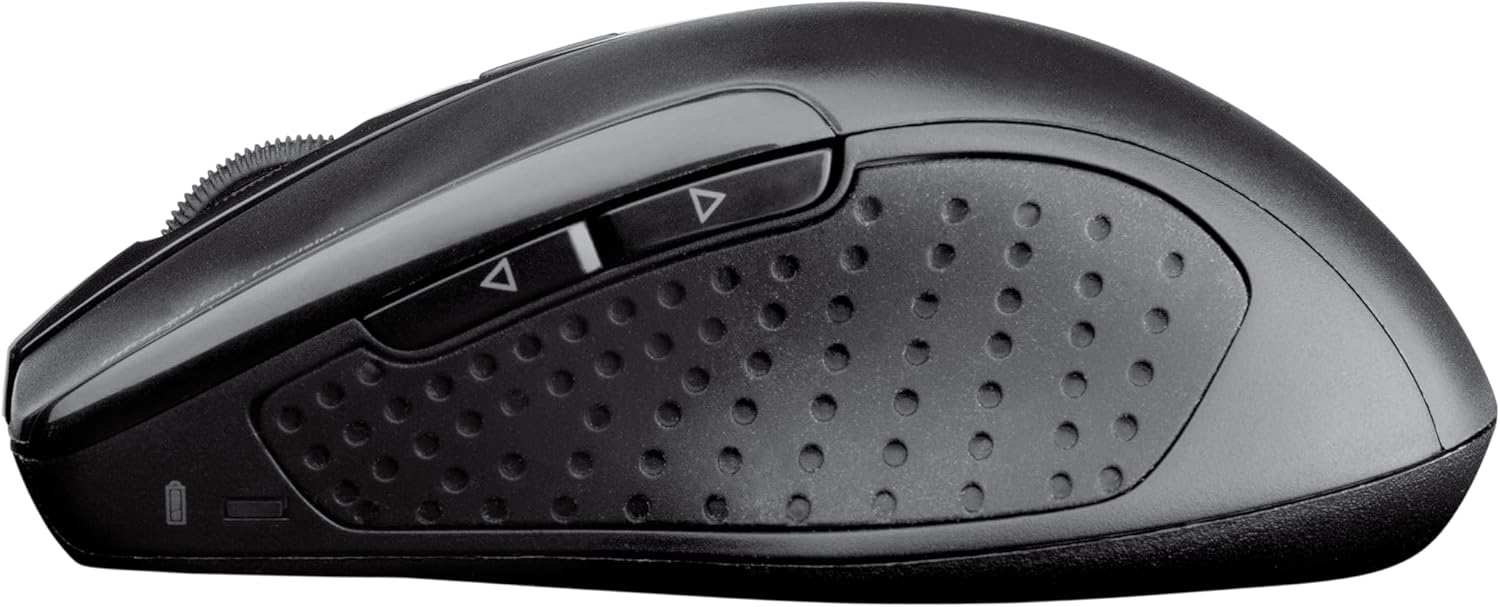
Image 3.3: Side view of the CHERRY DW 5100 Wireless Mouse. This image clearly shows the two thumb buttons on the left side and the textured rubber grip for enhanced comfort and control.
4. Maintenance
4.1 Cleaning
- Disconnect the USB receiver from your computer before cleaning.
- Use a soft, lint-free cloth slightly dampened with water or a mild cleaning solution to wipe the surfaces of the keyboard and mouse.
- Avoid using harsh chemicals, abrasive cleaners, or solvents, as these can damage the product's finish.
- For cleaning between keyboard keys, use compressed air to remove dust and debris.
4.2 Battery Replacement
The CHERRY DW 5100 is designed for a long battery life of up to two years. When batteries are low, the performance may degrade, or the devices may stop responding.
- Replace batteries as described in Section 2.1.
- Always use fresh, high-quality AAA alkaline batteries.
- Dispose of used batteries according to local regulations.
5. Troubleshooting
| Problem | Possible Cause | Solution |
|---|---|---|
| Keyboard/Mouse not responding |
|
|
| Laggy or erratic mouse movement |
|
|
| Keyboard keys not registering |
|
|
6. Specifications
| Feature | Detail |
|---|---|
| Model Name | CHERRY DW 5100 |
| Item Model Number | JD-0520EU-2 |
| Connectivity Technology | Wireless (2.4 GHz) |
| Wireless Range | Up to 10 meters (33 feet) |
| Keyboard Layout | EU Layout, QWERTY |
| Additional Keyboard Keys | 10 multimedia and application keys |
| Mouse Type | Ergonomic, Right-handed, 6-button with DPI switch |
| Power Source | Battery Powered |
| Batteries Required | 4 x AAA (2 for keyboard, 2 for mouse) |
| Estimated Battery Life | Up to 2 years |
| Compatible Operating Systems | Windows 10, Windows 7, Windows 8 |
| Hardware Platform | PC, Laptop |
| Color | Black |
| Product Dimensions (Keyboard) | Approximately 18.43 x 6.7 x 0.87 inches (46.8 x 17 x 2.2 cm) |
| Item Weight | Approximately 2.05 pounds (0.93 kg) |
| Manufacturer | CHERRY |
7. Warranty and Support
For warranty information and technical support, please refer to the official Cherry website or contact their customer service department. Details can typically be found on the product packaging or on the manufacturer's website.
Manufacturer: CHERRY
Website: www.cherry.de/en/ (General Cherry website, specific support link may vary by region)
Related documentsDW 5100


Ask a question about this manual
Ask about setup, troubleshooting, compatibility, parts, safety, or missing instructions. Manuals+ will review the question and use this page’s manual context to help answer it.