
Introduction
Thank you for choosing the T'nB MWTCBK Wireless USB-C Mouse. This compact and ergonomically designed mouse offers a comfortable user experience with its silent click feature and automatic power-saving mode. It is compatible with PC, Mac, and Linux systems, providing versatile connectivity for various computing environments. This manual provides detailed instructions for setup, operation, maintenance, and troubleshooting to ensure optimal performance of your device.

Figure 1: T'nB MWTCBK Wireless USB-C Mouse (Top View)
Package Contents
Please check the package contents to ensure all items are present:
- 1 x T'nB MWTCBK Wireless USB-C Mouse
- 1 x Ultra-mini USB-C Receiver
- 2 x AAA Batteries (LR3)
Product Features
- Wireless USB-C Connectivity: Utilizes a 2.4 GHz wireless connection via a compact USB-C receiver.
- Compact and Ergonomic Design: Shaped for comfortable use over extended periods.
- Velvet Touch Finish: Provides a pleasant tactile experience.
- Silent Click: Reduces clicking noise for a quieter work environment.
- Power Safe Saving: Automatically enters sleep mode when inactive to conserve battery life and instantly reactivates upon use.
- Adjustable DPI: Switch between 800, 1000, and 1200 DPI for customized cursor sensitivity.
- Plug & Play: No drivers required for installation.
- Wide Compatibility: Works with PC, Mac, and Linux operating systems.
- Ambidextrous Design: Suitable for both left and right-handed users.
Setup
1. Installing the Batteries
- Turn the mouse upside down.
- Locate the battery compartment cover on the underside of the mouse.
- Gently slide or lift the cover to open the compartment.
- Insert the two supplied AAA (LR3) batteries, ensuring the correct polarity (+/-) as indicated inside the compartment.
- Close the battery compartment cover securely.
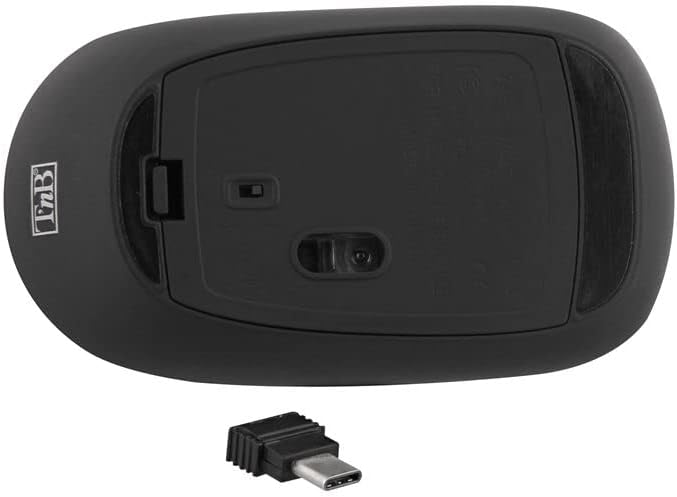
Figure 2: Battery Compartment and USB-C Receiver Slot
2. Connecting the USB-C Receiver
- The ultra-mini USB-C receiver is stored in a dedicated compartment under the mouse for convenience. Remove it from this slot.
- Plug the USB-C receiver into an available USB-C port on your computer (PC, Mac, or Linux device).
- Your computer should automatically detect and install the necessary drivers. This is a Plug & Play device, so no manual driver installation is typically required.
3. Powering On/Off
Locate the power switch on the underside of the mouse. Slide the switch to the "ON" position to activate the mouse. Slide it to "OFF" when not in use for extended periods to further conserve battery life.
4. DPI Adjustment
The mouse features a DPI switch button, usually located near the scroll wheel. Press this button to cycle through the available DPI settings: 800, 1000, and 1200 DPI. This allows you to adjust the cursor sensitivity to your preference.
Operating Instructions
Basic Mouse Functions
- Left Click: Primary button for selecting items, opening files, and executing commands.
- Right Click: Secondary button for accessing context menus and additional options.
- Scroll Wheel: Used for scrolling through documents and web pages. The scroll wheel is also clickable, functioning as a middle button for various applications.
Power Saving Mode
The T'nB MWTCBK mouse is equipped with a "Power Safe Saving" feature. If the mouse is not used for a short period, it will automatically enter a sleep mode to conserve battery power. To reactivate the mouse, simply move it or click any button. It will instantly resume normal operation.
Maintenance
Cleaning
To maintain the performance and appearance of your mouse, clean it regularly:
- Ensure the mouse is turned off before cleaning.
- Use a soft, dry, lint-free cloth to wipe the surface of the mouse.
- For stubborn dirt, slightly dampen the cloth with water or a mild, non-abrasive cleaner. Avoid excessive moisture.
- Do not use harsh chemicals, solvents, or abrasive cleaners, as these can damage the finish.
- Clean the optical sensor area on the bottom of the mouse with a cotton swab if cursor movement becomes erratic.
Battery Replacement
When the mouse performance degrades or stops responding, it's time to replace the batteries:
- Turn off the mouse using the power switch on the underside.
- Open the battery compartment cover.
- Remove the old AAA batteries.
- Insert two new AAA batteries, observing the correct polarity.
- Close the battery compartment cover.
- Turn the mouse back on.
Troubleshooting
If you encounter issues with your T'nB MWTCBK mouse, please refer to the following common solutions:
- Mouse not responding:
- Ensure the mouse is turned on.
- Check if the batteries are correctly inserted and have sufficient charge. Replace them if necessary.
- Verify that the USB-C receiver is securely plugged into a working USB-C port on your computer.
- Try plugging the receiver into a different USB-C port.
- Restart your computer.
- Erratic or no cursor movement:
- Clean the optical sensor on the underside of the mouse.
- Ensure you are using the mouse on a suitable surface. Highly reflective or transparent surfaces may affect tracking.
- Check for any obstructions between the mouse and the receiver.
- Ensure the mouse is within the effective operating range of the receiver (typically up to 10 meters).
- DPI switch not working:
- Ensure the mouse is powered on and connected.
- Press the DPI button firmly. If the issue persists, try replacing the batteries.
Specifications
| Brand | T'nB |
| Model Name | MWTCBK |
| Color | Black/Silver |
| Connectivity Technology | Wireless (2.4 GHz, USB-C Receiver) |
| Movement Detection Technology | Optical |
| DPI Settings | 800 / 1000 / 1200 DPI |
| Number of Buttons | 3 (Left, Right, Scroll Click) |
| Hand Orientation | Ambidextrous |
| Compatible Devices | Personal Computer (PC, Mac, Linux) |
| Battery Type | 2 x AAA (LR3) Alkaline Batteries |
| Special Features | Silent Click, Power Safe Saving, Ergonomic Design, Velvet Touch |
Warranty and Support
For warranty information and customer support, please refer to the documentation provided with your purchase or visit the official T'nB website. Information regarding spare parts availability and software updates is not available at this time.


