
Introduction
Welcome to the Everycom UC01M Micro USB Cable user manual. This guide provides essential information for the proper use and care of your 1-meter Micro USB cable, designed for fast charging and efficient data transfer with compatible Android devices. This cable features a durable braided design and supports 2A rapid charging.
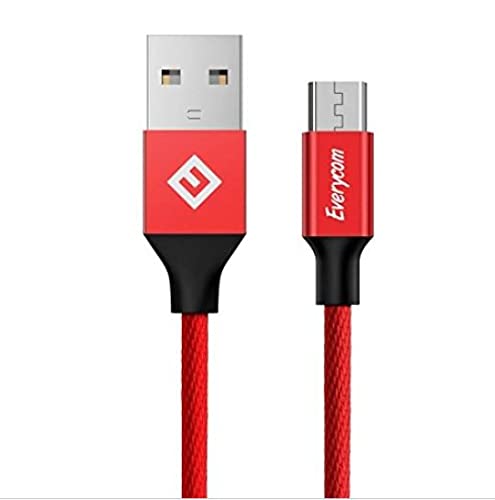
Description: A general view of the Everycom UC01M Micro USB Cable in red, coiled for storage.
Setup
- Identify Ports: Locate the Micro USB port on your mobile device or tablet and the standard USB-A port on your charging adapter or computer.
- Connect to Device: Gently insert the Micro USB connector (smaller end) into the Micro USB port of your device. Ensure the connector is oriented correctly to avoid damage.
- Connect to Power/Data Source: Insert the USB-A connector (larger end) into a compatible USB-A port on a wall charger, power bank, or computer.
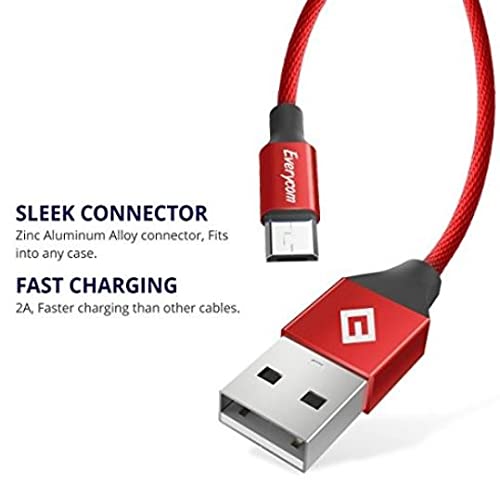
Description: This image illustrates the sleek design of the Everycom Micro USB and USB-A connectors, highlighting their compact form factor for easy connection.
Operating
- For Charging: Once connected to a power source, your device should indicate that it is charging. The cable supports 2A rapid charging for compatible devices and chargers.
- For Data Transfer: When connected to a computer, your device may prompt you to select a connection mode (e.g., "Charge only," "File transfer," "Photo transfer"). Select "File transfer" or the appropriate data transfer option to enable data synchronization. Ensure your device is unlocked for the computer to access its storage.
Maintenance
- Cable Care: The Everycom UC01M cable features a durable braided design (Linen & Nylon) to resist tangling and enhance longevity. Avoid sharp bends or kinks, especially near the connectors, to prevent internal wire damage. Do not pull the cable by the wire; always grasp the connector housing when plugging or unplugging.
- Connector Care: Keep the Micro USB and USB-A connectors clean and free from dust or debris. Use a soft, dry cloth if cleaning is necessary.
- Storage: Store the cable in a loose coil when not in use to prevent stress on the braiding and internal wires.
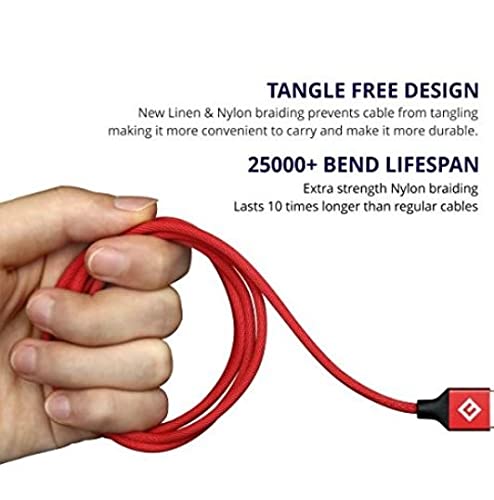
Description: This image demonstrates the tangle-free design of the Everycom braided cable, coiled in a hand, emphasizing its durability and 25,000+ bend lifespan.
Troubleshooting
- Device Not Charging: Verify that both ends of the cable are securely connected. Ensure the power adapter or USB port is functional. Try a different adapter or port. Check your device's charging port for any obstructions or damage.
- Slow Charging: Confirm that your power adapter supports 2A output or higher for rapid charging. Some devices may limit charging speed based on battery level or temperature.
- Data Transfer Issues: Ensure your device is unlocked and the correct USB connection mode (e.g., "File transfer") is selected. Try connecting to a different USB port on your computer. Restart both your device and computer.
- Connector Fit Issues (Xiaomi Mobiles): A user review indicated that the port might be too tight for some Xiaomi mobile models, potentially leading to damage over time. Exercise caution when connecting and disconnecting the cable with such devices. If the fit is excessively tight, consider if the cable is compatible with your specific device model.
Specifications
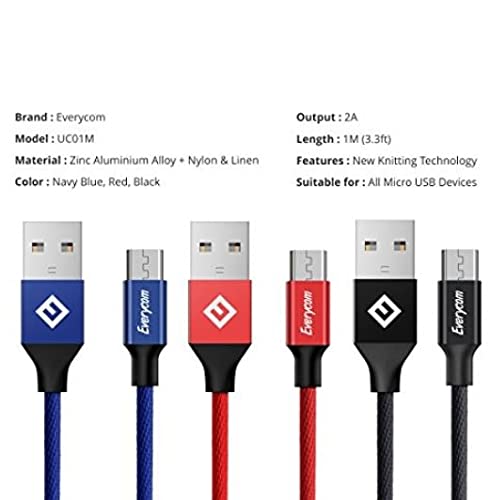
Description: This image provides a visual summary of the Everycom UC01M cable's specifications, including its model number, material composition, output capabilities, length, and compatibility with Micro USB devices.
- Brand: Everycom
- Model: UC01M
- Connector Type: Micro USB (Male) to USB-A (Male)
- Cable Type: USB
- Special Features: Braided (Linen & Nylon), Data Transfer, Fast Charging (2A)
- Length: 1 Meter (3.3 ft)
- Data Transfer Rate: Up to 0.48 Gigabits Per Second
- Material: Zinc Aluminium Alloy (connectors), Nylon & Linen (braiding)
- Color: Red
- Compatible Devices: All Micro USB Devices, including Xiaomi Redmi 4, Xiaomi Redmi Note 4
- Certifications: CE, FCC
Warranty and Support
Warranty Information: Specific warranty details are not provided in this manual. Please refer to the product packaging or the point of purchase for warranty terms and conditions.
Customer Support: For further assistance or inquiries, please contact Everycom customer support through their official website or the retailer where the product was purchased.