
BENGOO V-4
BENGOO V-4 Gaming Headset User Manual
Model: V-4
1. Introduction
Thank you for choosing the BENGOO V-4 Gaming Headset. This manual provides detailed instructions for setting up, operating, maintaining, and troubleshooting your new headset. Designed for an immersive gaming experience, the V-4 headset offers clear audio, a noise-cancelling microphone, and comfortable wear for extended sessions across multiple platforms.
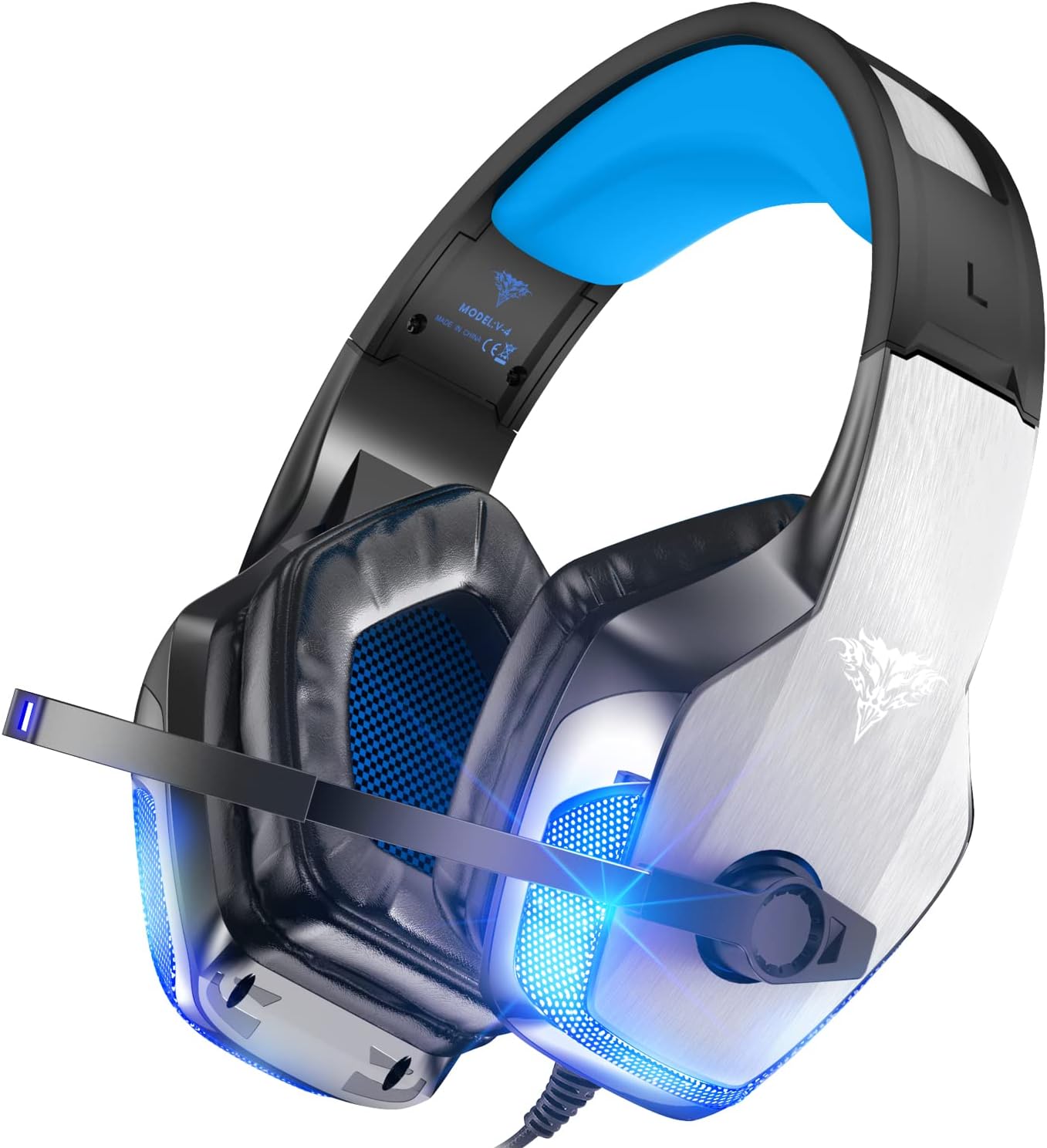
Image: The BENGOO V-4 Gaming Headset, showcasing its sleek design with blue LED accents and adjustable microphone.
2. Package Contents
Please verify that all items are present in your package:
- 1 x BENGOO V-4 Gaming Headset
Note: Additional accessories such as a Microsoft Adapter for older Xbox One controllers or a 1-to-2 3.5mm jack splitter cable for PC (if using separate audio/mic ports) are not included and must be purchased separately if required.
3. Product Overview
The BENGOO V-4 Gaming Headset features a robust design with key components for optimal performance and comfort.
- Adjustable Headband: Ensures a comfortable fit for various head sizes.
- Soft Memory Earmuffs: Protein over-ear pads provide comfort and good air permeability for long wearing periods.
- Noise-Isolating Microphone: Omni-directional microphone with noise-cancelling features for clear communication.
- In-line Control: Integrated volume wheel and one-key microphone mute switch for easy audio management.
- 3.5mm Audio Jack: Universal compatibility with various gaming consoles and devices.
- USB Plug: Powers the glaring LED lights on the earcups, enhancing the gaming atmosphere.
- 50mm Magnetic Neodymium Driver: Delivers vivid sound field, sound clarity, and shock feeling sound for immersive audio.

Image: Close-up of the headset's gold-plated 3.5mm plug, USB plug for LED lights, volume wheel, and one-key mute switch.

Image: Illustration of the noise-cancelling microphone, showing how it filters out ambient noise for clearer voice transmission.

Image: Depiction of the headset's ergonomic design, highlighting the durable frame, soft memory ear pads, and flexible headband for comfort during extended use.

Image: Visual representation of the 3D stereo surround sound capability, indicating immersive audio for gaming.
4. Setup Guide
The BENGOO V-4 Gaming Headset offers wide compatibility. Follow the instructions below for your specific device.

Image: Diagram illustrating the universal compatibility of the headset with various devices including PS4, Switch, PC, Xbox One, iPad, Smartphone, and Laptop.
4.1. Connecting to PlayStation 4 / PlayStation 5
- Before connecting to your PS4/PS5, test the headset with a mobile phone to ensure it functions correctly.
- Insert the headset's 3.5mm jack plug into the Gamepad.
- Long press the PS4/PS5 button on your controller to enter the System Settings.
- Navigate to "PERIPHERAL MACHINES" and select it.
- Choose "ADJUST SOUND AND DEVICES".
- Select "Output to the headphones" and change it to "All audio".
4.2. Connecting to Nintendo Switch
- Before connecting to your Switch, test the headset with a mobile phone to ensure it functions correctly.
- Insert the headset's 3.5mm jack plug into the Gamepad.
- Enter the System Settings on your Nintendo Switch.
- Choose "ADJUST SOUND AND DEVICES".
- Select "Output to the headphones" and change it to "All audio".
4.3. Connecting to Xbox One
- For newer Xbox One controllers with a 3.5mm jack, simply plug in the headset.
- For older Xbox One controllers without a 3.5mm jack, an extra Microsoft Adapter (not included) is required. Connect the headset to the adapter, then connect the adapter to your controller.
4.4. Connecting to PC / Laptop
- If your PC/laptop has a single 3.5mm combined audio/mic port, plug the headset directly into this port.
- If your PC has separate audio (green) and microphone (pink) 3.5mm ports, a 1-to-2 3.5mm jack splitter cable (not included) is needed to use both headphone and microphone functions simultaneously.
- The USB plug is for powering the LED lights only. Plug it into any available USB port on your PC/laptop for the lights to function.
5. Operating Instructions
The BENGOO V-4 headset is designed for ease of use during your gaming sessions.
5.1. Volume Control
Adjust the audio volume using the rotary volume controller located on the in-line control unit on the headset cable. Rotate the wheel up to increase volume and down to decrease it.
5.2. Microphone Mute
To mute or unmute the microphone, use the one-key microphone mute switch on the in-line control unit. Flip the switch to the desired position.
5.3. LED Lights
The LED lights on the earcups are powered via the USB plug. Connect the USB plug to any available USB port on your device (console, PC, power adapter) to illuminate the lights. The lights are for aesthetic purposes and do not affect audio or microphone functionality.
6. Maintenance
Proper care will extend the life and performance of your BENGOO V-4 Gaming Headset.
- Cleaning: Use a soft, dry cloth to wipe down the headset. For the earcups, gently wipe with a slightly damp cloth if necessary, ensuring no moisture enters the speaker grilles. Do not use harsh chemicals or abrasive cleaners.
- Storage: Store the headset in a cool, dry place away from direct sunlight and extreme temperatures. Avoid placing heavy objects on the headset.
- Cable Care: The braided cable is designed to be anti-winding. Avoid sharp bends or excessive pulling on the cable. Use the included Velcro tie to manage excess cable length.
- Microphone: The microphone is flexible; adjust it gently to avoid damage.
7. Troubleshooting
If you encounter issues with your BENGOO V-4 Gaming Headset, please refer to the following common solutions:
7.1. No Sound or Low Volume
- Check Connections: Ensure the 3.5mm jack is fully inserted into the correct port on your device or controller.
- Volume Control: Verify that the in-line volume wheel is turned up.
- Device Volume Settings: Check the audio output settings on your console (PS4/PS5, Switch) or PC to ensure the headset is selected as the primary audio output and volume levels are adequate.
- PC Splitter: If on PC with separate audio/mic ports, ensure you are using a 1-to-2 splitter cable correctly.
- Test on Another Device: Plug the headset into a mobile phone or another device to confirm basic functionality.
7.2. Microphone Not Working
- Check Mute Switch: Ensure the microphone mute switch on the in-line control is in the "unmute" position.
- Device Microphone Settings: Verify microphone input settings on your console or PC. Ensure the headset microphone is selected as the input device.
- Xbox One Adapter: If using an older Xbox One controller, confirm the Microsoft Adapter is correctly connected and configured.
- PC Splitter: If on PC with separate audio/mic ports, ensure you are using a 1-to-2 splitter cable correctly.
- Test on Another Device: Plug the headset into a mobile phone or another device to confirm basic microphone functionality.
7.3. LED Lights Not On
- USB Connection: Ensure the USB plug is securely connected to a powered USB port. The USB connection is solely for the LED lights.
- Power Source: Try connecting the USB to a different USB port or a USB wall adapter to rule out port issues.
8. Specifications
| Feature | Detail |
|---|---|
| Model Name | V-4 |
| Connectivity Technology | Wired |
| Headphones Jack | 3.5 mm Jack |
| Sensitivity | 115 dB |
| Frequency Range | 20Hz-20 KHz |
| Audio Driver Type | Dynamic Driver (50mm) |
| Earpiece Shape | Over Ear |
| Material | Leather, Metal |
| Special Feature | Microphone Included, Noise Cancellation |
| Control Type | Volume Control, One-key Mute |
| Cable Feature | USB cable (for LED lights) |
| Cable Length | 6.8 Feet |
| Item Weight | 1.1 Pounds |
| Compatible Devices | PlayStation 4, PS5, Xbox One S, PC, Nintendo 3DS, Laptop, PSP, Tablet, iMac, Computer, Mobile Phone |
9. Warranty and Support
BENGOO provides customer support for its products. For specific warranty details, please refer to the warranty card included with your product or visit the official BENGOO website. You can also contact BENGOO LLC directly through their seller page on Amazon for support inquiries.
For further assistance, please visit the BENGOO Store on Amazon.
Related documentsV-4


Ask a question about this manual
Ask about setup, troubleshooting, compatibility, parts, safety, or missing instructions. Manuals+ will review the question and use this page’s manual context to help answer it.