
Introduction
Welcome to the user manual for your new TECH PAD 1016S Tablet. This guide provides essential information on setting up, operating, maintaining, and troubleshooting your device. Please read this manual carefully to ensure optimal performance and longevity of your tablet.
What's in the Box
Upon unboxing your TECH PAD 1016S Tablet, please verify that all the following components are included:
- TECH PAD 1016S Tablet
- AC/DC Power Adapter (100-240V AC 50-60 Hz)
- USB Cable
- OTG Cable
- Headphones
- User Manual (this document)
- Warranty Policy
Product Overview
Familiarize yourself with the physical features and components of your TECH PAD 1016S Tablet.
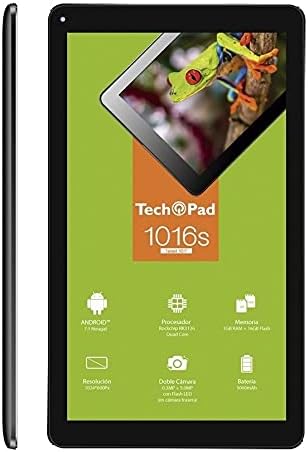
Figure 1: Front view of the TECH PAD 1016S Tablet. This image displays the tablet's 10-inch screen, which is currently active, showing the 'Tech Pad 1016s' branding and various Android-related icons, indicating its operating system and core features.

Figure 2: Back view of the TECH PAD 1016S Tablet in portrait orientation. The rear camera lens is visible at the top left corner, and the 'Tech Pad Mod. 1016S' logo is centrally placed on the back panel.

Figure 3: Back view of the TECH PAD 1016S Tablet in landscape orientation. This perspective shows the placement of the rear camera, along with various ports and buttons typically located on the sides of the device, such as the power button, volume controls, and charging port.
Setup
1. Initial Charging
Before first use, fully charge your tablet. Connect the provided USB cable to the tablet's charging port and the power adapter. Plug the adapter into a wall outlet. The battery indicator on the screen will show charging status. A full charge may take several hours.
2. Powering On/Off
- To Power On: Press and hold the Power button (usually located on the side) until the screen lights up and the TECH PAD logo appears.
- To Power Off: Press and hold the Power button until a menu appears on the screen. Select "Power off" and confirm.
- To Restart: From the same menu, select "Restart" to reboot the device.
3. Initial Setup Wizard
The first time you power on your tablet, you will be guided through an initial setup process. Follow the on-screen prompts to:
- Select your preferred language.
- Connect to a Wi-Fi network.
- Set up your Google account (or create a new one). This is essential for downloading apps from the Google Play Store.
- Set date and time, and other basic preferences.
Operating
1. Basic Navigation
Your tablet uses a capacitive touchscreen for interaction:
- Tap: To select an item, open an app, or press a button.
- Tap & Hold: To access contextual menus or move icons.
- Swipe: To scroll through lists, switch between home screens, or navigate within apps.
- Pinch-to-Zoom: To zoom in or out on images, maps, or web pages.
2. Wi-Fi Connectivity
To connect to a Wi-Fi network:
- Go to Settings > Wi-Fi.
- Toggle Wi-Fi On.
- Select your desired network from the list.
- Enter the password if prompted and tap Connect.
3. Using the Camera
Your tablet is equipped with a front (0.3MP) and rear (5.0MP) camera.
- Open the Camera app from the home screen or app drawer.
- Tap the camera switch icon to toggle between front and rear cameras.
- Tap the shutter button to take a photo.
- Access photos and videos in the Gallery app.
4. Storage Management
The tablet comes with 16GB of internal storage, expandable via microSD card.
- To insert a microSD card, locate the card slot (usually on the side) and gently push the card in until it clicks.
- To check storage usage, go to Settings > Storage.
Maintenance
1. Cleaning the Device
To keep your tablet clean and functional:
- Use a soft, lint-free cloth to wipe the screen and body.
- For stubborn smudges, slightly dampen the cloth with water or a screen cleaner specifically designed for electronics.
- Avoid using harsh chemicals, abrasive materials, or excessive moisture.
2. Battery Care
Proper battery care extends the lifespan of your tablet's battery:
- Avoid extreme temperatures, as they can degrade battery performance.
- Use only the provided charger or a certified compatible charger.
- Do not leave the tablet fully discharged for extended periods.
3. Software Updates
Periodically check for system updates to ensure your tablet has the latest features and security patches. Go to Settings > About tablet > System updates.
Troubleshooting
Here are solutions to common issues you might encounter:
Tablet Not Turning On
- Ensure the battery is charged. Connect the tablet to its charger and wait a few minutes before attempting to power it on again.
- Press and hold the Power button for 10-15 seconds to force a restart.
Wi-Fi Connection Issues
- Check if Wi-Fi is enabled in Settings.
- Restart your Wi-Fi router and the tablet.
- Forget the network in Settings > Wi-Fi and reconnect.
Slow Performance
- Close unused applications running in the background.
- Clear cache data for apps in Settings > Apps.
- Consider uninstalling rarely used apps to free up storage.
- Restart the tablet regularly.
Camera Not Working
- Ensure the Camera app has necessary permissions in Settings > Apps > Camera > Permissions.
- Restart the tablet.
Factory Reset (Last Resort)
If problems persist, a factory reset can resolve many software issues. Warning: This will erase all data on your tablet. Back up important files before proceeding. Go to Settings > Backup & reset > Factory data reset.
Specifications
Detailed technical specifications for the TECH PAD 1016S Tablet:
| Brand | TECH PAD |
| Model Name | 1016S |
| Operating System | Android 6.0 Marshmallow |
| Screen Size | 10 Inches |
| Max Screen Resolution | 1024x600 |
| Processor Brand | Rockchip |
| Processor Speed | 1.2 GHz (Quad Core) |
| RAM Memory | 1 GB |
| Internal Storage | 16 GB |
| Expandable Storage | microSD (up to 64GB) |
| Rear Camera Resolution | 5 MP |
| Front Camera Resolution | 0.3 MP |
| Battery Type | Lithium Polymer |
| Battery Energy Content | 10 Watt-hours |
| Connectivity | Wi-Fi (802.11bgn), Micro SD, USB OTG |
| Color | White |
| Item Weight | 550 Grams |
Warranty Information
Your TECH PAD 1016S Tablet comes with a Limited Warranty. Please refer to the separate Warranty Policy document included in your product packaging for detailed terms, conditions, and duration of coverage. This policy outlines your rights and responsibilities regarding product defects and service.
Support
If you encounter issues that cannot be resolved using the troubleshooting steps in this manual, or if you require further assistance, please contact TECH PAD customer support. Refer to the warranty policy or product packaging for specific contact details, such as phone numbers or website addresses for technical support.
When contacting support, please have your tablet's model number (1016S) and a clear description of the issue ready to facilitate a quicker resolution.


