
1. Introduction
The TP-Link AV1000 Powerline Ethernet Adapter Kit (Model TL-WPA8630 KIT V2) is designed to extend your home network using your existing electrical wiring. This kit provides high-speed internet access to areas with weak Wi-Fi signals or where Ethernet cabling is impractical, offering a stable and reliable connection for various devices.
The kit includes a Powerline Adapter (TL-PA8010P) and a Wi-Fi Powerline Extender (TL-WPA8630), working together to deliver up to 1000 Mbps powerline speed and dual-band Wi-Fi speeds of up to 1350 Mbps (450 Mbps on 2.4GHz and 867 Mbps on 5GHz).
2. Package Contents
Verify that your package contains the following items:
- 1x TL-WPA8630 Wi-Fi Powerline Extender
- 1x TL-PA8010P Powerline Adapter
- 2x Ethernet Cables
- 1x Quick Installation Guide

Image: The TP-Link AV1000 Powerline Kit, showing the TL-WPA8630 Wi-Fi Powerline Extender and the TL-PA8010P Powerline Adapter, along with two Ethernet cables.
3. Product Overview
Familiarize yourself with the physical components and indicators of your Powerline devices.
3.1. TL-WPA8630 Wi-Fi Powerline Extender

Image: A close-up view of the TL-WPA8630 Wi-Fi Powerline Extender (right) with its antennas and LED indicators, and the TL-PA8010P Powerline Adapter (left) plugged into a wall outlet, showing its LED indicators.
LED Indicators:
- Power LED: Indicates the power status of the device.
- Powerline LED: Indicates the powerline connection status.
- Wi-Fi LED: Indicates the Wi-Fi status (on/off, broadcasting).
- Ethernet LED: Indicates the status of the Ethernet connection.
Buttons:
- Pair Button: Used to establish a secure powerline connection with other powerline devices.
- Wi-Fi/WPS Button: Used to enable/disable Wi-Fi or to clone Wi-Fi settings from your router.
- Reset Button: Used to restore the device to factory default settings.
3.2. TL-PA8010P Powerline Adapter
This adapter typically features a Power LED, Powerline LED, and Ethernet LED, similar to the extender, indicating its operational status.
4. Setup
Follow these steps to set up your TP-Link AV1000 Powerline Ethernet Adapter Kit.
4.1. Basic Installation (Plug & Play)
- Plug the TL-PA8010P Powerline Adapter into a wall outlet near your router.
- Connect the TL-PA8010P to your router's LAN port using one of the provided Ethernet cables.
- Plug the TL-WPA8630 Wi-Fi Powerline Extender into a wall outlet in the room where you need internet access.
- Wait for the Powerline LED on both devices to turn solid green, indicating a successful powerline connection.
- You can now connect your devices to the TL-WPA8630 via Ethernet or Wi-Fi.
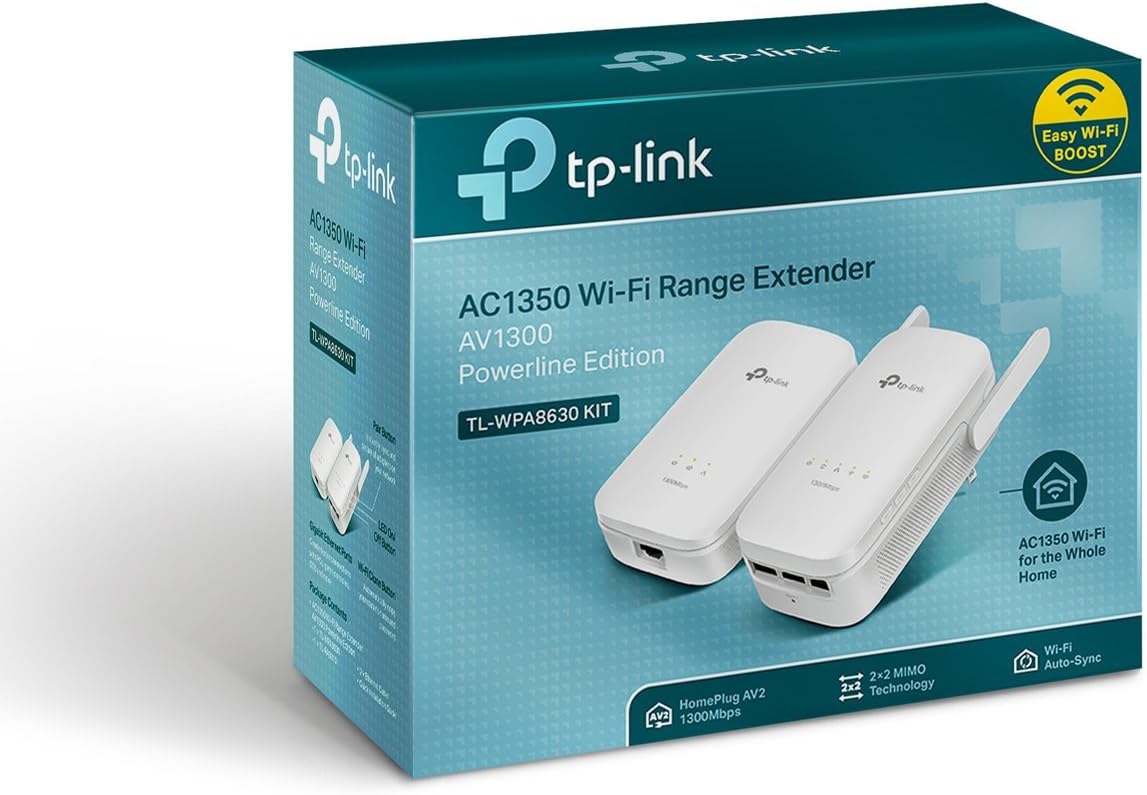
Image: A diagram illustrating how the powerline adapters extend network coverage throughout a multi-story house, using existing electrical wiring for powerline communication and Ethernet cables for local connections.
4.2. Pairing Powerline Devices
If the Powerline LED on your extender is not solid green after installation, you may need to pair the devices manually.
- Press the Pair button on the TL-PA8010P Powerline Adapter for one second. The Power LED will start blinking.
- Within two minutes, press the Pair button on the TL-WPA8630 Wi-Fi Powerline Extender for one second. The Power LED will start blinking.
- When the Powerline LED on both devices turns solid green, the pairing process is complete.
4.3. Wi-Fi Clone (Optional)
The Wi-Fi Clone feature allows the TL-WPA8630 to copy your router's Wi-Fi network name (SSID) and password, creating a unified Wi-Fi network.
- Ensure the TL-WPA8630 is successfully paired with the TL-PA8010P and the Wi-Fi LED is on.
- Press the WPS button on your router.
- Within two minutes, press the Wi-Fi/WPS button on the TL-WPA8630 for one second. The Wi-Fi LED will start blinking.
- When the Wi-Fi LED on the TL-WPA8630 turns solid, the Wi-Fi cloning is complete. Your extender will now broadcast the same Wi-Fi network as your router.
5. Operating the Device
Once set up, your Powerline network is ready for use.
5.1. Connecting Devices
- Via Ethernet: Connect wired devices such as smart TVs, gaming consoles, or PCs to the Gigabit Ethernet ports on the TL-WPA8630 using an Ethernet cable.
- Via Wi-Fi: Connect wireless devices like smartphones, tablets, or laptops to the Wi-Fi network broadcast by the TL-WPA8630. The default Wi-Fi name and password are provided on the product label, or use the cloned Wi-Fi credentials if you used the Wi-Fi Clone feature.

Image: A living room scene showing a person watching television, with a TP-Link powerline adapter discreetly plugged into a wall outlet near the TV, illustrating a typical usage scenario for wired device connectivity.
5.2. Power Saving Mode
The devices automatically enter power-saving mode when no data is transmitted for a certain period, reducing power consumption by up to 85%. They will automatically resume full operation when network activity is detected.
6. Maintenance
Proper maintenance ensures the longevity and optimal performance of your Powerline devices.
- Placement: For best performance, plug Powerline devices directly into wall outlets. Avoid plugging them into power strips, surge protectors, or extension cords, as these can interfere with powerline communication.
- Cleaning: Use a soft, dry cloth to clean the devices. Do not use liquid or aerosol cleaners.
- Firmware Updates: Periodically check the official TP-Link website for firmware updates. Updating firmware can improve performance, add new features, and fix bugs.
- Environmental Conditions: Ensure the devices are operated within the specified temperature and humidity ranges to prevent damage.
7. Troubleshooting
If you encounter issues, refer to the following common troubleshooting steps.
- No Powerline LED:
- Ensure both Powerline devices are plugged into live wall outlets.
- Try plugging the devices into different wall outlets on the same electrical circuit.
- Avoid power strips or surge protectors.
- Slow Powerline Speed:
- Electrical interference from other appliances (e.g., washing machines, refrigerators) can affect performance. Try moving devices away from such appliances.
- Ensure devices are on the same electrical circuit. Performance may degrade across different circuits.
- Check the quality of the electrical wiring in your home. Older wiring may limit performance.
- No Wi-Fi Signal from Extender:
- Check if the Wi-Fi LED on the TL-WPA8630 is on. If not, press the Wi-Fi/WPS button to enable Wi-Fi.
- Ensure the TL-WPA8630 is successfully paired with the TL-PA8010P (Powerline LED solid green).
- Try resetting the TL-WPA8630 to factory defaults and reconfiguring.
- Cannot Pair Devices:
- Ensure both devices are plugged in and powered on.
- Perform the pairing sequence within two minutes for both devices.
- Ensure devices are on the same electrical circuit.
8. Specifications
| Feature | Description |
|---|---|
| Model | TL-WPA8630 KIT V2 |
| Powerline Speed | Up to 1000 Mbps (HomePlug AV2) |
| Wi-Fi Speed | Up to 1350 Mbps (450 Mbps 2.4GHz + 867 Mbps 5GHz) |
| Standards | HomePlug AV2, IEEE 802.11ac/n/a/b/g, IEEE 802.3/3u/3ab |
| Interface | Gigabit Ethernet Ports |
| Security | 128-bit AES Encryption |
| Operating Temperature | 0°C ~ 40°C (32°F ~ 104°F) |
| Storage Temperature | -40°C ~ 70°C (-40°F ~ 158°F) |
| Operating Humidity | 10% ~ 90% non-condensing |
| Storage Humidity | 5% ~ 90% non-condensing |
| Dimensions | 9.1 x 4 x 7.6 inches (Product Dimensions) |
| Item Weight | 1.06 pounds |
| Power Saving | Automatically reduces power consumption by up to 85% |
9. Warranty and Support
For warranty information, technical support, and additional resources, please visit the official TP-Link website:
You can find FAQs, user guides, and contact information for customer support on their website.