
Introduction
Welcome to the user manual for your QIDI TECH X-Pro 3D Printer. This guide provides essential information for setting up, operating, maintaining, and troubleshooting your device to ensure optimal performance and longevity. The X-Pro 3D Printer is equipped with advanced features such as dual extrusion technology, a heated build platform, and a user-friendly touch screen interface, making it suitable for various applications from education to professional design.
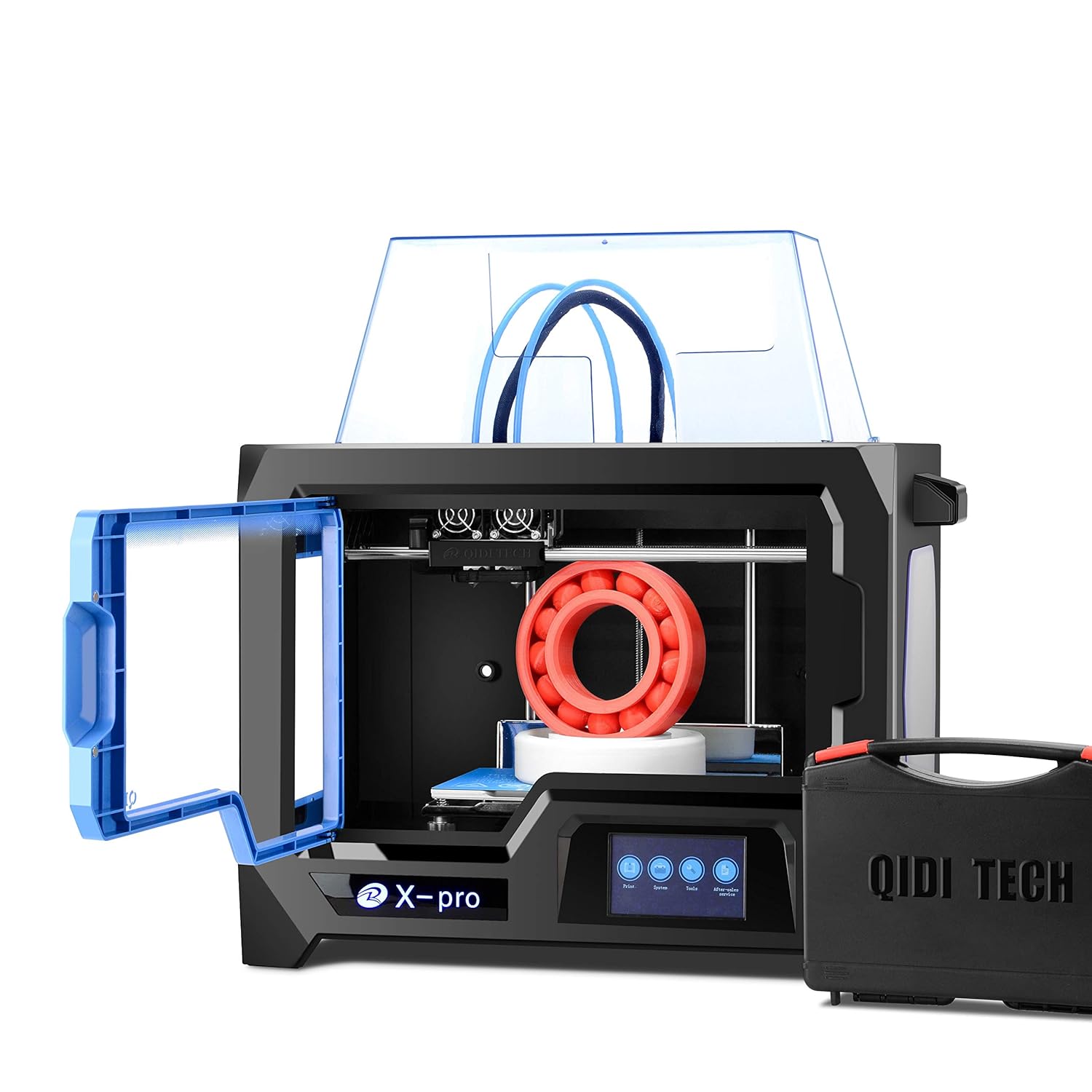
The QIDI TECH X-Pro 3D Printer, showcasing its enclosed design, dual extruder, and a printed model on the build plate. A tool case is visible next to the printer.
1. Setup
1.1 Unboxing and Placement
Carefully remove the printer from its packaging. Place the printer on a stable, level surface in a well-ventilated area, away from direct sunlight and heat sources. Ensure there is enough space around the printer for operation and maintenance.
1.2 Connecting Power
Connect the power cable to the printer's power input and then to a suitable power outlet. Ensure the power switch is in the OFF position before connecting. Once connected, you can switch the printer ON.
1.3 Filament Loading
The QIDI TECH X-Pro supports various filament types, including ABS, PLA, and TPU. To load filament, place the spool on the designated holder. Feed the filament into the extruder assembly until it is properly seated. Refer to the on-screen instructions on the touch screen for specific loading procedures.
1.4 Initial Calibration
Before your first print, it is crucial to perform bed leveling. The printer features a 4.3-inch touch screen that guides you through the calibration process. Ensure the build plate is clean and properly installed. The removable curved metal plate simplifies handling during calibration and print removal.
Official product video showcasing the features and operation of the QIDI TECH X-Pro 3D Printer. This video provides a comprehensive overview of the QIDI TECH X-Pro 3D Printer, demonstrating its key features, including the dual extruder, heated build plate, and user interface. It also shows examples of prints made with different filament types like PLA, ABS, and TPU.
2. Operating Instructions
2.1 User Interface
The QIDI TECH X-Pro features an upgraded 4.3-inch touch screen, providing an intuitive interface for controlling print settings, monitoring progress, and managing files. Navigate through the menus to access various functions.

The upgraded 4.3-inch touch screen provides a user-friendly interface for smarter and easier operation of the printer.
2.2 Slicing Software
Prepare your 3D models for printing using the QidiPrint slicing software. This software allows you to adjust print parameters such as layer height, infill density, and support structures. Once sliced, transfer the G-code file to the printer via USB or WiFi.
2.3 Starting a Print
Select your desired G-code file from the printer's menu. Confirm the print settings and initiate the printing process. The printer will automatically preheat the nozzle and build plate to the required temperatures before starting the print.
2.4 Dual Extrusion Printing
The dual extruder allows for printing with two different colors or materials simultaneously. This feature is ideal for creating complex models with soluble supports or multi-color designs. Ensure both extruders are properly calibrated for optimal results.

This image highlights the dual extruder assembly, which enables high-precision, double-color printing and helps prevent nozzle clogging.
2.5 Filament Compatibility
The QIDI TECH X-Pro is designed to work with a variety of filaments. The heated build plate and enclosed structure enhance compatibility and print quality, especially for materials like ABS that are prone to warping.

The four-sides blowing turbofan system ensures efficient cooling of printed models, especially beneficial when using PLA filament, leading to improved print quality.
3. Maintenance
3.1 Cleaning the Build Plate
Regularly clean the removable curved metal build plate with isopropyl alcohol to ensure proper adhesion for new prints. Avoid using abrasive materials that could scratch the surface.

The removable curved metal plate simplifies the process of detaching finished prints from the build platform by allowing it to be bent.
3.2 Nozzle Maintenance
Periodically check the nozzles for clogs or wear. The dual extruder design allows for easier access for cleaning or replacement. Refer to the printer's detailed maintenance guide for specific instructions on nozzle care.
3.3 General Care
Keep the printer free from dust and debris. Lubricate moving parts as recommended in the full manual to ensure smooth operation and extend the lifespan of your printer.
4. Troubleshooting
4.1 Common Printing Issues
If you encounter issues such as poor print adhesion, filament not extruding, or layer shifting, first verify your slicing software settings and ensure the build plate is properly leveled and clean. Check for any filament tangles or blockages in the extruder.
4.2 Conditional Breakpoint Printing
In the event of a power outage during printing, the X-Pro 3D Printer features conditional breakpoint printing. Do not move the printer, especially the Z-axis. Once power is restored, the printer can detect the unfinished file and prompt you to resume printing from where it left off, minimizing material waste.

This feature allows printing to resume from the last saved point after a power outage, preventing print failures and saving material.
5. Specifications
| Feature | Detail |
|---|---|
| Extruder Quantity | Dual Extruder |
| Print Technology | FDM |
| Location Precision | Z axis: 2.5 Microns, X/Y axis: 11 Microns |
| Layer Thickness | 0.1-0.4mm |
| Build Volume | 230x150x150mm |
| Nozzle Diameter | 0.4mm |
| Printing Speed | 24cc/h |
| Extruder Temp | 0-240℃ |
| Connectivity | WiFi/Ethernet/U Disk |
| AC Input | 100-240V, 350W |
| Input File Type | STL/OBJ |
| Output File Type | GCODE |
| Supports (OS) | Windows 7/8 / Mac OS X |
| Software | QidiPrint |
| Product Dimensions | 5.9"D x 5.9"W x 9.1"H (150 x 150 x 230 mm) |
| Item Weight | 18 Kilograms (39.68 Pounds) |
| Material | Aluminum, PLA, Metal |
| Color | White, Red |
6. Warranty and Support
R QIDI TECHNOLOGY provides a free one-year warranty for the X-Pro 3D Printer. For technical assistance, troubleshooting, or warranty claims, please contact R QIDI TECHNOLOGY customer support. You can find more information and contact details on the official R QIDI TECHNOLOGY Store.

