
Introduction
This manual provides essential information for setting up, operating, maintaining, and troubleshooting your HP 15-bw053od Laptop. Please read this guide thoroughly to ensure proper use and to maximize the lifespan of your device. Keep this manual for future reference.
Product Overview
The HP 15-bw053od is a versatile laptop designed for general computing tasks. It features a 15.6-inch display, an AMD A10 processor, 8GB of RAM, and a 1TB hard drive, running on Windows 10 Home.
Key Components
- Display: 15.6-inch LED screen with 1366 x 768 resolution.
- Processor: AMD A Series (AMD A10, 7th Gen, Quad-Core).
- Memory: 8 GB DDR4 RAM.
- Storage: 1 TB HDD.
- Operating System: Windows 10 Home.
- Input: Full-size keyboard with numeric keypad, Touch Pad.
- Connectivity: Bluetooth, Wireless (802.11b/g), HDMI, USB ports.
Visual Reference

Figure 1: Front view of the HP 15-bw053od Laptop with the lid open, displaying the screen, keyboard, and touchpad. The HP logo is visible on the screen.
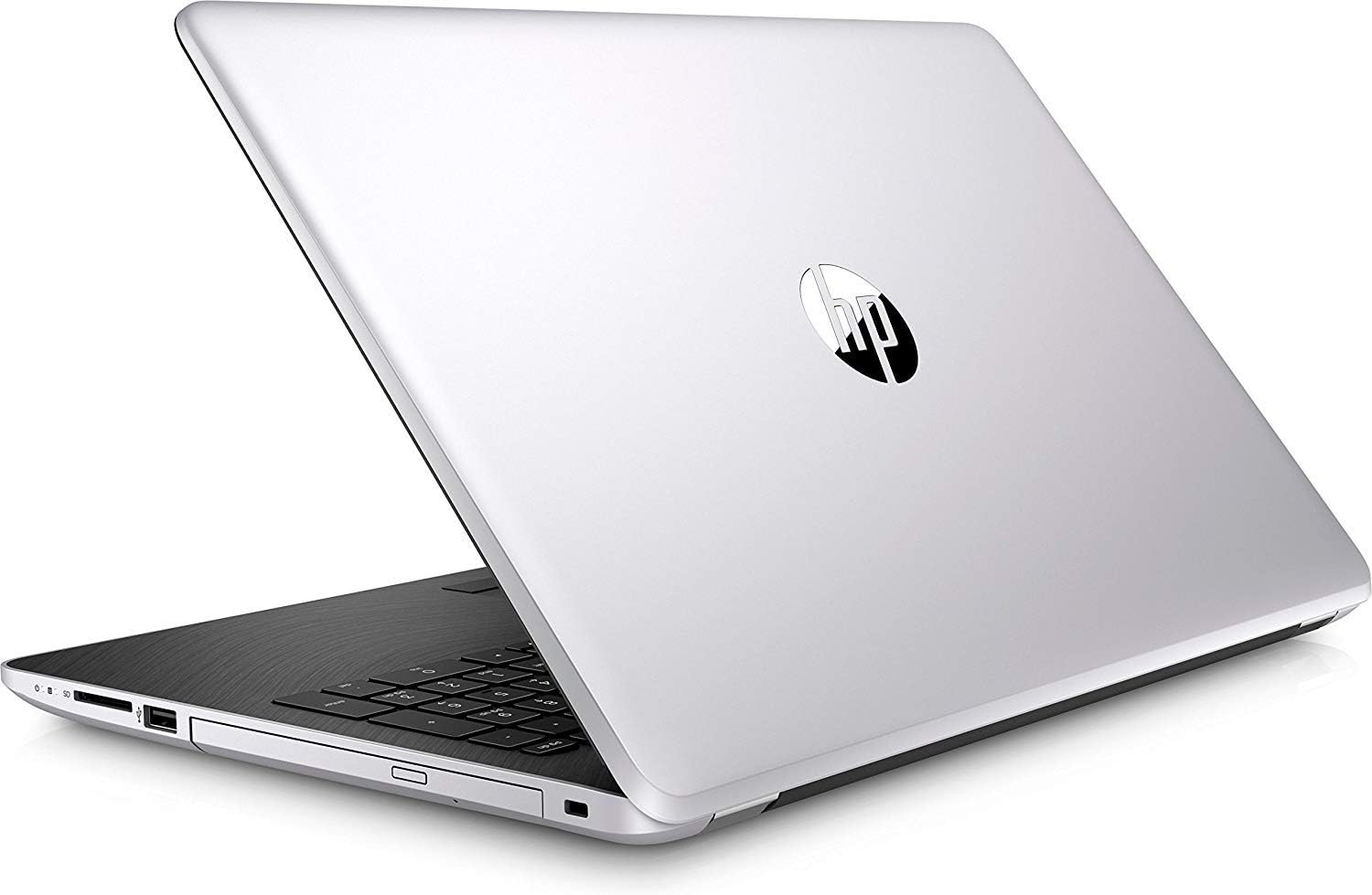
Figure 2: Rear view of the HP 15-bw053od Laptop with the lid closed, showcasing the silver exterior and the HP logo centered on the lid.
Setup
1. Initial Power-On
- Unpack: Carefully remove the laptop and all accessories from the packaging.
- Connect Power: Plug the AC adapter into the laptop's power port and then into a wall outlet.
- Power On: Open the laptop lid and press the power button, typically located above the keyboard or on the side.
- Initial Windows Setup: Follow the on-screen prompts to complete the Windows 10 Home setup, including language, region, network connection, and user account creation.
2. Connecting Peripherals
- USB Devices: Connect USB mice, keyboards, external drives, or other peripherals to the available USB ports.
- External Display: Use an HDMI cable to connect an external monitor or TV to the HDMI port.
- Bluetooth Devices: Enable Bluetooth in Windows settings to pair wireless headphones, speakers, or other Bluetooth accessories.
Operating Instructions
Power Management
- Power On: Press the power button.
- Shut Down: Click the Start button, then Power, then Shut down.
- Restart: Click the Start button, then Power, then Restart.
- Sleep: Close the lid or click the Start button, then Power, then Sleep.
Using the Keyboard and Touchpad
- Keyboard: The full-size keyboard includes a numeric keypad for data entry.
- Touchpad: Use the touchpad for cursor control. It supports multi-touch gestures for scrolling, zooming, and other functions. Refer to Windows settings for touchpad customization.
Network Connectivity
- Wi-Fi: Click the Wi-Fi icon in the taskbar, select your network, and enter the password if required.
- Bluetooth: Access Bluetooth settings via the Start menu to pair and manage Bluetooth devices.
Maintenance
Cleaning the Laptop
- Screen: Use a soft, lint-free cloth lightly dampened with water or a screen cleaner. Avoid harsh chemicals.
- Keyboard/Exterior: Use a soft cloth. For stubborn dirt, a slightly damp cloth with mild soap solution can be used, ensuring no liquid enters openings.
- Vents: Periodically clean dust from the ventilation openings using compressed air to prevent overheating.
Battery Care
- Avoid extreme temperatures.
- Do not fully discharge the battery frequently.
- For long-term storage, charge the battery to about 50% and store in a cool, dry place.
Software Updates and Data Backup
- Windows Updates: Regularly check for and install Windows updates to ensure system stability and security.
- Driver Updates: Keep device drivers updated, especially for graphics and network adapters.
- Data Backup: Periodically back up important files to an external drive or cloud storage to prevent data loss.
Troubleshooting
If you encounter issues with your laptop, try the following basic troubleshooting steps before seeking professional assistance.
Common Issues and Solutions
| Issue | Possible Solution |
|---|---|
| Laptop does not power on. | Ensure the AC adapter is securely connected to both the laptop and a working power outlet. Check if the power outlet is functional. Try a different power outlet. |
| Screen is blank or black. | Press the power button to ensure the laptop is on. Adjust screen brightness. If an external monitor is connected, try disconnecting it. Restart the laptop. |
| Wi-Fi connection issues. | Ensure Wi-Fi is enabled in Windows settings. Restart your router/modem. Check if other devices can connect to the Wi-Fi network. Update Wi-Fi drivers. |
| Laptop is running slow. | Close unnecessary applications. Check for background processes using Task Manager. Run a disk cleanup. Ensure Windows and drivers are updated. Consider running a malware scan. |
Specifications
| Feature | Detail |
|---|---|
| Brand | HP |
| Model Name | 15-bw053od |
| Model Number | 1VK25UA |
| Screen Size | 15.6 Inches |
| Display Resolution | 1366 x 768 pixels |
| CPU Model | AMD A Series (A10, 7th Gen, Quad-Core) |
| RAM Memory | 8 GB DDR4 (2133 MHz) |
| Hard Disk Size | 1000 GB (1TB) HDD |
| Operating System | Windows 10 Home |
| Graphics Coprocessor | AMD A10 (Integrated) |
| Wireless Technology | Bluetooth, Wireless (802.11b, 802.11g) |
| Ports | HDMI, USB (Total 1), Media Card Reader |
| Human-Interface Input | Touch Pad |
| Keyboard Description | Full-size with numeric keypad |
| Battery Life (Average) | 6.75 Hours |
| Item Weight | 2050 Grams |
| Model Year | 2017 |
| UPC | 190781937784 |
Warranty and Support
Your HP 15-bw053od Laptop comes with a standard manufacturer's warranty. For detailed information regarding warranty terms, coverage, and duration, please refer to the warranty card included with your product or visit the official HP support website.
For technical assistance, driver downloads, or further support, please visit the official HP support portal. You can typically find support resources by searching for your specific model number (1VK25UA) on the HP website.
- Online Support: support.hp.com
- Product Registration: Register your product to receive updates and support notifications.