
1. Introduction
The Mackie Onyx Producer 2-2 USB Audio Interface is designed to provide high-resolution audio capture and playback for musicians, producers, and content creators. Featuring premium Onyx mic preamps and robust "Built-Like-A-Tank" hardware design, this bus-powered interface ensures pristine fidelity whether you're at home or on the go. Both models offer zero-latency direct monitoring, a dedicated headphone output, L/R line outputs, and +48V phantom power for condenser microphones. The Producer 2-2 model further enhances versatility with MIDI I/O, allowing seamless integration with controllers, synthesizers, and other MIDI-compatible devices.

Figure 1: Angled front view of the Mackie Onyx Producer 2-2 USB Audio Interface.
2. Features
- 2-in/2-out USB 2.0 Audio Interface: Provides essential connectivity for recording and playback.
- High-Resolution Audio: Supports up to 24-bit/192kHz audio quality for professional-grade recordings.
- Dual Onyx Mic Preamps: Equipped with two high-headroom, low-noise Onyx mic preamps for superior sound capture.
- +48V Phantom Power: Individually switchable phantom power for condenser microphones on both inputs.
- Hi-Z Inputs: Dedicated Hi-Z switches on each input for direct connection of guitars and other instruments.
- Zero-Latency Direct Monitoring: Allows you to monitor your input signal directly from the interface with no audible delay.
- Headphone Output: Dedicated headphone output with independent level control for convenient monitoring.
- MIDI I/O: Integrated MIDI In/Out ports for connecting MIDI controllers, synthesizers, and other MIDI devices.
- Bus-Powered Design: Powered directly via USB, eliminating the need for an external power adapter.
- "Built-Like-A-Tank" Construction: Durable metal chassis designed for road-worthiness and longevity.
- Software Bundle: Includes a comprehensive software package for Mac/PC, featuring Pro Tools | First, Waveform OEM, and Tracktion.

Figure 2: Front panel of the Mackie Onyx Producer 2-2, showing inputs and controls.
3. Setup
3.1 What's in the Box
- Onyx Producer 2-2 2x2 USB Audio Interface with MIDI
- Quick Start Guide
- USB Cable
3.2 System Requirements
The Mackie Onyx Producer 2-2 is compatible with Personal Computers running Windows operating systems. No special drivers are typically required for basic functionality on modern operating systems like Windows 10, as they often automatically download necessary drivers when connected to the internet. For optimal performance and access to all features, it is recommended to check the Mackie website for the latest drivers and software updates.
3.3 Connecting the Interface
- Connect the USB cable from the USB 2.0 port on the rear of the Onyx Producer 2-2 to an available USB port on your computer. The device is bus-powered, so no external power supply is needed.
- For microphones, connect an XLR cable from your microphone to either Input 1 or Input 2 on the front panel. If using a condenser microphone, press the +48V Phantom Power button to supply power.
- For instruments like guitars or basses, connect a 1/4-inch TS cable from your instrument to Input 1 or Input 2. Ensure the Hi-Z button is engaged for optimal impedance matching.
- Connect your studio monitors to the Line Output (L/R) 1/4-inch jacks on the rear panel.
- Plug your headphones into the 1/4-inch headphone jack on the front panel.
- If using MIDI devices, connect MIDI cables from your device's MIDI Out to the interface's MIDI In, and from your device's MIDI In to the interface's MIDI Out.

Figure 3: Rear panel of the Mackie Onyx Producer 2-2, showing USB, MIDI, and Line Outputs.
4. Operating the Interface
4.1 Input Gain Adjustment
Each input channel (1 and 2) has an independent GAIN knob. Adjust this knob to set the input level for your microphone or instrument. The SIG/OL (Signal/Overload) LED will illuminate green when a signal is present and turn red if the signal is clipping (overloading). Adjust the gain to ensure the LED stays green, only occasionally flashing red on the loudest peaks.

Figure 4: Close-up view of the Onyx mic preamps and gain controls.
4.2 Direct Monitoring
The DIRECT MONITOR button allows you to hear your input signal directly through the headphone and main outputs without any latency from your computer's software. This is crucial for real-time performance and recording. When engaged, the signal bypasses the computer, providing an immediate audio feedback loop.
4.3 Mix Control
The MIX knob blends the direct input signal with the playback signal from your computer (DAW). Turn it towards "INPUT" to hear more of your live input, or towards "DAW" to hear more of your computer's playback. This allows you to create a comfortable monitoring mix while recording.
4.4 Monitor and Headphone Levels
The large MONITOR knob controls the overall output level to your studio monitors connected to the Line Outputs. The smaller HEADPHONE knob controls the volume of the headphone output independently.
4.5 Software Integration
The Onyx Producer 2-2 comes with a software bundle including Pro Tools | First, Waveform OEM, and Tracktion. These Digital Audio Workstations (DAWs) allow you to record, edit, and mix your audio. The interface is designed for seamless plug-and-play operation with these and most other major DAWs on Mac and PC.
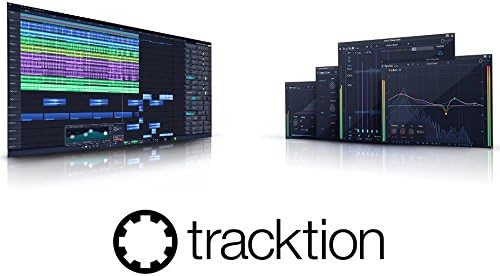
Figure 5: Example of a Digital Audio Workstation (DAW) interface, such as Tracktion, included with the product.
5. Maintenance
To ensure the longevity and optimal performance of your Mackie Onyx Producer 2-2, follow these maintenance guidelines:
- Cleaning: Use a soft, dry cloth to clean the exterior of the unit. Avoid using abrasive cleaners, solvents, or waxes.
- Storage: Store the interface in a cool, dry place away from direct sunlight and extreme temperatures.
- Handling: While built robustly, avoid dropping or subjecting the unit to excessive physical shock.
- Connectivity: Always ensure cables are properly seated and not under strain. Disconnect cables by gripping the connector, not the cable itself.
6. Troubleshooting
- No Sound:
- Check all cable connections (USB, microphones, instruments, monitors, headphones).
- Ensure the interface is recognized by your computer and selected as the default audio device in your operating system's sound settings and your DAW.
- Verify input gain levels are set appropriately and the SIG/OL LEDs are active.
- Check the MONITOR and HEADPHONE volume knobs.
- If using phantom power, ensure the +48V button is engaged for condenser microphones.
- Distorted Sound (Clipping):
- Reduce the input GAIN for the offending channel until the SIG/OL LED no longer turns red.
- Check the output level of your instrument or microphone.
- Latency Issues:
- Engage the DIRECT MONITOR button to monitor inputs directly from the interface.
- In your DAW, reduce the buffer size (latency setting). Note that very low buffer sizes may strain your computer's CPU.
- MIDI Not Working:
- Ensure MIDI cables are connected correctly (MIDI Out to MIDI In, MIDI In to MIDI Out).
- Verify MIDI drivers are installed (if required by your operating system or DAW).
- Check MIDI settings within your DAW to ensure the Onyx Producer 2-2 MIDI ports are enabled.
7. Specifications
| Item Weight | 1.32 pounds |
| Product Dimensions | 4.4 x 7.3 x 1.9 inches |
| Item Model Number | Onyx Producer 2-2 |
| Compatible Devices | Personal Computer |
| Hardware Interface | USB 2.0 |
| Operating System | Windows |
| Connectivity Technology | USB |
| Number of Channels | 2 |
8. Warranty and Support
For detailed warranty information and technical support, please refer to the official Mackie website or the full user manual (PDF) provided with your product. The Quick Start Guide included in the box also contains initial support contacts.
You can access the official user manual PDF here.