
Cooler Master MFY-P4DC-153PC-R1
Cooler Master MasterFan Pro 140 AP RGB Kit Instruction Manual
Model: MFY-P4DC-153PC-R1
1. Introduction
This manual provides detailed instructions for the installation, operation, and maintenance of your Cooler Master MasterFan Pro 140 AP RGB Kit. This kit is designed to enhance your desktop PC's cooling performance and aesthetic with customizable RGB lighting. Please read this manual thoroughly before installation to ensure proper setup and functionality.

Image 1.1: An illuminated Cooler Master MasterFan Pro 140 AP RGB fan, showcasing its lighting capabilities.
2. Package Contents
Verify that all items listed below are present in your package. If any items are missing or damaged, please contact your retailer or Cooler Master support.
- 3x MasterFan Pro 140 AP RGB Fans
- 1x MasterAccessory RGB Fan Controller
- Mounting Screws
- Connection Cables
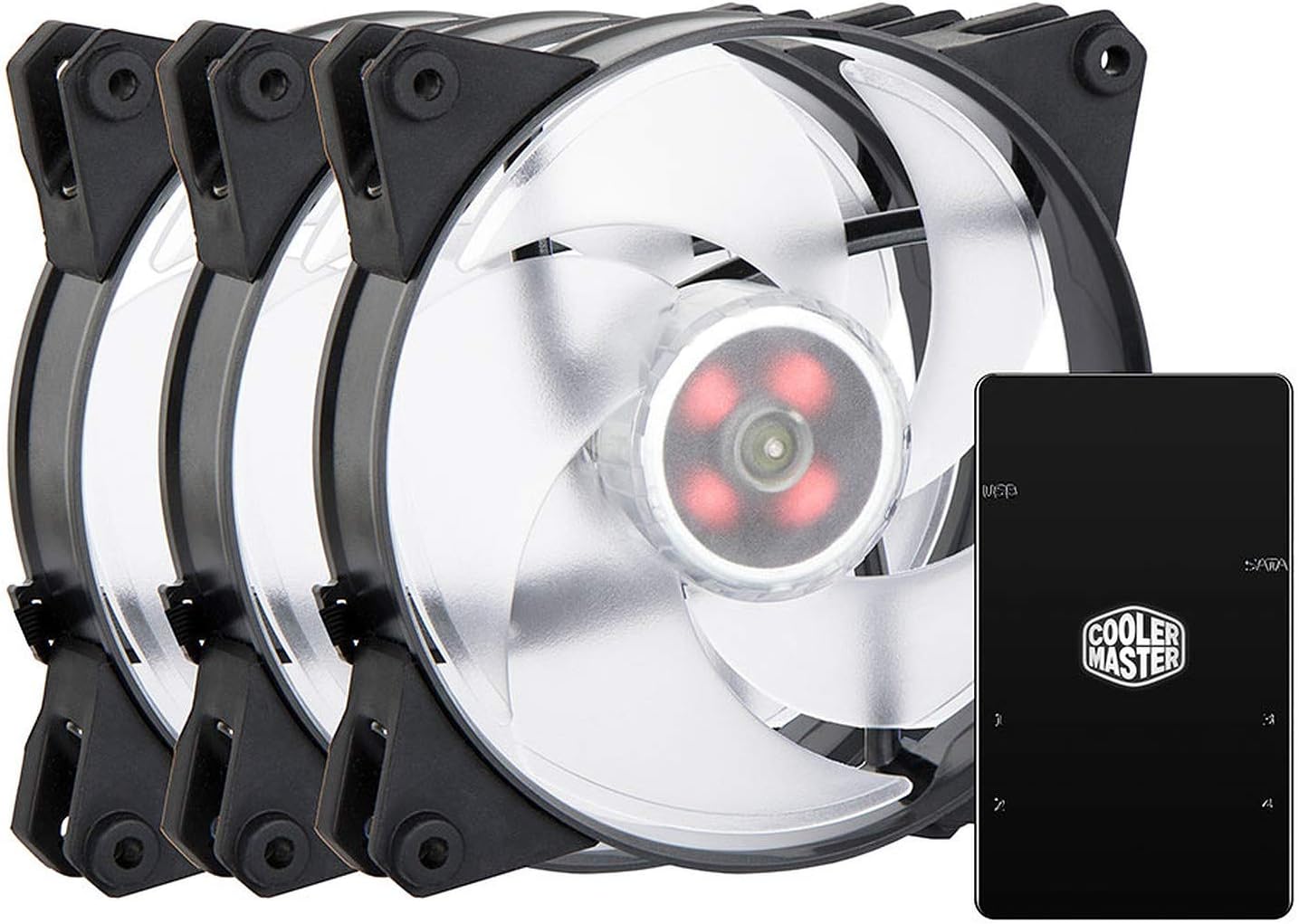
Image 2.1: The complete MasterFan Pro 140 AP RGB Kit, including three fans and the RGB controller.
3. Setup and Installation
Follow these steps to properly install your MasterFan Pro 140 AP RGB Kit into your desktop system.
3.1 Fan Installation
- Identify the desired mounting locations for the 140mm fans within your PC case.
- Secure each fan to the case using the provided mounting screws. Ensure the fan's airflow direction is appropriate for your cooling configuration (intake or exhaust).
3.2 RGB Controller Connection
- Connect the 4-pin RGB cable from each MasterFan Pro 140 AP fan to an available RGB port on the MasterAccessory RGB Fan Controller. The controller typically has multiple ports (e.g., 1, 2, 3).
- Connect the 4-pin PWM fan cable from each MasterFan Pro 140 AP fan to an available 4-pin fan header on your motherboard or a fan hub.
3.3 Power and Motherboard Connection
- Connect the SATA power connector from your PC's power supply unit (PSU) to the MasterAccessory RGB Fan Controller. This provides power to the controller and the connected RGB fans.
- Connect the included USB cable from the MasterAccessory RGB Fan Controller to an available internal USB 2.0 header on your motherboard. This allows software control of the RGB lighting.
- Alternatively, if your motherboard has a compatible 4-pin RGB header, you may connect the controller directly to the motherboard's RGB header for motherboard software control (consult your motherboard manual for compatibility).

Image 3.1: Multiple MasterFan Pro 140 AP RGB fans connected to the RGB controller, demonstrating a typical setup.
4. Operating the RGB Lighting and Fans
Once installed, the RGB lighting and fan speeds can be controlled through various methods.
4.1 Software Control
- Cooler Master MasterPlus+ Software: Download and install the Cooler Master MasterPlus+ software from the official Cooler Master website. This software allows for comprehensive control over RGB lighting effects, colors, and fan speeds when the controller is connected via USB.
- Motherboard RGB Software: If the controller is connected to a compatible motherboard RGB header, you may use your motherboard's proprietary RGB software (e.g., ASUS Aura Sync, MSI Mystic Light, Gigabyte RGB Fusion) to synchronize and control the fan lighting.
4.2 Manual Control (if applicable)
Some Cooler Master RGB controllers may feature physical buttons for basic RGB mode and color cycling. Refer to the specific controller's documentation for details on manual control options. The MasterFan Pro 140 AP RGB Kit primarily relies on software control for full customization.
5. Maintenance
Regular maintenance ensures optimal performance and longevity of your fans.
- Cleaning: Periodically clean the fan blades and housing to remove dust buildup. Use compressed air or a soft, dry cloth. Ensure the PC is powered off and unplugged before cleaning.
- Inspection: Check cables for secure connections and signs of wear.
6. Troubleshooting
If you encounter issues with your MasterFan Pro 140 AP RGB Kit, refer to the following common solutions.
- Fans Not Spinning:
- Ensure the 4-pin PWM fan cables are securely connected to the motherboard fan headers or fan hub.
- Verify that the SATA power connector is firmly attached to the RGB controller and the PSU.
- Check BIOS settings to ensure fan headers are enabled and configured correctly.
- RGB Lighting Not Working:
- Confirm that the 4-pin RGB cables from the fans are correctly plugged into the RGB controller.
- Verify the RGB controller's SATA power connection.
- Ensure the USB 2.0 header connection to the motherboard is secure for software control.
- If using motherboard RGB software, ensure the controller is connected to a compatible motherboard RGB header and the software is up to date.
- Try restarting the Cooler Master MasterPlus+ software or your PC.
- Incorrect Colors/Effects:
- Ensure you are using the correct software (Cooler Master MasterPlus+ or motherboard RGB software) and that it is updated to the latest version.
- Check for conflicting RGB software running simultaneously.
7. Specifications
| Feature | Specification |
|---|---|
| Model Number | MFY-P4DC-153PC-R1 |
| Brand | Cooler Master |
| Fan Size | 140mm |
| Voltage | 12 Volts |
| Wattage | 3.84 watts |
| Cooling Method | Air |
| Compatible Devices | Desktop |
| Noise Level | 20 Decibels |
| Material | Polycarbonate |
| Item Weight (Kit) | 662 Grams |
| Item Type | Case Fan Kit |
8. Warranty and Support
Cooler Master products come with a limited warranty. For detailed warranty information, terms, and conditions, please visit the official Cooler Master website or refer to the warranty card included with your product.
For technical support, troubleshooting assistance, or to inquire about replacement parts, please contact Cooler Master customer service through their official website: www.coolermaster.com/support/.
Ask a question about this manual
Ask about setup, troubleshooting, compatibility, parts, safety, or missing instructions. Manuals+ will review the question and use this page’s manual context to help answer it.