
Cygnett 60-4438-05-XP
Cygnett ChargeUp Pro 20K Power Bank User Manual
Model: 60-4438-05-XP
1. Introduction
This manual provides instructions for the safe and efficient use of your Cygnett ChargeUp Pro 20K Power Bank. Please read this manual thoroughly before using the device and retain it for future reference.
The Cygnett ChargeUp Pro 20K is a high-capacity portable power bank designed to charge a wide range of devices, including smartphones, tablets, and USB-C laptops. It features Power Delivery (PD) and Qualcomm Quick Charge 3.0 technologies for optimized charging speeds.
2. Important Safety Information
- Do not expose the power bank to extreme temperatures, direct sunlight, or fire.
- Do not immerse the power bank in water or other liquids.
- Do not disassemble, modify, or attempt to repair the device.
- Keep out of reach of children.
- Use only certified cables for charging the power bank and your devices.
- Avoid dropping or subjecting the power bank to strong impacts.
- If the power bank swells, emits an odor, or becomes excessively hot, discontinue use immediately.
- Dispose of the power bank responsibly according to local regulations.
3. Package Contents
The package includes:
- Cygnett ChargeUp Pro 20K Power Bank (Model 60-4438-05-XP)
- User Manual (this document)
Note: A charging cable for the power bank and an AC adapter are not included and must be purchased separately.
4. Product Overview
Familiarize yourself with the components of your Cygnett ChargeUp Pro 20K Power Bank.

Figure 1: Angled view of the Cygnett ChargeUp Pro 20K Power Bank, showing its sleek blue design and the Cygnett branding.
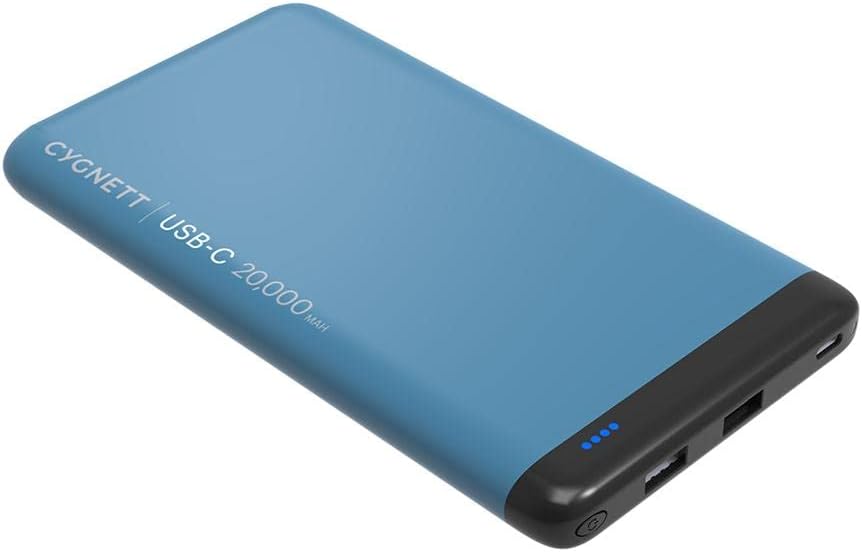
Figure 2: Top view of the power bank, highlighting the USB-C port, two USB-A ports, and the four LED battery indicator lights.
Features:
- 20,000 mAh Capacity: Provides multiple charges for smartphones and tablets, and a full charge for some laptops.
- Power Delivery (PD) Technology: Optimizes charging for USB-C devices, delivering up to 45W output.
- Qualcomm Quick Charge 3.0 (QC 3.0): Enables faster charging for compatible devices via USB-A ports.
- Multiple Ports: One USB-C port and two USB-A ports allow simultaneous charging of up to three devices.
- 4 LED Battery Indicator: Displays the remaining power level.
- Overvoltage Protection: Ensures safe charging for connected devices.
5. Setup
5.1 Initial Charging of the Power Bank
- Connect a USB-C charging cable (not included) to the USB-C input/output port on the power bank.
- Connect the other end of the cable to a compatible USB-C wall charger (not included). For fastest charging, use a PD-compatible charger.
- The LED indicators will illuminate to show the charging progress. All four LEDs will be solid when the power bank is fully charged.
It is recommended to fully charge the power bank before its first use.
6. Operating Instructions
6.1 Charging Your Devices
- Identify the correct charging cable for your device.
- Connect one end of the cable to your device.
- Connect the other end of the cable to an available port on the power bank (USB-C or USB-A).
- The power bank will automatically begin charging your device. The LED indicators will show the remaining power.
- You can charge up to three devices simultaneously using the available ports.
For optimal charging speed, use the USB-C PD port for compatible devices and the Quick Charge 3.0 USB-A ports for QC-compatible devices.
6.2 Checking Battery Level
The power bank features four LED indicators to display its remaining charge:
- 4 LEDs solid: 75-100% charge
- 3 LEDs solid: 50-75% charge
- 2 LEDs solid: 25-50% charge
- 1 LED solid: 0-25% charge
Press the power button (if present, or connect a device) to activate the LED indicators and check the current battery level.
7. Maintenance
- Cleaning: Wipe the power bank with a soft, dry cloth. Do not use harsh chemicals or abrasive materials.
- Storage: Store the power bank in a cool, dry place away from direct sunlight and extreme temperatures.
- Long-term Storage: If storing for an extended period, charge the power bank to approximately 50-75% every three months to maintain battery health.
8. Troubleshooting
| Problem | Possible Cause | Solution |
|---|---|---|
| Power bank not charging. | Charging cable is faulty or not properly connected. Wall charger is not working or incompatible. | Ensure the charging cable is securely connected. Try a different cable or wall charger. |
| Device not charging from power bank. | Power bank battery is depleted. Device charging cable is faulty. Device is incompatible. | Recharge the power bank. Try a different charging cable. Ensure your device is compatible with USB charging. |
| Slow charging speed. | Cable is not suitable for fast charging. Device does not support fast charging. Multiple devices are connected. | Use a high-quality, fast-charging compatible cable. Ensure your device supports PD or QC 3.0. Disconnect other devices to maximize speed for one device. |
| LED indicators not working. | Power bank is completely discharged. | Connect the power bank to a charger. If still unresponsive, contact support. |
9. Specifications
| Brand: | Cygnett |
| Model: | 60-4438-05-XP |
| Battery Capacity: | 20,000 mAh |
| Battery Type: | Lithium Polymer |
| Battery Cell Composition: | Lithium Ion |
| Input (USB-C PD): | Up to 45W (e.g., 5V/3A, 9V/3A, 12V/3A, 15V/3A, 20V/2.25A) |
| Output (USB-C PD): | Up to 45W (e.g., 5V/3A, 9V/3A, 12V/3A, 15V/3A, 20V/2.25A) |
| Output (USB-A QC 3.0): | Up to 18W (e.g., 5V/3A, 9V/2A, 12V/1.5A) per port |
| Total Output: | 63W (Max) |
| Number of Ports: | 3 (1x USB-C, 2x USB-A) |
| Compatible Devices: | Smartphones, Tablets, USB-C Laptops |
| Dimensions: | 13.49 x 2.01 x 23.01 cm |
| Weight: | 539.77 grams (approx. 540g) |
| Display: | 4 LED Battery Indicator |
Note: Specifications are subject to change without notice.
10. Warranty and Support
For warranty information and technical support, please refer to the official Cygnett website or contact their customer service directly.
Website: www.cygnett.com
Please have your product model number (60-4438-05-XP) and proof of purchase ready when contacting support.
Related documents60-4438-05-XP


Ask a question about this manual
Ask about setup, troubleshooting, compatibility, parts, safety, or missing instructions. Manuals+ will review the question and use this page’s manual context to help answer it.