
1. Product Overview
The XIAOMI 300Mbps WiFi Range Extender is designed to expand your existing wireless network coverage. It eliminates Wi-Fi dead zones and provides a stable internet connection to areas with weak signals. This device supports the 802.11n wireless standard and offers data transfer rates up to 300 Megabits Per Second.
Key features include easy setup via the Mi Home app, automatic updates, and a compact design for convenient placement.
2. Package Contents
- XIAOMI 300Mbps WiFi Range Extender (Model MI-R03-ROUTER)
- User Manual
3. Device Layout
The XIAOMI WiFi Range Extender features a minimalist design with essential components for network extension.

Figure 1: Front View of the Extender. Shows the compact black casing with the Mi logo and a small LED indicator light.
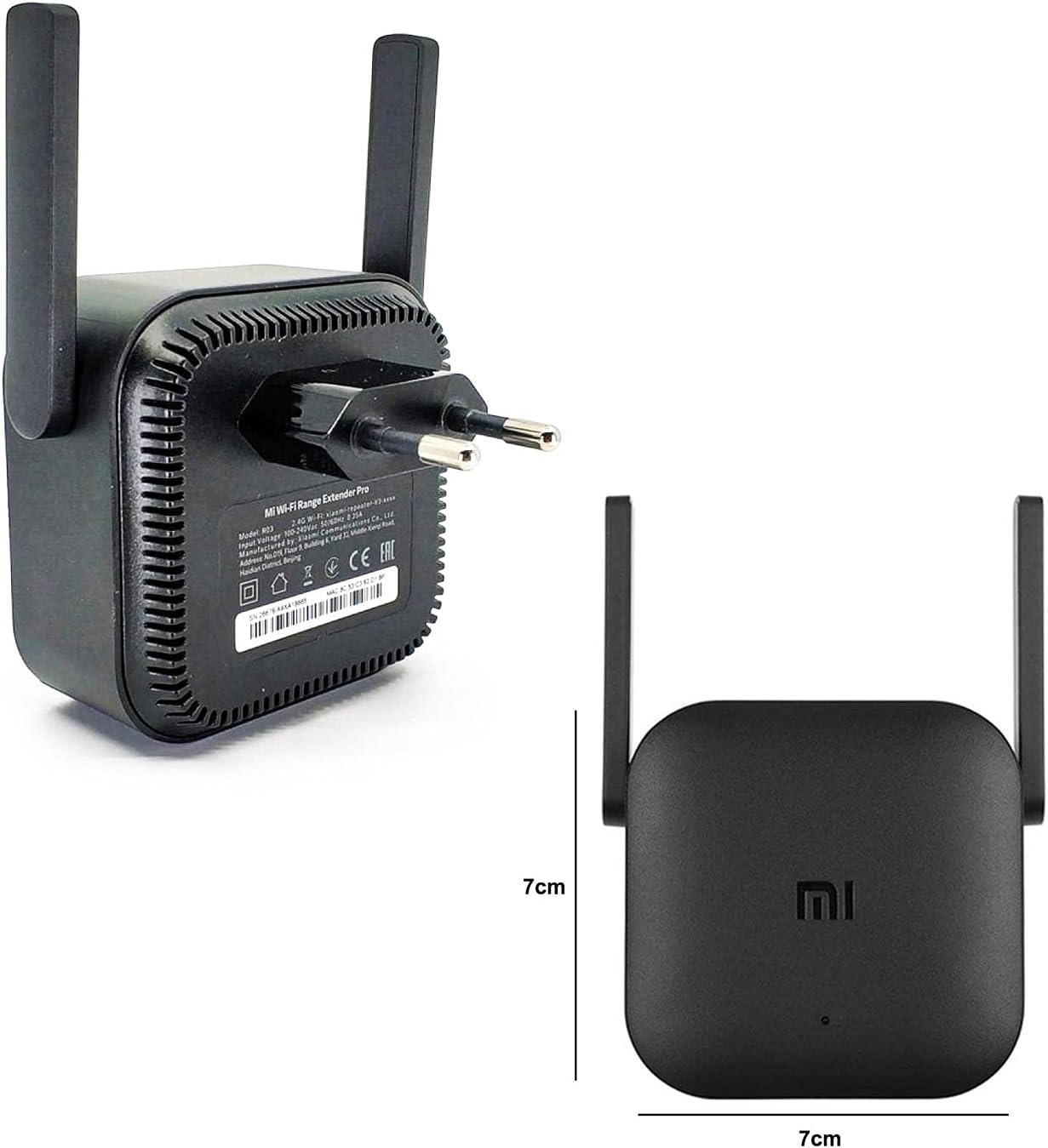
Figure 2: Rear View and Dimensions. Displays the two external antennas, the power plug (European standard), and product information labels. Dimensions are approximately 7cm x 7cm.
- Mi Logo: Located on the front panel.
- Status Indicator LED: A small LED on the front that indicates the device's status (e.g., solid blue for connected, flashing yellow for setup mode).
- External Antennas: Two adjustable antennas for optimal signal reception and transmission.
- Power Plug: Integrated European-style plug for direct wall outlet connection. An adapter may be required for other regions.
- Reset Button: A small button, usually recessed, for factory reset.
4. Setup Instructions
Follow these steps to set up your XIAOMI WiFi Range Extender:
4.1 Initial Placement
Choose a location between your main router and the area where you need improved Wi-Fi coverage. Ensure the extender is within range of your main router's signal for optimal performance. Avoid placing it near large metal objects, microwave ovens, or other sources of interference.
4.2 Powering On
- Plug the range extender directly into a power outlet.
- Wait for the status indicator LED on the front of the device to start flashing yellow. This indicates it is ready for setup.
4.3 App Installation and Configuration
The XIAOMI WiFi Range Extender is configured using the Mi Home app. This app allows you to manage the device settings and monitor its status.
- Download the "Mi Home" app from your smartphone's app store (Google Play Store for Android or Apple App Store for iOS). You can also scan the QR code provided in the product packaging to download the app.
- Open the Mi Home app and sign in with your Mi Account. If you don't have one, create a new account.
- Tap the "+" icon in the top right corner to add a new device. The app will scan for nearby devices.
- Select the "Mi Wi-Fi Range Extender Pro" from the list of found devices.
- Follow the on-screen prompts to connect the extender to your existing Wi-Fi network. You will need to enter your main Wi-Fi network's password.
- Once connected, the status indicator LED on the extender will turn solid blue.
- You can then rename the extended network (SSID) and set a password for it within the app.
Video: Xiaomi Wi-Fi Range Extender Pro - Setup and Test. This video demonstrates the unboxing, initial setup, and a speed test of the Xiaomi Wi-Fi Range Extender Pro, including app configuration steps.
5. Operating the WiFi Range Extender
Once configured, the extender will automatically connect to your main router and broadcast an extended Wi-Fi signal. Devices can connect to this extended network using the new SSID and password you set during setup.
LED Indicator Status:
- Solid Blue: The extender is successfully connected and operating normally.
- Flashing Yellow: The extender is in setup mode or has lost connection to the main router.
- Solid Red: Indicates a problem with the connection or an error.
Video: 300Mbps WiFi Amplifier/Universal Wireless Quick Review! This short video provides a quick overview of the Xiaomi WiFi Amplifier, highlighting its design and basic functionality.
6. Maintenance
- Cleaning: Use a soft, dry cloth to clean the device. Do not use liquid cleaners or aerosols.
- Firmware Updates: The Mi Home app will notify you of available firmware updates. It is recommended to keep the device's firmware updated for optimal performance and security.
- Optimal Placement: Periodically check the extender's placement to ensure it is still in an optimal position for signal strength.
7. Troubleshooting
If you encounter issues with your WiFi Range Extender, try the following solutions:
- No Signal or Weak Signal:
- Ensure the extender is plugged into a working power outlet.
- Relocate the extender closer to your main router.
- Check for physical obstructions or interference sources.
- Verify that your main router's Wi-Fi is active and broadcasting.
- Connection Issues:
- Confirm that the correct Wi-Fi password was entered during setup.
- Restart both the extender and your main router.
- If the LED is flashing yellow, the extender may have lost connection to the main router. Reconfigure using the Mi Home app.
- Slow Speed:
- Ensure the extender is placed optimally, not too far from the main router.
- Reduce the number of devices connected to the extended network.
- Check for firmware updates via the Mi Home app.
- Factory Reset:
If problems persist, you may need to perform a factory reset. Use a pin or paperclip to press and hold the recessed reset button for approximately 5-10 seconds until the LED indicator changes. After resetting, you will need to reconfigure the extender using the Mi Home app.
8. Specifications
| Brand | XIAOMI |
| Model Number | MI-R03-ROUTER |
| Wireless Communication Standard | 802.11b, 802.11g, 802.11n |
| Data Transfer Rate | 300 Megabits Per Second |
| Product Dimensions | 3.94 x 1.18 x 3.94 inches |
| Item Weight | 3.53 ounces (100 Grams) |
| Color | Black |
| Manufacturer | zhlymx |
| First Available Date | September 30, 2017 |
9. Warranty Information
This product is covered by a manufacturer's warranty. Please refer to the warranty notice included in your package for specific terms and conditions. Retain your proof of purchase for warranty claims.
10. Support
For technical assistance, troubleshooting, or further inquiries, please visit the official XIAOMI support website or contact their customer service. You can find more information on the XIAOMI Store on Amazon.

