
1. Introduction
Thank you for purchasing the Zebronics ZEB-A18 Plus 17.3-inch LED Monitor. This manual provides essential information for setting up, operating, and maintaining your monitor. Please read it thoroughly before use and retain it for future reference.
1.1 What's in the Box
- Monitor
- Power Adapter
- Monitor Stand
- User Manual
- VGA Cable
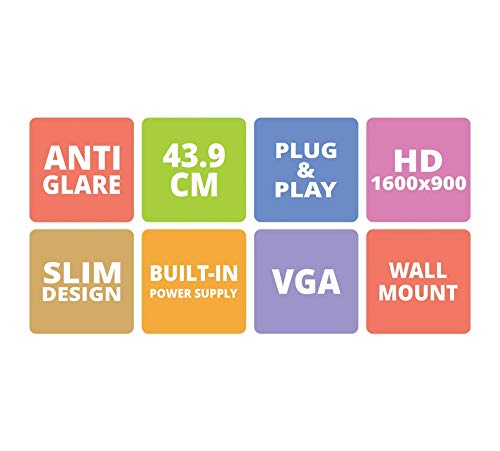
Figure 1: Key features of the Zebronics ZEB-A18 Plus monitor, including Anti Glare, 43.9 CM screen size, Plug & Play functionality, HD 1600x900 resolution, Slim Design, Built-in Power Supply, VGA connectivity, and Wall Mount compatibility.
2. Safety Information
To ensure safe operation and prevent damage, please observe the following safety precautions:
- Do not expose the monitor to rain or moisture.
- Do not open the monitor casing; refer all servicing to qualified personnel.
- Place the monitor on a stable, flat surface.
- Ensure proper ventilation around the monitor.
- Use only the provided power adapter.
- Disconnect the power cable during lightning storms or when unused for long periods.
3. Setup
3.1 Assembling the Stand
- Carefully remove the monitor and stand components from the packaging.
- Attach the stand base to the stand neck.
- Secure the assembled stand to the back of the monitor using the provided screws. Ensure it is firmly attached.
3.2 Connecting the Monitor
- Power Connection: Connect the power adapter to the monitor's power input and then plug the adapter into a power outlet.
- Video Connection: Connect one end of the VGA cable to the VGA port on your computer's graphics card and the other end to the VGA input port on the monitor.
- Audio Connection (if applicable): The monitor has built-in speakers. No separate audio cable is typically needed for VGA connections as audio is not transmitted via VGA. Ensure your computer's audio output is configured correctly.
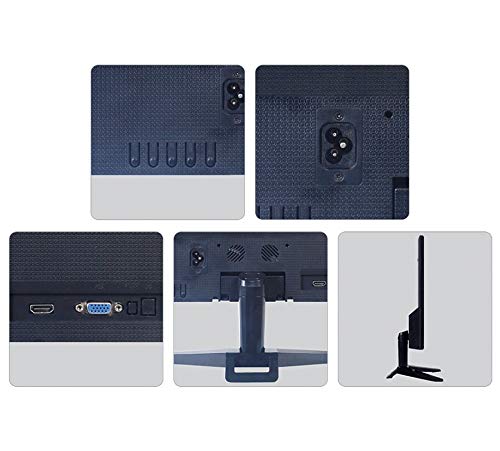
Figure 2: Rear view of the Zebronics ZEB-A18 Plus monitor showing the power input, VGA port, and side profile. This image illustrates the available connection points for power and video input.
4. Operating Instructions
4.1 Powering On/Off
Press the power button located on the monitor to turn it on or off. The power indicator light will illuminate when the monitor is active.
4.2 Basic Display Adjustments
The monitor features an On-Screen Display (OSD) menu for adjusting various settings. Use the control buttons (usually located on the bottom or back of the monitor) to navigate the OSD menu. Common adjustments include:
- Brightness: Adjusts the overall luminance of the screen.
- Contrast: Adjusts the difference between light and dark areas.
- Color Settings: Fine-tune color temperature or individual RGB levels.
- Input Select: Manually select the video input source (e.g., VGA).
4.3 Built-in Speakers
The ZEB-A18 Plus monitor includes built-in speakers. Ensure your computer's audio output is directed to the monitor if you wish to use them. Volume can typically be controlled via your computer's operating system.
5. Maintenance
5.1 Cleaning the Monitor
- Always unplug the monitor from the power outlet before cleaning.
- Use a soft, lint-free cloth lightly dampened with water or a non-abrasive screen cleaner.
- Do not spray cleaner directly onto the screen.
- Avoid using harsh chemicals, solvents, or abrasive materials.
- Wipe the casing with a soft, dry cloth.
6. Troubleshooting
If you encounter issues with your monitor, refer to the following common problems and solutions:
- No Display / "No Signal" Message:
- Ensure the monitor is powered on and the power indicator is lit.
- Check that the VGA cable is securely connected to both the monitor and the computer.
- Verify that your computer is powered on and not in sleep mode.
- Try restarting your computer.
- If using multiple monitors, ensure the correct display output is selected on your computer.
- Poor Image Quality (Blurry, Distorted, Incorrect Colors):
- Check the VGA cable for damage or loose connections.
- Adjust the resolution settings on your computer to match the monitor's native resolution (1600 x 900).
- Use the OSD menu to adjust brightness, contrast, and color settings.
- No Sound from Built-in Speakers:
- Ensure the monitor's volume is not muted or set too low via the OSD (if available) or your computer's audio settings.
- Verify that your computer's audio output is correctly configured to send sound to the monitor.
7. Specifications
| Brand | ZEBRONICS |
| Model Name | ZEB A18 Plus |
| Model Number | ZEB-A18 |
| Screen Size | 17.2 Inches |
| Display Type | LED |
| Maximum Display Resolution | 1600 x 900 (HD+) |
| Aspect Ratio | 16:9 |
| Refresh Rate | 60 Hz |
| Response Time | 8 Milliseconds |
| Image Brightness | 220 cd/m² |
| Contrast Ratio | 400:1 |
| Viewing Angle | 178 Degrees |
| Connectivity | VGA |
| Built-in Speakers | Yes |
| Mounting Type | Wall Mount |
| Color | Black |
| Power Consumption | 15W |
| Weight | 1.1 Kgs |
| Dimensions with Stand (W x D x H) | 415 x 13 x 340mm |
8. Warranty and Support
8.1 Warranty Information
Your Zebronics ZEB-A18 Plus monitor is covered by a limited warranty. Please refer to the warranty card included with your product for specific terms and conditions. Keep your purchase receipt as proof of purchase for warranty claims.
8.2 Customer Support
For technical assistance, troubleshooting, or warranty inquiries, please contact Zebronics customer support. Contact details can typically be found on the official Zebronics website or on the product packaging.


