
Introduction
This manual provides detailed instructions for the setup, operation, and maintenance of your Zebronics ZEB-BT6860RUCF 5.1 Channel Multimedia Speaker System. Please read this manual thoroughly before using the product to ensure proper functionality and to maximize your audio experience.
Package Contents
Verify that all items listed below are included in your package:
- 1 x Subwoofer Unit
- 5 x Satellite Speaker Units
- 1 x Remote Control
- Audio Cables (AUX, RCA)
- User Manual
Product Overview

Image: The complete Zebronics ZEB-BT6860RUCF 5.1 speaker system, including the subwoofer, five satellite speakers, and the remote control.

Image: Close-up of the subwoofer's front panel, illustrating the 'Input', 'Previous', 'Next', 'Play', 'Volume' controls, along with the SD/MMC card slot and USB port.
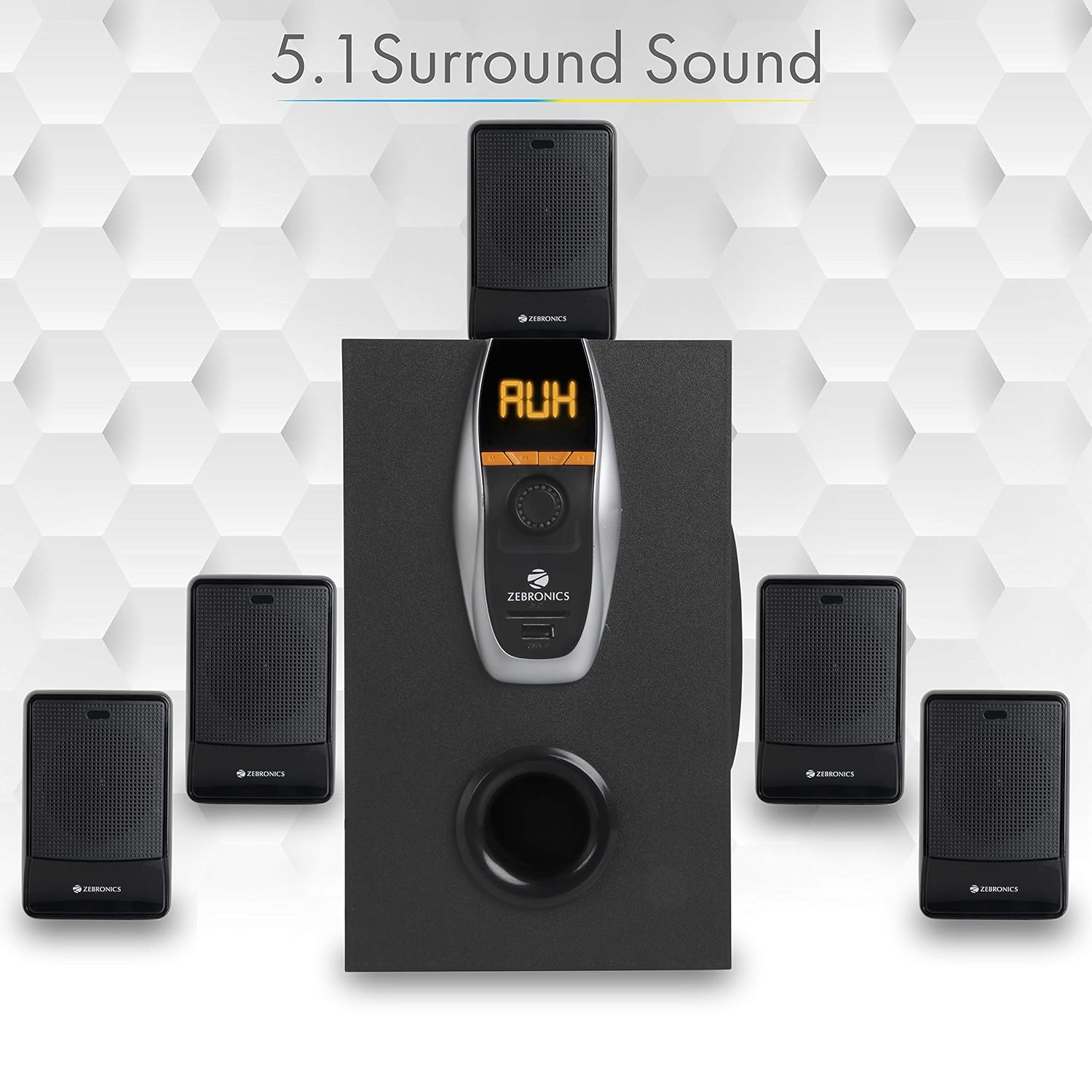
Image: A visual representation of the recommended 5.1 surround sound speaker setup, showing the central subwoofer and the five satellite speakers positioned for optimal audio distribution.

Image: A detailed view of the subwoofer, highlighting its wooden enclosure design, which contributes to sound quality.

Image: The rear panel of the subwoofer, showing the various input and output ports, including Stereo Input, 5.1 Input, Satellite Output terminals, and the main Power Switch.

Image: A diagram illustrating the physical dimensions of the subwoofer unit: 160 mm (Width), 240 mm (Depth), and 277 mm (Height).
Setup Instructions
- Speaker Placement: Position the subwoofer centrally. Place the five satellite speakers around your listening area for optimal 5.1 surround sound. Refer to the 5.1 Surround Sound Speaker Placement image for guidance.
- Connect Satellite Speakers: Connect each of the five satellite speakers to the corresponding output terminals on the rear panel of the subwoofer. Ensure correct polarity (positive to positive, negative to negative).
- Power Connection: Connect the power cable to the subwoofer and then plug it into a suitable power outlet.
- Audio Source Connection:
- For 5.1 Input: Use the provided RCA cables to connect your 5.1 channel audio source (e.g., DVD player, compatible TV) to the 5.1 Input ports on the subwoofer's rear panel.
- For Stereo/AUX Input: Use a 3.5mm to RCA cable to connect your stereo audio source (e.g., computer, laptop, MP3 player) to the Stereo Input (AUX) ports on the subwoofer's rear panel.
- Power On: Flip the power switch on the rear panel of the subwoofer to the 'ON' position. The front display will illuminate.
Operating Instructions
Front Panel Controls
The subwoofer's front panel features controls for various functions:
- Input: Press to cycle through input modes (Bluetooth, USB, SD, AUX, FM).
- Previous: Short press for previous track/station. Long press for fast rewind (USB/SD).
- Next: Short press for next track/station. Long press for fast forward (USB/SD).
- Play/Pause: Play or pause audio playback. In FM mode, long press to auto-scan and save stations.
- Volume Knob: Rotate to adjust the master volume level.
- USB Port: Insert a USB flash drive for MP3 playback.
- SD/MMC Card Slot: Insert an SD or MMC card for MP3 playback.
Remote Control Functions
The included remote control provides convenient access to all speaker functions:
- Power: Turn the speaker system On/Off.
- Mode: Select input source (BT/USB/SD/AUX/FM).
- Volume +/-: Adjust master volume.
- Mute: Mute or unmute audio.
- Play/Pause: Control playback.
- Previous/Next: Navigate tracks or FM stations.
- EQ: Select equalizer presets (if available).
- Numeric Keys: Direct track selection (USB/SD) or FM station input.
Bluetooth Operation
- Power on the speaker system.
- Press the 'Input' button on the front panel or 'Mode' button on the remote until 'BT' mode is selected. The display will show 'BT' and a pairing indicator will flash.
- Enable Bluetooth on your mobile device or computer and search for available devices.
- Select 'ZEB-BT6860RUCF' from the list of devices.
- Once paired, the speaker will confirm the connection, and you can begin playing audio from your device.
USB/SD Card Operation
- Insert a USB flash drive or SD/MMC card (up to 32GB) containing MP3 audio files into the respective port/slot on the front panel.
- The speaker system will automatically switch to USB or SD mode and begin playing the first track. If not, press the 'Input' or 'Mode' button to select the correct source.
- Use the 'Previous', 'Next', and 'Play/Pause' buttons on the front panel or remote control to manage playback.
AUX Input Operation
- Connect your audio source to the AUX input ports on the rear panel using an appropriate audio cable.
- Press the 'Input' button on the front panel or 'Mode' button on the remote until 'AUX' mode is selected.
- Play audio from your connected device.
FM Radio Operation
- Press the 'Input' button on the front panel or 'Mode' button on the remote until 'FM' mode is selected.
- To auto-scan and save available FM stations, long press the 'Play/Pause' button on the front panel or remote control. The system will scan and store stations automatically.
- Use the 'Previous' and 'Next' buttons to navigate through the saved FM stations.
Maintenance
- Cleaning: Use a soft, dry cloth to clean the speaker surfaces. Do not use abrasive cleaners, waxes, or solvents.
- Ventilation: Ensure the subwoofer and satellite speakers have adequate ventilation. Do not block any ventilation openings.
- Environment: Avoid exposing the speaker system to direct sunlight, extreme temperatures, high humidity, or dusty environments.
- Power Off: Always power off the system and unplug it from the power outlet before cleaning or if it will be unused for an extended period.
Troubleshooting
| Problem | Possible Cause | Solution |
|---|---|---|
| No power | Power cable not connected; Power switch off; Power outlet faulty. | Ensure power cable is securely connected. Turn the power switch ON. Test the power outlet with another device. |
| No sound | Volume too low; Incorrect input mode; Audio cables loose/faulty; Mute activated. | Increase volume. Select correct input mode. Check audio cable connections. Deactivate mute function. |
| Bluetooth not connecting | Speaker not in BT mode; Device Bluetooth off; Already connected to another device; Interference. | Ensure speaker is in BT mode. Turn on device Bluetooth. Disconnect from other devices. Move closer to the speaker. |
| USB/SD playback issues | Incorrect file format; Corrupted files; USB/SD card not inserted correctly; Max memory size exceeded. | Ensure files are MP3 format. Check for corrupted files. Reinsert USB/SD card. Use cards up to 32GB. |
| Remote control not working | Batteries depleted; Obstruction; Remote sensor blocked. | Replace remote control batteries. Remove any obstructions between remote and speaker. Ensure remote sensor on subwoofer is clear. |
| Poor FM reception | Weak signal; Antenna not extended. | Extend the FM antenna fully. Try repositioning the antenna or the speaker system for better signal. |
Specifications
| Feature | Specification |
|---|---|
| Total Output Power (RMS) | 70 Watts |
| Subwoofer Output Power | 40 Watts |
| Satellite Output Power | 6 Watts x 5 |
| Frequency Response | 35Hz - 20KHz |
| Sensitivity | 600mV |
| Bluetooth Version | 2.1 + EDR |
| USB/SD Max. Memory Size | 32GB |
| USB/SD File Format Support | MP3 |
| Connectivity Options | Bluetooth, USB, SD/MMC, AUX, FM |
| Compatible Devices | Desktop, Laptop, MP3 Player, DVD Players, Televisions |
| Subwoofer Dimensions (D x W x H) | 35D x 39W x 45H Centimeters (Product Dimensions) |
| Item Weight | 5.4 kg |
| Power Consumption | 45W |
| Control Method | Remote Control, On-unit buttons |
| Country of Origin | China |
Warranty and Support
Your Zebronics ZEB-BT6860RUCF Multimedia Speaker System comes with a 1-year carry-in warranty to the service center from the date of purchase. Please retain your purchase receipt for warranty claims.
For technical support, service, or warranty inquiries, please contact Zebronics customer service. Refer to the official Zebronics website or your product packaging for the most current contact information.
Importer: ZEBRONICS INDIA PVT LTD, NO : 118, POONAMMALE HIGH ROAD , VEPERY


