
1. Introduction
This manual provides comprehensive instructions for the installation, operation, and maintenance of your GENBOLT 3G/4G LTE PTZ Security Camera. Please read this manual carefully before using the product to ensure proper setup and functionality. This camera is designed for outdoor surveillance, offering advanced features such as 3G/4G LTE connectivity, optical zoom, pan/tilt capabilities, and intelligent detection.

Image: The GENBOLT 3G/4G LTE PTZ Security Camera, featuring a white and black dome design with multiple LED lights and a dual antenna, alongside a 4G SIM card icon.
2. Package Contents
Please verify that all items listed below are included in your package. If any items are missing or damaged, please contact GENBOLT customer support.
- GENBOLT 3G/4G LTE PTZ Security Camera
- User Manual
- GENBOLT 4G SIM Card (pre-paired)
- Network Cable
- Power Adapter
- Waterproof Kit
- Mounting Screws and Wall Plugs

Image: A detailed diagram labeling the camera's external components (Dual Antenna, Metal Shell, LEDs, Optical Zoom Lens, IR Sensor) and ports (SIM Card Slot, Micro SD Card Slot, RESET, PoE Port, Power). Below the camera, the included accessories are shown: User Manual, SIM Card, Network Cable, Power Adapter, Waterproof Kit, and Screws.
3. Product Features
- 3G/4G-LTE Connection & Network Cable: The camera supports 3G/4G LTE cellular connection, eliminating the need for Wi-Fi. It can also connect via a network cable. This makes it ideal for locations without Wi-Fi access, such as farms, warehouses, or remote properties. A SIM card with a cellular data plan is required.
- 5X Optical Zoom & Auto Focus: Equipped with a 2.7-13.5mm lens, the 5X optical zoom allows you to magnify objects without compromising image quality. The auto-focus feature ensures clear images at various zoom levels.
- Wide Coverage Pan/Tilt: The camera offers a 330° horizontal (pan) and 90° vertical (tilt) rotation range, providing extensive coverage with no blind spots.
- Preferred GENBOLT 4G SIM Card: The camera is designed to work seamlessly with the included GENBOLT 4G SIM card, which is pre-paired and offers dedicated, high-speed data for surveillance. Data plans can be refilled via the app.
- Auto Cruise & PoE Installation: You can set multiple preset points for the camera to automatically patrol, ensuring all desired areas are monitored. Power over Ethernet (PoE) technology allows for simultaneous power and data transmission over a single network cable, simplifying installation.
- Humanoid Detection & Auto Tracking: Customizable humanoid motion detection zones reduce false alarms. When a human is detected, the camera can automatically track their movement within its 355° pan and 90° tilt range, capturing more details.
- Active Lighting Defense: In White Light mode, the camera's floodlights will automatically activate upon alarm triggers at night, serving as a visual deterrent.

Image: An illustration highlighting the benefits of the GENBOLT 4G SIM Card, including surveillance dedicated data, powerful 4G baseband chip, pre-paired APN, and free trial data.
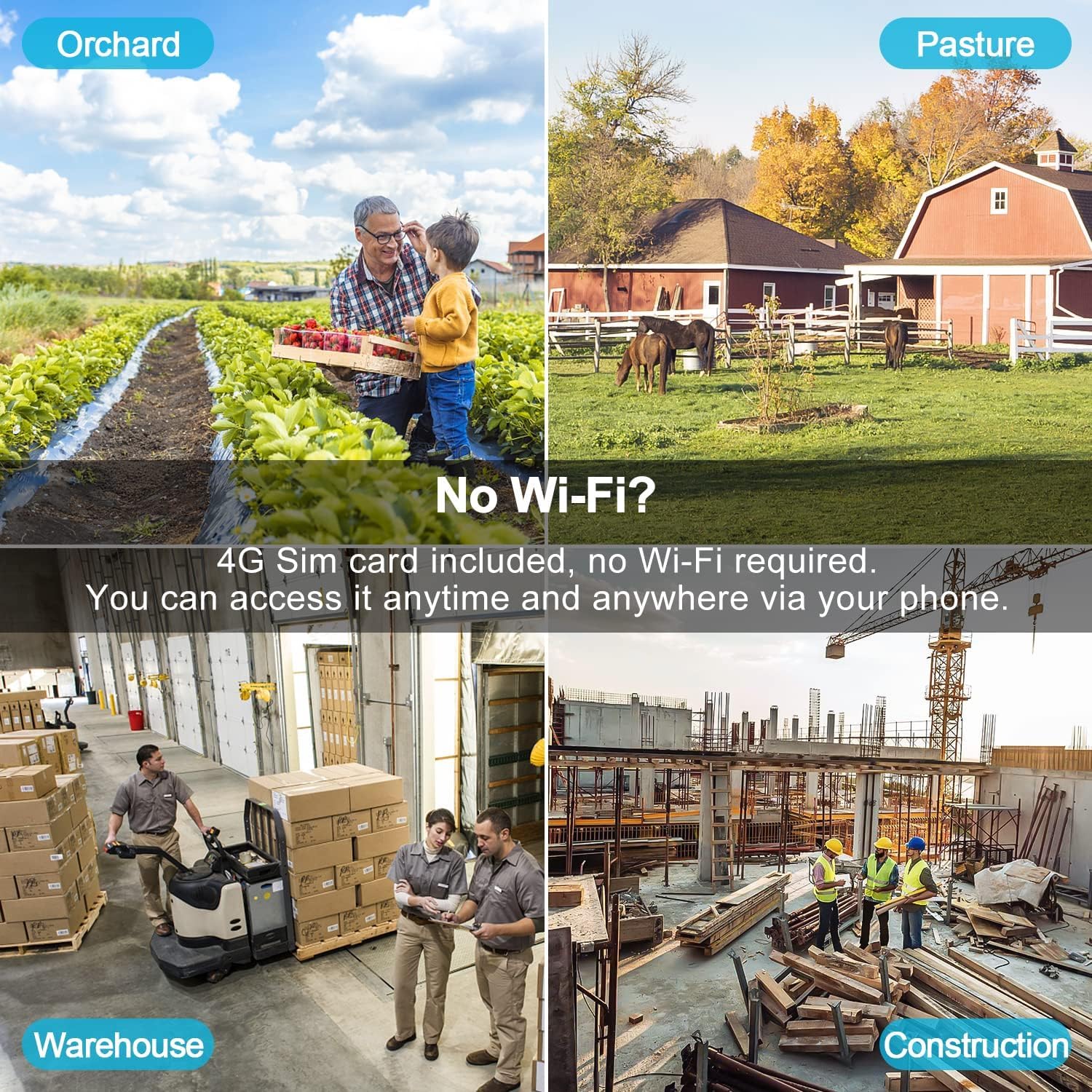
Image: Demonstrates the camera's versatility in locations without Wi-Fi, such as orchards, pastures, warehouses, and construction sites, emphasizing 4G SIM card access via phone.

Image: Shows the 5X optical zoom capability, with a zoomed-in view of cows in a field displayed on a smartphone screen, demonstrating clear detail retention.

Image: Illustrates the camera's 355° pan and 90° tilt rotation range, showing how it covers a wide area without blind spots over a vast landscape.
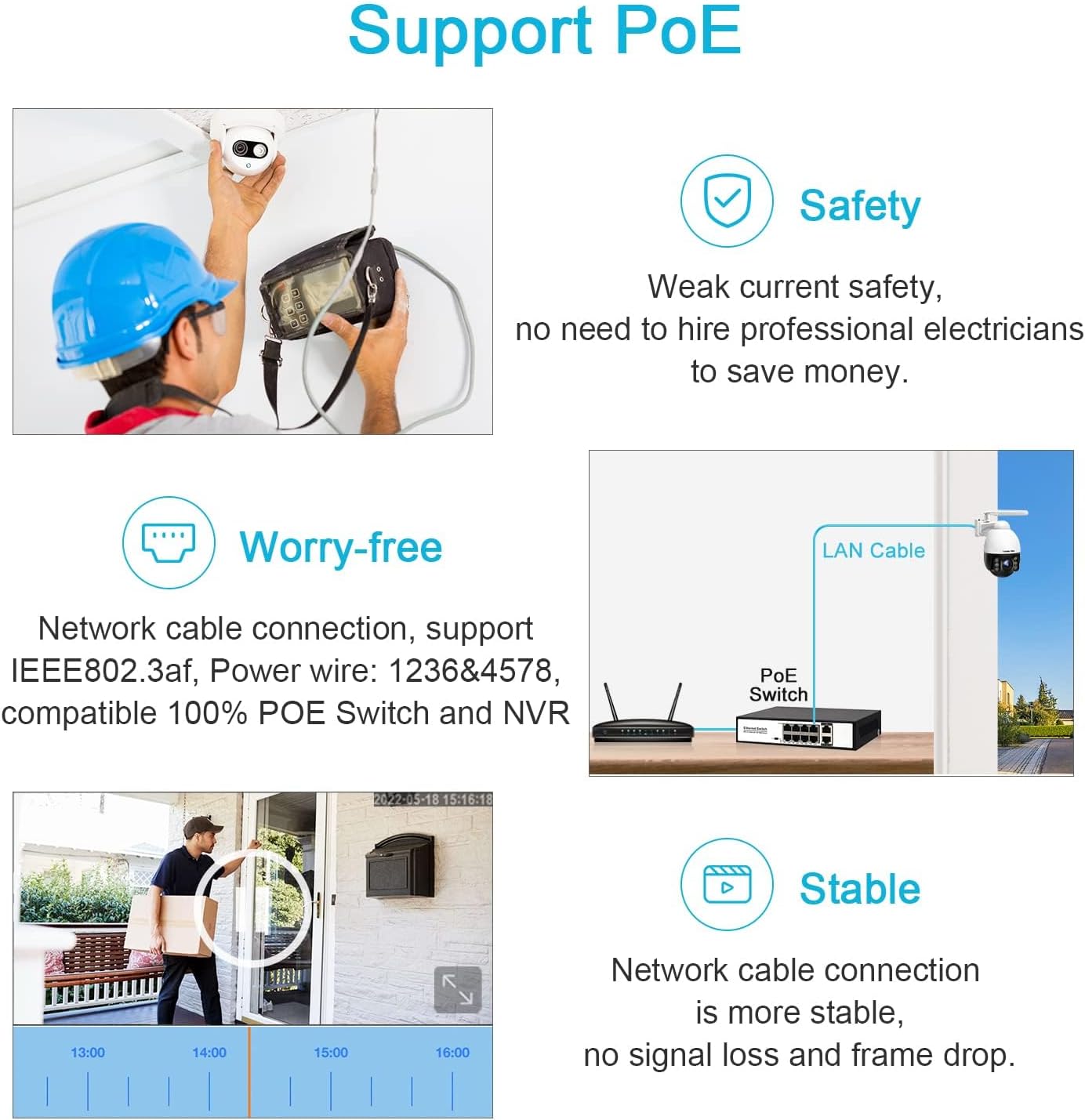
Image: Explains PoE support, showing a camera being installed, a diagram of a PoE switch connection, and a timeline of stable network cable connection without signal loss.

Image: Depicts the Active Lighting Defense feature, where the camera's floodlights illuminate an area and a siren icon is shown, deterring a potential intruder at night.
4. Setup Guide
4.1. SIM Card and Micro SD Card Installation
- Locate the SIM card slot and Micro SD card slot on the camera. Refer to the 'Package Contents' diagram for exact location.
- Insert the provided GENBOLT 4G SIM card into the SIM card slot. Ensure it is inserted correctly according to the diagram.
- If desired, insert a Micro SD card (not included) into the Micro SD card slot for local video storage.
4.2. Powering the Camera
- Connect the power adapter to the camera's power input port.
- Plug the power adapter into a suitable power outlet. The camera will power on and begin its startup sequence.
- Alternatively, if using PoE, connect a network cable from a PoE switch or injector to the camera's PoE port.
4.3. App Download and Device Pairing
- Download the official GENBOLT app from your smartphone's app store (iOS or Android).
- Create an account and log in.
- Follow the in-app instructions to add your new camera. This typically involves scanning a QR code located on the camera or its packaging.
- Once paired, you can view the live feed and configure settings.

Image: A smartphone screen displaying a QR code scanner, positioned over the camera's label with its model number and UID, indicating the process of scanning to add the device to the app.
5. Operating Instructions
5.1. Live View and Pan/Tilt/Zoom Control
Access the live view through the GENBOLT app. Use the on-screen controls to pan (rotate horizontally), tilt (rotate vertically), and zoom (magnify) the camera's view. The 5X optical zoom provides clear details even at a distance.
5.2. Night Vision Modes
The camera supports multiple night vision modes:
- Infrared Night Vision: Provides clear black and white images in low light conditions using infrared LEDs.
- Color Night Vision: Utilizes built-in floodlights to provide full-color images even in complete darkness.
- Auto Mode: The camera intelligently switches between infrared and color night vision based on ambient light and detection events.

Image: Three panels illustrating different night vision modes: Infrared Night Vision (monochrome), Color Night Vision (full color with floodlights), and Day Vision (normal color), showing how the camera adapts to lighting conditions.
5.3. Humanoid Detection and Auto Tracking
Configure detection zones within the app to focus on specific areas. When a human figure enters a defined zone, the camera will trigger an alarm and can automatically track the person's movement, ensuring continuous surveillance.

Image: A smartphone screen showing the camera's live view with a customizable detection zone highlighted in blue over a barnyard scene, demonstrating how to set specific areas for motion detection.
5.4. Auto Cruise Function
Set up multiple preset positions in the app. The camera can then automatically cycle through these positions, providing a comprehensive patrol of your monitored area.
6. Maintenance
6.1. Cleaning
Regularly clean the camera lens and housing with a soft, damp cloth. Avoid using harsh chemicals or abrasive materials that could damage the camera's surface or lens coating.
6.2. Environmental Considerations
The GENBOLT GB203X-4G camera has an IP66 international protection rating, indicating it is dust-tight and protected against powerful water jets. It is designed to operate within a temperature range of -15°C to 45°C (5°F to 113°F).

Image: The camera mounted outdoors in a mountainous, rainy environment, with text indicating its operating temperature range of -15°C to 45°C, highlighting its weather resistance.
7. Troubleshooting
- No Connection/Offline:
- Ensure the camera is properly powered on.
- Check the 4G SIM card for proper insertion and active data plan.
- Verify cellular signal strength in the camera's location.
- If using PoE, ensure the network cable is securely connected and the PoE switch/injector is functioning.
- Poor Image Quality:
- Clean the camera lens.
- Ensure sufficient lighting for optimal image clarity, especially at night.
- Check network bandwidth if streaming quality is low.
- False Alarms/No Motion Detection:
- Adjust the sensitivity settings for motion detection in the app.
- Refine detection zones to exclude irrelevant areas (e.g., moving trees).
- Ensure the camera's view is not obstructed.
- Camera Not Responding:
- Perform a power cycle by unplugging and re-plugging the power adapter.
- Use the RESET button (refer to 'Package Contents' diagram) to restore factory settings if issues persist. Note that this will erase all configurations.
8. Specifications
| Feature | Specification |
|---|---|
| Model Number | GB203X-4G |
| Connectivity Technology | 3G/4G LTE, Wired (PoE) |
| Video Capture Resolution | 5 MP (2.5K) |
| Optical Zoom | 5X |
| Pan Range | 330 Degrees |
| Tilt Range | 90 Degrees |
| Night Vision | Color Night Vision, Infrared Night Vision |
| Special Features | Motion Sensor, PTZ Technology, Humanoid Tracking, Auto Cruise, Siren Alarm, Floodlight |
| Indoor/Outdoor Usage | Outdoor |
| International Protection Rating | IP66 |
| Operating Temperature | -15°C to 45°C (5°F to 113°F) |
| Power Source | DC 12V, PoE |
| Dimensions (L x W x H) | 7.09 x 2.36 x 2.36 inches |
| Item Weight | 3.37 pounds |
9. Warranty & Support
GENBOLT is committed to providing reliable products and excellent customer service.
- 30-Day Money Back Guarantee: If you are not satisfied with your purchase, you may return it within 30 days for a full refund or exchange.
- 1-Year Limited Warranty: The camera is covered by a 1-year limited warranty from the date of purchase, protecting against manufacturing defects.
- 24/7 Lifetime Free Technical Support: GENBOLT offers continuous technical support to assist you with any questions or issues you may encounter.
For support, please visit the official GENBOLT website or contact their customer service team directly.

Image: An infographic detailing GENBOLT's after-sales support, including a 30-Day Money Back Guarantee and Free Exchange, 1-Year Limited Warranty, and 24/7 Lifetime Free Technical Support.
