
Yamaha Audio NPS303 B
Yamaha NPS303 B Network Audio Player User Manual
Model: NPS303 B
Introduction
This manual provides detailed instructions for the setup, operation, and maintenance of your Yamaha NPS303 B Network Audio Player. The NPS303 B is a sophisticated digital music system designed to stream music from various sources, including PCs, smartphones, and streaming services, with Yamaha's renowned Hi-Fi audio quality. It features MusicCast compatibility, built-in Wi-Fi, Bluetooth, AirPlay, and a front-panel USB terminal for versatile audio playback.
What's in the Box
- Yamaha NPS303 B Network Audio Player
- Remote control
- AAA Batteries (x2) for remote control
- Power cord
- RCA audio cable
- Owner's manual (this document)
Product Overview
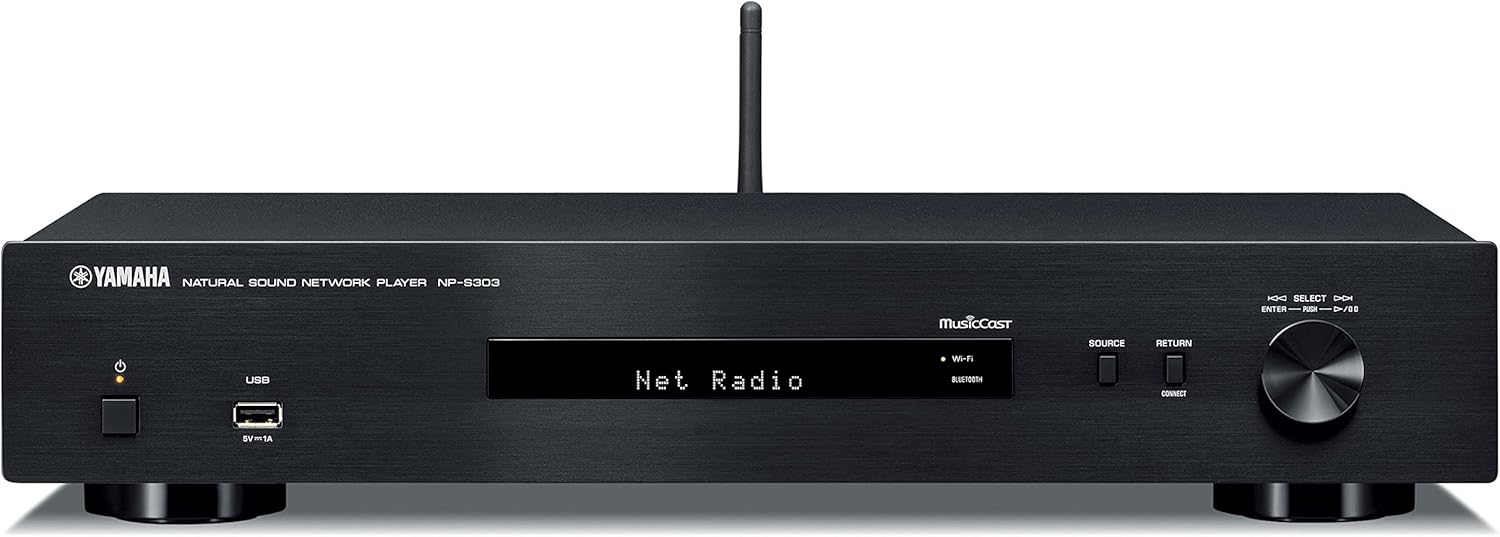
Figure 1: Front Panel. Shows the power button, USB port, display, source selection buttons, and rotary encoder.

Figure 2: Rear Panel. Displays analog audio outputs (RCA), digital audio outputs (coaxial and optical), network port, and AC power input.

Figure 3: Remote Control. Features buttons for power, mute, dimmer, presets, navigation, playback controls, and input selection.
Setup
1. Unpacking and Placement
- Carefully remove all components from the packaging.
- Place the NPS303 B on a stable, flat surface, away from direct sunlight, heat sources, and excessive dust or vibration. Ensure adequate ventilation around the unit.
2. Connecting to an Amplifier
Connect the NPS303 B to your amplifier using either the analog or digital audio outputs.
- Analog Connection (RCA): Use the supplied RCA audio cable to connect the ANALOG OUT (L/R) jacks on the NPS303 B to the corresponding analog input jacks on your amplifier.
- Digital Connection (Coaxial/Optical): For higher fidelity, connect either the COAXIAL or OPTICAL digital output on the NPS303 B to a compatible digital input on your amplifier or external DAC.
3. Network Connection
The NPS303 B supports both wired and wireless network connections.
- Wired (Ethernet): Connect an Ethernet cable from the NETWORK port on the rear panel of the NPS303 B to your router or network hub.
- Wireless (Wi-Fi): The unit has built-in Wi-Fi. For initial setup, it is recommended to use the MusicCast Controller app on your smartphone or tablet.
4. Power Connection
Connect the supplied power cord to the AC IN terminal on the rear panel of the NPS303 B, then plug the other end into a wall outlet.
5. Remote Control Batteries
Insert the two supplied AAA batteries into the remote control, ensuring correct polarity.
Operating Instructions
1. Powering On/Off
Press the POWER button on the front panel or the remote control to turn the unit on or off.
2. Initial Network Setup (Wi-Fi)
For wireless network setup, download the "MusicCast Controller" app from your device's app store (iOS or Android). Follow the on-screen instructions within the app to connect your NPS303 B to your Wi-Fi network.
3. Music Playback
- Streaming Services: Access popular music streaming services (e.g., Spotify) through the MusicCast Controller app.
- USB Playback: Connect a USB storage device to the front-panel USB terminal. Use the remote control or MusicCast app to navigate and play audio files. The NPS303 B supports FLAC and MP3 files from external USB drives.
- Bluetooth: Pair your smartphone or other Bluetooth-enabled device with the NPS303 B to stream audio wirelessly. Select "Bluetooth" as the source.
- AirPlay: For Apple devices, use AirPlay to stream audio directly to the NPS303 B.
- Network Audio: Stream music from your PC or NAS (Network Attached Storage) server connected to the same network.
4. Using the Remote Control
The remote control provides access to various functions:
- Source Selection: Buttons like NET, USB, BLUETOOTH allow direct selection of input sources.
- Navigation: Use the arrow keys and ENTER button to navigate menus on the unit's display.
- Playback Controls: Play, Pause, Stop, Skip Forward/Backward buttons control audio playback.
- Dimmer: Adjusts the brightness of the front panel display.
Maintenance
- Cleaning: Wipe the unit with a soft, dry cloth. Do not use abrasive cleaners, waxes, or solvents.
- Ventilation: Ensure that the ventilation openings are not blocked.
- Power Cord: Regularly check the power cord for any damage.
- Firmware Updates: Yamaha may release firmware updates to improve performance or add features. Check the Yamaha website or the MusicCast app for available updates.
Troubleshooting
| Problem | Possible Cause | Solution |
|---|---|---|
| No power | Power cord not connected securely. | Ensure the power cord is firmly plugged into the unit and the wall outlet. |
| No sound | Incorrect input selected on amplifier; cables not connected properly; volume too low. | Select the correct input on your amplifier. Check all audio cable connections. Increase volume on both the NPS303 B and amplifier. |
| Cannot connect to Wi-Fi | Incorrect Wi-Fi password; unit too far from router; network interference. | Verify Wi-Fi password. Move unit closer to router. Try restarting router. Use the MusicCast app for guided setup. |
| Remote control not working | Batteries are dead or inserted incorrectly; obstacle between remote and unit. | Replace batteries, ensuring correct polarity. Remove any obstacles. Ensure you are within range and pointing the remote at the unit's sensor. |
| USB playback issues | Unsupported file format; USB device not recognized. | Ensure files are in supported formats (FLAC, MP3). Try a different USB device or reformat the current one (FAT32 recommended). |
Specifications
| Model | NPS303 B |
| Brand | Yamaha Audio |
| Dimensions (W x H x D) | 43.5 x 8.57 x 28.89 cm (17.13 x 3.37 x 11.37 inches) |
| Weight | 2.72 kg (6 lbs) |
| Connectivity | Wi-Fi, Bluetooth, USB, Ethernet |
| Audio Output Mode | Stereo, Surround (5.1 channel configuration) |
| Compatible Devices | Smartphone, Amplifier, External DAC |
| Special Features | Wireless, Built-In Bluetooth, MusicCast compatibility |
| Power Source | Corded Electric |
| Included Accessories | Remote control, Batteries (AAA x2), Power cord, RCA audio cable |
Warranty and Support
Warranty Information
For detailed warranty information, please refer to the warranty card included with your product or visit the official Yamaha Audio website. Warranty terms and conditions may vary by region.
Customer Support
If you encounter any issues or have questions not covered in this manual, please contact Yamaha customer support. You can find contact information on the official Yamaha Audio website or through your local dealer.
Online Resources:
Related documentsNPS303 B


Ask a question about this manual
Ask about setup, troubleshooting, compatibility, parts, safety, or missing instructions. Manuals+ will review the question and use this page’s manual context to help answer it.