
BIKEVEE BKV-04
BIKEVEE Wired Bicycle Computer BKV-04 User Manual
Model: BKV-04 | Brand: BIKEVEE
1. Introduction
Thank you for choosing the BIKEVEE Wired Bicycle Computer BKV-04. This device is designed to provide accurate and essential cycling data, enhancing your riding experience. This manual will guide you through the installation, operation, and maintenance of your new bicycle computer. Please read it carefully before use to ensure optimal performance and longevity of the product.
2. Product Overview
Key Features
- Clock: 12H/24H format display.
- Stopwatch: Integrated timer for tracking ride duration.
- Unit Selection: Metric (km/h) or Imperial (m/h) alternative.
- Scan Mode: Automatic circulation through various data displays.
- Auto ON/OFF: Automatically powers on and off with bicycle movement.
- Real-time Data: Displays Current Speed, Average Speed, and Maximum Speed.
- Trip Data: Tracks Ride Time and Trip Distance.
- Odometer: Records total accumulated distance (ODO meter).
- LED Backlight: Green LED backlight for visibility in low-light conditions.
- Waterproof Design: Durable construction for all-weather use.
- Display: Big and bright display for easy readability.
- Battery Life: Designed for long battery life.
Package Contents

The BIKEVEE BKV-04 bicycle computer unit, featuring a clear LCD display showing time, speed, odometer, ride time, and distance.

The bicycle computer display illuminated with its green LED backlight, enhancing visibility in dim conditions.

All components included in the package: the computer unit, wired sensor, mounting bracket, magnet, rubber ring, rubber slice, and cable ties.
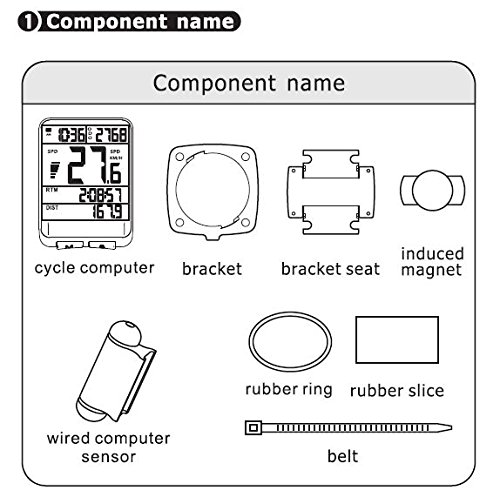
A diagram illustrating each component and its name: cycle computer, bracket, bracket seat, induced magnet, wired computer sensor, rubber ring, rubber slice, and belt (cable tie).
- BIKEVEE Bicycle Computer Unit
- Wired Speed Sensor
- Mounting Bracket and Bracket Seat
- Wheel Magnet
- Rubber Ring
- Rubber Slice (for padding)
- Cable Ties (Belt)
- Battery (CR2032, pre-installed or included separately)
3. Setup and Installation
3.1 Battery Installation
The computer uses a CR2032 button cell battery. If not pre-installed, open the battery cover on the back of the unit (usually by twisting counter-clockwise with a coin) and insert the battery with the positive (+) side facing up. Close the cover securely.

Rear view of the computer unit, showing the twist-lock battery compartment for the CR2032 battery.
3.2 Mounting the Bracket
- Choose a suitable location on your handlebar or stem for the bracket seat.
- Place the rubber slice (if provided) between the bracket seat and the handlebar to prevent slipping and protect the surface.
- Secure the bracket seat using the provided cable ties (belts). Ensure it is firmly attached and does not rotate.
- Slide the main bracket onto the bracket seat until it clicks into place.
3.3 Installing the Sensor and Magnet
- Attach the wired speed sensor to the front fork of your bicycle using cable ties. Position it so that the sensor head is aligned with the wheel spokes.
- Mount the magnet onto a spoke of the front wheel. Ensure the magnet is positioned to pass directly in front of the sensor head with a gap of approximately 1-3 mm. The magnet should not touch the sensor.
- Route the sensor wire neatly along the fork and up to the handlebar, securing it with cable ties to prevent it from interfering with moving parts.
- Plug the sensor wire into the port on the back of the computer's mounting bracket.
3.4 Attaching the Computer Unit
Slide the BIKEVEE computer unit onto the mounted bracket until it locks securely. Ensure it is facing you for easy viewing during your ride.
4. Operating Instructions

Bottom view of the computer unit, showing the 'M' (Mode) and 'S' (Set) buttons for navigation and settings.
4.1 Button Functions
- 'M' (Mode) Button: Press to cycle through different display modes (e.g., ODO, DST, MXS, AVS, TM). In setting mode, it confirms selections.
- 'S' (Set) Button: Press to enter setting mode or adjust values within setting mode. In normal display, it can activate the backlight or reset certain values.
4.2 Initial Settings (Wheel Circumference, Time, Units)
Upon first use or after battery replacement, you may need to set the wheel circumference, time, and measurement units.
- Wheel Circumference: Refer to your bicycle tire's sidewall for its size (e.g., 700x23C, 26x1.95). Consult a wheel circumference chart (available online) to find the corresponding value in millimeters (mm). Enter this value into the computer. This is crucial for accurate speed and distance readings.
- Unit Setting: Select between Kilometers per Hour (KM/H) or Miles per Hour (M/H) as your preferred unit of speed and distance.
- Clock Setting: Set the current time (12H or 24H format).
Typically, you enter setting mode by pressing and holding the 'M' or 'S' button (refer to specific instructions in your included manual if different). Use 'S' to change values and 'M' to confirm and move to the next setting.
4.3 Display Modes and Functions
- SPD (Current Speed): Displays your real-time cycling speed.
- ODO (Odometer): Shows the total accumulated distance. This value is usually stored even when the battery is removed.
- DST (Trip Distance): Displays the distance covered during the current ride. Can be reset for each trip.
- MXS (Maximum Speed): Shows the highest speed achieved during the current ride.
- AVS (Average Speed): Calculates the average speed for the current ride.
- TM (Ride Time): Displays the duration of the current ride.
- SCAN: Automatically cycles through DST, MXS, AVS, and TM displays.
- Backlight: Press the 'S' button (or as per specific model instructions) to activate the green LED backlight for a few seconds.
4.4 Resetting Trip Data
To reset Trip Distance (DST), Maximum Speed (MXS), Average Speed (AVS), and Ride Time (TM) for a new ride, typically press and hold the 'S' button while in the DST or TM display mode until the values reset to zero. The Odometer (ODO) cannot be reset.
5. Maintenance
- Cleaning: Wipe the computer unit and sensor with a soft, damp cloth. Do not use abrasive cleaners or solvents.
- Battery Replacement: Replace the CR2032 battery when the display becomes dim or erratic. Follow the battery installation steps.
- Storage: If storing the bicycle computer for an extended period, consider removing the battery to prevent leakage. Store in a cool, dry place.
- Sensor/Magnet Alignment: Periodically check the alignment of the sensor and magnet to ensure the 1-3mm gap is maintained for accurate readings.
6. Troubleshooting
| Problem | Possible Cause | Solution |
|---|---|---|
| No display or dim display | Dead or low battery; Incorrect battery installation. | Replace the CR2032 battery; Ensure battery is inserted correctly with positive (+) side up. |
| No speed reading / Incorrect speed reading | Sensor/magnet misalignment; Loose sensor wire connection; Incorrect wheel circumference setting; Damaged sensor or wire. | Adjust sensor and magnet to be 1-3mm apart; Check sensor wire is securely plugged into the bracket; Verify wheel circumference setting; Inspect sensor and wire for damage. |
| Display shows random figures | Interference from other electronic devices; Loose connection. | Ensure no strong magnetic or electronic interference nearby; Re-check all connections. |
| Backlight not working | Low battery; Backlight feature not activated correctly. | Replace battery; Press the 'S' button (or designated backlight button) to activate. |
| Buttons unresponsive | Unit frozen; Low battery. | Remove and reinsert battery to reset the unit; Replace battery. |
7. Technical Specifications
| Specification | Detail |
|---|---|
| Brand | BIKEVEE |
| Model Number | BKV 04 |
| Colour | Black |
| Display Type | LCD |
| Sensor Type | Speed Sensor |
| Connectivity Technology | Wired |
| Power Source | Battery (CR2032) |
| Mounting Type | Handlebar Mount |
| Human Interface Input | Buttons |
| Item Dimensions (LxWxH) | 6 x 4.5 x 1.8 Centimeters |
| Water Resistance | Waterproof |
8. Warranty and Support
For warranty information and customer support, please refer to the documentation provided at the time of purchase or contact your retailer. Keep your proof of purchase for any warranty claims.
For further assistance or technical queries, please reach out to BIKEVEE customer service through their official channels.
Related documentsBKV-04


Ask a question about this manual
Ask about setup, troubleshooting, compatibility, parts, safety, or missing instructions. Manuals+ will review the question and use this page’s manual context to help answer it.