
MERCUSYS AC12
MERCUSYS AC1200 Wireless Dual Band Router AC12 Instruction Manual
Model: AC12
1. Introduction
This manual provides detailed instructions for the installation, operation, and maintenance of your MERCUSYS AC1200 Wireless Dual Band Router, model AC12. Please read this guide thoroughly to ensure proper setup and optimal performance of your device.
The MERCUSYS AC1200 Router offers high-speed Wi-Fi connectivity with dual-band support, designed to provide reliable internet access for your home or office network.
2. Package Contents
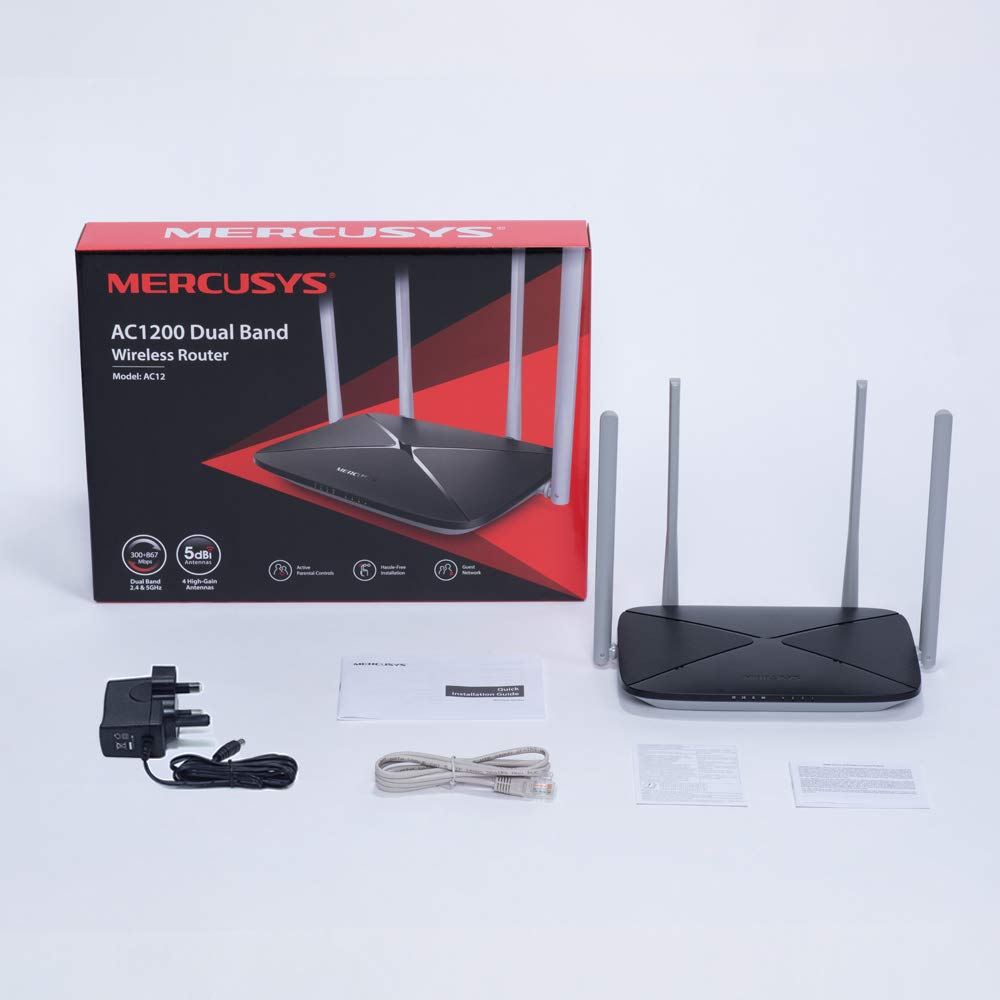
Verify that all items are present in your product package:
- MERCUSYS AC1200 Dual Band Wireless Router (AC12)
- Power adapter
- Quick installation guide
- Ethernet cable
3. Hardware Overview
3.1 Front Panel
The front panel features LED indicators that provide status information about the router's operation, including power, internet connection, and Wi-Fi activity.

3.2 Rear Panel
The rear panel contains all the physical ports and buttons necessary for connecting the router to your network and power source.
- WAN Port (Orange): Connects to your modem or internet service provider's (ISP) equipment.
- LAN Ports (Blue): Connects to wired devices such as computers, gaming consoles, or network printers. The AC12 model features 4 LAN ports.
- Power Input: Connects to the provided power adapter.
- Reset/WPS Button: Used to reset the router to factory settings or to initiate a Wi-Fi Protected Setup (WPS) connection.

3.3 Antennas
The router is equipped with four external 5dBi omni-directional antennas, designed to enhance wireless coverage and signal strength.

4. Setup Guide
Follow these steps to set up your MERCUSYS AC1200 Router:
- Connect Hardware:
- Power off your modem.
- Connect the modem's Ethernet cable to the WAN port (orange) of the AC12 router.
- Connect your computer to one of the LAN ports (blue) on the router using an Ethernet cable, or connect wirelessly using the default Wi-Fi name (SSID) and password printed on the router's label.
- Power on your modem, then power on the AC12 router.
- Configure Router via Web Interface:
Open a web browser on your connected computer or device. The intuitive webpage guides you through the setup process in minutes.
- Step 1: Create a unique login password for the router's management page.
- Step 2: Choose your internet service type and enter any required information provided by your ISP.
- Step 3: Set your wireless network name (SSID) and password for both 2.4 GHz and 5 GHz bands.

5. Operating Instructions
5.1 Dual Band Wi-Fi
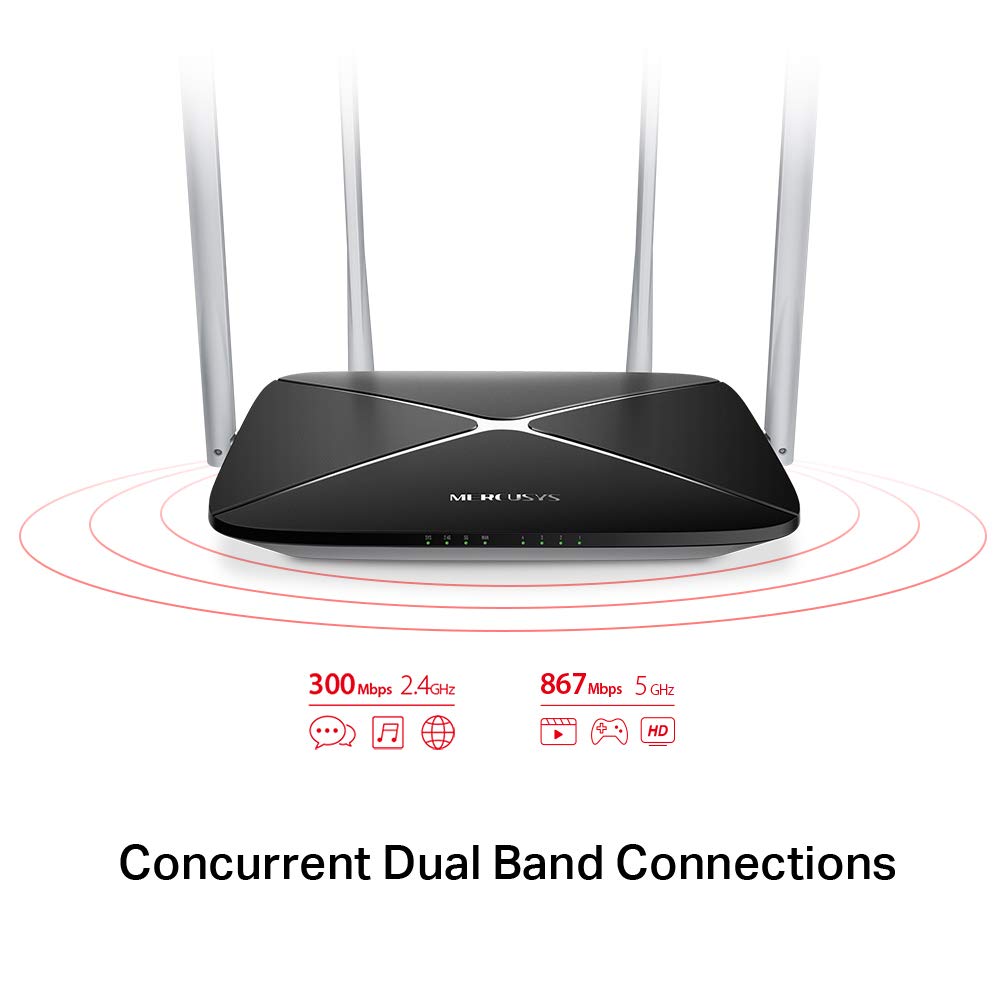
The AC1200 router operates on two distinct Wi-Fi bands:
- 2.4 GHz Band: Provides speeds of up to 300 Mbps, suitable for general internet use, web browsing, and email.
- 5 GHz Band: Offers faster speeds of up to 867 Mbps, ideal for online gaming, HD video streaming, and other bandwidth-intensive applications.
5.2 Enhanced Wireless Coverage
The four external 5dBi omni-directional antennas are designed to provide extensive wireless coverage and strong signal intensity throughout your home or office, minimizing weak spots and dropped connections.

5.3 Guest Network
The Guest Network feature allows you to provide secure Wi-Fi access to guests without sharing your main network password. This enhances security by isolating guest devices from your primary network resources.
5.4 Security Protocol
The router supports WPA-PSK / WPA2-PSK security protocols to protect your wireless network from unauthorized access.
6. Maintenance
- Firmware Updates: Regularly check the MERCUSYS official website for firmware updates to ensure optimal performance and security.
- Physical Cleaning: Keep the router clean and free from dust. Use a soft, dry cloth for cleaning. Do not use liquid cleaners.
- Placement: Place the router in a central location, away from obstructions and devices that may cause interference (e.g., microwaves, cordless phones).
- Restarting: If you experience network issues, try restarting the router by unplugging the power adapter for 10 seconds and then plugging it back in.
7. Troubleshooting
- No Internet Access:
- Check if the WAN port LED is lit. If not, ensure the Ethernet cable from your modem is securely connected.
- Verify that your modem is working correctly.
- Restart both your modem and router.
- Contact your Internet Service Provider (ISP) if the issue persists.
- Weak Wi-Fi Signal:
- Relocate the router to a more central position.
- Ensure antennas are positioned vertically.
- Minimize physical obstructions (walls, large furniture) between the router and your devices.
- Avoid placing the router near other electronic devices that may cause interference.
- Cannot Access Router's Web Management Page:
- Ensure your device is connected to the router (wired or wirelessly).
- Verify that you are using the correct IP address (e.g.,
192.168.1.1ormwlogin.net) in your web browser. - Clear your browser's cache or try a different browser.
- Forgot Wi-Fi Password or Login Password:
- You can reset the router to factory default settings by pressing and holding the Reset/WPS button on the rear panel for approximately 6-10 seconds until the LEDs flash. Note that this will erase all your custom settings.
8. Specifications
| Feature | Detail |
|---|---|
| Brand | MERCUSYS |
| Model Name | AC12 |
| Wireless Standard | 802.11ac |
| Frequency Band Class | Dual-Band (2.4 GHz & 5 GHz) |
| 2.4 GHz Wi-Fi Speed | Up to 300 Mbps |
| 5 GHz Wi-Fi Speed | Up to 867 Mbps |
| Antennas | 4 x 5dBi Omni-Directional Antennas |
| Ethernet Ports | 1 WAN, 4 LAN |
| Security Protocol | WPA-PSK / WPA2-PSK |
| Product Dimensions | 22.2 x 14 x 3.2 cm |
| Item Weight | 260 g |
| Voltage | 9 Volts |
| Operating System Compatibility | Windows (for setup via web interface) |
9. Warranty and Support
9.1 Warranty Information
This MERCUSYS AC1200 Router comes with a 3-year warranty. Please retain your purchase receipt for warranty claims. The warranty covers manufacturing defects under normal use conditions.
9.2 Technical Support
For technical assistance, please visit the official MERCUSYS website or contact their customer support. Manufacturer: TP-Link Technologies Co.,Ltd.
Related documentsAC12


Ask a question about this manual
Ask about setup, troubleshooting, compatibility, parts, safety, or missing instructions. Manuals+ will review the question and use this page’s manual context to help answer it.